How Often to Repaste Cpu: Ultimate Guide for Peak Performance
If you want your computer to run smoothly and stay cool, knowing how often to repaste your CPU is key. You might not realize it, but the thermal paste between your CPU and cooler wears out over time.
When that happens, your processor can overheat, slow down, or even get damaged. Wondering when exactly you should repaste your CPU? This article will guide you through the signs to watch for, the ideal timing, and simple tips to keep your system running at its best.
Keep reading to protect your investment and boost your computer’s performance.

Credit: softwareg.com.au
Why Repasting Matters
Repasting your CPU means replacing the thermal paste between the CPU and its cooler. This step is important to keep your computer running well. Over time, thermal paste dries out or gets less effective. This causes heat to build up inside the CPU. Repasting helps fix this problem and keeps your system cool.
Impact On Cpu Temperatures
Thermal paste helps move heat from the CPU to the cooler. Old or dried paste stops heat from moving efficiently. This makes the CPU hotter than it should be. Repasting lowers the temperature by improving heat transfer. Cooler CPUs last longer and run better.
Effect On System Stability
High CPU temperatures can cause crashes or slowdowns. Heat stress can make your system freeze or restart. Repasting reduces this risk by keeping the CPU cooler. A stable system means fewer interruptions and smoother work.
Performance Benefits
A cooler CPU can perform at its best. Heat can cause the CPU to slow down to protect itself. Repasting helps the CPU run faster and stay responsive. This means better performance for games, software, and everyday tasks.
Signs You Need To Repaste
Knowing when to repaste your CPU is key to keeping your computer running well. Thermal paste helps transfer heat from the CPU to the cooler. Over time, this paste can dry out or lose effectiveness. This causes higher temperatures and poor performance. Watch for clear signs your CPU needs fresh paste. Acting early saves your hardware and improves speed.
Overheating Issues
One of the first signs is your CPU running very hot. Check your system’s temperature using software tools. Temperatures above 80°C under normal use mean the paste might be old. Overheating can cause crashes or sudden shutdowns. Dry or degraded paste stops heat from moving away properly. Reapplying paste usually lowers these high temperatures.
Increased Fan Noise
Louder fan noise often means the CPU is hotter than usual. Fans spin faster to cool down the chip. This happens when thermal paste does not transfer heat well. You may notice your PC sounds louder than before. Constant high fan speed can wear out the fans faster. Fresh thermal paste helps keep the fan noise low.
Thermal Throttling Symptoms
Thermal throttling happens when the CPU slows down to avoid damage. Your computer feels slower or lags during tasks. This protects the CPU from overheating but reduces performance. Old thermal paste can cause this by letting the CPU get too hot. Repasting can stop throttling and restore normal speed.
Recommended Repasting Intervals
Knowing the right time to repaste your CPU helps keep it cool and working well. Thermal paste breaks down over time. This causes higher temperatures and lower performance. Different use cases need different repasting schedules. Here are recommended intervals based on how you use your computer.
Standard Usage Timelines
For most users, repasting every 3 to 5 years is enough. Normal tasks like browsing, watching videos, and office work do not stress the CPU much. Thermal paste stays effective for a long time here. Check temperatures yearly to spot any rise.
High-performance Scenarios
If you use your PC for gaming or video editing, repaste every 2 to 3 years. These tasks heat the CPU more. Paste can dry out faster under high heat. Regular repasting keeps temperatures steady and avoids slowdowns.
Extreme Overclocking Cases
Overclockers should repaste every 6 to 12 months. Overclocking pushes the CPU beyond normal limits. This creates much more heat and stress on the paste. Frequent repasting ensures good heat transfer and protects your CPU.
Choosing The Right Thermal Paste
Choosing the right thermal paste is key to keeping your CPU cool and working well. Thermal paste fills tiny gaps between the CPU and its cooler. This helps heat move away from the CPU quickly. The right paste keeps your computer running smooth and avoids overheating.
Types Of Thermal Pastes
There are three main types of thermal pastes: silicone, metal-based, and ceramic. Silicone pastes are easy to use and safe for most CPUs. Metal-based pastes conduct heat very well but can cause short circuits if not applied carefully. Ceramic pastes offer good heat transfer and are safe for electronics.
Factors To Consider
Pick a paste that matches your cooling needs and skill level. Look at thermal conductivity, which shows how well the paste moves heat. Also, check how long it lasts before drying out. Some pastes need reapplication after a year, others last much longer. Consider if your setup needs a non-conductive paste to avoid risks.
Top Brands To Trust
Brands like Arctic, Noctua, and Thermal Grizzly are popular for quality pastes. These brands offer reliable heat transfer and easy application. Their products often come with clear instructions. Choosing trusted brands helps avoid poor performance and protects your CPU.
Step-by-step Repasting Process
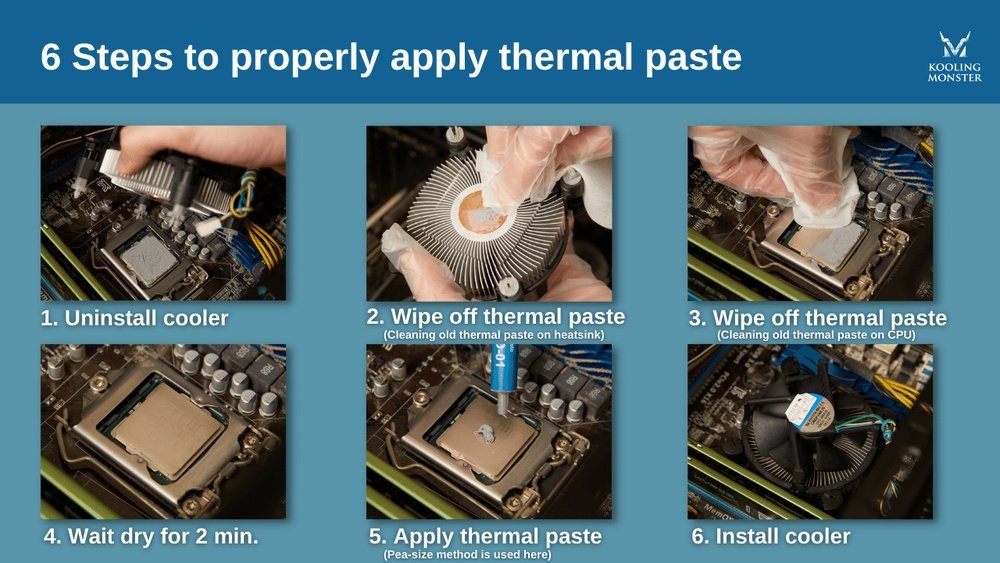
Repasting your CPU helps keep your computer cool and running well. This process involves removing old thermal paste and adding new paste. Follow these simple steps carefully to ensure the best results. Take your time and work with clean hands.
Preparing Your Workspace
Choose a clean, flat surface with good light. Gather all tools: screwdriver, isopropyl alcohol, lint-free cloth, and new thermal paste. Turn off your computer and unplug it. Ground yourself to avoid static damage to parts.
Removing The Old Paste
Remove the CPU cooler carefully. Use a lint-free cloth with isopropyl alcohol to wipe off old thermal paste. Clean the CPU and cooler base until no residue remains. Let both parts dry completely before moving on.
Applying New Paste Correctly
Apply a small pea-sized amount of new thermal paste on the CPU center. Avoid spreading it manually; the cooler will do this when reattached. Too much paste can cause overheating. Less is more in this step.
Reassembling And Testing
Place the cooler back on the CPU gently and secure it with screws. Reconnect any cables removed during disassembly. Power on your computer and check temperatures with software. Ensure the CPU runs cooler and stable after repasting.

Credit: www.reddit.com
Maintaining Optimal Cpu Cooling
Maintaining optimal CPU cooling is key to keeping your computer fast and safe. Good cooling stops the CPU from overheating. Overheating can slow down your computer or cause damage. Proper cooling helps your CPU last longer and work better.
Regular care of your CPU cooling system keeps it running well. This care includes cleaning, upgrades, and watching temperatures. Each step helps keep your CPU cool and your computer healthy.
Regular Cleaning Tips
Dust and dirt block air flow and trap heat. Clean your PC case and fans every few months. Use a soft brush or compressed air to remove dust. Clean the CPU cooler and heatsink carefully. This helps air flow and keeps the CPU cool.
Cooling System Upgrades
Older cooling parts may not work well. Replace thermal paste every 1 to 2 years to improve heat transfer. Upgrade to better fans or a stronger CPU cooler if needed. Liquid cooling can also offer better heat control. These upgrades keep your CPU temperatures low.
Monitoring Temperatures
Check your CPU temperature regularly with simple software tools. Watch for high temperatures, especially under load. High temps mean your cooling needs attention. Set alerts if temperatures go above safe limits. Monitoring helps you act before damage happens.

Credit: www.youtube.com
Frequently Asked Questions
How Often Should I Repaste My Cpu Thermal Paste?
You should repaste your CPU every 2 to 3 years for optimal cooling. If you notice higher temperatures or unstable performance, repasting sooner is advisable.
What Are Signs My Cpu Needs Repasting?
Signs include rising temperatures, noisy fans, and unexpected shutdowns. If your CPU runs hotter than usual, it likely needs fresh thermal paste.
Can Old Thermal Paste Damage My Cpu?
Old thermal paste can dry out and lose effectiveness, causing overheating. While it usually won’t damage the CPU directly, poor cooling may lead to hardware issues over time.
Is Repasting Necessary After Removing The Cpu Cooler?
Yes, you should always clean off old paste and apply new thermal paste after removing the cooler. This ensures proper heat transfer and prevents overheating.
Conclusion
Repasting your CPU helps keep it cool and working well. Check the thermal paste every two to three years. Signs like high temperatures or noisy fans mean it’s time to repaste. Use good quality paste and clean the old one off fully.
Taking care of your CPU this way can stop problems before they start. Simple steps make a big difference in your computer’s life. Stay aware and keep your system running smoothly.