How to Install Win 11 on Unsupported Cpu: Easy Step-by-Step Guide
Are you eager to try Windows 11 but worried your CPU isn’t supported? You’re not alone.
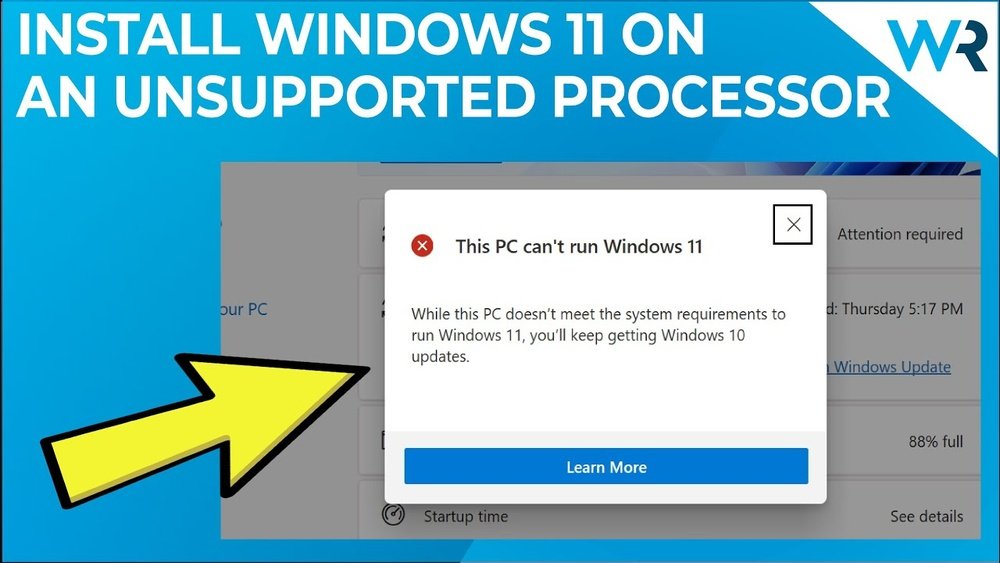
Many users face this roadblock and feel stuck. The good news is, you don’t have to give up on upgrading your system just yet. You’ll discover simple, step-by-step methods to install Windows 11 on an unsupported CPU. By the end, you’ll have the confidence to make your PC run the latest Windows smoothly—without buying new hardware.
Keep reading to unlock the secrets that make this possible.

Credit: www.theverge.com
Check Compatibility Requirements
Before installing Windows 11 on an unsupported CPU, check if your system meets basic requirements. This step helps avoid errors during installation. It saves time and effort. Knowing compatibility details guides you in preparing your device properly.
Identify Unsupported Cpus
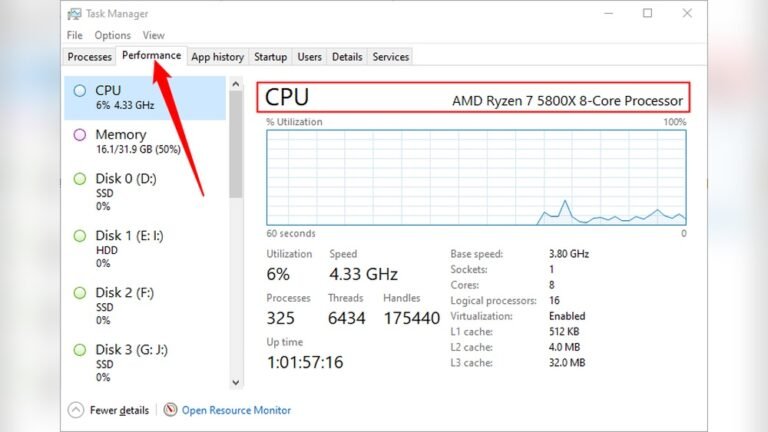
Windows 11 needs specific CPUs for smooth performance. Older processors may not appear on Microsoft’s supported list. Common unsupported CPUs include some Intel 7th generation and AMD Ryzen 1000 series. Check your CPU model in system settings or use a tool like CPU-Z. Confirm if your processor is listed as unsupported by Microsoft.
System Requirements Overview
Windows 11 needs at least a 1 GHz dual-core 64-bit processor. Your PC must have 4 GB RAM and 64 GB storage minimum. TPM 2.0 and Secure Boot support are required. Graphics should support DirectX 12 or later. Screen resolution must be 720p or higher. These requirements ensure Windows 11 runs without major issues.

Credit: www.theverge.com
Prepare Your Pc For Installation
Preparing your PC before installing Windows 11 on an unsupported CPU is important. This step helps avoid data loss and installation errors. Follow these instructions carefully to get your PC ready for the new operating system.
Backup Important Data
Save all your important files to an external drive or cloud storage. This includes documents, photos, videos, and any other personal data. Backing up ensures you do not lose anything if the installation fails or causes issues. Use simple tools like File Explorer or backup software to copy your data safely.
Create Windows 11 Installation Media
Download the official Windows 11 ISO file from Microsoft’s website. Use a USB drive with at least 8 GB of space. Create bootable installation media using tools like Rufus or the Windows Media Creation Tool. This USB will help you install Windows 11 on your PC. Make sure the USB is properly prepared before starting the installation process.
Modify Registry Settings
Modifying registry settings is a key step to install Windows 11 on unsupported CPUs. This process helps bypass the strict hardware checks that block installation. By changing a few values in the registry, you can make Windows 11 accept your CPU and other hardware.
Editing the registry requires care. A small mistake can cause system issues. Follow the steps carefully to avoid problems.
Access Registry Editor
Press Windows + R keys to open the Run dialog. Type regedit and press Enter. This opens the Registry Editor. If a User Account Control prompt appears, click Yes to allow access.
Registry Editor shows a tree of folders. These folders hold all system settings. You will navigate to specific keys to modify values.
Bypass Cpu Compatibility Check
Navigate to HKEY_LOCAL_MACHINESYSTEMSetupMoSetup. If the MoSetup key does not exist, create it by right-clicking Setup, then select New > Key and name it MoSetup.
Inside MoSetup, right-click on the right panel. Choose New > DWORD (32-bit) Value. Name it AllowUpgradesWithUnsupportedTPMOrCPU.
Double-click this value and set its data to 1. Click OK to save. This change allows Windows to bypass CPU checks during installation.
Disable Tpm And Secure Boot Checks
In the same MoSetup folder, create another DWORD (32-bit) Value. Name it BypassTPMCheck. Set its data to 1.
Create one more DWORD (32-bit) Value named BypassSecureBootCheck. Set this value to 1 as well.
These settings stop Windows 11 from checking TPM and Secure Boot status. It makes the setup process smoother on unsupported hardware.
Use Official Microsoft Tools
Using official Microsoft tools is the safest way to install Windows 11 on unsupported CPUs. These tools help create a clean installation environment. They also reduce errors during setup. Microsoft provides reliable software to download and prepare Windows 11 files.
Following this method ensures your installation is genuine. It also keeps your system secure. You avoid third-party risks like malware or corrupted files. Microsoft’s tools work well even if your CPU is not officially supported.
Download Windows 11 Iso
Start by downloading the Windows 11 ISO file from Microsoft’s website. The ISO is a disk image that contains all installation files. Choose the right edition and language before downloading. The file size is large, so use a stable internet connection. Save the ISO in an easy-to-find folder on your PC.
Using the official ISO ensures you get the latest version. It also comes without unwanted software. This step is crucial for a smooth installation process on unsupported CPUs.
Use Media Creation Tool
The Media Creation Tool helps you make a bootable USB drive or DVD. This tool formats your USB and copies Windows 11 files onto it. Insert a USB drive with at least 8 GB of space. Run the Media Creation Tool and follow the on-screen steps. Select “Create installation media” and pick your USB device.
This tool makes the installation media ready for booting. It allows you to install Windows 11 on different hardware. Using the Media Creation Tool avoids manual errors and missing files. It is the best way to prepare for installing Windows 11 on unsupported CPUs.
Custom Installation Methods
Custom installation methods allow users to install Windows 11 on unsupported CPUs. These methods bypass official hardware checks. They offer a way to experience Windows 11 without new hardware. This section covers two popular custom installation approaches.
Create A Modified Iso
Creating a modified ISO involves changing the Windows 11 installation files. It removes CPU and TPM checks that block installation. Users start by downloading the official Windows 11 ISO file. Then, tools like Rufus or DISM help modify the files.
This method requires some technical skills. It allows a clean installation of Windows 11. Modified ISOs support both fresh installs and upgrades. The process ensures the system does not reject your CPU during setup.
Use Third-party Tools
Third-party tools simplify installing Windows 11 on unsupported CPUs. These tools automate bypassing hardware checks and tweaking settings. Examples include scripts and software designed for easy use. They guide users step-by-step through the installation.
These tools reduce errors during setup. They help users avoid complex manual changes. Using trusted tools improves the chances of a successful install. It is important to download them from reliable sources.
Perform The Installation
Performing the installation of Windows 11 on an unsupported CPU requires careful steps. This process lets you run the new OS despite hardware limits. Follow each instruction closely for a smooth setup. Prepare your PC and installation media before starting.
Boot From Installation Media
Insert your USB or DVD with Windows 11 setup. Restart the PC and enter the boot menu. Select the USB or DVD as the first boot option. Wait until the Windows logo appears. This confirms the system is booting from your media.
Follow On-screen Steps
Choose your language, time, and keyboard preferences. Click “Install Now” to begin the process. Enter your product key or skip this step. Select “Custom Installation” to install fresh Windows 11. Choose the drive where you want to install the OS. Confirm and start the installation.
Troubleshoot Common Errors
Errors may occur if CPU checks fail. Use registry tweaks or bypass tools before setup. Check for error codes like 0xC1900101 or 0x80070070. Restart and try again if the setup freezes. Ensure your installation media is not corrupted. Use Microsoft’s tool to create fresh media if needed.
Post-installation Steps
After installing Windows 11 on an unsupported CPU, some important steps come next. These steps ensure your system runs smoothly and stays secure. Proper setup helps avoid errors and improves performance. Follow these simple actions to get the best experience from your new installation.
Install Drivers And Updates
Installing the right drivers is crucial. Drivers connect your hardware to the operating system. Without updated drivers, devices may not work properly. Use Device Manager to check for missing drivers. Visit your PC maker’s website for the latest drivers too. Next, run Windows Update. This step brings security patches and system fixes. Updates also improve compatibility with your CPU and other hardware.
Verify System Stability
After updates, test your system’s stability. Watch for crashes or slowdowns. Run basic tasks like browsing, typing, and playing videos. Check if all devices work correctly. Stress tests can help identify hidden problems. Use tools like Task Manager to monitor CPU and memory use. If issues appear, consider reinstalling drivers or updates. Stable performance means your setup is successful and ready to use daily.

Credit: blog.mrkeyshop.com
Risks And Limitations
Installing Windows 11 on an unsupported CPU can be tempting. It allows users to try the new system without upgrading hardware. Still, this approach carries several risks and limits. Understanding these issues helps in making a safer choice.
Potential Performance Issues
Unsupported CPUs may slow down the system. Windows 11 might not run smoothly. Some apps could freeze or crash. Users may see longer load times. The system could become unstable during heavy tasks. These problems affect daily use and productivity.
Lack Of Official Support
Microsoft does not offer updates for unsupported CPUs. Security patches and feature updates might stop. Help from Microsoft support is unavailable. Users cannot report bugs or get fixes easily. This leaves the system more vulnerable and outdated.
Security Considerations
Unsupported CPUs may miss critical security updates. This raises the risk of malware and attacks. The system may lack protection against new threats. Sensitive data could be at risk. Extra care is needed to keep the device safe.
Frequently Asked Questions
Can I Install Windows 11 On An Unsupported Cpu?
Yes, you can install Windows 11 on unsupported CPUs by modifying the installation files or using registry tweaks. However, this may lead to limited support and stability issues. Proceed with caution and back up your data before starting the installation.
What Are The Risks Of Installing Windows 11 On Unsupported Cpus?
Installing Windows 11 on unsupported CPUs may cause system instability, driver issues, and no official updates. Microsoft may block future updates, impacting security. Always weigh these risks before proceeding and ensure you have a recovery plan.
How Do I Bypass Cpu Checks During Windows 11 Installation?
You can bypass CPU checks by editing the Windows Registry or using third-party scripts and tools. These methods skip compatibility checks, allowing installation on unsupported CPUs. Follow trusted guides carefully to avoid errors and ensure a smooth installation process.
Will Windows 11 Run Smoothly On Older Cpus?
Windows 11 may run on older CPUs but could experience slower performance and compatibility problems. Features like TPM 2. 0 and Secure Boot are critical for optimal operation. Expect reduced functionality and occasional glitches on unsupported hardware.
Conclusion
Installing Windows 11 on an unsupported CPU is possible with care. Follow the steps carefully to avoid errors and data loss. This method helps you use Windows 11 even on older devices. Remember to back up your files before starting.
Stay patient and take your time during the process. Enjoy the new features Windows 11 offers, even on unsupported hardware. This guide makes the task easier and clear for all users. Keep your system safe and updated after installation for best results.