How to Check Cpu Temps Windows 10: Easy Steps for Accurate Monitoring
Are you worried that your computer might be running too hot? Knowing how to check your CPU temps in Windows 10 is one of the simplest ways to keep your PC safe and running smoothly.
If your processor gets too warm, it can slow down your system or even cause damage. But don’t worry—you don’t need to be a tech expert to find out your CPU temperature. You’ll learn easy and effective methods to monitor your CPU temps quickly.
Keep reading, and you’ll gain the confidence to protect your computer before overheating becomes a problem.

Credit: softwareg.com.au
Why Monitor Cpu Temps
Monitoring your CPU temperature is important for your computer’s health. It helps you understand how hard your CPU is working. Keeping an eye on temps can prevent many problems. You can keep your PC running smoothly and safely.
Impact On Performance
High CPU temperatures can slow down your computer. The CPU reduces speed to cool down. This causes programs to run slower. Watching temps helps avoid this slowdown. It keeps your system fast and responsive.
Preventing Overheating
Overheating can cause your PC to shut down suddenly. It can also damage important parts. Monitoring temps lets you spot heat issues early. You can fix cooling problems before damage occurs. This keeps your computer stable and safe.
Extending Hardware Life
Heat wears out computer parts faster. Running hot for a long time shortens CPU life. Checking temps helps you keep your CPU cool. Cooler parts last longer and work better. This saves money on repairs and upgrades.
Tools For Checking Cpu Temps
Checking your CPU temperature helps keep your computer safe and running well. Various tools let you see this important data. Some are built into Windows 10, while others need extra software. Even your computer’s BIOS or UEFI can show CPU temps. Each method has its own way to access the temperature readings.
Built-in Windows Options
Windows 10 does not show CPU temperature directly in the system. You can use the Task Manager to check CPU usage, but not temp. For temperature, you need to use the Windows PowerShell or Command Prompt with certain commands. These methods are basic and might not work on all systems. They provide limited info compared to other tools.
Third-party Software
Many free and paid apps display CPU temperatures clearly. Popular programs include HWMonitor, Core Temp, and SpeedFan. These tools show real-time temperature, fan speeds, and voltages. They are easy to install and use. You can monitor multiple hardware sensors at once. Such software gives detailed info for better computer care.
Bios And Uefi Methods
The BIOS or UEFI firmware shows CPU temps during startup. Restart your PC and enter BIOS/UEFI by pressing keys like Del or F2. Find the hardware or system health section. This method shows temps before Windows loads. It helps check if your CPU runs hot at a basic level. BIOS readings are simple but reliable.
Using Task Manager And Settings
Checking CPU temperature is important to keep your computer safe. Windows 10 offers basic tools to check some performance details. Task Manager and Settings help you see how your CPU runs. They do not show exact temperature but can give clues about CPU health.
Accessing Performance Tab
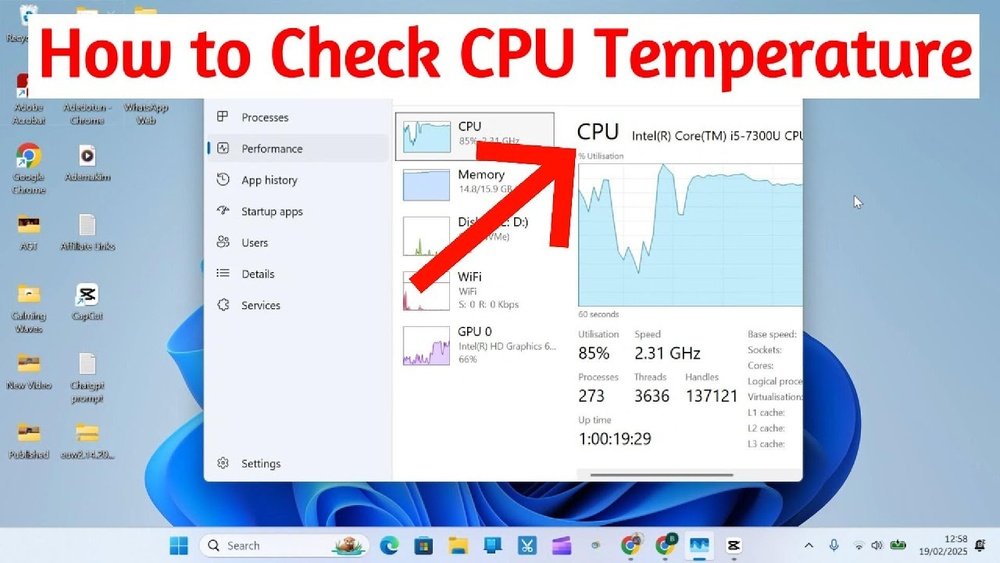
Open Task Manager by pressing Ctrl + Shift + Esc. Click the Performance tab at the top. Here, you see CPU usage and speed in real time. This tab shows how hard your CPU works. It helps to guess if your CPU is too hot. High usage for long time may raise temperature. But, it does not show the temperature number itself.
Limitations Of Built-in Tools
Task Manager and Settings do not show CPU temperature directly. Windows 10 lacks a built-in temperature monitor. The tools show usage, speed, and power but no heat data. You cannot rely on them for precise temperature info. For exact CPU temps, third-party software is needed. This limits the usefulness of Windows’ built-in tools for temperature checks.
Popular Third-party Apps
Third-party apps help you check CPU temperatures on Windows 10 easily. These tools show real-time data and detailed info. They are simple to use and free or low cost. Many users trust these apps for accurate temperature readings.
Here are three popular apps that work well on most Windows 10 PCs.
Core Temp
Core Temp is a small and easy app. It shows the temperature of each CPU core separately. The app updates the data every second. It also shows processor model and frequency. Core Temp is light on your system and works quietly in the background.
Hwmonitor
HWMonitor displays temperatures, voltages, and fan speeds. It supports many hardware types, not just CPU. The interface is simple but full of useful data. You can check all system sensors in one place. HWMonitor helps you see if your PC is running too hot.
Speedfan
SpeedFan reads temperatures and controls fan speeds. It helps keep your PC cool by adjusting fans automatically. The app also shows hard drive temperatures. SpeedFan is good for users who want more control over cooling. It has a simple interface but many powerful features.
Step-by-step Guide For Core Temp
Checking CPU temperature helps keep your computer safe and running well. Core Temp is a simple tool for this task. It shows real-time temperatures for each CPU core. This guide will help you install and use Core Temp easily.
Downloading And Installing
First, visit the official Core Temp website. Click the download link for the latest version. Save the setup file to your computer. Open the file and follow the installation steps. Choose default settings unless you want to change them. Wait for the installation to finish. Core Temp is now ready to use.
Navigating The Interface
Open Core Temp from the desktop or start menu. The main window shows your CPU model and speed. Below, you see temperature readings for each CPU core. The interface is simple with few buttons. You can access settings from the menu bar. The status bar shows current CPU load and frequency.
Interpreting Temperature Readings
Core Temp displays temperatures in Celsius by default. Each core has its own temperature reading. Normal CPU temperature ranges from 30°C to 60°C. Temperatures above 80°C may cause problems. Watch for sudden spikes or constant high readings. Use these numbers to check if your cooling works well.

Credit: softwareg.com.au
Checking Temps Via Bios/uefi
Checking your CPU temperature via BIOS or UEFI is a reliable way to see how hot your processor runs. This method shows the temperature directly from the hardware, without extra software. It helps to find any heating issues early and keep your PC safe. Let’s explore how to check CPU temps using BIOS or UEFI on Windows 10.
Accessing Bios/uefi On Windows 10
Start by restarting your computer. Press the correct key during the boot process. Common keys are F2, Delete, or Esc. Your screen may show which key to press. Press it quickly before Windows loads.
If unsure, check your PC’s manual or manufacturer website. You can also enter BIOS from Windows settings. Go to Settings > Update & Security > Recovery. Click Restart now under Advanced startup. After reboot, choose Troubleshoot > Advanced options > UEFI Firmware Settings. Click Restart to enter BIOS/UEFI.
Locating Cpu Temperature Section
Once in BIOS/UEFI, look for hardware or system monitoring menus. Names like “Hardware Monitor,” “PC Health Status,” or “System Status” are common. Navigate using arrow keys or mouse, depending on your BIOS type.
Inside this menu, find CPU temperature readings. It usually shows current temperature in Celsius or Fahrenheit. Some BIOS versions display minimum and maximum temps as well. Note the number to check if your CPU runs too hot.
Tips For Accurate Monitoring
Accurate CPU temperature monitoring helps protect your computer from overheating. It also improves performance and extends hardware life. Small mistakes can give wrong temperature readings. Follow these tips to get precise and reliable results.
Running Monitoring Apps With Admin Rights
Some monitoring tools need admin rights to access CPU sensors. Without these rights, the app might show incorrect or no data. Right-click the app icon and select “Run as administrator” each time. This step ensures the app reads temperature values correctly.
Avoiding Background Processes
Background apps use CPU resources and change temperature readings. Close unused programs before checking CPU temps. This reduces CPU load and gives more stable temperature results. Use Task Manager to end unnecessary tasks quickly and safely.
Regularly Updating Software
Old monitoring software may not support new hardware well. Updates fix bugs and improve sensor readings. Keep your apps and Windows system updated for best accuracy. Check for updates regularly and install them promptly.

Credit: www.youtube.com
What To Do If Temps Are High
High CPU temperatures can cause your computer to slow down or even shut off. It is important to lower the temperature quickly to protect your PC. Several simple steps can help cool your CPU and keep it running smoothly.
Cleaning Dust And Debris
Dust blocks airflow and traps heat inside your computer. Use a can of compressed air to blow dust from fans and vents. Make sure to clean the CPU fan carefully. Remove any dust buildup on the heatsink as well. Regular cleaning helps your computer stay cool.
Improving Airflow
Good airflow moves hot air away from your CPU. Keep your PC in a well-ventilated area. Avoid placing it in tight spaces or near walls. Organize cables inside the case to prevent air blockage. Adding extra fans can boost airflow and lower temperatures.
Applying New Thermal Paste
Thermal paste helps transfer heat from the CPU to the cooler. Over time, it can dry out and lose effectiveness. Remove the old paste with isopropyl alcohol. Apply a small, pea-sized amount of new thermal paste. This can reduce CPU temperature by improving heat transfer.
Checking For Malware
Malware can cause your CPU to work too hard, raising its temperature. Run a full scan with your antivirus software. Remove any detected threats immediately. Keeping your PC clean from malware helps maintain normal CPU temperatures.
Frequently Asked Questions
How Do I Check Cpu Temperature On Windows 10?
You can check CPU temperature using third-party software like HWMonitor or Core Temp. These tools provide real-time temperature readings easily.
Is There A Built-in Tool To Monitor Cpu Temps In Windows 10?
Windows 10 does not have a built-in CPU temperature monitor. You need to use third-party apps for accurate readings.
What Is A Safe Cpu Temperature Range On Windows 10?
A safe CPU temperature is generally between 30°C and 70°C during regular use. Temperatures above 85°C may cause issues.
Can High Cpu Temps Affect Windows 10 Performance?
Yes, high CPU temperatures can cause thermal throttling. This slows performance and may lead to system instability or crashes.
Conclusion
Checking CPU temps on Windows 10 helps keep your computer safe. You can use simple tools to see how hot your CPU gets. Watching these temps lets you avoid problems like overheating. Keep an eye on your CPU during heavy use or gaming.
Staying aware helps your PC run smoothly and last longer. Remember, regular checks are easy and important for your device’s health.


