How to Up Ram Speed: Boost Your PC Performance Fast
Want your computer to run faster and smoother without spending a fortune? Boosting your RAM speed can make a huge difference in how your system performs.
If you’ve ever felt frustrated by slow loading times or laggy apps, learning how to up your RAM speed could be the game-changer you need. You’ll discover simple, effective steps to get the most out of your memory and speed up your PC right now.
Ready to unlock your computer’s full potential? Let’s dive in.
Credit: www.shoshitamam.com
Check Current Ram Speed
Knowing your current RAM speed helps you decide if an upgrade is needed. It tells you how fast your memory works with your computer. This information guides your next steps for improving performance.
Checking RAM speed is easy with built-in tools or simple software. You can also find details on your RAM’s label or packaging. Start by seeing what your system already has.
Use System Information Tools
Most computers have tools that show hardware details. On Windows, open Task Manager and go to the Performance tab. Click on Memory to see the speed in MHz.
Mac users can click the Apple menu, then About This Mac. Select System Report, then Memory. The speed appears in the memory specifications.
These tools give quick and reliable info about your current RAM speed.
Identify Ram Specifications
Look at the physical RAM modules inside your computer. There is usually a sticker with speed information, like DDR4-3200 or PC4-25600.
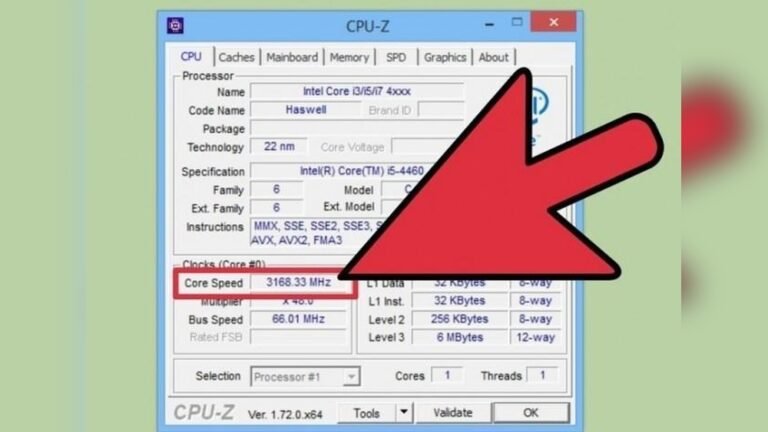
If you cannot open your PC, check the original purchase details or use software like CPU-Z. It shows RAM type, size, and speed clearly.
Understanding your RAM specs helps you find matching or faster memory for upgrades.
Enable Xmp Profiles
Enabling XMP profiles is an effective way to increase your RAM speed. XMP, or Extreme Memory Profile, allows your motherboard to run RAM at higher speeds than the default settings. Most RAM sticks come with pre-set XMP profiles designed to boost performance safely. Activating these profiles helps your computer use the RAM at its best capacity without manual tuning.
Access Bios Settings
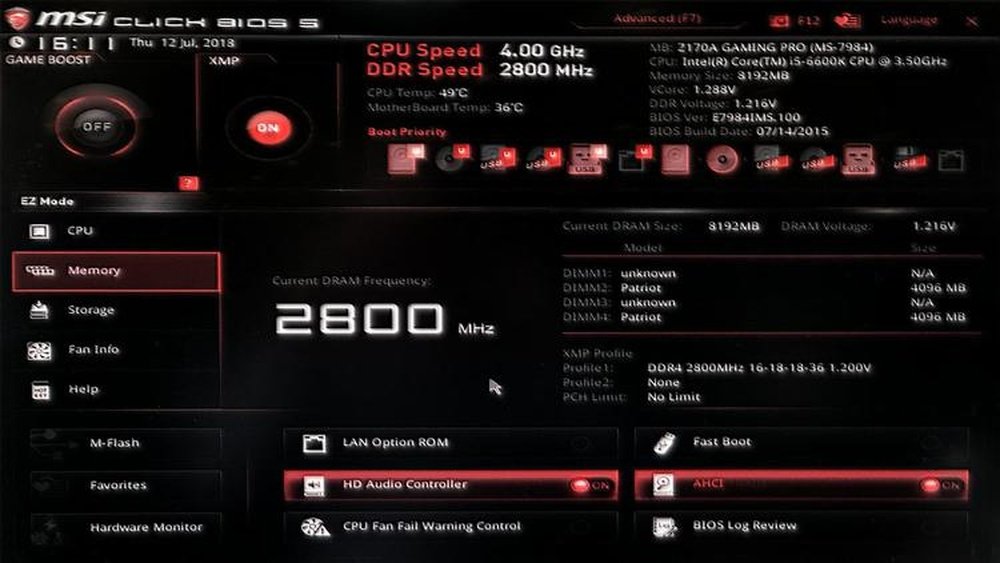
Start by restarting your computer and entering the BIOS menu. Press the key shown on the screen during startup, usually Delete, F2, or F10. The BIOS is a simple interface where you can change hardware settings. Use your keyboard to navigate inside the BIOS. Look for a tab named “Overclocking”, “AI Tweaker”, or “Advanced Memory Settings”. This section holds the XMP options.
Select Appropriate Xmp Profile
Find the option labeled XMP or DOCP and enable it. Your RAM may have one or more profiles available. Choose the profile with the highest frequency supported by your motherboard. Confirm the changes and save your settings before exiting. After reboot, your RAM will run at the faster speed set by the XMP profile.
Manually Adjust Ram Timings
Manually adjusting RAM timings lets you control how fast your RAM responds. This can improve your computer’s speed and performance. It requires some knowledge and patience but can be rewarding.
RAM timings are the delays between different operations inside the memory. Tweaking these can reduce wait times and make your system feel faster. Start slow and test changes carefully to avoid crashes.
Understand Timing Parameters
RAM timings have several key numbers. The most common are CAS Latency (CL), RAS to CAS Delay (tRCD), Row Precharge Time (tRP), and Cycle Time (tRAS). Each shows a delay in clock cycles.
Lower numbers mean faster response but can cause instability. Higher numbers are safer but slower. Knowing these helps you decide what to adjust.
Step-by-step Timing Adjustment
First, enter your BIOS or UEFI setup by pressing a key during boot (usually DEL or F2). Find the memory or DRAM settings section.
Locate the timing settings. They might be set to “Auto” or show default values.
Change one timing value at a time, such as lowering CAS Latency by one step. Save and restart your computer.
Run a memory test tool to check for errors or crashes. If stable, try adjusting another timing.
Keep testing after each change. Stop if your system becomes unstable and revert to the last stable setting.

Credit: www.molnlyckedjurklinik.se
Increase Ram Voltage Safely
Increasing RAM voltage can help improve RAM speed and system performance. This process requires care to avoid damage or instability. You must increase voltage safely, step by step, and check your system’s response.
Raising RAM voltage beyond safe limits risks overheating and hardware failure. Follow guidelines to keep your computer stable and extend its lifespan.
Check Manufacturer Recommendations
Start by reviewing your RAM and motherboard manuals. Manufacturers list safe voltage ranges for your hardware. Never exceed these limits. Use this information as your safety guide. Different RAM models need different voltages. Stick to the recommended values for best results.
Monitor System Stability
After increasing voltage, watch your system closely. Run memory tests and observe for crashes or errors. Use software tools to check RAM health and temperatures. If problems arise, lower the voltage immediately. Stability is crucial for smooth performance and data safety.
Upgrade To Faster Ram Modules
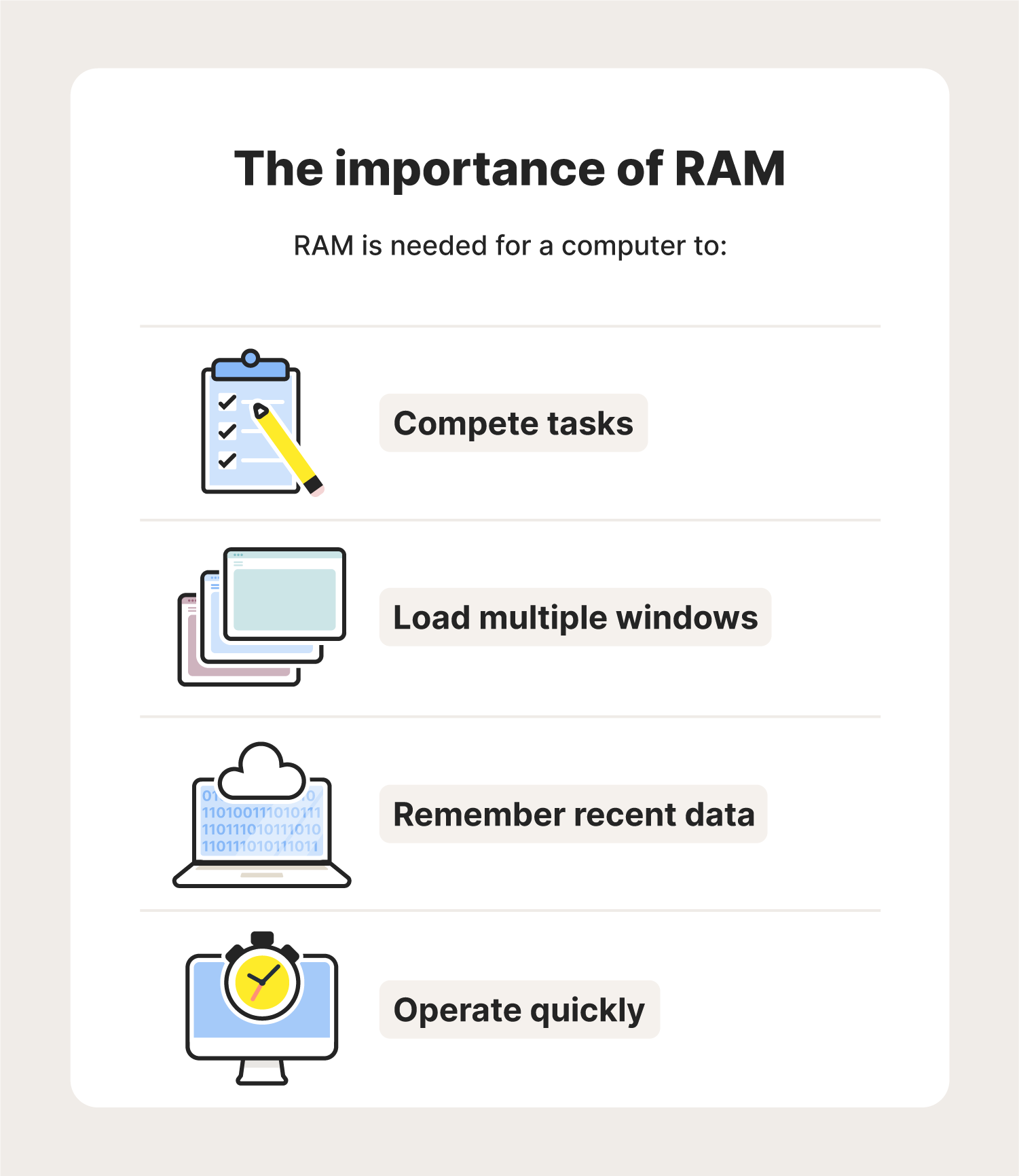
Upgrading to faster RAM modules can significantly boost your computer’s performance. Faster RAM improves data access speed, helping programs run smoother. It also reduces lag during multitasking and gaming. Choosing the right RAM upgrade is key to better speed and stability.
Choose Compatible Ram
Check your motherboard’s specifications to find compatible RAM types. Match the RAM speed and size with your system’s requirements. Using incompatible RAM can cause errors or prevent your PC from starting. Look for DDR4 or DDR5 modules based on what your motherboard supports.
Consider Dual Or Quad Channel Setup
Dual or quad channel RAM setups increase memory bandwidth. This setup uses two or four RAM sticks working together for faster data transfer. Install RAM sticks in matching pairs or sets for best performance. This simple change can boost your system speed without extra cost.
Credit: us.norton.com
Optimize System For Performance
Optimizing your system improves overall speed and helps your RAM work better. Small changes in settings and updates can boost performance. These steps make your computer faster and more stable. Focus on updating key software and managing tasks to get the most from your RAM.
Update Bios And Drivers
BIOS controls hardware functions including RAM speed. An outdated BIOS may slow down your system. Check your motherboard manufacturer’s website for the latest BIOS version. Follow instructions carefully to update it safely.
Device drivers also impact performance. Graphics, chipset, and memory controller drivers are important. Download and install the newest drivers from trusted sources. This ensures hardware and software work smoothly together.
Manage Background Processes
Many apps run in the background and use RAM without your knowledge. These slow down your computer and reduce available memory. Open Task Manager to see running processes.
End tasks that use a lot of RAM but are not needed. Disable unnecessary startup programs to free memory at boot. This simple step helps your RAM focus on active tasks and speeds up your system.
Test And Monitor Ram Performance
Testing and monitoring RAM performance is important after any upgrade or adjustment. It helps confirm if the changes improved speed and stability. Monitoring also detects hidden issues that can slow down your system. Regular checks keep your computer running smoothly. Below are key methods to test and monitor RAM effectively.
Use Benchmarking Tools
Benchmarking tools measure RAM speed and performance. They run tests that show how fast your RAM reads and writes data. Popular tools include AIDA64, PassMark, and UserBenchmark. These tools provide clear scores to compare before and after upgrades. Running benchmarks regularly tracks changes over time.
Check For Errors And Stability
Errors in RAM cause crashes and slow performance. Use programs like MemTest86 or Windows Memory Diagnostic to scan for faults. These tools stress test RAM and find unstable modules. Testing ensures your RAM runs without errors at higher speeds. Fixing errors improves overall system reliability.
Frequently Asked Questions
How Can I Increase My Ram Speed Safely?
You can increase RAM speed by enabling XMP profiles in BIOS. Ensure your motherboard and RAM support higher speeds. Update your BIOS and check manufacturer guidelines for safe overclocking.
Does Upgrading Ram Speed Improve Gaming Performance?
Yes, higher RAM speed can improve gaming by reducing load times and boosting frame rates. Faster RAM helps games run smoother, especially in memory-intensive titles.
What Tools Help Check Current Ram Speed?
Use CPU-Z or Task Manager to check RAM speed. These tools provide detailed info about your RAM frequency and timings in real-time.
Can Bios Updates Enhance Ram Speed Compatibility?
Yes, BIOS updates often improve RAM compatibility and stability. Updating can enable support for faster RAM speeds and fix related issues.
Conclusion
Boosting your RAM speed can improve your computer’s performance. Small changes make a big difference. Always check your system compatibility before making changes. Adjust settings carefully to avoid problems. Keep your drivers and BIOS updated for best results. Faster RAM helps with multitasking and running apps smoothly.
Remember, patience and caution work best during upgrades. Take time to understand each step clearly. Your computer will thank you with better speed and reliability.