How to View Ram on Pc: Quick & Easy Methods Explained
Do you ever wonder how much RAM your PC has or want to check if it’s running smoothly? Knowing your RAM details can help you boost your computer’s performance and avoid frustrating slowdowns.
In this guide, you’ll learn exactly how to view the RAM on your PC quickly and easily. Whether you’re a beginner or just need a simple method, this article will give you clear steps that anyone can follow. Keep reading to unlock the full potential of your computer!
Check Ram Using System Settings
Checking your PC’s RAM through system settings is quick and easy. It helps you know how much memory your computer has. This is important for running programs smoothly. You do not need extra tools or software.
The system settings give clear details about your installed RAM. You can see the total amount and type of memory. This method works for most Windows PCs. It is simple and reliable.
Accessing System Information
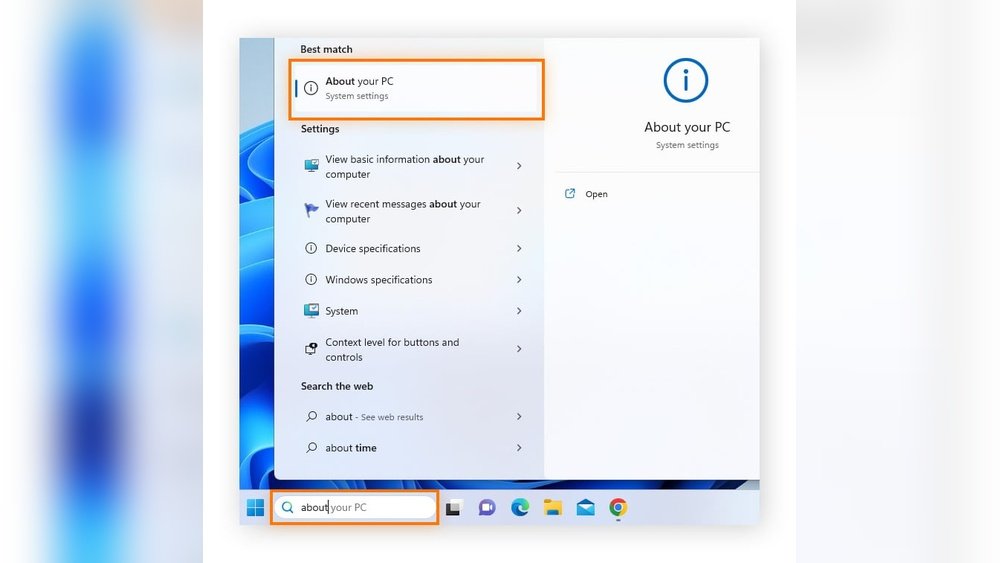
First, open the Start menu on your PC. Type “System Information” in the search box. Click on the matching result to open it. This window shows detailed data about your computer.
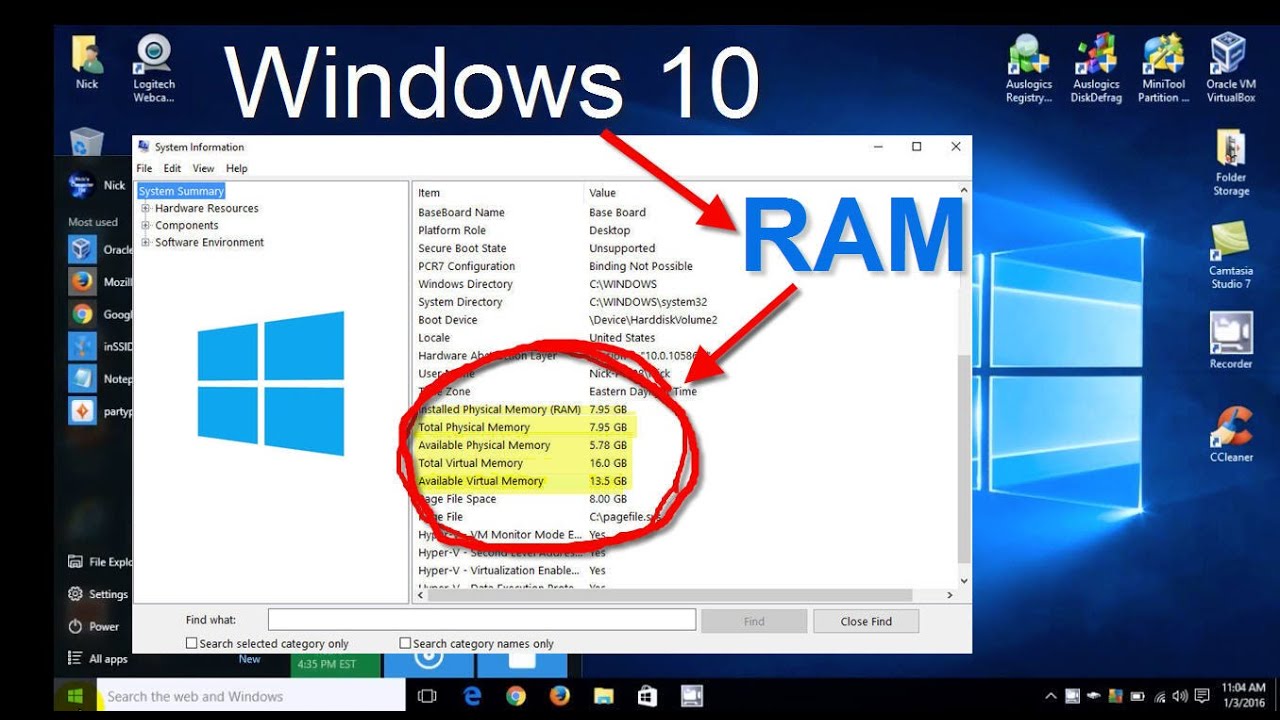
Alternatively, press the Windows key and R together. Type “msinfo32” and press Enter. The System Information window will appear. It is a quick way to access your PC’s specs.
Viewing Installed Ram Details
Inside System Information, find the “Installed Physical Memory (RAM)” line. This shows the total RAM your PC has. You can also see the “Total Physical Memory” for usable RAM.
Look for other details like memory speed or type. These help understand your PC’s performance. All this information helps decide if you need more RAM.
Credit: www.esseg.eu
Use Task Manager To See Ram
Task Manager is a simple tool to check your PC’s RAM. It shows how much memory your system uses. You can see details about your RAM in real time. This helps you understand your PC’s performance better. Here is how to use Task Manager to see RAM.
Opening Task Manager
Press Ctrl + Shift + Esc on your keyboard. Task Manager will open immediately. You can also right-click the taskbar and choose Task Manager. This opens the same window quickly. If Task Manager opens in a small view, click More details at the bottom.
Navigating To Performance Tab
In Task Manager, find the Performance tab at the top. Click it to open performance details. You will see different sections like CPU, Memory, Disk, and Network. Click on Memory to view RAM statistics. This section shows your RAM’s total size and usage.
Interpreting Ram Usage
The Memory tab shows how much RAM is used and free. It displays the total RAM installed on your PC. You will see a graph showing RAM usage over time. Look at the “In use” number to know current usage. The “Available” number shows free RAM. High usage means many programs use memory.
Check Ram With Command Prompt
Checking your PC’s RAM using Command Prompt is a quick way to see important memory details. This method shows how much RAM your computer has and some extra info. It works on all Windows versions and needs no extra tools.
Below, find easy steps to open Command Prompt and run commands to check your RAM.
Launching Command Prompt
First, open the Command Prompt on your PC. Press the Windows key on your keyboard. Type cmd in the search bar. Select the “Command Prompt” app from the list. For more details, right-click and choose “Run as administrator.”
Running Memory Queries
In Command Prompt, type wmic memorychip get capacity, speed. Press Enter. This command shows each RAM stick’s size and speed in your PC. To see total physical memory, type systeminfo | findstr /C:"Total Physical Memory". Hit Enter. The result shows your total RAM in use.
Credit: www.avast.com
Third-party Tools For Ram Info
Third-party tools for RAM information offer detailed insights beyond basic system settings. They help you monitor your PC’s memory use more clearly. These tools show real-time data and historical trends. This helps in managing your computer’s performance better.
Many third-party programs are easy to install and use. They provide visual graphs and alerts for memory issues. These features make it easier to understand how your RAM works and if it needs upgrading.
Popular Ram Monitoring Software
Several programs are well-known for RAM monitoring. CPU-Z gives detailed info about RAM type and speed. Speccy shows all hardware details, including memory usage. HWMonitor tracks system temperatures and RAM load. These tools work on most Windows PCs. They are free or offer free versions for basic use.
Benefits Of Using External Tools
External tools provide more data than built-in Windows options. They show how much RAM is free or in use at any moment. Some tools alert you if RAM is running low. This helps prevent slowdowns and crashes. They also help identify faulty RAM modules. This saves time and avoids costly repairs.
Tips To Monitor Ram Performance
Monitoring RAM performance helps keep your PC running smoothly. It shows if your computer needs more memory or if some programs use too much. This way, you can prevent slowdowns and crashes.
Simple tools on your PC can track RAM use. Regular checks help find problems early. You learn which apps use the most memory and when to close them.
Identifying Ram Bottlenecks
RAM bottlenecks happen when memory is full or nearly full. This slows your PC down. Look for signs like slow app opening or lagging during tasks.
Use Task Manager to see RAM use. Check the “Memory” tab to find heavy users. Notice if the memory usage stays near 100% for long periods.
High memory use means your PC struggles to handle tasks. Spot these bottlenecks to fix problems early.
Optimizing Memory Usage
Close apps that use too much RAM. This frees space for other programs. Restart your PC to clear memory and stop background apps.
Limit startup programs that run automatically. This saves RAM and speeds up boot time. Use Task Manager’s Startup tab to disable unneeded apps.
Keep your software updated. Updates often improve memory use. Also, scan for malware that can waste RAM.

Credit: www.shoshitamam.com
Frequently Asked Questions
How Can I Check Ram Size On Windows Pc?
Open Task Manager by pressing Ctrl + Shift + Esc. Click on the Performance tab. Select Memory to view RAM size and usage details.
Where To Find Ram Info On Windows 10?
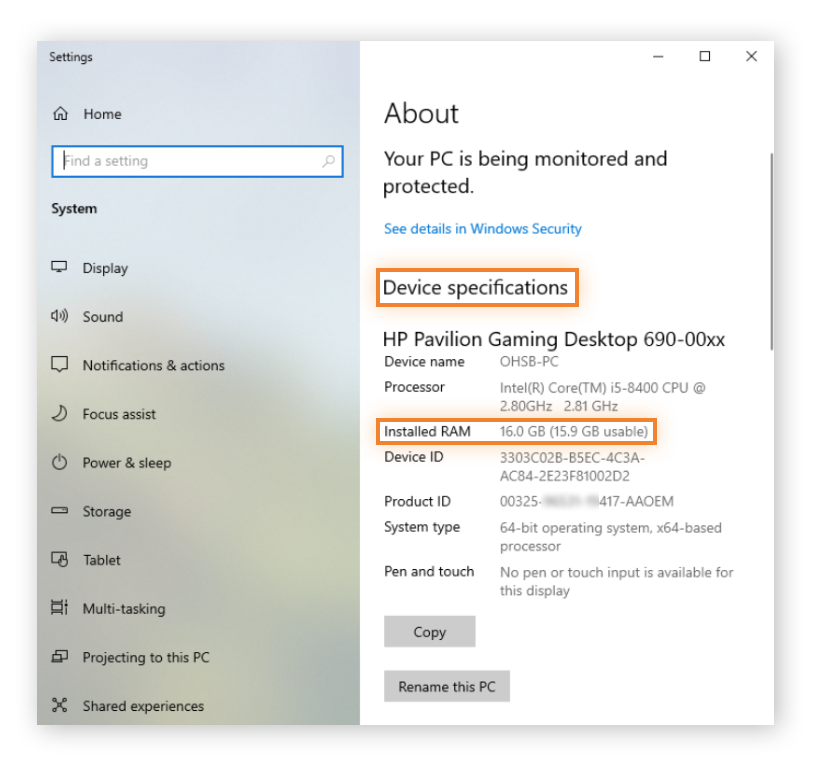
Go to Settings > System > About. Under Device specifications, find Installed RAM. This shows the total RAM available on your PC.
How To View Ram Type And Speed On Pc?
Use the Command Prompt. Type “wmic memorychip get speed, memorytype” and press Enter. This shows RAM type and speed information.
Can I See Ram Details Using System Information?
Yes, open Start and search “System Information. ” Under System Summary, check Installed Physical Memory (RAM) for size details.
Conclusion
Knowing how to view RAM on your PC helps you understand your system better. You can check your memory quickly using simple steps. This knowledge helps when installing new programs or troubleshooting. Your PC’s performance depends on available RAM. Keep an eye on it to avoid slowdowns.
Use built-in tools like Task Manager or System Settings. These methods are easy and do not require extra software. Now, you can confidently find out your PC’s RAM anytime. Simple and clear.