How to Check Cpu Health: Easy Steps to Ensure Peak Performance
Is your computer running slower than usual? You might be overlooking a key part—your CPU.
Knowing how to check your CPU health can save you from unexpected crashes, data loss, and costly repairs. You’ll discover simple, effective ways to monitor your CPU’s condition. By the end, you’ll have the confidence to spot problems early and keep your computer running smoothly.
Ready to protect your device and boost its performance? Let’s dive in.

Credit: softwareg.com.au
Signs Of Cpu Issues
Recognizing signs of CPU issues early helps protect your computer. Problems with the CPU can cause many system troubles. Spotting symptoms quickly can save time and money. Learn to identify common signals that your CPU might be failing.
Common Symptoms Of Cpu Problems
Slow computer response is a frequent sign of CPU trouble. Programs may freeze or take longer to open. Random errors and screen glitches also point to CPU faults. Unexpected shutdowns during normal use can indicate serious issues. Watch for any unusual behavior during everyday tasks.
Performance Drops And Overheating
The CPU may slow down when it overheats. High temperatures cause the system to reduce speed. Overheating can happen due to poor cooling or dust buildup. Check if your computer feels hotter than usual. Sudden performance drops often follow long usage periods.
Unusual Noises And System Crashes
Strange noises from the computer may relate to CPU problems. Fans working harder than normal can mean overheating. Loud clicking or whirring sounds should not be ignored. Frequent system crashes or blue screens often link to CPU faults. These signs suggest immediate attention is needed.

Credit: softwareg.com.au
Tools For Cpu Health Check
Checking your CPU’s health is key to keeping your computer running smoothly. Various tools help you find problems early. These tools show how well your CPU works and if it needs attention.
Some tools come with your computer. Others you can download for free or buy. Using the right tool helps you spot issues before they cause damage.
Built-in System Utilities
Most computers have built-in utilities to check CPU health. Windows users can use Task Manager to see CPU usage. It shows how much work your CPU does in real time. Windows also has Performance Monitor for detailed info.
Mac users can open Activity Monitor. This shows CPU load and running processes. Both systems have tools that check CPU temperature and errors.
Third-party Diagnostic Software
Many free and paid apps test CPU health. These tools run stress tests to check stability. They detect errors that built-in tools might miss. Examples include CPU-Z, HWMonitor, and Prime95.
These programs give detailed reports on CPU speed, voltage, and temperature. They help find hidden problems and ensure your CPU works correctly.
Monitoring Temperature And Usage
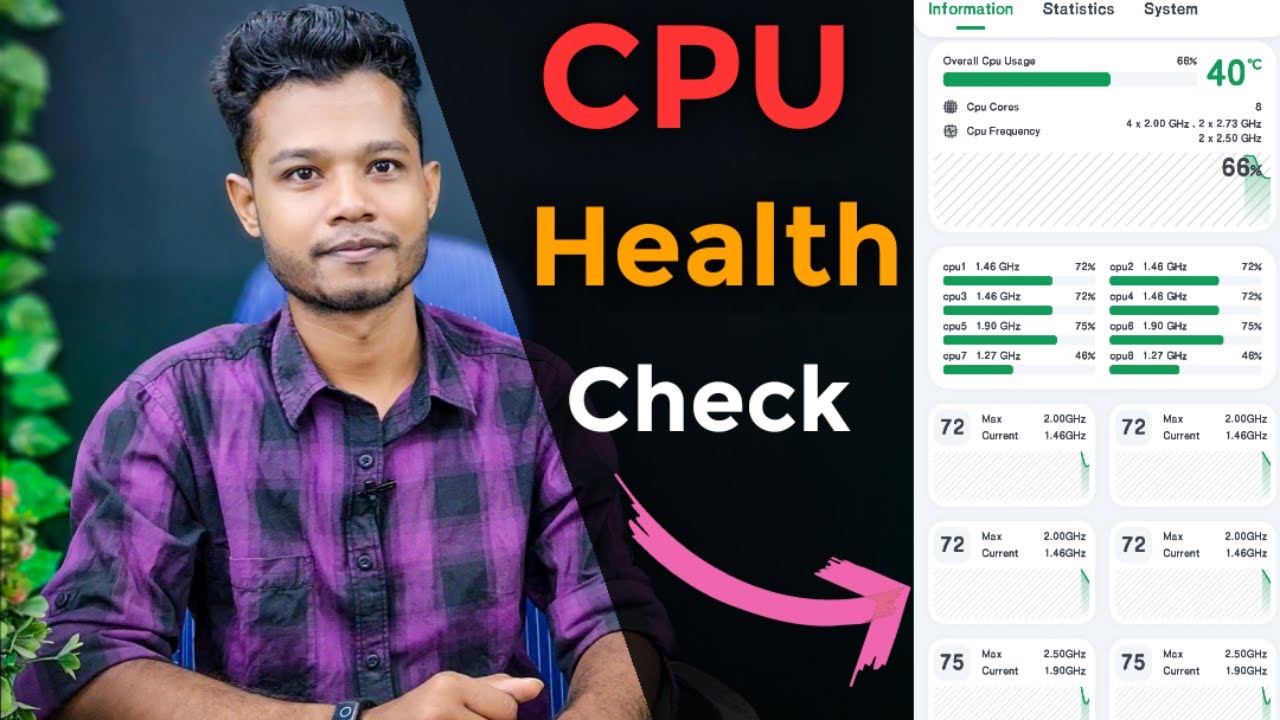
Keeping an eye on CPU temperature is vital. High heat can damage your CPU over time. Use temperature monitors like Core Temp or SpeedFan. These show real-time heat levels.
Tracking CPU usage helps find heavy tasks that slow your PC. It also reveals if the CPU runs too hard for long periods. Regular monitoring keeps your CPU safe and efficient.
Steps To Test Cpu Performance
Testing your CPU performance helps you understand how well your processor works. It shows if your CPU handles tasks smoothly or if it slows down under pressure. Follow clear steps to check the CPU’s speed and stability. This helps keep your computer running well and avoids crashes.
Running Benchmark Tests
Start by running benchmark tests to measure CPU speed. These tests compare your CPU against others using standard tasks. Use popular tools like Cinebench or Geekbench for simple tests. They give a score that shows your CPU’s power. Higher scores mean better performance. Run tests several times for accurate results.
Stress Testing The Processor
Stress testing pushes the CPU to its limits. It uses the processor fully to check stability and heat levels. Tools like Prime95 or AIDA64 can stress test your CPU. Watch the temperature during tests to avoid overheating. If the CPU stays stable without errors, it passes the stress test. This step helps find hidden problems.
Interpreting Test Results
Look at the scores and temperatures from your tests. Low benchmark scores mean slow performance or old hardware. High temperatures may signal cooling issues or dust buildup. If stress tests cause crashes, your CPU might be faulty or unstable. Use the results to decide if you need upgrades or fixes. Clear results guide better computer care.
Maintaining Cpu Health
Maintaining your CPU’s health is key to keeping your computer fast and reliable. A well-cared-for CPU runs smoothly and avoids unexpected crashes. Small efforts can extend the life of your processor and improve overall performance.
Cleaning And Dust Removal
Dust can block airflow and cause the CPU to overheat. Use a soft brush or compressed air to clean the CPU fan and vents. Clean your computer every few months to keep dust from building up. Avoid touching the CPU directly to prevent damage.
Ensuring Proper Cooling
Good cooling stops the CPU from getting too hot. Check that the CPU fan spins freely and is not noisy. Apply fresh thermal paste between the CPU and heat sink if needed. Use a cooling pad for laptops to improve air circulation.
Updating Bios And Drivers
BIOS and driver updates fix bugs and improve CPU performance. Visit your motherboard or computer maker’s website for the latest updates. Follow simple instructions to install updates safely. Regular updates help your CPU work better and last longer.
When To Replace Your Cpu
Knowing when to replace your CPU is key to keeping your computer running well. A CPU that is old or damaged can slow down your whole system. It also can cause crashes and errors. Replacing your CPU at the right time saves you from bigger problems later. It also helps you get better speed and performance.
Signs Of Irreparable Damage
Look for frequent crashes or blue screens. These may show your CPU is failing. Overheating is another serious sign. If your CPU gets very hot often, it might be damaged. Your computer might also freeze or run very slow. If these issues do not fix after cleaning or updates, the CPU may be broken.
Evaluating Upgrade Options
Check your motherboard to see what CPUs it supports. Upgrading to a newer CPU can improve speed. Compare new CPUs for better cores and faster clock speeds. Consider if your current setup limits newer CPUs. Sometimes, you may need a new motherboard too. Choose a CPU that fits your budget and needs.
Cost Vs. Performance Considerations
Think about how much a new CPU costs. Compare this to the speed gain you get. Sometimes, a new computer might be cheaper than upgrading parts. If you only use basic apps, a high-end CPU may be too costly. Balance price and performance to get the best value. A smart choice saves money and improves your PC experience.
Credit: www.youtube.com
Frequently Asked Questions
How Can I Check My Cpu Temperature?
Use software tools like HWMonitor or Core Temp to monitor CPU temperature. Keep it below 85°C to avoid overheating and damage.
What Are Signs Of A Failing Cpu?
Frequent crashes, slow performance, and random restarts often indicate CPU issues. Monitoring helps detect these early to prevent data loss.
Can Bios Show Cpu Health Status?
Yes, BIOS provides basic CPU status like temperature and voltage. However, detailed health checks require specialized software within the operating system.
How Often Should I Check Cpu Health?
Check CPU health monthly or after heavy usage. Regular monitoring helps maintain performance and prevents unexpected hardware failures.
Conclusion
Checking your CPU health helps keep your computer running well. It shows if your processor is too hot or slow. Regular checks can prevent big problems later. Use simple tools to watch your CPU’s speed and temperature. Fix issues early to save time and money.
Keep your PC clean and updated for best results. Stay aware of your CPU’s condition to avoid surprises. Small steps make a big difference in computer care. Your CPU health matters for smooth and fast performance.