How to Increase Ram Size: Easy Steps to Boost PC Performance
Is your computer feeling slow or struggling to keep up with your tasks? One of the easiest ways to boost its performance is by increasing your RAM size.
More RAM means smoother multitasking, faster program loading, and an overall better experience. If you’ve been wondering how to upgrade your system’s memory without getting overwhelmed, you’re in the right place. This guide will walk you through simple, clear steps to help you increase your RAM size and unlock your device’s full potential.
Keep reading, and you’ll be speeding through your work in no time!

Credit: www.liftingitalia.com
Why Ram Matters
RAM is a key part of your computer. It helps your PC run fast and smooth. Without enough RAM, your computer can slow down. It affects everything you do, from opening apps to browsing the web. Understanding why RAM matters helps you keep your PC healthy and efficient.
Role Of Ram In Pc Performance
RAM stores data your PC uses right now. It lets your computer access information quickly. More RAM means your computer can handle more tasks at once. It helps apps run without delays. When RAM is full, your PC must use slower storage. This causes lag and longer wait times.
Signs You Need More Ram
Your PC might need more RAM if it runs slow. Programs take longer to open or freeze often. You see error messages about memory. Multitasking becomes difficult. Web browsers with many tabs slow down. Upgrading RAM can fix these problems and improve speed.
Credit: support.esri.com
Checking Current Ram
Checking your current RAM is the first step to increase its size. It helps you know how much memory your computer has now. This information guides you to buy the right RAM for your system. Many tools and methods make this process simple and quick.
Understanding your current RAM also avoids compatibility issues. This saves time and money. It ensures your computer runs smoothly after the upgrade. Let’s explore how to find your RAM size and understand different RAM types.
How To Find Ram Size
To find your RAM size, open your computer’s settings or system information. On Windows, press “Windows + Pause” keys together. Look for the “Installed RAM” or “Memory” section. On Mac, click the Apple menu and select “About This Mac.” The RAM size will show on the main screen.
You can also use free software tools like CPU-Z or Speccy. These tools provide detailed information about your RAM, including size and speed. This helps you know exactly what you have before upgrading.
Understanding Ram Types
There are different types of RAM, such as DDR3, DDR4, and DDR5. Each type has a different speed and power usage. You must choose RAM that matches your computer’s motherboard.
Check your system manual or use online tools to find your RAM type. Using the wrong type can cause your computer to not work properly. Knowing the RAM type ensures you buy the right memory for your upgrade.
Choosing The Right Ram
Choosing the right RAM is important for your computer’s performance. Picking the correct type ensures smooth operation and better speed. RAM that fits your system helps avoid errors and crashes. Understanding key factors makes the upgrade easier and effective.
Matching Ram Specifications
RAM must match your motherboard’s specifications. Check the type, speed, and size supported by your system. Mixing different RAM modules can cause problems. Use RAM sticks with the same specifications for best results. This keeps your computer stable and fast.
Ddr Generations And Speed
RAM comes in different DDR generations like DDR3, DDR4, and DDR5. Each generation offers better speed and efficiency. Your motherboard supports only certain DDR types. Choose RAM that matches your motherboard’s DDR generation. Higher speed RAM improves data transfer but must be compatible.
Capacity Considerations
RAM capacity affects how many tasks your computer can handle. More RAM means better multitasking and smoother software running. Decide on capacity based on your usage needs. For basic tasks, 8GB is enough. For gaming or heavy work, 16GB or more is better.
Upgrading Ram Physically
Upgrading RAM physically is a direct way to boost your computer’s performance. Adding more RAM helps your PC run faster and handle more tasks at once. This process involves opening your computer and installing new memory modules inside. It might seem tricky, but with the right steps, anyone can do it safely and easily.
Preparing Your Pc
First, turn off your computer and unplug all cables. Place your PC on a clean, flat surface. Open the case by removing screws or sliding the panel. Check your motherboard for RAM slots and current memory modules. Make sure you have compatible RAM modules for your system. Reading your PC’s manual can help identify the right RAM type.
Installing New Ram Modules
Hold the RAM module by its edges to avoid damage. Align the notch on the RAM with the slot on the motherboard. Press down firmly until the clips on both sides snap into place. Install all new modules before closing the case. Double-check that all modules fit securely and evenly.
Safety Tips During Installation
Work on a non-static surface to prevent damage to components. Ground yourself by touching a metal part of the case. Avoid touching the gold connectors on the RAM modules. Handle parts gently to avoid bending or breaking pins. Keep screws and small parts organized to avoid losing them.
Optimizing Ram Usage
Optimizing RAM usage helps your computer run faster and smoother. It makes the best use of the memory you have. Simple steps can free up RAM and improve performance. This section shows easy ways to manage RAM effectively.
Managing Background Processes
Background processes use RAM even when you do not see them. Closing unnecessary apps stops them from slowing your computer. Use the Task Manager to find and end these tasks. This frees memory for active programs. It helps your system stay quick and responsive.
Using Virtual Memory
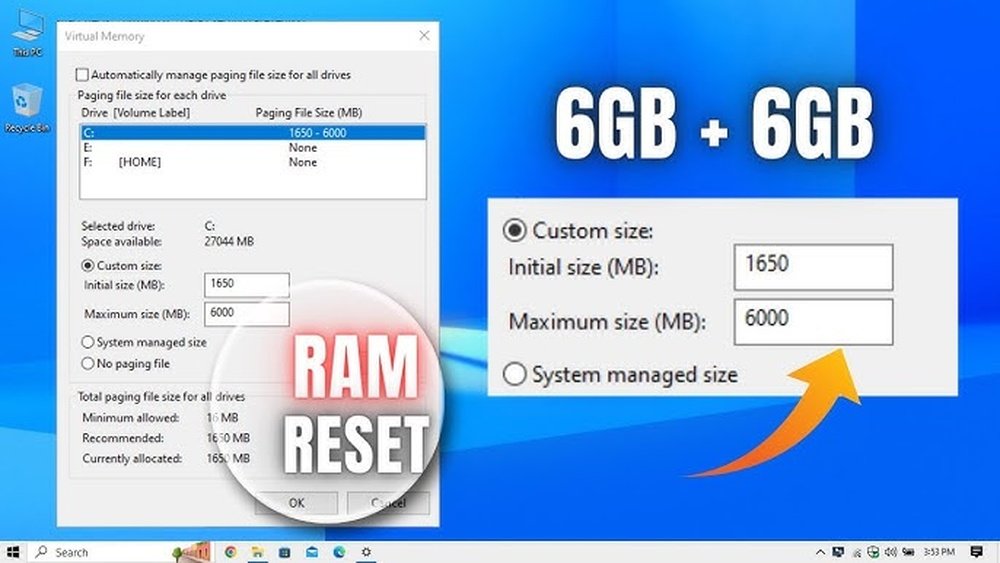
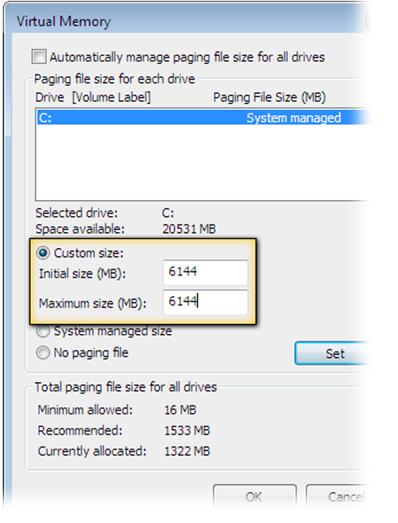
Virtual memory uses part of your hard drive as extra RAM. It helps when physical RAM is full. You can adjust virtual memory settings in your system options. Increasing virtual memory can reduce slowdowns. It acts as a backup for your RAM.
Cleaning Up Startup Programs
Many programs start automatically with your computer. They use RAM without your knowledge. Disabling unneeded startup programs frees memory at boot. Use system settings or tools to manage startup apps. This speeds up your computer and saves RAM.
Alternative Ways To Boost Performance
Increasing your computer’s RAM is one way to boost performance. Yet, other methods also improve speed and responsiveness. These alternatives can make your system feel faster without changing the RAM size.
Explore storage upgrades, CPU improvements, and regular maintenance for better results. Each plays a key role in keeping your computer running smoothly.
Upgrading Storage To Ssd
Switching from a traditional hard drive to an SSD speeds up data access. SSDs load files and programs much faster. This reduces waiting times during startup and file transfers. An SSD also uses less power and creates less noise. It is a simple upgrade that brings noticeable improvements.
Improving Cpu Performance
The CPU handles all the tasks your computer runs. A faster CPU processes data more quickly. Upgrading to a better processor can improve overall speed. Some CPUs also support features like multiple cores for better multitasking. Check compatibility with your motherboard before buying a new CPU.
Regular System Maintenance
Cleaning up your system keeps it running well. Remove unused files and programs regularly. Update your software to fix bugs and improve performance. Scan for malware that can slow down your computer. Defragment your hard drive if you use an HDD. These simple steps help maintain speed and stability.

Credit: www.youtube.com
Frequently Asked Questions
How Do I Check My Current Ram Size?
To check RAM size, open System Information on Windows or About This Mac on macOS. It shows total RAM installed.
Can I Increase Ram Size Without Hardware Upgrade?
Yes, some devices allow virtual memory increase via software settings, but physical RAM upgrade is best for performance boost.
What Type Of Ram Is Compatible With My Pc?
Check your motherboard manual or use online tools to identify compatible RAM type, speed, and maximum capacity.
How Much Ram Should I Add For Better Performance?
Adding 4GB to 8GB more RAM usually improves multitasking and speed for most users and applications.
Conclusion
Increasing your RAM size can make your computer faster and smoother. It helps run more programs at once without slowing down. Before upgrading, check your system’s compatibility and RAM limits. Choose the right type and size for your device. Installing RAM is simple with the right tools and care.
More RAM means better performance for work, games, and browsing. Take your time and follow steps carefully. A small upgrade can make a big difference in daily use.