How to Make Cpu Faster Windows 7: Easy Tips for Instant Speed Boost
Are you tired of your Windows 7 computer running slow and holding you back? Your CPU plays a big role in how fast your system feels, and there are simple steps you can take to boost its speed.
Imagine opening programs instantly, browsing smoothly, and getting more done without waiting. You’ll discover easy and effective ways to make your CPU faster on Windows 7. Keep reading, and unlock the full potential of your computer today.
Optimize Startup Programs
Optimizing startup programs helps speed up your Windows 7 computer. Many apps start automatically when you turn on your PC. These programs use CPU power and slow down your system. Managing these startup items can make your CPU run faster and improve overall performance.
Identify Resource-heavy Apps
First, find apps that use a lot of CPU when starting. Press Ctrl + Shift + Esc to open Task Manager. Go to the Startup tab to see the list of programs. Look for apps with high impact on startup performance. These are the ones slowing your PC down the most.
Note the names of these heavy apps. Some might be important, but many are not necessary at startup. Knowing which apps use more resources helps you decide what to disable.
Disable Unnecessary Startup Items
Disabling unneeded startup programs frees CPU power. In the Task Manager’s Startup tab, right-click on the apps you don’t need. Choose Disable to stop them from launching at startup. This reduces CPU load and speeds up boot time.
Focus on apps like chat tools, update managers, or media players that you don’t use immediately. Keep essential programs like antivirus enabled for safety. Restart your computer to see the changes in action.
Manage Background Processes
Managing background processes helps make your CPU faster on Windows 7. Many programs run quietly in the background. These use CPU power and slow your computer down. Stopping unneeded processes frees up resources. This leads to better speed and performance.
Windows has tools to help you see and control these processes. You can check which ones use the most CPU. Then, safely stop the ones you do not need. This way, your PC works faster without closing important tasks.
Use Task Manager To Monitor
Task Manager shows all running programs and processes. Open it by pressing Ctrl + Shift + Esc keys. Click the “Processes” tab to see CPU usage. Look for processes using high CPU power. These slow down your computer the most.
Check which processes are necessary before ending them. Some are part of Windows and must run. Others belong to programs you opened. Not all processes need to run all the time.
End Unneeded Processes Safely
Select a process that uses high CPU but is not needed. Click “End Process” to stop it. Be careful not to stop system processes. Ending critical processes can cause errors or crashes.
End only programs you recognize and do not need now. This frees CPU power and speeds up your Windows 7. Repeat this regularly to keep your PC running smoothly.
Adjust Visual Effects
Adjusting the visual effects in Windows 7 can help speed up your CPU. Visual effects use memory and processing power. Reducing or customizing these effects can make your computer run smoother and faster. This is a simple way to improve performance without buying new hardware.
Select Best Performance Settings
Windows 7 has built-in options to change visual effects for better speed. Open the System Properties and go to Performance Settings. Choose the “Adjust for best performance” option. This turns off many animations and shadows. Your computer will use less CPU power. The screen might look simpler, but it will run faster.
Customize Specific Visual Features
You can also pick which effects to keep. In the Performance Options, select “Custom.” Turn off effects you do not need. For example, disable animations, shadows, and fading menus. Keep only the effects you like or need. This method balances appearance and speed. It helps your CPU focus on important tasks.
Update Device Drivers
Updating device drivers can help make your CPU faster on Windows 7. Drivers connect your hardware to the operating system. Old or faulty drivers can slow down your PC. Keeping them updated ensures better performance and stability.
Regular updates fix bugs and improve hardware efficiency. This step is simple but often overlooked. It can speed up your computer and reduce crashes.
Check For Driver Updates
Open the Device Manager on your PC. Look for any devices with a yellow warning icon. Right-click the device and select “Update Driver Software.” Choose “Search automatically for updated driver software.”
Windows will look online for new drivers. If found, it will download and install them. Restart your computer to apply changes.
Use Manufacturer’s Software
Many manufacturers offer software to update drivers. Examples include Intel Driver & Support Assistant or NVIDIA GeForce Experience. Download the correct tool from the official website.
Run the software and let it scan your system. It will list available updates for your hardware. Follow on-screen instructions to install the latest drivers. This method ensures you get the right drivers for your device.
Clean Up Disk Space
Cleaning up disk space is a simple way to make your CPU faster on Windows 7. Over time, your hard drive collects many unnecessary files. These files take up space and slow down your computer. Removing them frees up storage and helps your CPU work better. This process is easy and only takes a few minutes.
Run Disk Cleanup Tool
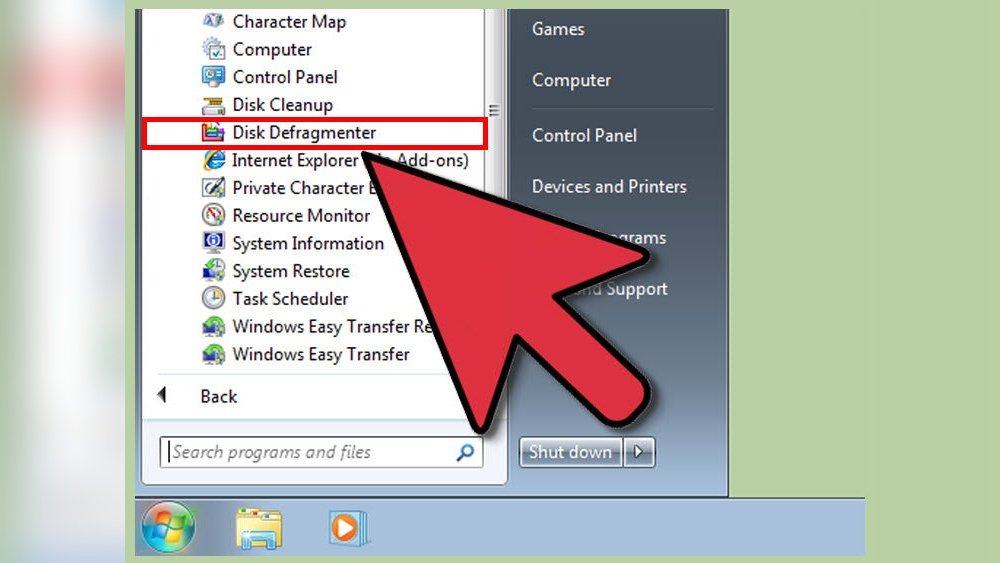
Windows 7 has a built-in tool called Disk Cleanup. It finds and deletes files you no longer need. To start, click the Start button and type “Disk Cleanup” in the search box. Select the tool from the list. Choose the drive you want to clean, usually C:, and press OK.
The tool scans your drive and shows a list of file types you can delete. Check the boxes next to the files you want to remove. These include temporary files, system cache, and recycle bin contents. Click OK, then confirm by clicking Delete Files. This frees space and helps your CPU run faster.
Remove Temporary Files
Temporary files build up as you use your computer. These files slow down your system and use disk space. To remove them, press the Windows key + R. Type %temp% and press Enter. This opens the temporary files folder.
Select all files inside this folder by pressing Ctrl + A. Press Delete to remove them. Some files may be in use and cannot be deleted. Skip those files. Clearing temporary files helps your CPU by reducing clutter on your hard drive.
Increase Virtual Memory
Virtual memory helps your computer run more programs at once. It uses space on your hard drive as extra memory. Increasing virtual memory can improve CPU speed on Windows 7. This allows your system to handle more tasks smoothly.
Adjust Paging File Size
Open the Control Panel and go to System settings. Click on Advanced system settings and then Performance settings. Choose the Advanced tab, and click Change under Virtual Memory. Uncheck “Automatically manage paging file size.”
Select the drive where Windows is installed. Choose “Custom size” and enter new values. Set the initial size and maximum size in megabytes. Click Set and then OK to save changes.
Set Custom Virtual Memory Limits
Calculate the right size for your virtual memory. Use 1.5 times your RAM size for initial size. Set the maximum size to three times your RAM size. Avoid setting the size too small or too large.
Restart your computer to apply the new settings. This helps Windows use the new virtual memory limits. Your CPU can now work faster with more virtual memory available.
Scan For Malware
Malware can slow down your CPU and reduce system performance. Scanning your Windows 7 computer for malware is important. It helps find and remove harmful software that steals resources. Regular scans keep your PC safe and fast.
Use Trusted Antivirus Software
Choose antivirus software with good reviews and regular updates. Trusted programs detect a wide range of malware. Install the software and run a full system scan. This process checks all files and programs for threats. Avoid free or unknown antivirus tools that may miss malware.
Remove Detected Threats
After the scan, the software shows detected threats. Follow the prompts to delete or quarantine these files. Removing malware frees your CPU from extra work. Restart your computer to complete the cleanup. Repeat scans often to keep malware away.

Credit: www.pcmag.com
Optimize Power Settings
Optimizing power settings can help your CPU run faster on Windows 7. This step controls how your computer uses energy. Proper settings reduce slowdowns caused by power saving modes. Adjusting these settings gives your CPU more resources to work with.
Switch To High Performance Mode
High Performance mode prioritizes speed over energy saving. It keeps your CPU running at full power. This setting stops your computer from lowering the processor speed. To switch, open the Control Panel and find Power Options. Select the High Performance plan to boost CPU speed immediately.
Customize Power Plan Options
Custom power plans let you fine-tune CPU behavior. You can set when the CPU should sleep or turn off. Adjust the minimum and maximum processor state to 100%. This ensures the CPU stays active and fast. Access these options in Power Options under your chosen plan. Save changes to keep your CPU running efficiently.
Perform System Updates
Keeping your Windows 7 system updated is important for better CPU performance. Updates fix bugs and improve system speed. They also protect your PC from security threats. Regular updates ensure your computer runs smoothly and faster.
Install Windows Updates
Go to the Start menu and open Control Panel. Click on “Windows Update” to check for new updates. Install all important updates available. These updates include performance improvements and security patches. Restart your computer after installing updates to apply changes. This simple step helps your CPU run more efficiently.
Update Critical System Components
Some system parts need special updates. These include drivers and important software files. Visit the device manager to check for driver updates. Updating drivers can fix hardware issues and speed up your CPU. Also, update .NET Framework and DirectX, which help programs run better. Keeping these components current boosts overall system performance.

Credit: www.youtube.com

Credit: www.youtube.com
Frequently Asked Questions
How Can I Speed Up Cpu On Windows 7?
Close unnecessary programs and disable startup apps. Update drivers and perform disk cleanup. Adjust visual effects for best performance in System Properties.
What Settings Improve Cpu Performance In Windows 7?
Change power options to High Performance. Disable unnecessary background services. Use Task Manager to monitor CPU usage and end high-demand processes.
Does Updating Drivers Affect Cpu Speed In Windows 7?
Yes, updated drivers improve hardware efficiency. They fix bugs, optimize performance, and enhance CPU compatibility with system components.
Can Malware Slow Down Cpu In Windows 7?
Absolutely. Malware consumes CPU resources and slows performance. Run a full antivirus scan regularly to keep your system clean and fast.
Conclusion
Making your CPU faster on Windows 7 takes simple steps. Clean up your system regularly and close unused programs. Adjust your startup items to speed up boot time. Keep your drivers and software updated for better performance. Avoid running heavy tasks at the same time.
These small changes help your computer run smoother and faster. Try these tips to enjoy a better Windows 7 experience today.