How to Reseat Ram: Easy Steps to Boost Your PC Performance
Is your computer running slow or not recognizing all its memory? Sometimes, the fix is simpler than you think.
Learning how to reseat your RAM can breathe new life into your device without spending a dime. You’ll discover easy, step-by-step instructions to safely remove and reinstall your RAM. By the end, you’ll feel confident tackling this quick hardware fix yourself—and get your system back to peak performance.
Ready to boost your computer’s speed? Let’s dive in.
Signs Your Ram Needs Reseating
RAM is a critical part of your computer. It helps your system run many tasks at once. Sometimes, the RAM can become loose or not work properly. This causes problems with your computer’s performance. Knowing the signs that your RAM needs reseating can save you time and frustration. Look out for unusual behaviors that hint at memory issues.
Here are some common signs that indicate your RAM might need to be reseated.
Common Performance Issues
Your computer may slow down or freeze often. Programs might stop working without warning. Sometimes, your system runs slower than usual even with few apps open. These issues can happen when the RAM is not seated correctly. Reseating the RAM can restore smooth performance.
Error Messages And Crashes
Error messages appear randomly during use. Blue screen errors or sudden crashes can also occur. These messages sometimes mention memory problems or hardware failures. Loose RAM connections often cause these errors. Checking and reseating the RAM can reduce these crashes.
Slow Boot Times
Does your computer take too long to start? Slow booting can be a sign of RAM issues. The system may stall or restart during startup. A poor RAM connection can delay the boot process. Reseating the RAM can help your computer start faster and more reliably.
Credit: www.avadirect.com
Tools And Safety Precautions
Reseating RAM requires careful preparation and attention to safety. Using the right tools helps you work smoothly. Following safety steps protects your computer and you from damage. Understanding what to use and how to stay safe is key.
Essential Tools
You need a few simple tools to reseat RAM. A small screwdriver helps open the computer case. An anti-static wrist strap is useful to prevent static shocks. Keep a clean, flat workspace to place screws and parts safely. Have a flashlight handy if your case is dark inside.
Static Electricity Protection
Static electricity can harm computer parts easily. Always ground yourself before touching the RAM or motherboard. Use an anti-static wrist strap connected to metal on the case. If you do not have one, touch a metal part of the case often. Avoid working on carpet or dry floors to reduce static build-up.
Powering Down Safely
Turn off your computer completely before starting. Unplug the power cable from the wall socket. Disconnect all other cables and peripherals. Press the power button for a few seconds to drain leftover power. Wait a few minutes before opening the case to avoid electric shocks.
Locating Your Ram Modules
Locating your RAM modules is the first step to reseating them properly. Knowing where the RAM sits inside your computer helps you handle it safely. This step prevents damage to your computer parts.
Every desktop or laptop has RAM slots on the motherboard. These slots hold the RAM sticks firmly in place. Finding these slots requires opening your PC case carefully.
Opening The Pc Case
Turn off your computer and unplug all cables. Place the PC on a clean, flat surface. Use a screwdriver to remove the screws on the side panel. Slide the panel off gently to expose the inside.
For laptops, find the RAM access panel at the bottom. Remove screws holding the panel and lift it off. This gives you access to the RAM modules inside.
Identifying Ram Slots
Look for long, narrow slots near the CPU on the motherboard. These slots usually have clips on both ends. The RAM sticks fit perfectly between these clips.
RAM modules are thin and rectangular with small chips on one side. They fit only one way into the slots. Check for the notch on the RAM and the slot to align them correctly.
Removing The Ram Modules
Removing RAM modules is a simple but careful task. It helps fix many computer problems. You must power off the computer and unplug it before starting. Open the computer case to find the RAM sticks on the motherboard.
Handle the RAM carefully to avoid damage. The following steps explain how to remove RAM safely and correctly.
Releasing The Clips
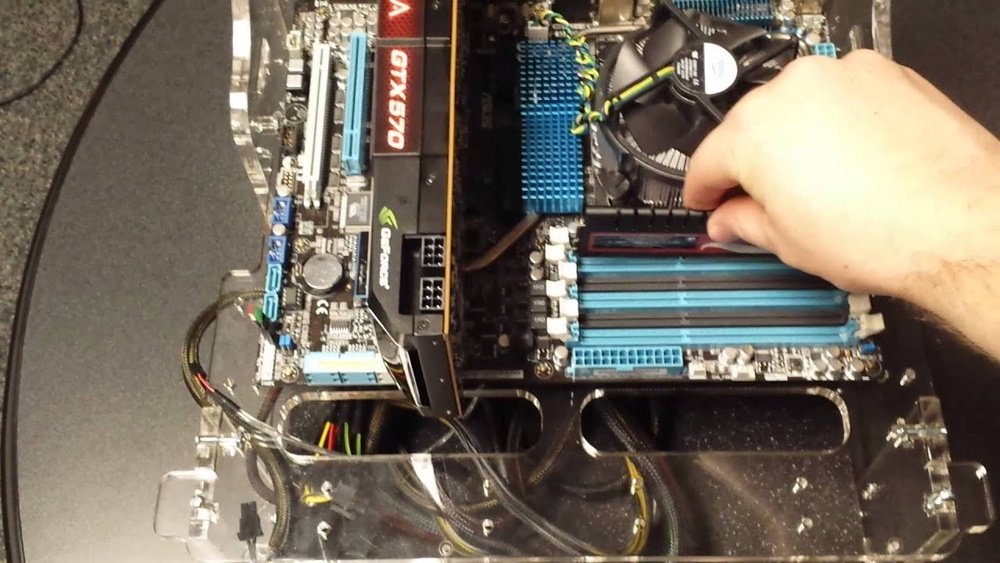
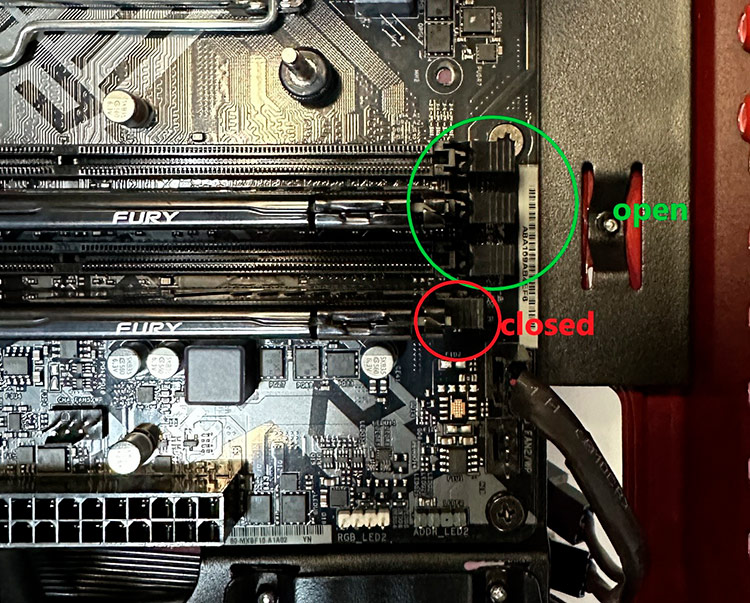
RAM modules are held by small clips on each side. These clips lock the RAM in place. Gently push the clips outward. They will release the RAM stick.
The RAM will pop up slightly when the clips are open. Do not force the clips. Use slow, steady pressure. This prevents breaking the clips or the RAM.
Handling Ram Carefully
Hold the RAM by its edges only. Avoid touching the gold contacts or chips. Oils and dirt from fingers can cause problems.
Place the RAM on an anti-static surface or bag. Static electricity can damage RAM components. Use an anti-static wrist strap if possible.
Keep RAM modules away from liquids and dust. Store them safely until ready to reseat or replace.
Cleaning The Ram And Slots
Cleaning the RAM and slots is a key step before reseating the memory. Dirt and dust can block connections and cause errors. Keeping these parts clean helps your computer run better. It also prevents problems with recognizing the RAM.
Removing Dust And Debris
Start by gently wiping the RAM sticks with a soft, dry cloth. Avoid using water or liquids. Dust can build up inside the slots too. Use a small, soft brush to clear dust from the slots. Be careful not to damage the delicate pins or contacts.
Using Compressed Air
Compressed air is a simple way to remove dust from tight spaces. Hold the can upright and spray short bursts into the RAM slots. Keep the nozzle a few inches away to avoid moisture buildup. Use it on the RAM sticks and slots to clear hidden dust. This helps maintain good contact and performance.

Credit: www.youtube.com
Reseating The Ram Modules
Reseating the RAM modules can fix many computer problems. Loose or improperly placed RAM can cause crashes or slowdowns. The process is simple and quick. It helps your computer run smoothly again.
Aligning The Ram Correctly
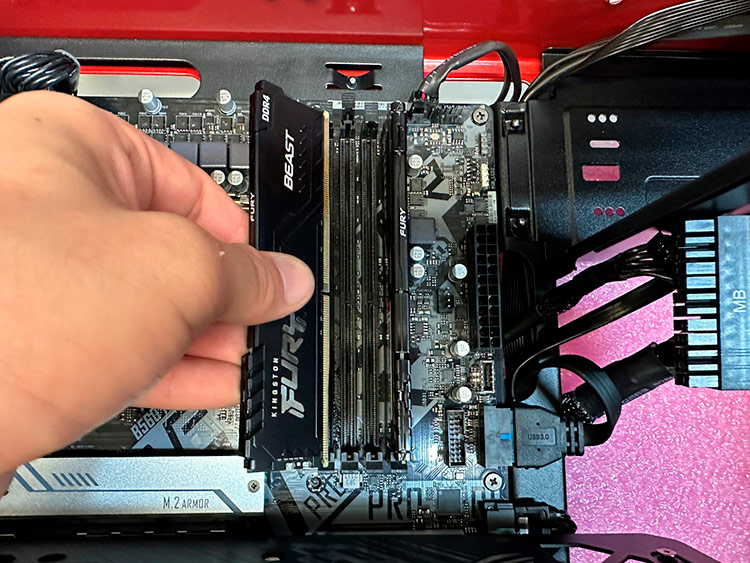
First, hold the RAM by its edges. Avoid touching the gold pins. Look for the notch on the RAM stick. Match it with the slot on the motherboard. The notch ensures the RAM fits only one way. Do not force the RAM into the slot. Gentle pressure is enough to seat it properly.
Securing The Modules In Place
Once aligned, press the RAM down firmly. You should hear a click sound. This means the locking clips snap into place. Check both sides of the RAM slot. The clips should hold the module tightly. Loose clips mean the RAM is not fully seated. Press again until it locks securely.
Testing And Troubleshooting
Testing and troubleshooting help confirm if your RAM is properly seated. This step ensures your PC runs smoothly without memory errors. It also helps identify problems early. Follow these simple checks after reseating your RAM sticks.
Powering On The Pc
Start by turning on your computer. Listen for any unusual beeps or sounds. These signals may indicate memory issues. If the PC does not start, check the RAM placement again. Make sure the modules click into place firmly.
Checking System Recognition
Once the PC powers on, open the system settings. Look for the installed RAM size in the system information. The displayed amount should match your total RAM. If the number is lower, a stick might not be seated correctly.
Running Memory Diagnostics
Use built-in tools like Windows Memory Diagnostic or MemTest86. These programs scan your RAM for errors. Run a full test for the best results. Fix any detected issues by reseating or replacing the faulty RAM.
Tips For Better Ram Performance
Improving your RAM performance helps your computer run faster and smoother. Simple steps can make a big difference. These tips help you get the most from your RAM. Follow them to keep your system stable and quick.
Upgrading Ram
Adding more RAM is the easiest way to boost speed. More memory means your computer can handle more tasks. Check how much RAM your computer supports first. Buy RAM that matches your system’s specs. Install it carefully to avoid damage. After upgrading, your computer will run many programs better.
Bios Settings Optimization
BIOS controls hardware settings, including RAM. Enter BIOS during startup by pressing a key like F2 or Delete. Find memory settings and check if they match your RAM speed. Enable XMP profiles to run RAM at its rated speed. Save changes and restart your computer. This step improves how RAM performs without extra cost.
Regular Maintenance
Keep RAM slots clean and dust-free. Dust can cause poor connections and slow performance. Turn off your computer before cleaning. Use compressed air to blow dust from slots gently. Check RAM seating regularly. Make sure modules are firmly in place. Regular care prevents issues and keeps your system running well.
Credit: www.avadirect.com
Frequently Asked Questions
How Do I Safely Reseat Ram In My Computer?
Turn off your PC and unplug it first. Open the case carefully. Release the RAM clips, remove the module, then firmly reinsert it until clips snap back.
When Should I Consider Reseating My Ram?
Reseat RAM if your computer has random crashes or won’t boot. It fixes loose connections and improves hardware recognition by the system.
Can Reseating Ram Improve Computer Performance?
Yes, if RAM is loosely connected, reseating it can enhance performance. It ensures proper data flow and prevents errors or crashes.
What Tools Do I Need To Reseat Ram?
You typically need no special tools. Just a screwdriver to open your PC case. Handle RAM carefully by its edges to avoid damage.
Conclusion
Reseating RAM is a simple task anyone can do. It helps fix many computer problems fast. Always turn off your PC before starting. Handle the RAM carefully to avoid damage. Make sure the sticks fit snugly in the slots. After reseating, your computer should run smoother.
This easy fix saves time and money. Try it yourself before seeking professional help. Good care of your hardware keeps it working well. Small steps like this improve your PC’s life. Give your computer a fresh start today.