How to Lower Cpu: Effective Tips to Boost Performance Fast
Is your computer running hot and slowing down? High CPU temperatures can cause your system to lag, crash, or even damage important components.
But don’t worry—there are simple steps you can take right now to lower your CPU temperature and keep your computer running smoothly. You’ll discover easy, practical tips that anyone can follow to cool down your CPU quickly and effectively. Keep reading to protect your device and boost its performance today!
Credit: www.avast.com
Causes Of High Cpu Usage
High CPU usage can slow down your computer and cause frustration. Understanding what causes high CPU use helps fix the issue faster. Many factors can make your processor work harder than it should.
Some causes are easy to spot, while others need deeper checks. Identifying the root cause helps lower CPU load and improve performance.
Background Processes
Background processes run without your direct control. These include system tasks and apps running silently. Too many background processes can consume lots of CPU power. Some apps keep running even when you close them. This wastes CPU resources and slows your PC.
Malware And Viruses
Malware and viruses can cause high CPU use. They often run hidden programs that use your CPU. Some malware mines cryptocurrency or sends spam. This makes your processor work nonstop. Regular scans with antivirus software help detect threats early.
Outdated Drivers
Drivers help your hardware and software communicate. Outdated drivers can cause errors and high CPU use. They may make your system work harder than needed. Keeping drivers updated ensures smooth operation and lower CPU load.
Software Bugs
Software bugs can cause programs to use too much CPU. Sometimes apps get stuck in loops or fail to close properly. These errors increase CPU load unnecessarily. Updating or reinstalling software often fixes these bugs.
Monitoring Cpu Performance
Monitoring CPU performance helps keep your computer fast and smooth. It shows which apps use the most power. You can find problems early and fix them before they slow your system down. Checking CPU use often keeps your computer healthy and responsive.
Using Task Manager
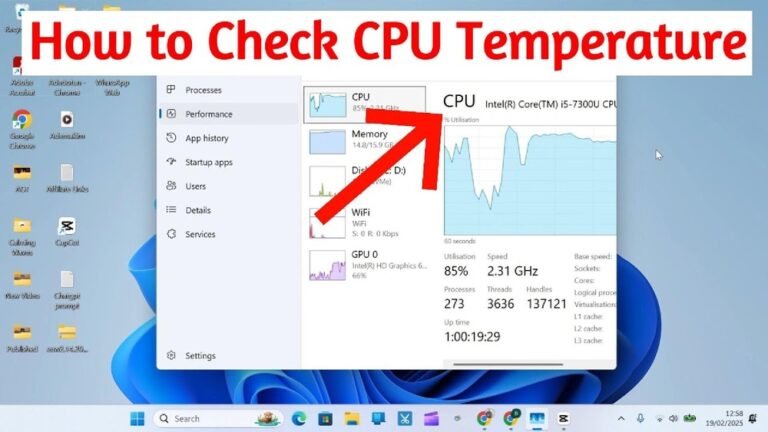
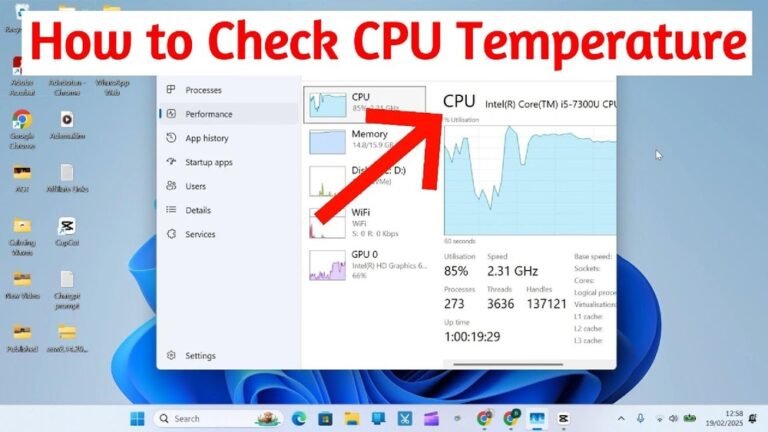
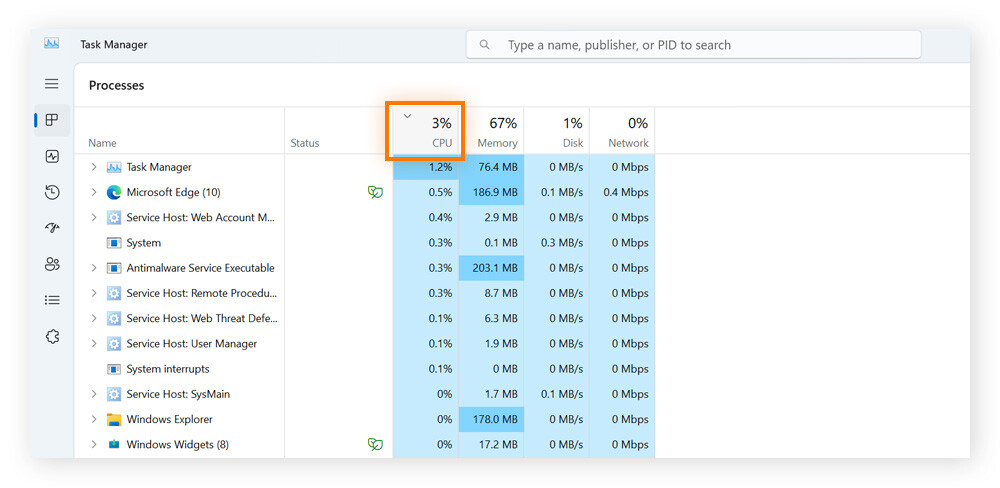
Task Manager is built into Windows. Press Ctrl + Shift + Esc to open it. The Performance tab shows real-time CPU usage. You can see how busy your processor is at any moment. The Processes tab lists apps and their CPU use. Sort by CPU to spot heavy users quickly.
Third-party Tools
Third-party tools offer deeper CPU insights. Programs like HWMonitor or CPU-Z provide detailed stats. They show temperature, clock speed, and core activity. These tools help track CPU health and detect overheating. Many are free and simple to use.
Identifying Resource Hogs
Resource hogs are apps that use too much CPU. They slow down your system and cause lag. Use Task Manager or other tools to find these apps. Look for programs with high CPU percentages. Close or uninstall apps that you do not need.
Optimizing Software Settings
Optimizing software settings helps reduce your CPU usage. This makes your computer run cooler and faster. Small changes in your settings can lower the load on your CPU. Focus on stopping unnecessary programs and adjusting your power plan. Managing browser tabs also plays a big role.
Disabling Startup Programs
Startup programs run automatically when your computer turns on. Many of these are not needed right away. They use CPU power and slow down your system. Open Task Manager and go to the Startup tab. Disable programs that you do not need at startup. This frees up your CPU for important tasks.
Adjusting Power Settings
Your power settings control how your CPU works. The default setting often favors performance over energy saving. Change your power plan to Balanced or Power Saver. This reduces CPU speed during light tasks. Open Control Panel, select Power Options, and choose a suitable plan. This keeps your CPU cooler and saves energy.
Managing Browser Tabs
Each browser tab uses CPU resources. Having many tabs open slows down your computer. Close tabs you do not use. Use extensions that suspend inactive tabs. This stops them from using CPU power. A cleaner browser means a lighter CPU load and faster browsing.
Credit: helpdeskgeek.com
Cleaning Up Your System
Cleaning up your system helps reduce CPU load and improve speed. A cluttered system slows down tasks and uses more power. Freeing up space and removing junk files lightens the work for your CPU.
Keep your computer tidy by deleting files you no longer need. This stops the processor from working on unnecessary data. A clean system runs smoother and stays cooler.
Removing Unnecessary Files
Check your folders for old documents, downloads, and media. Delete files that you do not use anymore. Temporary files and cache also take up space. Clearing these files lowers CPU activity and frees memory.
Uninstalling Unused Apps
Look at the list of installed programs on your computer. Remove apps that you never open or need. Many apps run background processes that increase CPU usage. Uninstalling them reduces these hidden tasks.
Running Disk Cleanup
Use the built-in Disk Cleanup tool on your system. It finds and deletes temporary files, system logs, and recycle bin contents. Regular use of Disk Cleanup keeps the system lean. This helps your CPU focus on important work.
Updating And Patching
Keeping your computer’s CPU cool and efficient needs regular updates and patches. These updates fix bugs and improve how software uses the CPU. They also close security gaps that might cause your CPU to overwork.
Updating and patching your system is a simple way to keep your CPU running smoothly. It reduces crashes and slows down caused by outdated software. Let’s explore the key updates you should never miss.
Operating System Updates
Your operating system controls hardware and software. Updates from the OS maker improve system stability and efficiency. They fix errors that make the CPU work harder than needed.
Regular OS updates help your computer manage resources better. This lowers CPU usage and prevents overheating. Set your system to update automatically for best results.
Driver Updates
Drivers connect your hardware to the operating system. Old or faulty drivers can cause CPU spikes and slowdowns. Updated drivers improve communication between devices and the CPU.
Check for driver updates for key components like graphics cards and network adapters. Updated drivers often fix bugs and improve power management. This reduces CPU load.
Software Patches
Software patches fix known issues in applications. Bugs in software can cause high CPU usage or crashes. Applying patches keeps software running efficiently.
Developers release patches to improve performance and security. Installing these patches prevents apps from overusing your CPU. Keep your important apps updated regularly.
Enhancing Cooling Solutions
Enhancing cooling solutions is key to lowering your CPU temperature. A cool CPU works better and lasts longer. Small changes to your system’s cooling can make a big difference. Focus on how air flows, keeping parts clean, and adding cooling aids.
Improving Airflow
Good airflow moves hot air out and brings cool air in. Arrange fans so air flows smoothly through your computer. Avoid blocking vents with cables or other items. Use extra case fans if your system feels hot. Proper airflow helps your CPU stay cool during heavy use.
Cleaning Dust From Components
Dust blocks air and traps heat inside the case. Clean dust from fans, vents, and heat sinks regularly. Use a soft brush or compressed air to remove dust safely. Keep your workspace dust-free to reduce buildup. Clean parts help the cooling system work better.
Using Cooling Pads
Cooling pads are useful for laptops. They have fans that add extra airflow under the laptop. Place the laptop on the cooling pad during use. This lowers the laptop’s temperature and protects the CPU. Cooling pads are easy to use and affordable.
Advanced Performance Tweaks
Advanced performance tweaks help control CPU usage effectively. These tips go beyond simple fixes. They require careful steps but improve your CPU’s efficiency. Use them wisely to keep your system cool and responsive.
Adjusting Cpu Affinity
CPU affinity sets which processor core runs a program. Assigning certain tasks to specific cores lowers overall CPU load. This spreads work evenly across your CPU. Use Task Manager in Windows to change affinity. Select a process, right-click, and choose “Set affinity.” Pick fewer cores for less important tasks.
Overclocking And Underclocking
Overclocking increases CPU speed to boost performance. It can cause higher heat and more power use. Underclocking lowers CPU speed, reducing heat and power. It helps extend battery life and cool down your system. Both need BIOS settings or special software. Monitor temperature carefully to avoid damage.
Disabling Unnecessary Services
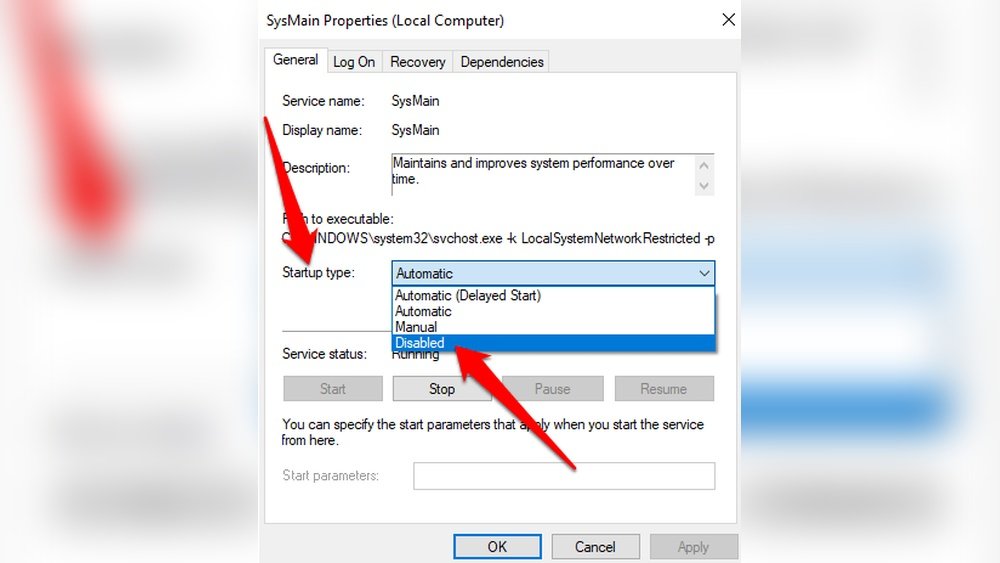
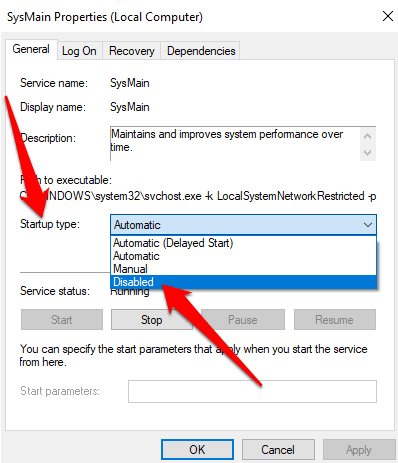
Many background services run without need. These consume CPU and slow your system. Disable services you do not use to free up resources. Use “Services” app in Windows to manage them. Stop and disable services like print spooler if not needed. This reduces CPU work and improves speed.

Credit: www.youtube.com
Preventing Future Cpu Overloads
Preventing future CPU overloads helps your computer run smoothly. Overloads slow down your system and cause crashes. Taking simple steps can keep your CPU cool and efficient. These methods protect your computer from damage and improve performance.
Regular Maintenance
Clean your computer inside and out often. Dust blocks airflow and traps heat. Use compressed air to remove dust from fans and vents. Check for loose cables or parts that may block airflow. Keep your workspace cool to help your CPU stay at a safe temperature.
Installing Antivirus Software
Viruses and malware use your CPU power without permission. Installing antivirus software stops harmful programs from running. Choose trusted antivirus tools that update regularly. Run scans often to catch new threats early. This keeps your CPU free from extra work caused by malware.
Scheduling System Scans
Set your computer to scan for problems automatically. Scheduled scans catch viruses and errors on time. Running scans during idle hours saves your CPU from overload. Regular scans keep your system healthy and fast. This simple habit prevents many CPU issues before they start.
Frequently Asked Questions
How Can I Lower Cpu Temperature Quickly?
To lower CPU temperature quickly, improve airflow by cleaning dust and using a cooling pad. Also, close unused programs and reduce CPU load to prevent overheating.
What Are The Best Ways To Cool A Cpu?
The best ways to cool a CPU include applying high-quality thermal paste, using efficient CPU coolers, and ensuring proper case ventilation. Regular maintenance and monitoring temperatures help maintain optimal cooling.
Does Lowering Cpu Usage Reduce Heat?
Yes, lowering CPU usage reduces heat because less processing power generates less thermal energy. Closing background apps and optimizing software settings can effectively lower CPU heat.
Can Software Tools Help Reduce Cpu Temperature?
Yes, software tools can help by managing CPU fan speeds and controlling performance settings. They optimize workload distribution and prevent overheating by balancing CPU activity efficiently.
Conclusion
Lowering your CPU temperature helps your computer run smoothly. Clean the dust inside your computer often. Use good quality cooling fans or a cooling pad. Close programs that use too much CPU power. Check for viruses that slow your system down.
Keep your software and drivers up to date. Small steps like these protect your computer’s health. Stay patient and consistent with these habits. Your CPU will thank you with better speed and less heat.