How to See What Ram You Have: Quick and Easy Guide
Have you ever wondered how much RAM your computer really has? Knowing your RAM is important because it affects how fast your device runs and how many tasks it can handle at once.
If your computer feels slow or struggles with programs, checking your RAM might be the key to fixing it. In this guide, you’ll learn simple and quick ways to see exactly what RAM you have, without any confusing tech jargon.
Keep reading—understanding your RAM could be the first step to making your device work better for you.

Credit: www.coimbraepaixao.com.br
Check Ram On Windows
Knowing how much RAM your Windows computer has is useful for many tasks. It helps to check if your system can run certain programs or games smoothly. Windows offers simple ways to view RAM details without installing extra software. Here are three easy methods to check your RAM on Windows.
Use System Information
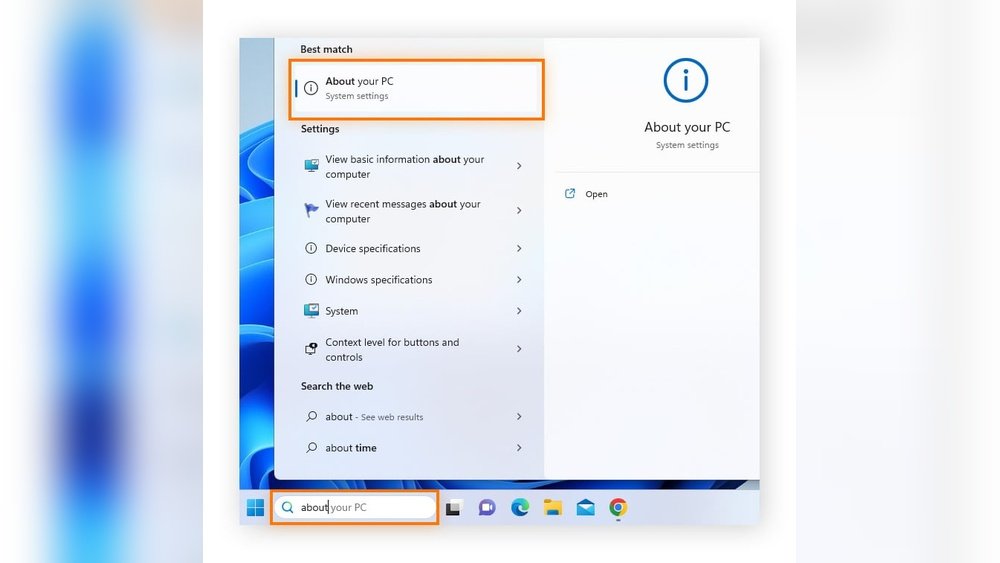
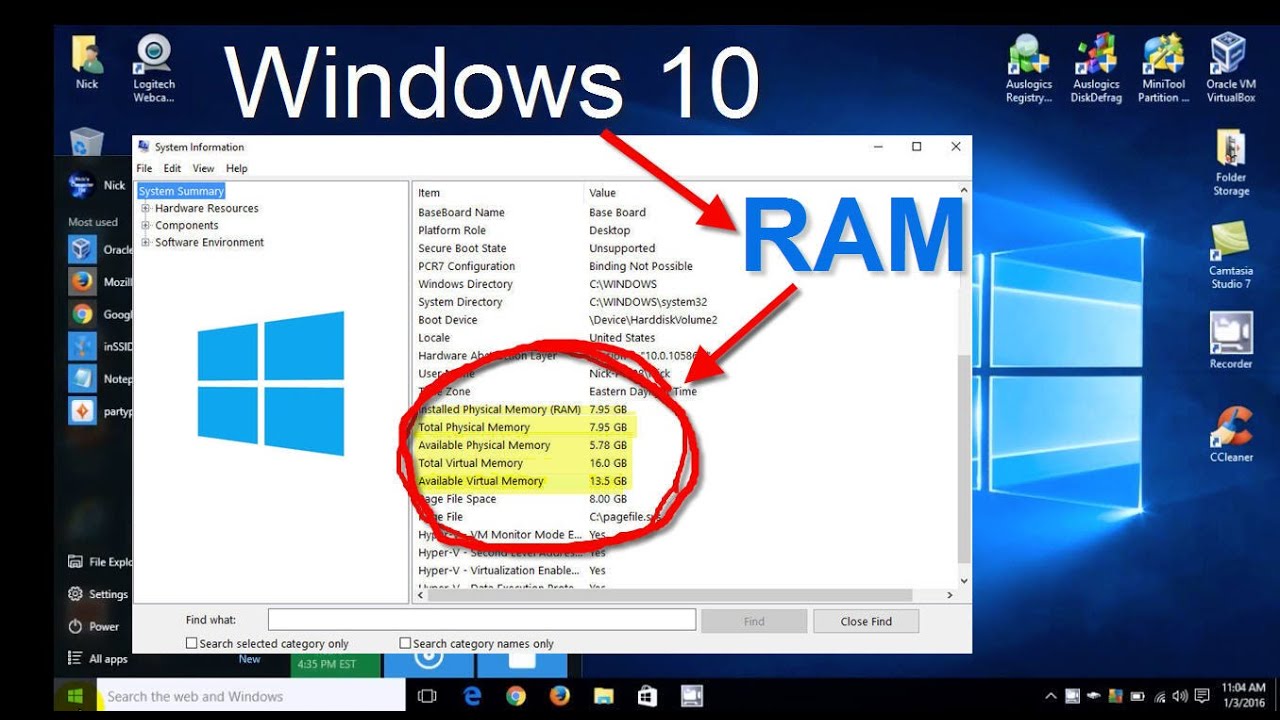
Open the Start menu and type System Information. Click the app to launch it. In the new window, find Installed Physical Memory (RAM). This shows the total RAM installed on your PC. It also lists other system details that might help you.
Check Task Manager
Press Ctrl + Shift + Esc to open Task Manager quickly. Click the Performance tab at the top. Select Memory from the left menu. Here, you see your RAM size and how much is in use. It also shows RAM speed and form factor.
Try Command Prompt
Open the Start menu and type cmd. Right-click Command Prompt and choose Run as administrator. Type the command wmic MEMORYCHIP get BankLabel, Capacity, Speed and press Enter. This lists each RAM stick’s size and speed separately.
Credit: www.esseg.eu
Check Ram On Mac
Finding out how much RAM your Mac has is simple. This helps you understand your computer’s performance and if it needs an upgrade.
Two easy ways let you check your Mac’s RAM quickly. Both methods give clear details about your memory.
Access About This Mac
Click the Apple icon in the top-left corner of your screen. Select About This Mac from the menu.
A window appears showing your Mac’s details. Here, you see the amount of RAM installed under the Memory section.
This method works on all Mac models and macOS versions. It is the fastest way to check your RAM size.
Use Activity Monitor
Open Activity Monitor from the Applications folder, then go to the Utilities folder. You can also use Spotlight search.
Click the Memory tab at the top of the Activity Monitor window. It shows how your RAM is being used right now.
This tool helps you see real-time memory usage. It shows how much RAM each app uses and overall system memory.
Check Ram On Linux
Checking your RAM on Linux helps you understand your system’s memory capacity. This knowledge aids in managing tasks and improving performance. Linux offers simple ways to view RAM details using built-in tools.
Use Terminal Commands
Open the terminal to check your RAM quickly. Type free -h and press Enter. This command shows total, used, and free memory in a human-readable format. Another useful command is cat /proc/meminfo. It provides detailed memory information.
You can also use top or htop commands for real-time memory usage. These tools display active processes and memory consumption. They help monitor RAM while running programs.
Check System Monitor
Most Linux desktops include a system monitor app. Open it from your application menu. The system monitor shows RAM usage in a graphical format. It displays memory used, free, and cached.
This tool also lists running processes and their memory use. It is useful for users who prefer a visual overview instead of commands. It offers an easy way to track RAM on Linux.
Check Ram Physically
Checking your RAM physically helps you see the exact type and size installed. This method is useful if software tools are not available. Opening your computer case shows the RAM modules directly. You can read labels on each module to find details.
Open Your Computer Case
Turn off your computer and unplug all cables. Place the computer on a flat surface. Remove screws or latches holding the side panel. Slide or lift the panel off carefully. Make sure not to touch any components inside.
Identify Ram Modules
Look for long, thin sticks inserted into slots on the motherboard. These are your RAM modules. Each module has a label with its size and speed. Note down the numbers on the label. Handle modules gently to avoid damage.
Tools For Detailed Ram Info
To find detailed information about your RAM, specialized tools can help. These tools show exact details like speed, type, and size. They reveal more than basic system settings do. Using these tools helps you understand your computer’s memory better.
Third-party Software Options
Several third-party programs provide detailed RAM info. CPU-Z is a popular choice. It shows RAM type, size, and speed clearly. Speccy offers an easy-to-read overview of system hardware. It displays RAM usage and specifications. Another tool is HWiNFO, which gives in-depth details. These programs work on Windows and are free or low cost.
Benefits Of Using Ram Tools
RAM tools give precise information about your memory. They help identify the exact RAM model and speed. This info is useful for upgrades or troubleshooting. You can see how much RAM is in use. The tools also detect errors or issues in RAM. They save time by providing clear data quickly.
Tips For Ram Upgrades
Upgrading your RAM can make your computer faster and better at multitasking. Knowing a few key tips helps you choose the right memory. This keeps your system stable and boosts performance.
Follow simple steps to make sure your upgrade works well. Avoid buying incompatible or too much memory. Check your system details before making a choice.
Know Your System Limits
Your computer can only support a certain amount of RAM. Check your motherboard or laptop manual for maximum capacity. Exceeding this limit can cause errors or prevent booting. Also, note the number of RAM slots available. This helps plan your upgrade in small or large steps.
Choose Compatible Ram
Pick RAM that matches your system’s speed and type. Use DDR3, DDR4, or DDR5 based on what your motherboard supports. Mixing speeds or types may cause instability. Buy from trusted brands to ensure quality. Read product details carefully before purchasing.

Credit: www.liftingitalia.com
Frequently Asked Questions
How Do I Check My Ram On Windows 10?
Open Settings, go to System, then About. Look under “Installed RAM” to see your RAM size and type.
Can I See Ram Details Using Command Prompt?
Yes, type wmic memorychip get capacity, speed, memorytype in Command Prompt. It shows RAM size, speed, and type.
How To Find Ram Info On Mac Computers?
Click the Apple menu, select “About This Mac. ” The Overview tab displays RAM size and type clearly.
What Tools Show Detailed Ram Specifications?
Use CPU-Z or Speccy software for detailed RAM info. These tools provide size, speed, and manufacturer details.
Conclusion
Checking your RAM helps you understand your computer better. It shows how much memory your device uses. This info can guide you to improve your system’s speed. You can find RAM details in simple steps on any device. Knowing your RAM lets you decide if an upgrade is needed.
Keep this guide handy for quick reference anytime. Understanding your computer’s memory keeps your tech running smooth. Stay informed and take control of your device’s performance.