How to Tell If Your Cpu is Bottlenecking: Key Signs Revealed
Is your computer feeling slow or laggy when you play games or run programs? You might be facing a CPU bottleneck without even realizing it.
Knowing how to tell if your CPU is bottlenecking can save you time, money, and frustration. You’ll learn simple signs to watch for and easy ways to check if your processor is holding back your system’s full potential. Keep reading to unlock the secret to smoother performance and smarter upgrades.
Cpu Bottleneck Basics
Understanding CPU bottleneck basics helps you spot performance issues fast. A CPU bottleneck happens when your processor limits the speed of other components. This slows down your entire system and affects tasks like gaming or video editing.
Knowing the root causes lets you fix or avoid these problems. It also helps in choosing the right parts for your computer. This section explains what a CPU bottleneck is and what causes it.
What Is A Cpu Bottleneck
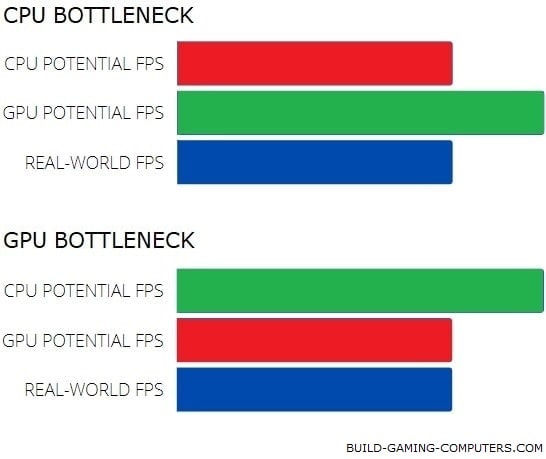
A CPU bottleneck occurs when the processor is too slow for other parts. It holds back the graphics card or memory from working at full speed. The result is lower performance and lag during heavy tasks.
Think of it as a narrow pipe slowing water flow. The CPU is the pipe, and data is the water. If the pipe is small, less water passes through. The same goes for your computer’s speed.
Common Causes
One common cause is using an old or low-power CPU with a fast graphics card. The CPU cannot keep up with the data the GPU sends.
Another cause is running too many programs at once. The processor gets overwhelmed and slows down.
Poor system cooling may also cause the CPU to throttle its speed. This happens to avoid overheating and leads to slower performance.
Lastly, outdated drivers or software can cause the CPU to work inefficiently. Keeping everything updated helps reduce bottlenecks.

Credit: softwareg.com.au
Performance Symptoms
Performance symptoms help identify if your CPU is bottlenecking. They reveal how your computer handles tasks and games. Understanding these signs can guide you to fix or improve your setup.
Low Frame Rates
Low frame rates mean your games or videos run slowly. The screen may look choppy or laggy. This happens when the CPU cannot keep up with the graphics card.
The CPU struggles to process game data fast enough. This limits how many frames your computer shows per second. A stronger CPU often improves frame rates.
High Cpu Usage
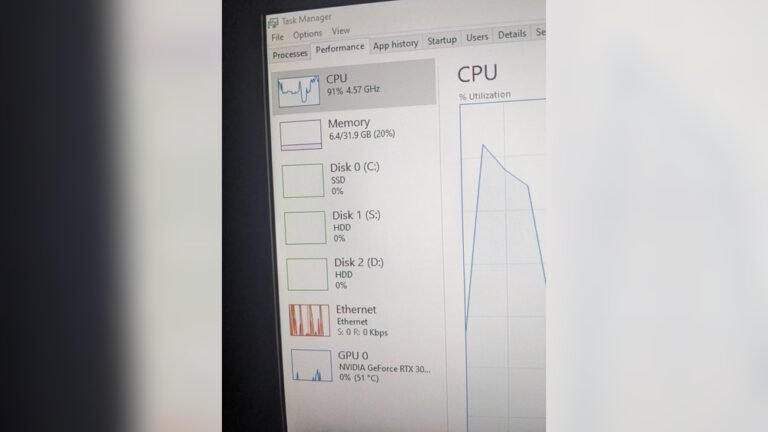
High CPU usage means the processor works at or near full capacity. You can check this using task manager or similar tools. When CPU usage stays very high, your system slows down.
This shows the CPU is the main bottleneck. Other parts like the graphics card may wait for the CPU to finish tasks. High CPU usage reduces overall performance.
Unstable Fps
Unstable FPS means frame rates jump up and down a lot. The gameplay feels uneven and can be frustrating. This instability often points to CPU limitations.
The CPU cannot keep a steady pace with game demands. Frame times vary, causing the FPS to fluctuate. Fixing the CPU bottleneck can smooth out FPS.
Monitoring Tools
Monitoring tools help you check if your CPU is slowing down your system. They show how much of the CPU is used during tasks. Watching these numbers helps identify bottlenecks. You can use built-in tools or third-party apps for this. Both types give clear data to help you decide on upgrades or fixes.
Task Manager And Resource Monitor
Task Manager is a simple tool in Windows. It shows CPU usage in real-time. Open it by pressing Ctrl + Shift + Esc. Under the “Performance” tab, you see CPU activity. High CPU usage near 100% during tasks suggests a bottleneck.
Resource Monitor gives more detail than Task Manager. It shows CPU, memory, disk, and network use. You can find which process uses most CPU. This helps pinpoint if a program causes the slowdown. Both tools require no extra download and are easy to use.
Third-party Software Options
Third-party tools offer deeper insights than built-in Windows apps. Programs like HWMonitor and MSI Afterburner track CPU temperature and usage. They show data in graphs and logs for easy reading. These apps also monitor other parts like GPU and RAM.
Some third-party software alerts you if the CPU is overloaded. They help track performance over time. This data helps find patterns causing bottlenecks. Many options are free or low-cost. Choose one that fits your needs and skill level.

Credit: www.youtube.com
Testing For Bottlenecks
Testing for bottlenecks helps find if your CPU limits your system’s performance. It shows if your CPU slows down other parts, like the GPU. This testing guides you to fix issues and improve speed.
Use simple tools and methods to check CPU performance. Watch how your CPU works during tasks to spot problems.
Benchmarking Your Cpu
Benchmarking measures your CPU’s power and speed. Use apps like Cinebench or Geekbench for clear scores. Run these tests while your PC is idle and busy. Compare results with similar CPUs to see if yours is weak.
Look for low scores or big drops under load. These signs mean your CPU might be a bottleneck. Testing regularly helps track any changes in performance.
Comparing Cpu And Gpu Loads
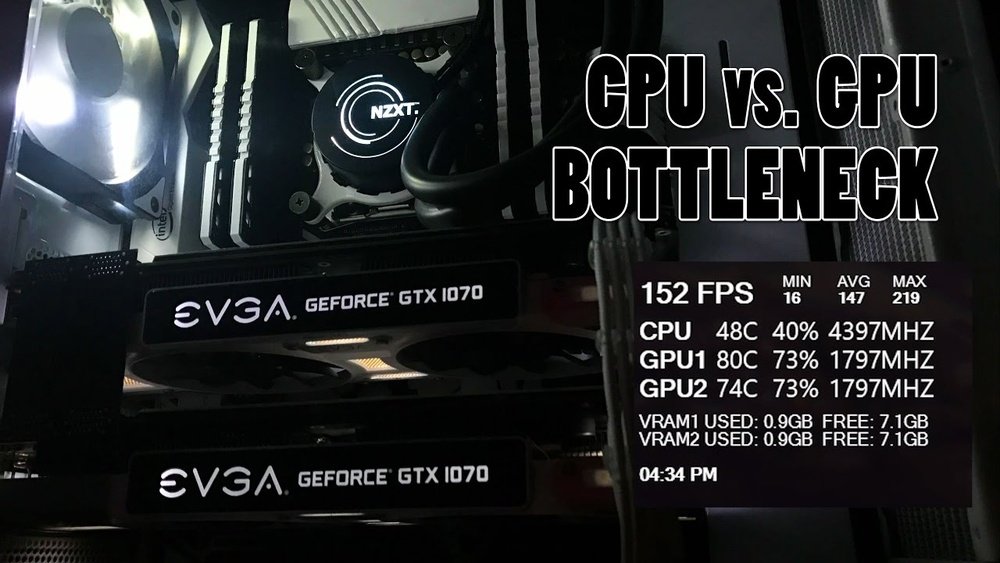
Check the CPU and GPU usage while gaming or running apps. Use tools like Task Manager or MSI Afterburner. If CPU usage hits 100% but GPU stays low, the CPU limits the system.
If both CPU and GPU have high usage, no bottleneck exists. Balanced loads mean the system works well. Focus on the component that hits full load first.
Fixing Cpu Bottlenecks
Fixing CPU bottlenecks can greatly improve your computer’s speed. It helps your system run smoothly and avoid lag. By addressing the CPU limits, other parts like the GPU can work better. This section covers simple ways to fix these issues without much hassle.
Upgrading Your Cpu
One clear way to fix CPU bottlenecks is to upgrade the CPU. A faster processor handles more tasks at once. Check your motherboard to see which CPUs fit. Choose a newer model with better speed and cores. Installing a stronger CPU boosts overall system performance.
Adjusting Game Settings
Lowering game settings can reduce CPU load. Turn off extra effects like shadows or reflections. Set the game to medium or low graphics quality. This reduces the work your CPU must do. Games run smoother, and frame rates improve with less CPU strain.
Optimizing Background Processes
Close apps running in the background to free CPU power. Many programs use CPU even if you don’t see them. Use Task Manager to find and stop these tasks. This gives your CPU more space to focus on important work. A clean system runs faster and avoids bottlenecks.
Credit: www.build-gaming-computers.com
When To Upgrade Other Components
Knowing when to upgrade other parts of your PC is important. A fast CPU alone cannot fix all performance problems. Sometimes, the graphics card or memory may hold back your system. Understanding the signs helps you make smart upgrade choices.
Identifying Gpu Bottlenecks
A GPU bottleneck happens when the graphics card works too hard. Your CPU may be fast, but the GPU slows down the game or app. Watch for low frame rates or stuttering during graphics-heavy tasks. Use tools like MSI Afterburner to check GPU usage. If the GPU hits 100% while the CPU stays below 80%, the GPU limits performance.
Balancing System Performance
Balancing your PC parts gives the best results. Avoid having one part much stronger than others. Pair a strong CPU with a good GPU and enough RAM. If your CPU is fast but your GPU or RAM is weak, upgrade those first. This balance stops bottlenecks and improves overall speed and stability.
Frequently Asked Questions
What Are Common Signs Of Cpu Bottlenecking?
Common signs include low FPS, high CPU usage, and GPU idling. Games or apps lag despite a powerful GPU. System responsiveness may drop during heavy tasks, indicating the CPU limits overall performance.
How Can I Check If My Cpu Is Bottlenecking?
Use tools like Task Manager or MSI Afterburner to monitor CPU and GPU usage. If CPU hits 100% while GPU usage stays low, the CPU likely bottlenecks the system.
Does Upgrading Cpu Fix Bottleneck Issues?
Upgrading your CPU often resolves bottleneck problems by balancing system performance. A stronger CPU allows the GPU to perform optimally, improving frame rates and responsiveness in demanding applications.
Can Software Updates Reduce Cpu Bottlenecking?
Yes, updating drivers and system software can optimize CPU efficiency. Performance improvements and bug fixes may reduce bottlenecks, but hardware limits still apply for heavy tasks.
Conclusion
Detecting CPU bottlenecks helps improve your computer’s speed. Watch for slow programs and low frame rates. Check CPU usage during tasks to spot limits. Upgrading your CPU or balancing components can fix issues. Simple tests reveal if your CPU holds back performance.
Keep your system balanced for smooth, fast operation. Understanding bottlenecks saves time and frustration. Act early to enjoy better computing experiences.