How to Check Cpu Temperature Windows 11: Quick & Easy Guide
Worried that your computer might be running too hot? Knowing how to check your CPU temperature in Windows 11 is key to keeping your system safe and running smoothly.
If your CPU gets too hot, it can slow down your computer or even cause damage. But don’t worry—this guide will show you simple, effective ways to monitor your CPU temperature quickly. By the end, you’ll feel confident protecting your PC from overheating and boosting its performance.
Keep reading to learn easy steps you can start using right now!
Why Monitor Cpu Temperature
Monitoring your CPU temperature is important for every Windows 11 user. It helps keep your computer safe and running well. The CPU is the brain of your computer. It works hard and gets hot. Watching the temperature stops problems before they start. It also helps your computer last longer.
Risks Of Overheating
High CPU temperature can cause serious damage. The computer may shut down suddenly to protect itself. Overheating can damage the CPU and other parts. This damage may cost a lot to repair. Heat can also cause your computer to freeze or crash. Keeping an eye on temperature helps avoid these risks.
Impact On Performance And Longevity
Hot CPUs do not work as fast. Overheating makes your computer slow down to cool off. This reduces how well your PC runs. Long-term heat exposure shortens the CPU’s life. A cooler CPU lasts longer and performs better. Monitoring temperature helps maintain speed and extend life.
Built-in Tools For Temperature Check
Windows 11 offers some built-in tools to check your CPU temperature. These tools help you see if your computer is running too hot. You do not need to download anything extra. The information you get can help you keep your PC safe and working well.
These tools are simple to use and easy to find. They give basic details about your system’s health. Let’s explore how to use them.
Using Task Manager
Task Manager shows your PC’s performance and running apps. It can give some clues about CPU temperature indirectly. Open Task Manager by pressing Ctrl + Shift + Esc. Click on the Performance tab. Look for the CPU section. Here, you can see CPU usage and speed.
Task Manager does not display temperature directly. But high CPU usage can mean the processor is working hard and may get hot. If you notice your CPU is always at 100%, your PC might need cooling.
Windows Security And Device Health
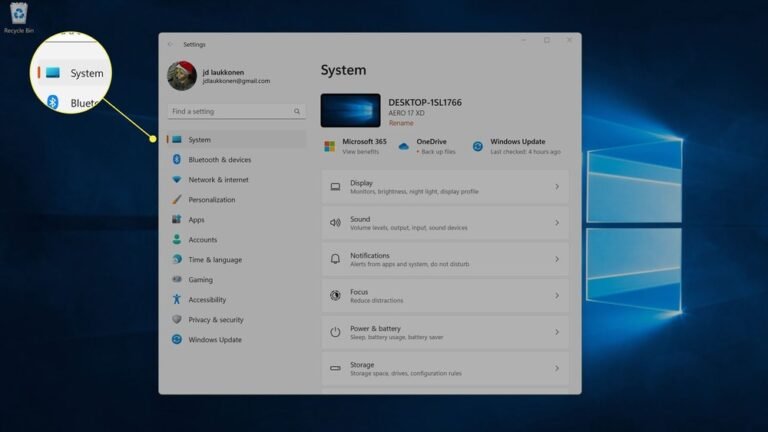
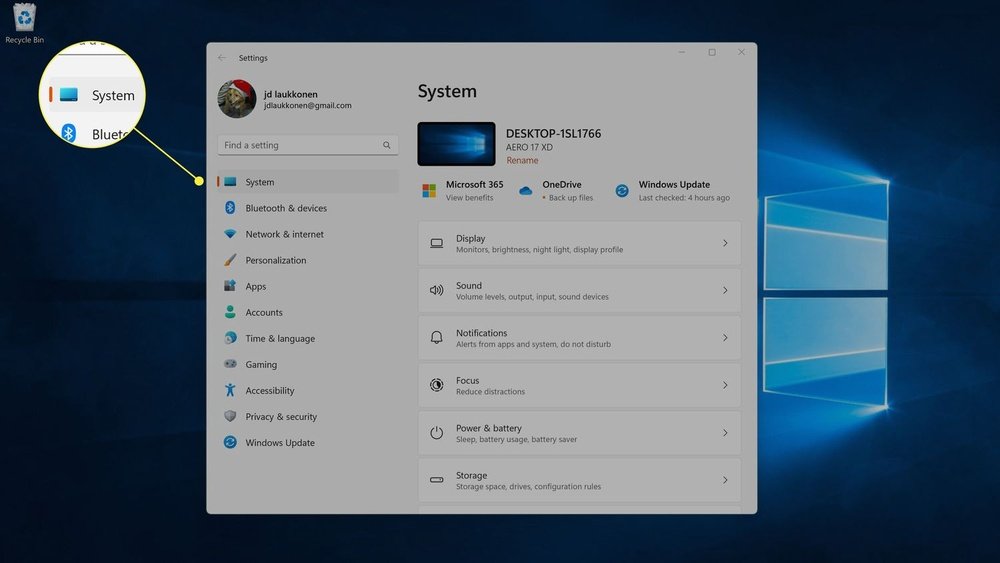
Windows Security includes a Device Health section. It helps check your PC’s general condition. Open Settings and select Privacy & Security. Then click Windows Security. Choose Device performance & health.
This tool checks for hardware issues and gives a health report. It does not show exact CPU temperature. But it alerts you if there are problems that could affect performance or cause overheating.
Using these built-in tools gives you a quick look at your PC’s status. For detailed CPU temperature readings, third-party apps may be needed.
Using Third-party Software
Using third-party software is an effective way to monitor your CPU temperature on Windows 11. These apps provide detailed information about your system’s health. They show real-time temperature readings and alert you if your CPU gets too hot. This helps you avoid damage and keep your computer running smoothly.
Many third-party tools offer extra features like fan speed control and system performance stats. They work well on most Windows 11 PCs. You can choose a free or paid app based on your needs. These programs are user-friendly and easy to install.
Popular Temperature Monitoring Apps
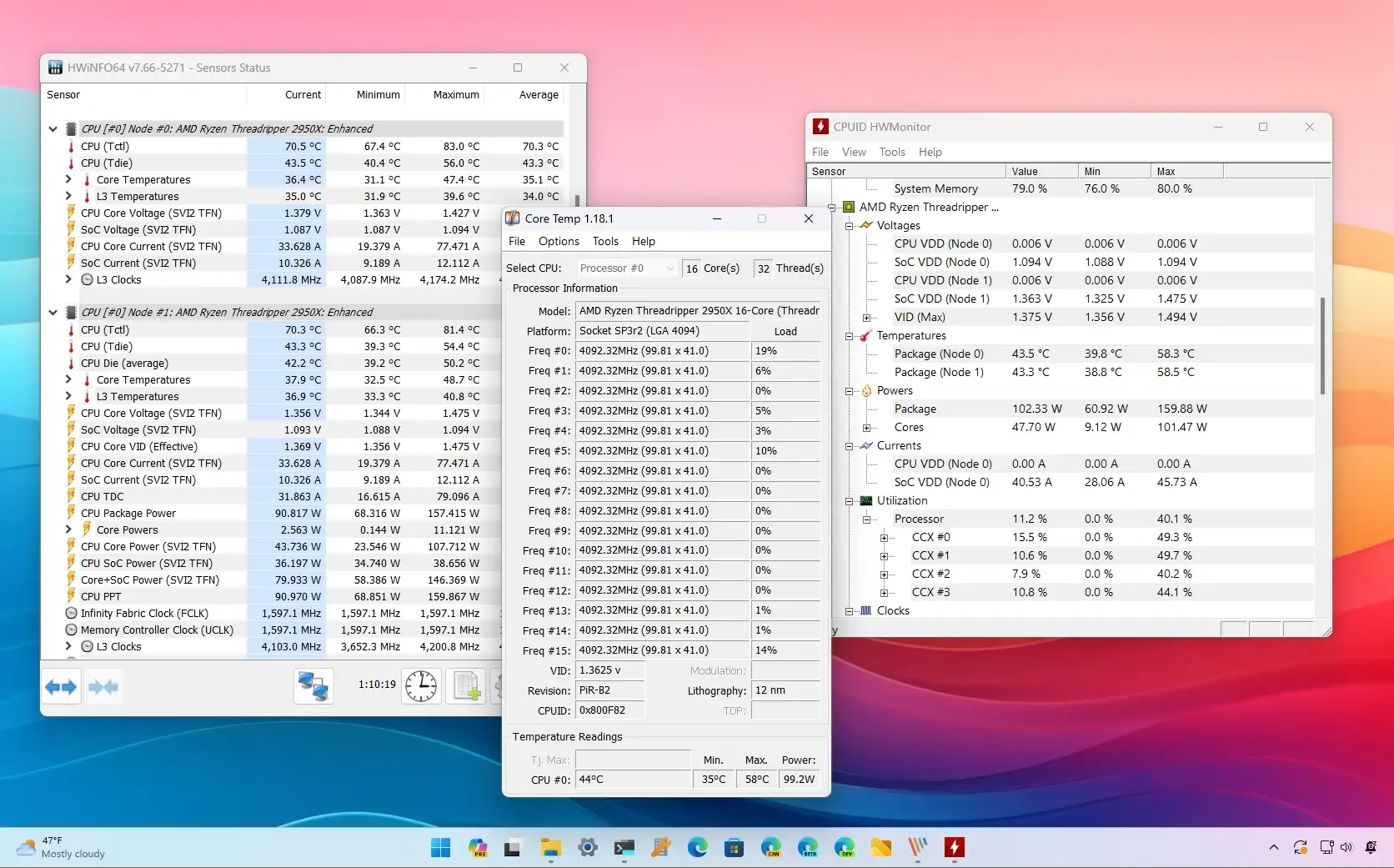
Several apps are trusted by users to check CPU temperature. HWMonitor is a simple tool that shows detailed temperature and voltage data. Core Temp focuses only on CPU temperature and provides accurate readings. SpeedFan not only monitors temperature but also controls fan speed. MSI Afterburner is popular among gamers and offers in-depth hardware info. These apps run quietly in the background and do not slow down your computer.
How To Install And Use Them
First, download the app from its official website. Avoid third-party download sites to keep your PC safe. After downloading, open the setup file and follow the instructions. Most programs install quickly without extra steps.
Once installed, open the app to see your CPU temperature. The interface shows real-time numbers and graphs. Keep the app running while using your computer to monitor changes. Some apps allow you to set alerts for high temperatures. Adjust settings to fit your preferences.
Credit: pureinfotech.com
Bios And Uefi Temperature Check
BIOS and UEFI are low-level systems that control your computer’s hardware. You can check your CPU temperature directly from these systems without extra software. This method is useful if Windows tools are not working or if you want an early startup temperature check.
Accessing BIOS or UEFI is simple but varies by device. Usually, you press a special key during the boot process. Once inside, you can find the CPU temperature in the hardware monitoring sections.
Accessing Bios/uefi
Restart your computer. Press the designated key quickly. Common keys include F2, Delete, or Esc.
Keep pressing until the BIOS or UEFI screen appears. If Windows loads, restart and try again.
Some computers use UEFI with a graphical interface. Others use text-based BIOS screens.
Locating Cpu Temperature Info
Look for a tab named “Hardware Monitor,” “PC Health,” or “Status.”
CPU temperature is shown as a number with degrees Celsius or Fahrenheit.
Note the temperature values. High numbers may indicate cooling issues.
Exit without saving changes to avoid affecting system settings.
Interpreting Temperature Readings
Knowing your CPU temperature helps keep your computer safe and fast. The readings show how hot your processor is. Understanding these numbers guides you on whether your PC is running well or facing problems. This knowledge helps you protect your device from damage and slowdowns.
Safe Temperature Ranges
Most CPUs work well between 30°C and 50°C when idle. Under heavy use, temperatures up to 70°C are usually safe. Temperatures above 85°C can cause problems. Staying within these limits ensures your CPU lasts longer.
When To Take Action
Take action if your CPU temperature stays above 85°C for long. High heat can cause crashes and reduce performance. Clean dust from fans and vents first. Check if your cooling system works well. Lower temperature quickly to avoid damage.
:max_bytes(150000):strip_icc()/A3-CheckCPUTemperatureinWindows11-annotated-7777f3a0139042ed84a35e292c8e5310.jpg)
Credit: www.lifewire.com
Tips To Lower Cpu Temperature
Lowering your CPU temperature helps your computer run smoothly. It stops your system from slowing down or shutting off. Keeping your CPU cool also extends its life. Here are simple tips to reduce heat and protect your PC.
Cleaning And Maintenance
Dust and dirt block airflow inside your computer. Clean the vents and fans regularly using a soft brush or compressed air. Remove dust buildup on the CPU fan and heatsink. This helps air flow freely and cools down the CPU faster.
Check your computer’s interior every few months. Clean cables and parts to avoid overheating. Replace thermal paste on the CPU if it looks dry. Fresh thermal paste improves heat transfer between the CPU and cooler.
Improving Cooling Solutions
Use good quality cooling fans or upgrade your CPU cooler. Larger fans move more air and cool better. Consider adding extra case fans to improve airflow inside your PC case.
Place your computer where air can circulate well. Avoid closed spaces or direct sunlight. Keep the room cool with air conditioning or a fan. Cooler room air helps your CPU stay at safe temperatures.

Credit: www.youtube.com
Frequently Asked Questions
How Do I Check Cpu Temperature On Windows 11?
You can check CPU temperature using third-party apps like HWMonitor or Core Temp. Windows 11 lacks built-in CPU temperature monitoring tools.
What Is The Normal Cpu Temperature Range In Windows 11?
A typical CPU temperature ranges from 30°C to 50°C during idle. Under heavy load, temperatures can rise to 70°C to 85°C safely.
Can Windows 11 Overheating Damage My Cpu?
Yes, prolonged overheating can reduce CPU lifespan and cause system crashes. Monitoring and cooling your CPU helps prevent damage.
Does Windows 11 Have A Built-in Cpu Temperature Monitor?
No, Windows 11 does not include a built-in CPU temperature tool. You need third-party software to view accurate temperature readings.
Conclusion
Checking your CPU temperature in Windows 11 helps keep your PC safe. It shows if your computer runs too hot. You can use built-in tools or free apps. Watching the temperature stops damage and improves performance. Regular checks mean fewer crashes and longer PC life.
Stay aware, act fast if numbers rise. Simple steps keep your system cool and healthy. Try these methods today to protect your computer.