How to Check Gpu Cpu Temp: Easy Steps to Monitor and Optimize
Wondering if your computer’s running too hot? Knowing how to check your GPU and CPU temperature is crucial to keeping your system healthy and performing at its best.
Overheating can slow things down, cause crashes, or even damage your hardware. But don’t worry—checking your temps is easier than you think. You’ll discover simple ways to monitor your GPU and CPU temperatures, so you can prevent problems before they start.
Keep reading to protect your computer and boost its performance!

Credit: openhardwaremonitor.org
Importance Of Monitoring Gpu And Cpu Temps
Monitoring the temperature of your GPU and CPU is very important. These parts work hard and get hot. Watching their temperature helps keep your computer safe and fast. It tells you if your system needs better cooling or if something is wrong.
High temperatures can cause many problems. Knowing the temperature helps you avoid these issues. It also helps your computer last longer and work well every day.
Impact On Performance
When your GPU or CPU gets too hot, they slow down. This is called thermal throttling. It stops your computer from overheating. But it also makes games and programs run slower. Keeping the temperature low helps your computer run smoothly. You get better speed and less lag in your tasks.
Preventing Hardware Damage
Heat can break your GPU and CPU over time. High temperature wears out parts faster. It may cause permanent damage and costly repairs. Watching the temperature lets you cool your system early. This protects your hardware and saves money. Your computer will stay healthy and last longer.
Common Signs Of Overheating
Overheating is a common problem for CPUs and GPUs. It can damage your computer parts. Knowing the signs helps you act fast. You can protect your device and keep it running well.
Watch out for changes in how your computer behaves. These signs often show before serious damage happens. Check for slowdowns, shutdowns, and fan noise.
System Slowdowns
Your computer may start running slower than usual. Programs take longer to open or respond. The screen might freeze or lag. Overheating causes the CPU and GPU to reduce speed. This protects the hardware but affects performance.
Unexpected Shutdowns
The computer may turn off without warning. This is a safety feature to stop damage. Sudden shutdowns happen when temperatures get too high. You might lose unsaved work. It is a clear sign to check your system’s temperature.
Fan Noise Increase
The cooling fans work harder to lower heat. You will hear the fans running louder and faster. This noise means the system is hot. Fans try to cool down the CPU and GPU. If noise stays high, overheating is likely.
Tools To Check Gpu And Cpu Temperatures
Checking the temperature of your GPU and CPU is important to keep your computer safe. High temperatures can cause damage or slow down your system. There are many tools you can use to see these temperatures easily. Some tools are built into your system, while others you can download. Knowing about these tools helps you choose the best one for your needs.
Built-in System Utilities
Most operating systems come with built-in tools to check hardware temperatures. Windows users can use Task Manager or the BIOS menu. These tools give basic temperature readings without extra software. Mac users have Activity Monitor, but it does not show temperature directly. You may need to restart and enter system settings to see detailed info. Linux offers command-line tools like lm-sensors for temperature checks. These utilities are simple and safe to use.
Third-party Software Options
Many third-party programs provide detailed temperature data and extra features. Apps like HWMonitor and SpeedFan show real-time GPU and CPU temperatures. They offer graphs and alerts to prevent overheating. MSI Afterburner is popular among gamers for GPU monitoring. Open Hardware Monitor is free and easy for beginners. These tools often give more information than built-in utilities. You can customize alerts and check fan speeds too.

Credit: hognerdobrasil.com.br
Step-by-step Temperature Checking
Checking the temperature of your CPU and GPU is important. It helps keep your computer safe and running well. High temperatures can cause damage or slow down your system. This guide shows simple steps to check these temperatures easily. You do not need special skills or tools.
Using Windows Task Manager
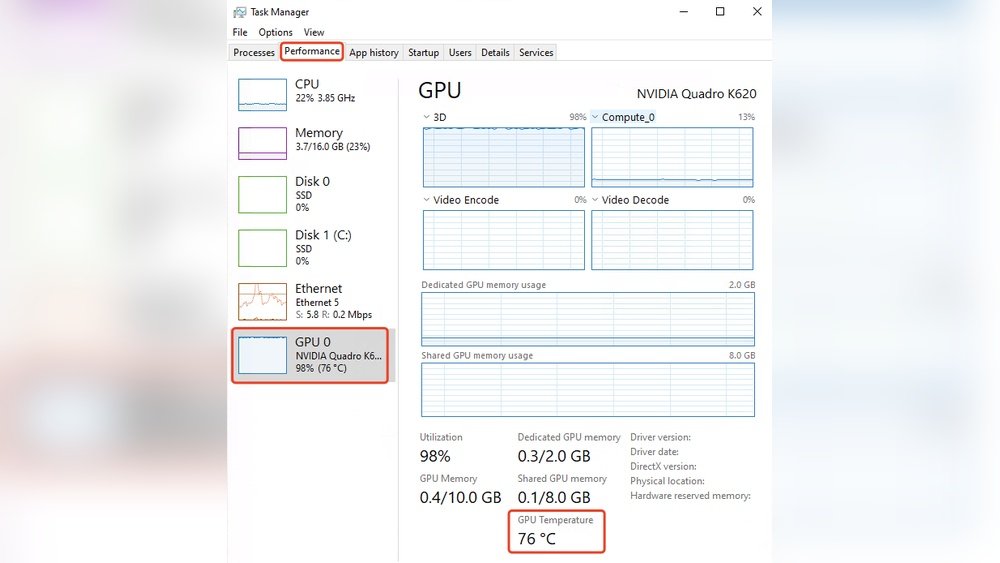
Open Task Manager by pressing Ctrl + Shift + Esc. Click the “Performance” tab. Here, you see CPU usage and speed. Some Windows versions also show CPU temperature. Look for the temperature at the bottom or side. This method works only on certain computers. It does not show GPU temperature. For more details, use other tools.
Using Dedicated Monitoring Apps
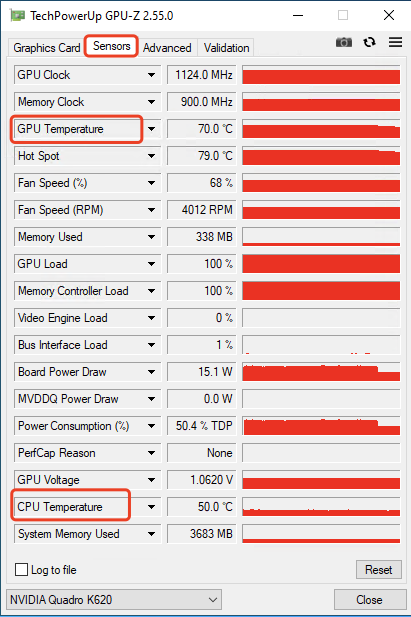
Download apps like HWMonitor, Core Temp, or MSI Afterburner. Install and open the app on your PC. These apps show real-time CPU and GPU temperatures. They also display fan speeds and voltages. You can check temperature changes during use. Apps are easy to use and provide detailed info. They work on most Windows computers.
Using Bios/uefi
Restart your computer and enter BIOS or UEFI settings. Usually, press Delete, F2, or F10 during boot. Find the “Hardware Monitor” or “PC Health” section. Here, you see CPU temperature and fan speeds. GPU temperature may not be available. This method shows temperatures before Windows loads. It helps check if your system runs cool at rest.
Interpreting Temperature Readings
Understanding your CPU and GPU temperature readings is key to keeping your computer healthy. These numbers tell you how hot your hardware is running. High temperatures can lead to slower performance or damage. Knowing what these readings mean helps you decide when to cool down your system.
Safe Temperature Ranges
Most CPUs run safely between 30°C and 50°C when idle. Under heavy use, temperatures up to 80°C are usually okay. GPUs often run a bit hotter, with safe ranges from 30°C to 60°C at rest. During gaming or heavy tasks, up to 85°C can be normal. Staying within these ranges keeps your parts safe and working well.
When To Take Action
Temperatures above 85°C for the CPU or GPU need attention. Consistent high heat can shorten hardware life. Sudden spikes or temperatures over 90°C may cause crashes or shutdowns. Clean dust from fans and vents first. Improve airflow or add cooling if heat stays high. Monitor temps regularly to catch problems early.
Tips To Optimize And Lower Temperatures
Keeping your GPU and CPU temperatures low helps your computer run smoothly. High temperatures can cause slowdowns and damage parts. Follow simple tips to cool down your system and avoid problems.
Improving Airflow
Good airflow inside your computer case moves hot air out quickly. Arrange cables neatly to avoid blocking vents. Use cases with multiple fans or vents for better air movement. Position your PC in an open space, not inside a closed desk.
Cleaning Dust And Debris
Dust blocks air from reaching important parts like the CPU and GPU. Clean the inside of your PC every few months. Use compressed air to blow out dust from fans and heatsinks. Avoid using a vacuum cleaner, as it may cause static damage.
Updating Drivers And Bios
Old drivers and BIOS versions can cause your hardware to overheat. Check for updates from your computer or motherboard maker. Updated software improves performance and cooling control. Regular updates keep your system running cooler and more stable.
Using Cooling Pads Or Additional Fans
Cooling pads work well for laptops to reduce heat. Add extra fans inside desktop cases to increase airflow. Place fans so they push hot air out and pull cool air in. These tools help keep your GPU and CPU temperatures low.
Monitoring Temperatures During Gaming And Intensive Tasks
Monitoring your CPU and GPU temperatures during gaming or heavy tasks keeps your computer safe. These parts work hard and create heat. Too much heat can slow your PC or cause damage. Checking temperatures helps you see if cooling is enough.
Real-time Tracking
Use software tools to watch temperatures live. Programs like HWMonitor or MSI Afterburner show real-time data. See your CPU and GPU temps as you play or work. This helps spot problems fast. Sudden spikes might mean poor cooling or too much load.
Adjusting Settings For Better Cooling
Change your PC’s settings to lower heat. Increase fan speeds using software or BIOS settings. Lower graphics quality to reduce GPU load. Close extra programs to ease CPU stress. Clean dust from fans and vents often. Good airflow keeps parts cooler.
Credit: www.sietesetenta.com.ar
Frequently Asked Questions
How Can I Check My Gpu Temperature Easily?
You can check GPU temperature using software like MSI Afterburner or HWMonitor. These tools provide real-time temperature data and help monitor performance efficiently.
What Is The Normal Cpu Temperature Range?
Normal CPU temperature usually ranges between 30°C and 50°C during idle. Under heavy load, it can safely reach up to 85°C.
Why Is Monitoring Cpu And Gpu Temperature Important?
Monitoring prevents overheating, which can cause hardware damage and reduce performance. It helps maintain system stability and prolongs component lifespan.
Can I Check Cpu And Gpu Temperature Without Software?
Some BIOS setups display CPU temperature but rarely show GPU temps. Using dedicated software is the most accurate and convenient method.
Conclusion
Keeping an eye on your GPU and CPU temperature helps protect your computer. High temps can cause slowdowns or damage. Use simple tools to check these temps often. Clean fans and good airflow also keep parts cool. Stay aware, and your computer will run smoothly longer.
Checking temps is easy and worth the effort. Small steps make a big difference for your device.