How to Fix Cpu Bottlenecking: Ultimate Guide to Boost Performance
Is your computer feeling slow or lagging during games and heavy tasks? You might be facing a CPU bottleneck.
This happens when your processor can’t keep up with other parts of your system, holding everything back. But don’t worry—you can fix this. You’ll discover simple and effective ways to identify and solve CPU bottlenecking. Keep reading to make your computer faster and smoother right now.
Signs Of Cpu Bottlenecking
CPU bottlenecking happens when the processor limits your computer’s overall speed. It slows down tasks and stops other parts from working fast. Knowing the signs helps you fix the problem early. Watch for these common symptoms to spot CPU bottlenecking on your system.
Low Frame Rates In Gaming
Games run slowly with choppy images. The CPU can’t keep up with the graphics card. Frames per second (FPS) drop, making gameplay less smooth. Lag and stuttering occur during intense scenes. This hurts your gaming experience and reduces responsiveness.
High Cpu Usage
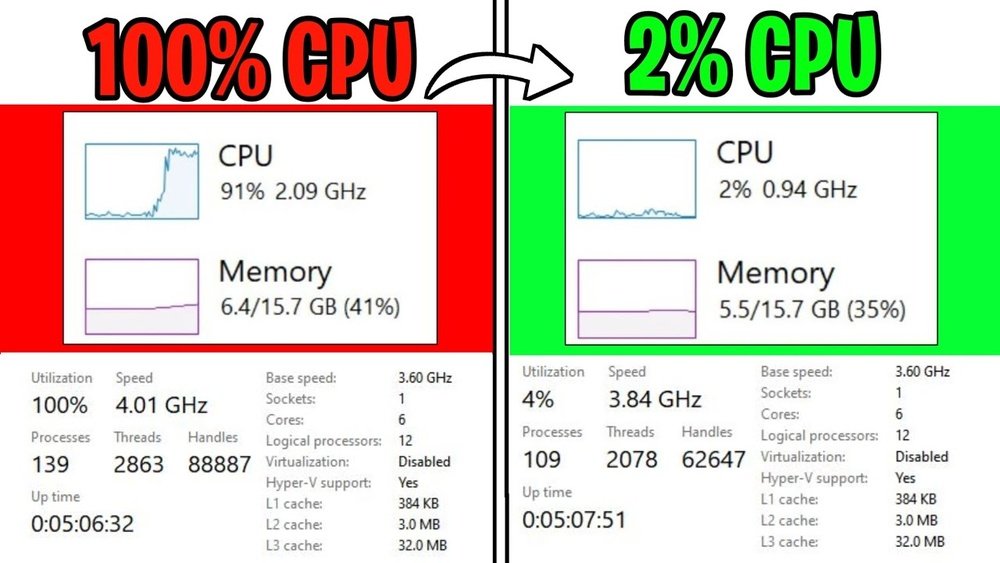
The CPU runs at or near 100% most of the time. Tasks take longer because the processor is overloaded. Other parts wait while the CPU finishes its work. High usage shows the CPU is the weak link in your setup. It struggles to handle the programs you run.
Slow Application Performance
Programs open slowly and respond late to commands. Complex tasks like video editing or multitasking become frustrating. The CPU delays processing instructions, creating a bottleneck. This slows down your entire computer system. You may notice delays even in simple apps.
Identifying The Bottleneck
Identifying the bottleneck in your system is the first step to fix CPU bottlenecking. It means finding out which part of your computer slows down the rest. This process helps you know if the CPU, GPU, or another component limits performance.
Knowing the bottleneck guides your next steps. You avoid spending money on upgrades that won’t help. It also improves your computer’s speed and gaming experience.
Monitoring Tools
Use monitoring tools to check your system’s performance. Programs like Task Manager, MSI Afterburner, or HWMonitor show real-time data. They tell you how much the CPU and GPU work during use.
Watch for high CPU usage near 100% while GPU use stays low. This often shows a CPU bottleneck. Low CPU use and high GPU use usually mean the GPU limits speed.
Comparing Cpu And Gpu Loads
Compare the workload on your CPU and GPU while running games or programs. High CPU load with low GPU load means the CPU is the bottleneck. High GPU load with low CPU load points to the GPU.
This comparison helps pinpoint the weak link. It tells you which part needs an upgrade or tuning to balance the system.
Benchmarking Your System
Run benchmark tests to measure your system’s full performance. Tools like 3DMark or Cinebench provide scores for CPU and GPU separately. Compare these scores with similar systems online.
Lower CPU scores with high GPU scores confirm a CPU bottleneck. Use benchmarks regularly to track improvements after upgrades or tweaks.
Hardware Upgrades To Consider
Hardware upgrades can help fix CPU bottlenecking by improving system balance. Upgrading parts ensures your CPU works well with other components. This can lead to better performance and fewer slowdowns.
Focus on key hardware changes. These can make a big difference in how your PC runs tasks. Choose upgrades that match your needs and budget.
Choosing A Better Cpu
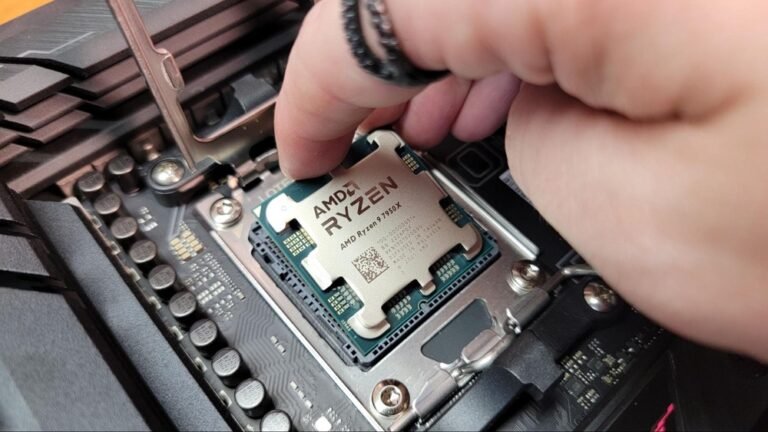
Start with your CPU. A stronger processor handles more tasks at once. Look for CPUs with higher clock speeds and more cores. This reduces delays caused by slow processing. Check compatibility with your motherboard before buying. A newer CPU can improve overall system speed.
Upgrading Ram
RAM affects how fast your computer accesses data. More RAM means your CPU gets data quickly. This lowers bottlenecking caused by waiting for memory. Increase RAM size or switch to faster RAM modules. Make sure your motherboard supports the new RAM type. Balanced RAM helps your CPU perform at its best.
Improving Cooling Solutions
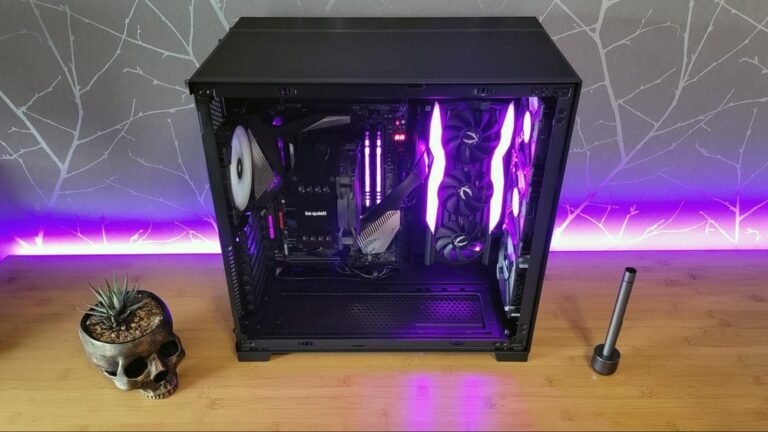
Heat slows down CPUs. Good cooling keeps your processor running at top speed. Use better fans, heatsinks, or liquid cooling systems. Cooler CPUs avoid thermal throttling that reduces performance. Proper cooling extends CPU life and stability. Clean dust regularly to keep cooling efficient.
Credit: www.partitionwizard.com
Optimizing Software Settings
Optimizing software settings can help reduce CPU bottlenecking. It allows your processor to work better with your graphics card and other hardware. Small changes in settings often improve performance without extra cost. Focus on key areas that affect your CPU load the most.
Adjusting Game Graphics Settings
Lowering game graphics settings reduces CPU work. Turn off shadows, lower texture quality, and reduce draw distance. These changes ease the CPU’s task and improve frame rates. Avoid ultra settings that demand too much from your processor.
Updating Drivers
Keep your CPU and GPU drivers up to date. Manufacturers release updates to fix bugs and boost performance. Updated drivers help your hardware run smoothly and work well together. Check for updates regularly to ensure optimal system stability.
Managing Background Processes
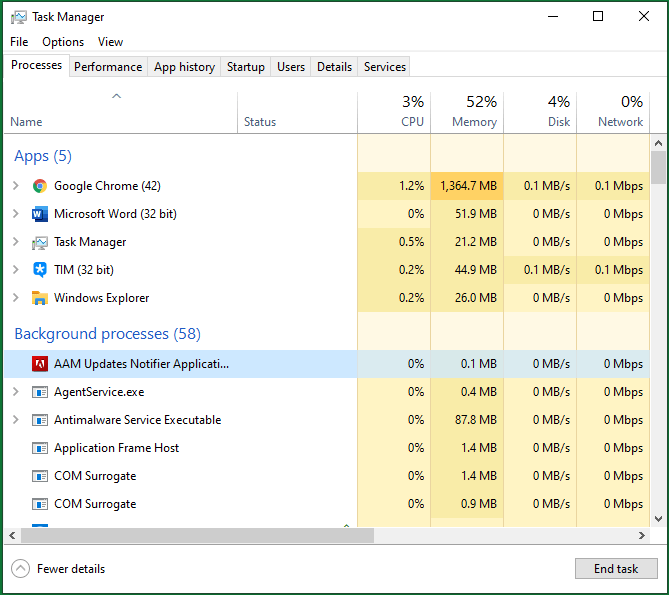
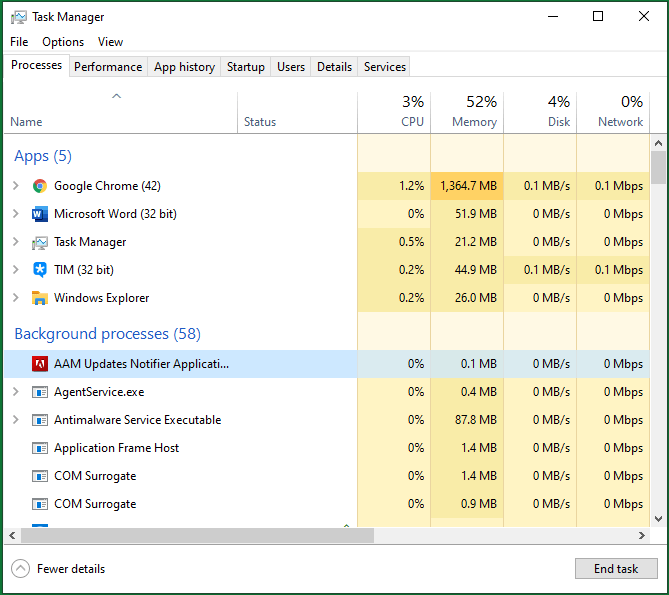
Close unnecessary background apps to free CPU resources. Many programs run silently and use CPU power. Use Task Manager to identify and stop these processes. Fewer background tasks mean more CPU power for your games and apps.
Tweaking Bios And System Settings
Tweaking BIOS and system settings can help reduce CPU bottlenecking. These adjustments allow your processor to work more efficiently with other components. Small changes here can boost overall system speed and response. It is important to understand basic BIOS options and power settings before making changes. This ensures safe and effective improvements.
Enabling Performance Modes
Performance modes in BIOS improve CPU speed and response times. These modes prioritize processor power over energy saving. Find settings like “Performance Mode” or “Turbo Boost” in your BIOS menu. Enable these options to help your CPU run at higher speeds. This reduces lag caused by slow processor response. Remember to save changes before exiting BIOS.
Overclocking Basics
Overclocking means running your CPU faster than its default speed. It increases processor power but also raises heat and power use. Start with small speed increases to avoid system crashes. Check your CPU temperature regularly to prevent overheating. Use BIOS settings to adjust clock speed and voltage carefully. If done right, overclocking can reduce bottleneck effects.
Adjusting Power Settings
Power settings control how much energy your CPU uses. Set your system to “High Performance” mode in Windows power options. This stops the CPU from lowering its speed to save power. In BIOS, disable power-saving features like C-States or SpeedStep. These can limit CPU performance under load. Adjusting these settings helps keep your processor running at full speed.
Credit: www.partitionwizard.com
Balancing Cpu And Gpu Performance
Balancing CPU and GPU performance helps your computer run smoothly. Both parts must work well together. If one is too strong or too weak, it causes a bottleneck. This slows down your system and lowers performance. Keeping these parts balanced improves speed and gaming experience.
Selecting Compatible Components
Choose a CPU and GPU that match in power. A very strong CPU with a weak GPU causes delays. The same happens if the GPU is too strong for the CPU. Check online guides or reviews to find pairs that work well. This helps avoid bottlenecks and keeps your system fast.
Avoiding Overloading One Component
Do not put too much load on either the CPU or GPU. Running many programs at once can overload the CPU. High graphics settings push the GPU too hard. Lower settings or close unused programs to reduce pressure. This keeps both parts running smoothly without lag.
Regular System Maintenance
Keep your system clean and updated. Dust can block fans and cause overheating. Overheating makes the CPU or GPU slow down. Update drivers and software for better performance. Regular checks help your system run balanced and fast.
Credit: www.youtube.com
Frequently Asked Questions
What Causes Cpu Bottlenecking In Gaming Pcs?
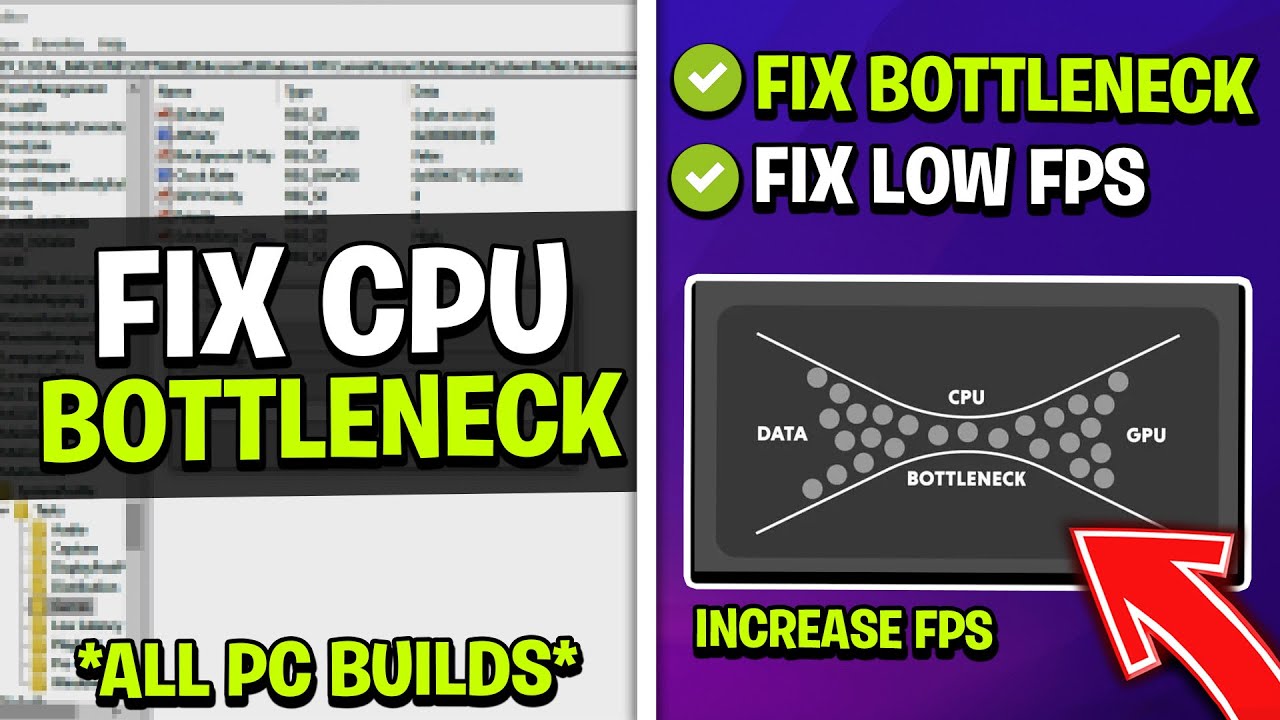
CPU bottlenecking happens when the processor can’t keep up with the GPU. This slows down overall system performance. It often occurs due to an older or lower-end CPU paired with a powerful graphics card, limiting frame rates and causing stuttering in games.
How Can I Identify If My Cpu Is Bottlenecking?
Use monitoring tools like MSI Afterburner or Task Manager. If CPU usage is consistently at 100% while GPU usage is low, your CPU is bottlenecking. This means the CPU is limiting the system’s performance and needs an upgrade or optimization.
What Are Effective Ways To Fix Cpu Bottlenecking?
Upgrade your CPU to a faster model compatible with your motherboard. Optimize system settings by closing background apps and updating drivers. Lower in-game settings or resolution to reduce CPU load. These steps help balance CPU and GPU performance.
Can Overclocking Reduce Cpu Bottlenecking?
Yes, overclocking increases CPU speed, improving processing power. This can reduce bottlenecks by helping the CPU keep up with the GPU. However, overclocking requires proper cooling and can void warranties if not done carefully.
Conclusion
Fixing CPU bottlenecking helps your computer run smoother and faster. Start by checking your CPU and GPU balance. Upgrade parts if needed, but don’t overspend. Adjust settings to lower CPU load. Keep your drivers and software up to date. Small changes can make a big difference.
Stay patient and test after each step. Your system will feel more responsive soon. Clear steps lead to better performance. Keep these tips in mind for a better experience.