How to Know What Cpu I Have: Easy Steps to Identify Yours Fast
Have you ever wondered what kind of CPU powers your computer? Knowing your CPU is key to understanding your device’s speed, performance, and compatibility with software or upgrades.
Whether you’re troubleshooting, planning an upgrade, or just curious, finding out your CPU details can feel confusing. But don’t worry—this guide will walk you through simple steps to identify your CPU quickly and easily. By the end, you’ll have the exact info you need, no tech jargon required.
Ready to discover what’s inside your computer? Let’s get started!
Check System Information
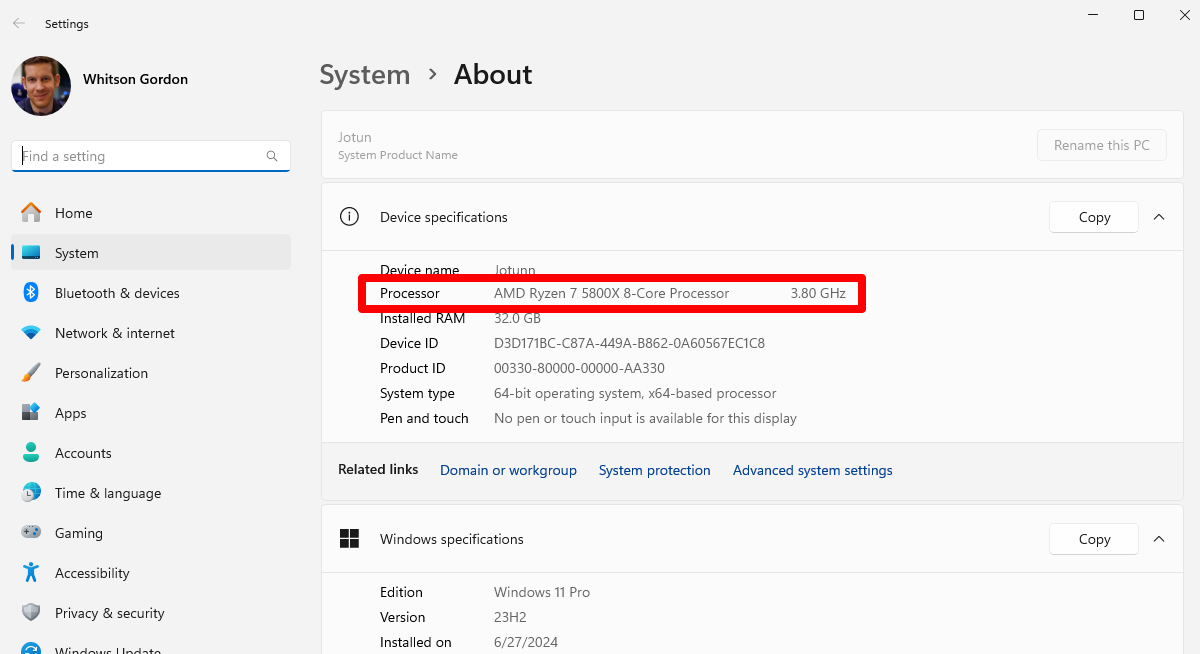
Checking your CPU details through system information is quick and easy. Every computer stores information about its hardware in the system settings. Finding your CPU model helps with software choices and upgrades. Each operating system shows this information in different ways. Below are simple steps for Windows, macOS, and Linux users.
Use Windows System Info
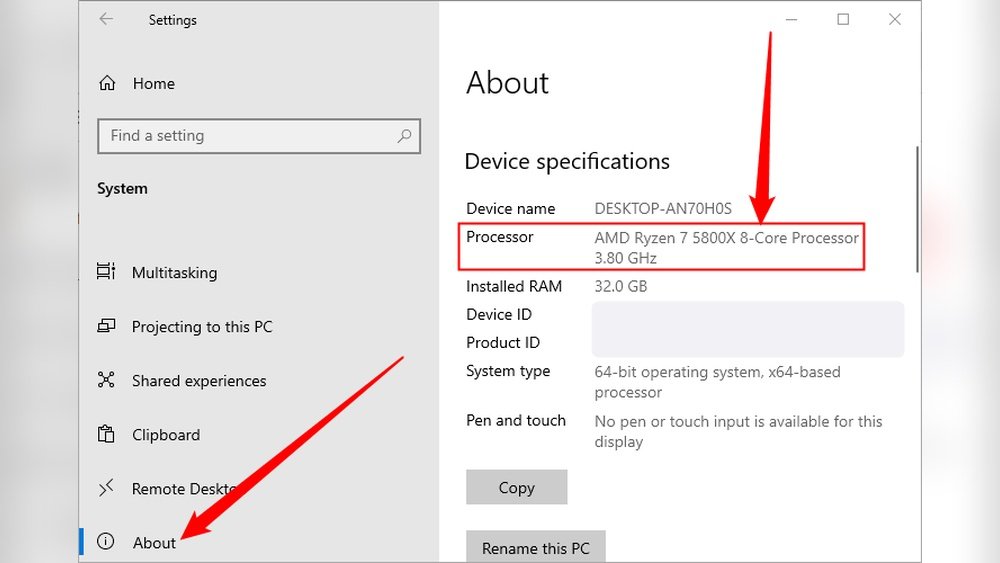
Press the Windows key and type System Information. Open the app that appears. Look for the Processor line in the summary. It shows your CPU name and speed. This method works on Windows 10 and 11. No extra software is needed.
Find Cpu On Macos
Click the Apple logo at the screen’s top-left corner. Select About This Mac. A window will pop up with your Mac’s specs. The first line tells your processor type and speed. This is the easiest way to see CPU info on Mac.
Linux Terminal Commands
Open the Terminal app on your Linux system. Type lscpu and press Enter. The terminal shows detailed CPU information. Alternatively, type cat /proc/cpuinfo for more data. These commands work on most Linux distributions.

Credit: softwareg.com.au
Use Task Manager Or Activity Monitor
Task Manager on Windows and Activity Monitor on Mac show detailed information about your computer. Both tools help you find your CPU model quickly. No need for extra software. Just use what your system already provides. This makes it easy and fast to check your CPU.
Open Task Manager On Windows
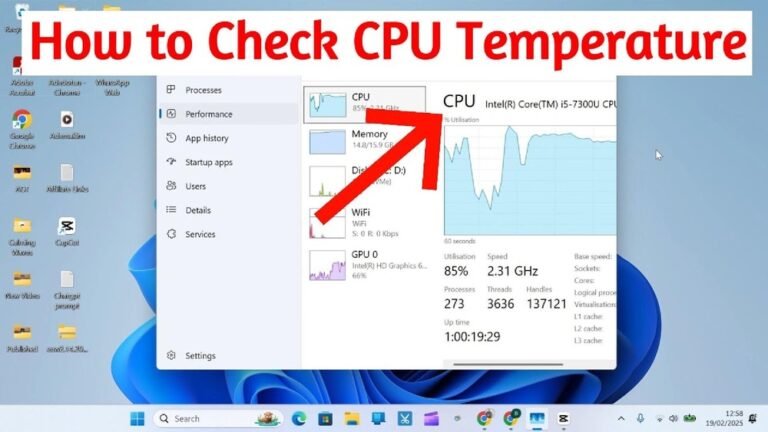
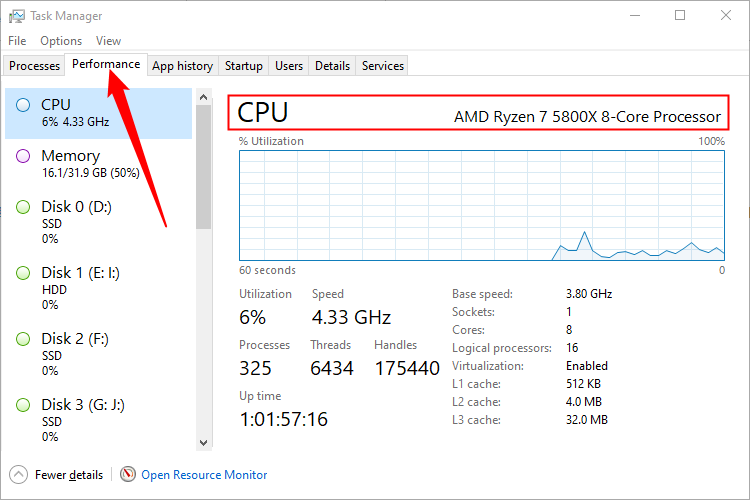
Press Ctrl + Shift + Esc to open Task Manager. You can also right-click the taskbar and select Task Manager. Click the Performance tab. Select CPU from the left menu. The top right corner shows your CPU name and speed. This tells you the exact model installed on your PC.
Check Activity Monitor On Mac
Open Finder and go to Applications. Then open the Utilities folder and launch Activity Monitor. Click the CPU tab at the top. Your Mac’s CPU information appears at the bottom. It shows the processor type and speed. This lets you know your Mac’s CPU details easily.
Look At Bios Or Uefi Settings
Checking your CPU in the BIOS or UEFI settings is a direct and reliable way. This method shows the exact processor details without needing software. It works even if your computer has no operating system installed. BIOS and UEFI are firmware interfaces that start your computer and manage hardware settings.
Accessing these settings allows you to see the CPU model, speed, and sometimes other details. The process is simple and takes only a few steps. It helps users who want to know their CPU without opening the computer case.
Access Bios On Startup
Turn on or restart your computer. Watch the screen carefully for a message showing which key to press. Common keys include F2, Delete, Esc, or F10. Press that key quickly before the operating system loads. This action opens the BIOS or UEFI menu.
Sometimes, the key appears for just a few seconds. If you miss it, restart and try again. Some newer computers use UEFI, which looks more modern and supports mouse control.
Locate Cpu Details
Inside the BIOS or UEFI menu, navigate to the “System Information” or “Main” tab. The exact name varies by manufacturer. Here, you will see details about your CPU. Look for the processor name, speed, and number of cores.
This section shows the CPU model clearly. Some BIOS versions also display the CPU temperature and cache size. Use the arrow keys or mouse to explore the menus and find the correct page.
Credit: www.howtogeek.com
Use Third-party Software
Using third-party software is an easy way to find out what CPU you have. These tools scan your computer and show detailed information about the processor. You do not need any special skills to use them. Just download, install, and run the program.
These programs provide more details than the basic system info on your computer. They show the CPU model, speed, number of cores, and more. This helps you understand your hardware better and can assist with upgrades or troubleshooting.
Popular Cpu Identification Tools
Many free tools help you check your CPU quickly. CPU-Z is one of the most popular options. It shows detailed specs and is easy to use. Another good choice is Speccy, which offers a clean interface and extra info about other parts of your PC.
HWiNFO provides in-depth hardware analysis for advanced users. It lists all CPU features and sensor data. Core Temp focuses on temperature and load but also shows CPU details. These tools work on most Windows PCs and do not slow down your system.
How To Read Software Results
The software displays the CPU model name clearly. Look for the brand and number, like Intel Core i5-10400 or AMD Ryzen 5 3600. This tells you the generation and power of your processor.
Check the number of cores and threads. More cores mean better multitasking. The clock speed shows how fast your CPU runs, usually in GHz. Some tools also show cache size and architecture type.
Use this information to compare CPUs or check compatibility with software and games. Reading these results helps you make smart decisions about your computer. The data is simple to understand with a little practice.
Physically Inspect The Cpu
Physically inspecting your CPU gives direct information about its model. This method helps when software tools fail or you want to be sure. It requires opening your computer and looking at the chip itself. Follow simple steps to avoid damage and find the right details.
Open Your Computer Case Safely
First, turn off your computer and unplug all cables. Press the power button for a few seconds to remove leftover power. Place your computer on a clean, flat surface. Use a screwdriver if needed to remove the case screws. Carefully slide or lift the side panel to open the case. Avoid touching other parts inside to prevent static damage. Keep your workspace clear and well-lit.
Find Cpu Model On The Chip
The CPU is under the large heat sink or fan near the center of the motherboard. Remove the cooling system gently if needed. Look at the top of the CPU for printed text. The model number is usually clear and starts with brand names like Intel or AMD. Write down the code or take a photo for reference. Replace the cooling system and close the case carefully after checking.
Interpret Cpu Model Numbers
Understanding CPU model numbers helps you identify the exact processor in your computer. These numbers tell about the generation, performance level, and features. Learning to read them makes it easier to compare CPUs or check compatibility for software and hardware. Each brand uses a unique system to name their CPUs. Below are the basics for Intel and AMD processors.
Intel Cpu Naming Conventions
Intel CPUs use a mix of numbers and letters in their model names. The first number usually shows the generation. For example, an Intel Core i7-10700 is a 10th generation CPU.
The letter at the end indicates the CPU type or power use. For example, “K” means the CPU can be overclocked, while “U” is for low power use in laptops.
The middle numbers often show the model or performance level inside the generation. Higher numbers generally mean better performance.
Amd Cpu Naming Patterns
AMD uses a different system but with similar ideas. The first digit after the brand shows the generation, like Ryzen 5 3600 is a 3rd generation CPU.
The next three numbers show the model and performance level. Higher numbers mean faster or more advanced CPUs.
Letters at the end give extra details. For example, “X” means a higher performance chip with better speed.
Credit: rog.asus.com
Frequently Asked Questions
How Can I Quickly Find My Cpu Model On Windows?
Open the Task Manager using Ctrl + Shift + Esc. Go to the Performance tab. Select CPU to see the model name and speed.
What’s The Easiest Way To Check Cpu On Mac?
Click the Apple menu and select About This Mac. The Overview tab shows your CPU type and speed clearly.
Can I Identify My Cpu Using Command Prompt?
Yes, open Command Prompt and type “wmic cpu get name”. It displays your CPU model instantly.
How Do I Find Cpu Details On Linux?
Open a terminal and enter “lscpu”. It provides detailed CPU information including model and architecture.
Conclusion
Knowing your CPU helps you understand your computer better. You can check the model quickly using simple steps. This lets you choose the right software and upgrades. It also helps when you ask for tech support. Take your time to follow the instructions carefully.
Soon, you will feel more confident about your device. Knowing what CPU you have is useful for everyone. Keep this guide handy for future reference.