How to Know If Your Ram is Bad: Easy Signs to Spot Failures
Is your computer acting slow, freezing, or crashing out of nowhere? These are signs that your RAM might be failing.
But how can you be sure if your RAM is bad or if something else is causing the problem? Knowing the warning signs early can save you time, money, and frustration. You’ll discover simple ways to check your RAM’s health and what steps to take if it’s causing trouble.
Keep reading to protect your computer and keep it running smoothly.
Symptoms Of Bad Ram
Bad RAM causes many problems on your computer. It affects how your system works and can stop tasks. Identifying symptoms early helps fix issues faster. Here are common signs your RAM might be failing.
Frequent System Crashes
Your computer crashes often without warning. Programs close suddenly during use. These crashes happen more with bad RAM. The memory errors cause instability in your system.
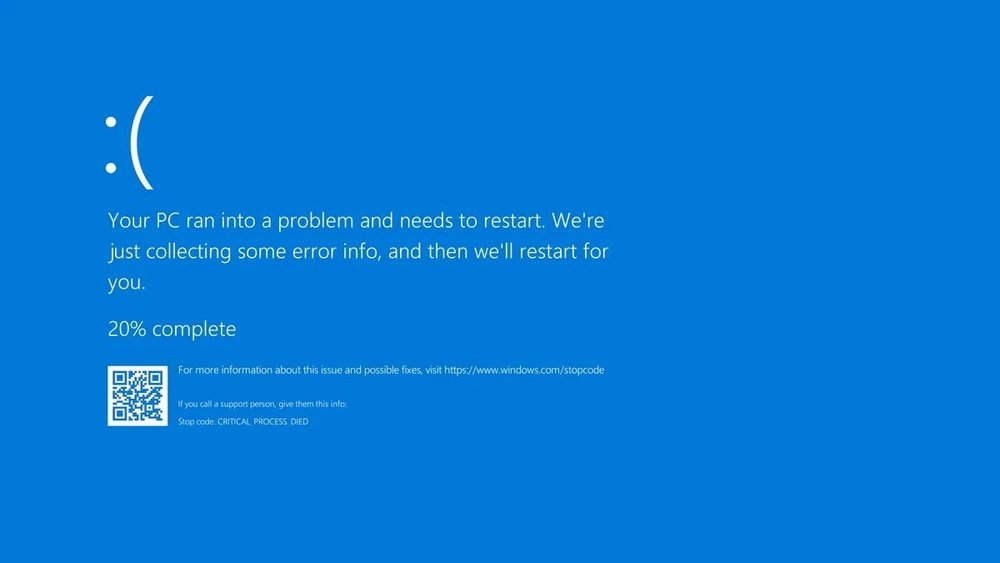
Blue Screen Errors
The blue screen of death appears on your screen. It shows error codes related to memory. These errors point to RAM problems. The system halts to prevent damage.
Random Reboots
Your PC restarts on its own at random times. No clear reason for reboot is visible. Bad RAM causes these unexpected restarts. It interrupts your work and causes data loss.
Slow Performance
The system runs slower than usual. Programs take longer to open and respond. Bad RAM slows down data access. Overall speed drops and tasks lag.
File Corruption
Files become corrupted or unusable without cause. Saved data shows errors or missing parts. Faulty RAM can corrupt files during saving. This leads to loss of important information.
Common Ram Error Messages
RAM problems often show through specific error messages. These messages help identify if your RAM is faulty. Recognizing these errors can save time and prevent data loss. The most common RAM error messages include memory management errors, page faults, and boot failures. Each points to different issues related to your RAM.
Memory Management Errors
Memory management errors appear as blue screen messages. They indicate your system struggles to organize or access memory. These errors can cause your computer to freeze or restart suddenly. Faulty RAM chips often trigger such problems. Sometimes, corrupted drivers or software conflicts also cause these errors.
Page Faults
Page faults occur when the system cannot find data in RAM. The system tries to load missing data from the hard drive. Frequent page faults may slow your computer down. Persistent page fault errors suggest bad RAM or corrupted memory addresses. They often appear as error codes or system crashes.
Boot Failures
Boot failures happen when your computer cannot start properly. Faulty RAM can stop your system from loading the operating system. You might see error messages or hear beep codes during startup. Repeated boot failures often mean your RAM needs testing or replacement. Sometimes, reseating the RAM sticks can fix the problem.
Diagnosing Ram Issues
Diagnosing RAM issues can help fix many computer problems. Bad RAM causes crashes, freezes, and slow performance. Testing your RAM is simple and can save time and money. Several methods exist to check RAM health. Use built-in tools or third-party programs. Testing each RAM module separately is also important.
Using Built-in Memory Tests
Windows has a built-in tool called Windows Memory Diagnostic. It checks your RAM for errors at startup. To use it, type “Windows Memory Diagnostic” in the search bar. Select “Restart now and check for problems.” The computer will reboot and scan your memory. Results appear after the test finishes. No extra software is needed, making it easy for anyone.
Third-party Diagnostic Tools
Third-party tools offer more detailed RAM tests. MemTest86 is a popular free program. It runs from a USB drive outside of Windows. This method finds hidden memory issues. Download MemTest86 and create a bootable USB stick. Restart the PC and boot from the USB. Let the test run for several passes. Any errors found indicate bad RAM modules.
Testing Ram Modules Individually
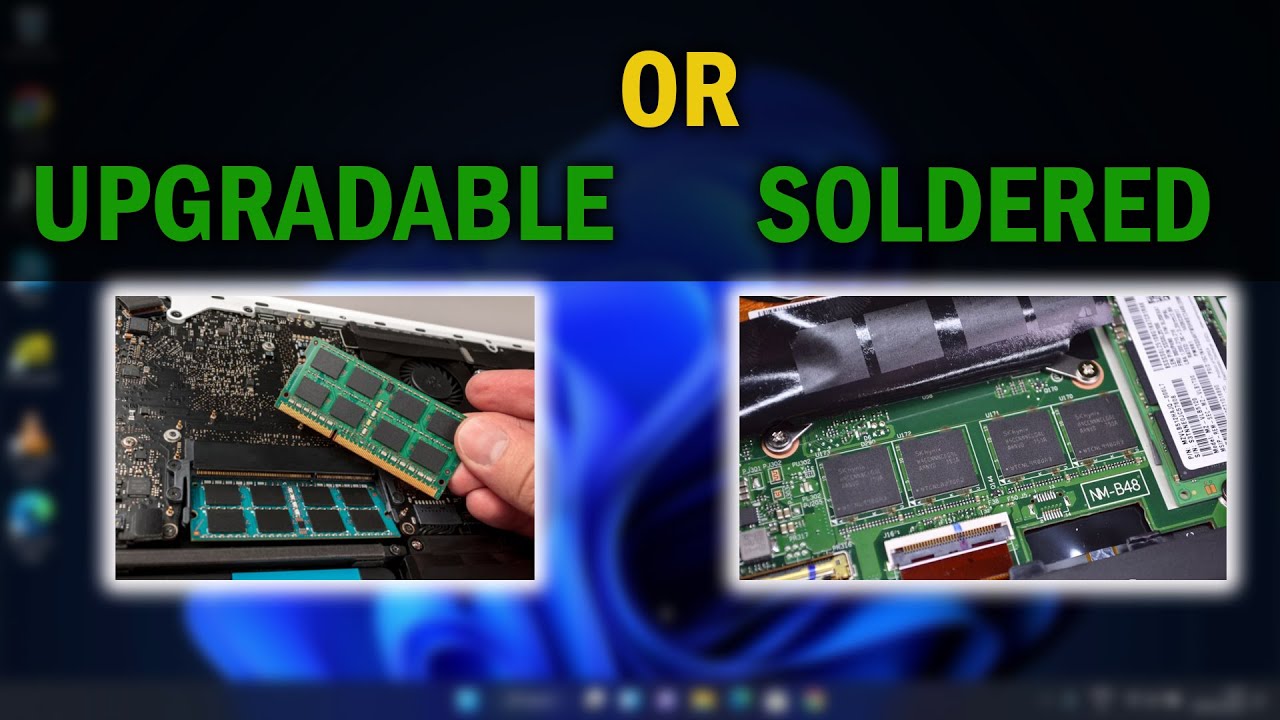
Testing RAM modules one by one isolates faulty sticks. Turn off your PC and open the case. Remove all RAM sticks except one. Run memory tests on the single module. Repeat with each RAM stick separately. This process helps find the exact bad module. Replace the defective stick to solve RAM problems.
Credit: www.investiraukongocentral.cd
Physical Inspection Tips
Physical inspection helps find clear signs of bad RAM. It shows visible problems that software tests may miss. You can spot issues like damage or dirt. This step is simple and saves time before buying new parts. Follow these tips for a careful check.
Checking For Damage Or Burn Marks
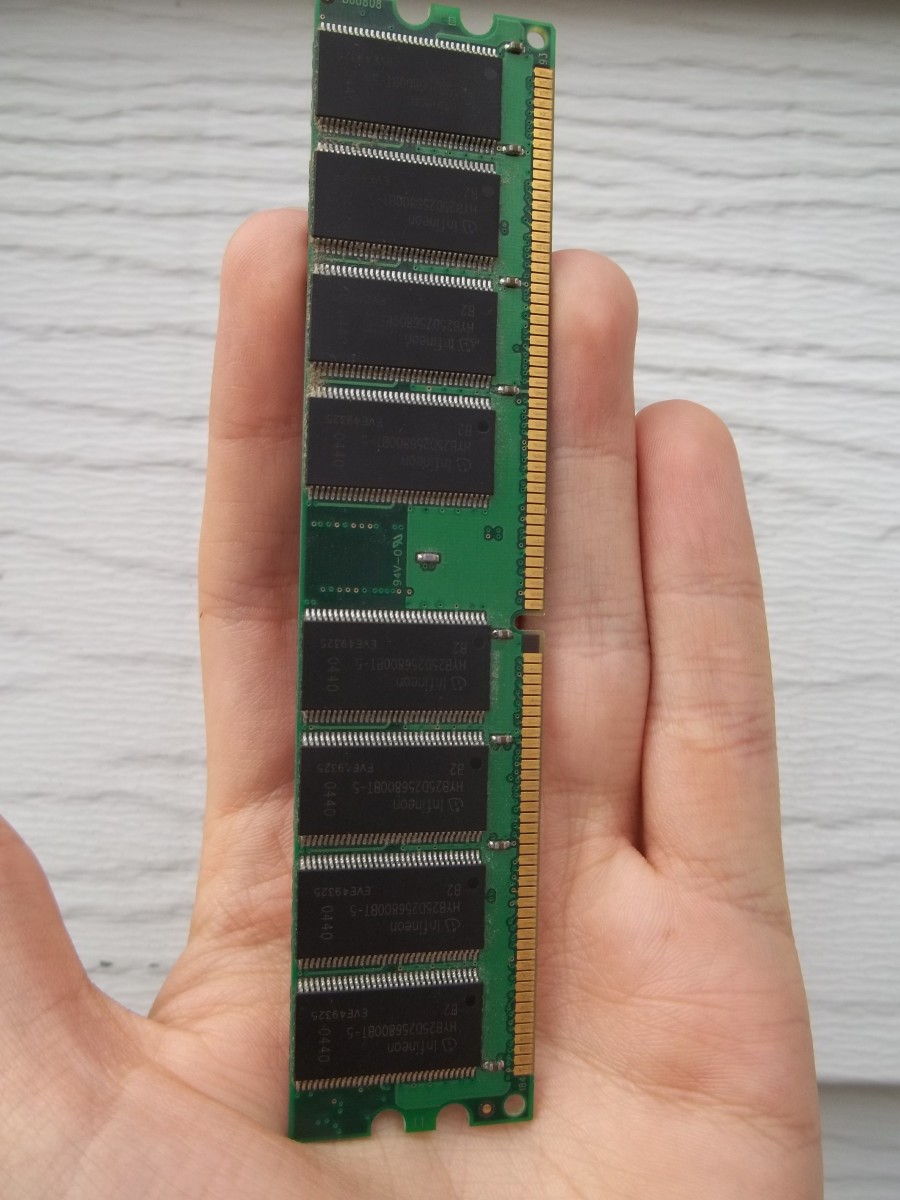
Remove the RAM stick from your computer carefully. Look closely at the surface and edges. Check for cracks, chips, or broken parts. Burn marks appear as dark spots or discoloration. These marks show overheating or short circuits. Any visible damage means the RAM may be faulty. Do not use RAM with these signs.
Reseating Ram Modules
Sometimes RAM problems come from loose connections. Take out the RAM stick gently from its slot. Clean the slot if needed. Put the RAM back firmly until it clicks. This process is called reseating. It fixes many issues caused by poor contact. Ensure the RAM fits tight and straight.
Cleaning Ram Contacts
Dust and dirt cause bad RAM contact. Use a soft, dry cloth or an eraser to clean gold contacts. Avoid moisture or harsh chemicals. Clean both sides gently to remove grime. Proper contact helps the RAM work better. Repeat cleaning if the problem continues.
When To Replace Ram
Knowing when to replace your RAM is important for keeping your computer running smoothly. RAM issues can cause slowdowns, crashes, and errors. Sometimes, testing shows if the RAM is faulty. Other times, upgrading RAM improves your system’s speed and capacity. Understanding the right time to replace RAM helps avoid frustration and wasted effort.
Persistent Errors After Testing
Run memory tests to check your RAM. If errors keep showing up, the RAM is likely bad. Restarting or reinstalling software won’t fix these errors. Faulty RAM causes random freezes and blue screens. Replace the RAM to stop these problems. Persistent errors after testing mean the RAM needs replacement.
Compatibility Considerations
New RAM must match your system’s specifications. Check your motherboard’s manual for supported RAM types. Using incompatible RAM causes crashes and failure to boot. Replace old RAM with compatible modules only. Compatibility ensures your computer runs without issues. Avoid mixing different speeds or sizes of RAM.
Upgrading For Better Performance
Old RAM limits your computer’s speed. Upgrading to higher capacity RAM improves multitasking. More RAM means programs run faster and smoother. Replace small or slow RAM if your computer feels sluggish. Upgrading can extend your computer’s life. Better performance comes with more and faster RAM.
Credit: www.sloneczne-elfy.pl
Credit: www.ecoparkcampogrande.com.br
Frequently Asked Questions
How Do I Identify If My Ram Is Faulty?
Faulty RAM often causes frequent crashes, slow performance, and random reboots. Run memory diagnostic tools to detect errors. Unusual blue screens or corrupted files also hint at bad RAM.
What Are Common Symptoms Of Bad Ram In A Pc?
Symptoms include system freezes, application crashes, and failure to boot. You may also experience corrupted data and frequent blue screen errors, indicating potential RAM issues.
Can Ram Problems Cause Computer Startup Failures?
Yes, defective RAM can prevent your computer from booting properly. It may result in repeated restarts or a blank screen during startup, signaling memory failure.
Which Tools Detect Bad Ram Effectively?
Windows Memory Diagnostic and MemTest86 are reliable tools. They scan your RAM for errors and provide detailed reports on memory health and stability.
Conclusion
Bad RAM can cause many computer problems. Watch for crashes, slowdowns, or strange errors. Run simple tests to check memory health. Replace RAM if problems keep happening. Keeping your RAM in good shape helps your computer run smooth. Don’t ignore signs of bad memory.
Fixing RAM issues early saves time and stress later. Stay alert and keep your system healthy.