How to Make Ram Run at Full Speed: Ultimate Performance Tips
Are you frustrated by your computer’s slow performance? Your RAM might be the hidden key to unlocking faster speeds and smoother multitasking.
Imagine opening apps instantly and switching between tasks without any lag. You’ll discover simple and effective ways to make your RAM run at full speed. Keep reading to learn how to boost your computer’s power and enjoy a faster, more efficient experience every time you use it.
Ram Speed Basics
Understanding the basics of RAM speed helps you improve your computer’s performance. RAM speed influences how fast your system can access data. Faster RAM means quicker tasks and smoother multitasking. Let’s explore the key points about RAM speed and what affects it.
What Affects Ram Speed
Several factors affect RAM speed. The type of RAM, like DDR3 or DDR4, matters a lot. Your motherboard must support the RAM speed for it to run fast. The CPU also limits the maximum RAM speed you can use. BIOS settings can change how RAM performs. Incorrect settings can slow down RAM.
Ram Frequency And Timings
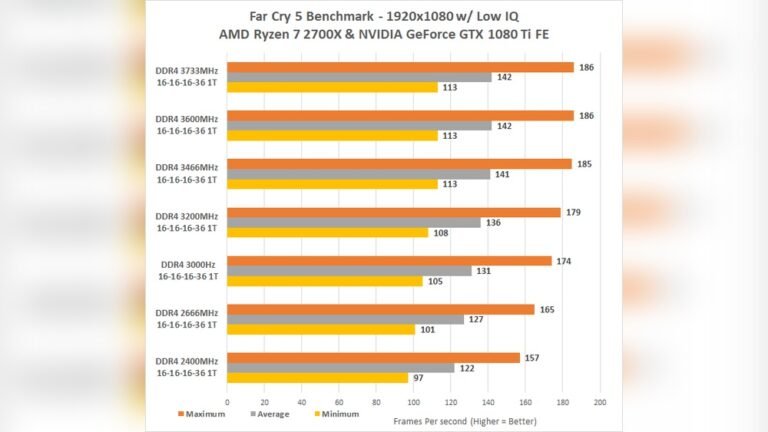
RAM frequency shows how many cycles it completes per second, measured in MHz. Higher frequency means faster data transfer. Timings refer to the delay between operations inside RAM. Lower timings mean quicker response times. Both frequency and timings work together for speed. Balance between them is important for good performance.
Role Of Dual Channel And Xmp
Dual channel mode uses two RAM sticks together to double data paths. This improves speed and system efficiency. XMP (Extreme Memory Profile) is a feature that sets RAM to run at higher speeds. Enabling XMP in BIOS helps your RAM reach its rated speed. Both dual channel and XMP enhance overall RAM performance.
Choosing The Right Ram
Choosing the right RAM is key to making it run at full speed. Not all RAM sticks work well with every computer. Picking the right one ensures better performance and fewer issues. Several factors affect this choice, such as compatibility, size, and type.
Matching Ram With Motherboard
Your motherboard limits the type and speed of RAM you can use. Check your motherboard’s manual or website for supported RAM models. Using incompatible RAM causes slow speed or system errors. Buy RAM that matches the motherboard’s specifications for best results.
Capacity Vs Speed
More RAM capacity means your computer can handle more tasks at once. Faster RAM speed improves how quickly data moves between RAM and CPU. Balance capacity and speed based on your needs. Too much slow RAM can bottleneck your system. Choose RAM with a good speed that fits your workload.
Types Of Ram Modules
RAM comes in different types like DDR3, DDR4, and DDR5. Newer types offer faster speeds and better efficiency. Your motherboard supports only specific RAM types. DDR4 is common in many modern computers. DDR5 is newer and faster but costs more. Select the type that matches your motherboard and budget.
Optimizing Bios Settings
Optimizing BIOS settings is key to making your RAM run at full speed. The BIOS controls hardware settings and lets you change how your RAM works. Adjusting these settings can improve performance without extra cost. It needs care and some knowledge but is worth the effort.
Enabling Xmp Profiles
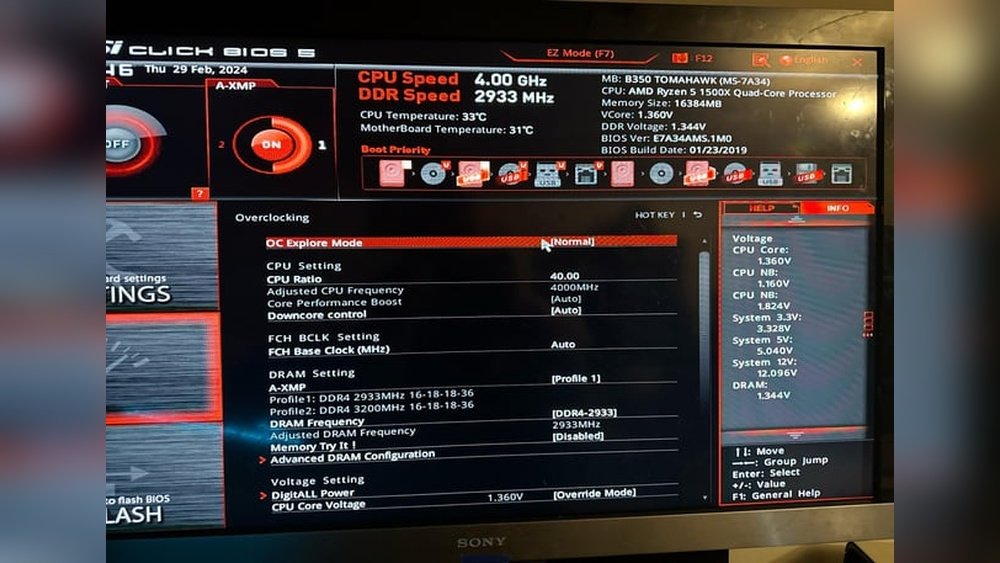
XMP stands for Extreme Memory Profile. Most RAM sticks come with XMP profiles pre-set by the manufacturer. Enable XMP in the BIOS to let your RAM run at its rated speed. This is usually the easiest way to boost RAM speed safely. Check your motherboard’s manual for the exact BIOS menu.
Manual Frequency Adjustments
You can manually set the RAM frequency in the BIOS. Choose a speed that matches or is slightly lower than your RAM’s rated speed. Raising frequency too high may cause instability. Test your system after each change to ensure it stays stable. This method gives more control than XMP but requires patience.
Tweaking Timings For Performance
RAM timings affect how fast your RAM responds to commands. Lower timings usually mean better performance. You can adjust timings like CAS latency and RAS to improve speed. Use small changes and test stability after each tweak. Incorrect timings can cause crashes, so proceed carefully.

Credit: www.reddit.com
Overclocking Ram Safely
Overclocking RAM can boost your computer’s speed and performance. It means running your memory faster than its default settings. Doing this safely is very important to avoid damage and crashes. Follow clear steps and use the right tools to keep your system stable.
Tools For Overclocking
You need special software to change RAM settings easily. Popular tools include BIOS or UEFI firmware, which is built into your motherboard. Programs like CPU-Z help check your RAM details. MemTest86 tests memory errors. Use a temperature monitor to track heat during overclocking.
Step-by-step Overclocking Guide
Start by restarting your computer and entering BIOS or UEFI. Find the memory settings or XMP profile section. Enable the XMP profile to increase speed automatically. For manual control, adjust the RAM frequency in small steps. Raise the voltage slightly if needed. Save changes and restart your PC.
Testing Stability
After overclocking, test your system for stability. Run MemTest86 to check for memory errors. Use stress tests like Prime95 or AIDA64 for overall stability. Monitor temperatures during tests. If your system crashes or shows errors, lower the speed or increase voltage carefully. Repeat testing until stable.
Cooling Solutions For Ram
Keeping your RAM cool helps it run faster and last longer. High temperatures can slow down RAM and cause errors. Using good cooling methods protects your system’s memory from heat damage. Below are some common cooling solutions for RAM.
Importance Of Ram Cooling
RAM creates heat when it works hard. Too much heat reduces its speed and stability. Cooling lowers the temperature and keeps RAM stable. Cooler RAM runs faster and avoids crashes. It also helps your computer stay quiet.
Air Vs Liquid Cooling Options
Air cooling uses fans to blow air over RAM modules. It is simple, cheap, and easy to install. Many motherboards have slots for RAM fans.
Liquid cooling sends coolant through pipes near the RAM. It cools better than air but costs more. Liquid cooling suits high-performance computers or overclocked RAM.
Thermal Pads And Heat Spreaders
Thermal pads sit between RAM chips and heat spreaders. They transfer heat away from the RAM quickly.
Heat spreaders are metal covers that absorb and spread heat. They fit on top of RAM sticks. Heat spreaders improve cooling without extra noise or power use.
Software Tweaks And Utilities
Software tweaks and utilities can boost your RAM’s speed and efficiency. These tools help manage memory use and clear unnecessary data. They keep your system running smoothly without extra hardware.
Using the right software can make a big difference. It frees up memory and stops slowdowns. Let’s explore useful tools and methods to optimize your RAM.
Ram Optimization Tools
Ram optimization tools help clean and organize your memory. They close unused apps and processes that take up RAM. These tools run in the background to keep memory free for important tasks. Some popular options include CleanMem and Wise Memory Optimizer. They are easy to use and improve performance quickly.
Monitoring Ram Performance
Monitoring RAM shows how much memory is used and available. Tools like Task Manager or Resource Monitor display real-time data. This helps find apps that use too much memory. Watching RAM performance helps prevent slowdowns before they happen. Regular checks keep your computer responsive and fast.
Clearing Ram Cache
RAM cache stores temporary data for quick access. Over time, it can fill up and slow the system. Clearing the cache frees memory and boosts speed. You can clear cache manually or with software tools. This simple step refreshes your memory and improves overall performance.
Common Mistakes To Avoid
Making your RAM run at full speed can improve your computer’s performance. Many users try to speed up their RAM but make common mistakes. These errors can cause instability or even damage your system. Avoiding these mistakes helps you get the best from your memory without problems.
Ignoring Compatibility
Not all RAM works with every motherboard. Each motherboard supports specific RAM types and speeds. Using incompatible RAM can prevent your computer from starting. Check your motherboard’s manual before buying or upgrading RAM. Always match RAM speed and type with your system’s requirements.
Overclocking Without Testing
Overclocking RAM increases its speed beyond default settings. Doing this without proper testing can cause crashes or data loss. Test your RAM stability with special software after each change. Increase speed slowly and watch for errors. Stop if your system becomes unstable or crashes.
Neglecting Cooling
Faster RAM produces more heat. Without good cooling, your RAM can overheat and fail. Use quality heat spreaders or fans to keep temperatures low. Ensure your computer case has proper airflow. Keep your RAM cool to maintain speed and longevity.

Credit: www.esseg.eu

Credit: www.reddit.com
Frequently Asked Questions
How Can I Check My Ram Speed In Windows?
Open Task Manager, go to the Performance tab, and click on Memory. Your RAM speed is shown in MHz.
Does Upgrading Ram Improve Computer Speed?
Yes, upgrading RAM can improve speed by allowing more data to be processed simultaneously.
What Settings Boost Ram Performance In Bios?
Enable XMP profiles in BIOS to run RAM at its rated speed for better performance.
Can Ram Type Affect Full Speed Performance?
Yes, DDR4 RAM generally performs faster and more efficiently than DDR3 or older types.
Conclusion
Making your RAM run at full speed improves your computer’s overall performance. Simple steps like checking settings and updating drivers help a lot. Avoid running many programs at once to keep RAM fast. Keep your system clean and free from unnecessary files.
Small changes can make your computer feel much faster. Try these tips and enjoy smoother, quicker tasks every day. Your PC will thank you for the extra care.