

Is your laptop feeling slow and laggy? You might think the only solution is to buy more RAM, but what if you could boost your laptop’s memory without spending a dime?
Imagine speeding up your device and running your favorite programs smoothly—all without opening your wallet. You’ll discover simple and effective ways to increase your laptop’s RAM for free. Ready to unlock your laptop’s hidden potential? Keep reading to find out how!
Check Current Ram Usage
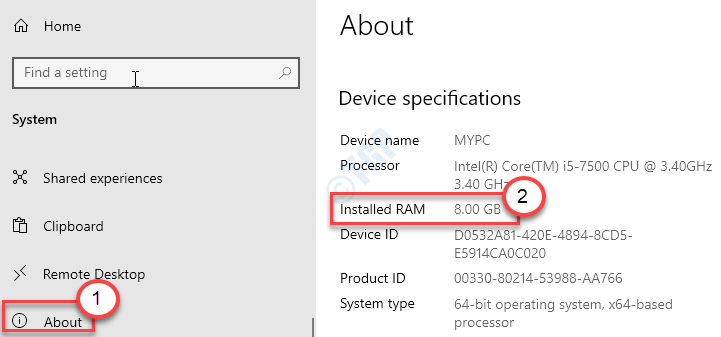
Checking your current RAM usage is the first step to increase RAM on your laptop for free. It helps you understand how much memory your system uses. Knowing this helps you find out if your laptop really needs more RAM or if some apps use too much.
This guide shows simple ways to check RAM use. You do not need special tools or skills. Just follow these easy steps.
Use Task Manager
Task Manager is a built-in tool in Windows. It shows your computer’s current RAM use quickly. To open it, press Ctrl + Shift + Esc together. A window will pop up with many tabs.
Click the “Performance” tab. Here, you see how much RAM your laptop uses now. It shows total memory and how much is free. This helps you see if RAM is full or has space.
Identify Memory-hungry Applications
In Task Manager, go to the “Processes” tab. This lists all running apps and how much memory each uses. Look for apps using a lot of memory. These apps slow down your laptop.
Close or restart apps that use too much RAM. This frees memory without buying new RAM. Sometimes, just stopping a few apps makes your laptop faster.
Credit: gde.com.hk
Optimize Startup Programs
Optimizing startup programs can help increase your laptop’s available RAM without spending money. Many applications start automatically when you turn on your laptop. These apps use RAM and slow down your system. Managing these programs lets your laptop run faster and saves memory.
Disable Unnecessary Apps
Some apps start automatically but are not needed right away. You can disable these apps from the startup list. Open Task Manager by pressing Ctrl + Shift + Esc. Go to the Startup tab and see all the apps. Right-click on apps you don’t need and choose Disable. This stops them from using RAM at startup. Your laptop will have more free memory and boot faster.
Manage Background Processes
Background processes also use RAM without your knowledge. They run even if you are not using the app. Open Task Manager and go to the Processes tab. Look for apps using a lot of memory. Select those not necessary and click End Task. This frees up RAM and improves performance. Check these processes regularly to keep your laptop running smoothly.
Adjust Virtual Memory Settings
Adjusting virtual memory settings helps your laptop run smoother. Virtual memory uses part of your hard drive as extra RAM. This can improve performance without buying new hardware. You can change these settings easily on Windows.
Increase Pagefile Size
Pagefile is a hidden file that Windows uses as extra memory. Increasing its size can help your laptop handle more tasks. Open System Properties, then Advanced system settings. Click Settings under Performance, then the Advanced tab. Click Change under Virtual memory. Uncheck “Automatically manage,” select your drive, and set a larger size. Use a size 1.5 to 3 times your RAM. Click Set and restart your computer.
Set Custom Virtual Memory
Setting custom virtual memory allows more control over your laptop’s speed. Follow the same steps to reach Virtual memory settings. Choose “Custom size” and enter values for Initial and Maximum size. Use values that match your laptop’s needs and disk space. Custom settings can reduce lag and improve multitasking. Save changes and restart your system for them to take effect.

Credit: www.youtube.com
Clean Up Temporary Files
Temporary files build up over time and use valuable RAM space. Cleaning these files frees memory for important tasks. This process helps your laptop run smoother and faster without extra cost. Follow simple steps to clear out unneeded files safely.
Use Disk Cleanup Tool
Windows includes a Disk Cleanup tool that removes temporary files easily. Open it by typing “Disk Cleanup” in the search bar. Select the drive you want to clean, usually the C: drive. The tool scans for files you can safely delete. Choose temporary files, recycle bin, and system cache. Click “OK” to delete and free up memory.
Remove Cache And Junk Files
Web browsers and apps store cache to load faster. These files can grow large and slow down your laptop. Clear cache regularly through browser settings or app preferences. Use storage settings to find and delete junk files. This step releases RAM and improves performance. Simple cleaning keeps your laptop running efficiently.
Use Readyboost Feature
Using the ReadyBoost feature can help increase your laptop’s performance without extra cost. It uses a USB drive to add extra memory cache. This can improve speed, especially on laptops with low RAM. ReadyBoost works by storing frequently used files on the USB, making access faster.
Set Up Usb Drive For Readyboost
Choose a USB drive with at least 4 GB of free space. Plug it into your laptop’s USB port. Open File Explorer and right-click the USB drive. Select “Properties” from the menu.
In the Properties window, click the “ReadyBoost” tab. Select “Use this device” to enable ReadyBoost. Windows will test the USB drive speed to confirm if it can be used. Click “OK” to finish the setup.
Optimize Readyboost Settings
Adjust the amount of space used for ReadyBoost. Slide the bar to set the cache size. Use the maximum space for better performance. You can also stop ReadyBoost anytime from the Properties menu.
Keep the USB drive plugged in for continuous speed boost. Remove it safely to avoid data loss. Using ReadyBoost can make your laptop feel faster with simple steps.
Disable Visual Effects
Disabling visual effects can help free up RAM on your laptop. Visual effects use memory to display animations and shadows. Turning these off makes your system run faster and smoother. You keep the same hardware but improve performance.
Windows has many visual effects enabled by default. These effects look nice but slow down your laptop. Disabling or reducing them uses less RAM and CPU power. Your laptop will feel lighter and quicker to respond.
Adjust For Best Performance
To disable visual effects, open System Properties. Click on the Advanced tab and then Settings under Performance. Choose “Adjust for best performance” to turn off all effects. This disables animations, shadows, and fade effects. Your laptop uses less RAM and speeds up overall.
Customize Appearance Settings
Choose “Custom” instead of best performance for control. Pick only the effects you want to keep. Disable heavy effects like shadows and animations. Keep simple ones like smooth edges on fonts. This balances good looks and better speed. You save RAM but keep some visual appeal.
Update Drivers And Software
Updating drivers and software helps your laptop run smoother. It can improve memory management and overall speed. This step does not add physical RAM but helps use existing RAM better. Regular updates fix bugs and improve system stability. Your laptop can perform faster with the right updates.
Check For Driver Updates
Drivers control hardware like your RAM and processor. Outdated drivers can slow down your laptop. Visit the laptop manufacturer’s website to find the latest drivers. Use device manager on Windows to check driver status. Installing updated drivers can improve memory handling and reduce crashes.
Keep Os And Apps Up To Date
Operating system updates include important performance improvements. They fix security issues and optimize memory use. Open your system settings to check for updates. Also, update installed apps through their stores or settings. Updated software runs more efficiently, freeing up RAM for other tasks.
:max_bytes(150000):strip_icc()/upgraderam02-fa287777d1744ae88339ea68acc3ba5b.jpg)
Credit: www.liftingitalia.com
Limit Browser Tabs And Extensions
Limiting browser tabs and extensions helps your laptop use less RAM. Browsers often use a lot of memory, especially with many tabs open. Extensions also run in the background and take up RAM. Reducing these can improve your laptop’s speed without extra cost.
Close Unused Tabs
Each open tab uses memory. Closing tabs you do not need frees up RAM. Focus on keeping only important pages open. This simple step helps your laptop run smoother. It also reduces the chance of your browser crashing.
Remove Unnecessary Extensions
Extensions add features but use RAM too. Some extensions run all the time, even if you do not use them. Removing extensions you do not need saves memory. Check your browser settings and disable or delete extra extensions. This keeps your laptop faster and more stable.
Frequently Asked Questions
How Can I Increase Laptop Ram Without Buying New Modules?
You can increase virtual memory by adjusting your laptop’s paging file size. This uses hard drive space as extra RAM temporarily, improving performance without hardware upgrades.
What Are The Best Free Methods To Boost Laptop Ram?
Free methods include increasing virtual memory, closing unnecessary programs, disabling startup apps, and optimizing system settings to reduce RAM usage and enhance laptop speed.
Can Disabling Startup Programs Improve Laptop Ram Performance?
Yes, disabling unnecessary startup programs frees up RAM by preventing those apps from running automatically, which speeds up your laptop and optimizes memory usage.
How Does Virtual Memory Help Increase Laptop Ram?
Virtual memory uses part of your hard drive as additional RAM. It temporarily stores data when physical RAM is full, improving multitasking and overall system performance.
Conclusion
Free methods can help your laptop run smoother and faster. Closing unused programs saves memory and boosts speed. Adjusting startup apps stops slow boots. Using ReadyBoost with a USB drive adds virtual memory easily. Regularly cleaning your system keeps it healthy.
These simple steps improve performance without extra cost. Try them one by one and see the difference. Small changes can make your laptop feel like new. Keep your device working well without spending money.
