How to See What Ram Sticks I Have: Quick & Easy Guide
Do you ever wonder what kind of RAM sticks are inside your computer? Knowing your RAM details can help you decide if it’s time for an upgrade or troubleshoot performance issues.
But how do you find this information without opening your PC? You’ll discover simple and clear ways to see exactly what RAM sticks you have. By the end, you’ll feel confident checking your memory like a pro—and making smarter choices for your system.
Keep reading to unlock this easy yet powerful skill!

Credit: www.shoshitamam.com
Check Ram Physically
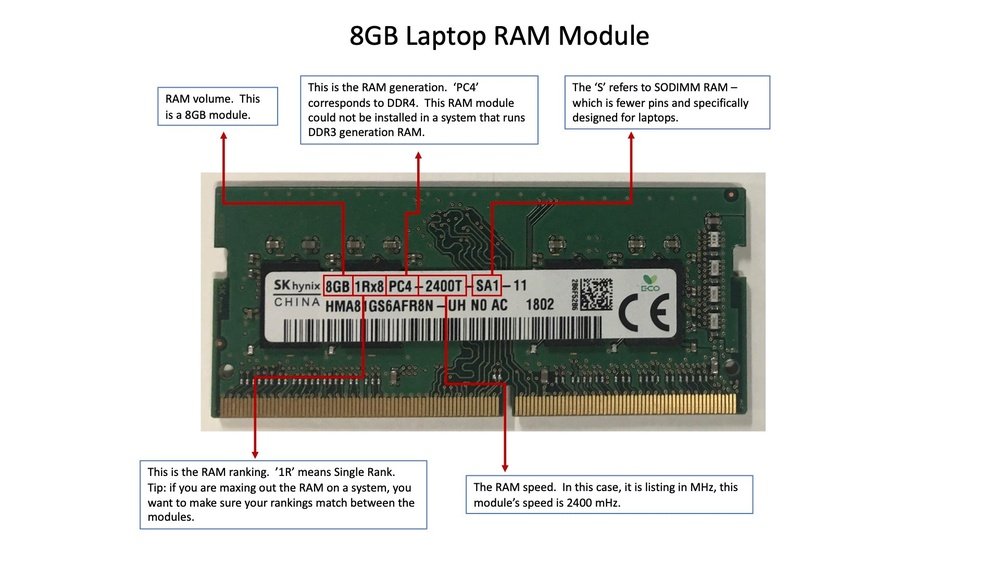
Checking your RAM physically gives you clear information about your memory sticks. It shows the exact type, size, and speed of your RAM. This method works well if you want to avoid software tools or need precise details. Opening your computer carefully lets you inspect the RAM modules directly.
Locate Ram Slots
First, turn off your computer and unplug it. Open the case by removing screws or latches. Look for long, thin slots near the CPU on the motherboard. These slots hold the RAM sticks. Usually, they are side by side and have clips on each end. Handle the inside parts gently to avoid damage.
Read Labels On Sticks
Once you find the RAM sticks, check the labels on each one. The label shows important info like capacity, speed, and brand. Look for numbers like “8GB” or “16GB” to know the size. Speed is often marked as “3200MHz” or similar. Write down these details for future reference or upgrades.
Credit: www.youtube.com
Use System Information Tools
System information tools give clear details about your RAM sticks. They show the type, size, and speed of each memory module. These built-in tools work fast and do not need extra software. You can check your RAM details in just a few clicks. This helps you understand your PC’s memory better.
Windows System Information
Windows has a built-in tool to check RAM details. Press Windows key + R to open the Run box. Type msinfo32 and press Enter. The System Information window opens.
Look for the “Installed Physical Memory (RAM)” entry. It shows the total RAM size. To see more details, select Components > Memory on the left panel. You will find information about each RAM stick, like speed and form factor.
This tool helps you know your RAM without opening your PC case. It is useful for upgrades or troubleshooting.
Macos About This Mac
macOS offers a simple way to check RAM details. Click the Apple logo in the top-left corner. Select About This Mac from the menu.
The Overview tab shows the total memory installed. Click the System Report button for deeper info. In the new window, choose Memory under Hardware.
You will see each RAM stick’s size, type, and speed. macOS makes it easy to view your RAM specs quickly. This helps with system checks and planning upgrades.
Use Task Manager Or Activity Monitor
Task Manager on Windows and Activity Monitor on macOS help check your RAM details. These tools show how much memory your computer uses. They also display the type and size of RAM sticks installed. This is an easy way to learn about your system’s memory without opening your computer.
Access Task Manager On Windows
Press Ctrl + Shift + Esc to open Task Manager. Click the Performance tab. Select Memory on the left side. You can see the total RAM and how much is used.
Look at the bottom right to find the number of RAM slots used. The speed and form factor of your RAM also show here. This gives a good overview of your memory sticks.
Access Activity Monitor On Macos
Open Finder. Go to Applications > Utilities. Double-click Activity Monitor. Click the Memory tab at the top.
This shows memory usage and pressure. For detailed RAM info, click the Apple menu and choose About This Mac. Click System Report, then Memory. It lists each RAM stick’s size and speed.

Credit: superuser.com
Try Command Line Methods
Using command line methods is a quick way to check your RAM sticks. These methods work without extra software. Just type a few commands, and you get detailed information. This helps to know your RAM’s size, speed, and type. Below are simple steps for Windows and macOS.
Windows Command Prompt
Open the Command Prompt by typing cmd in the Start menu. Then enter this command:
wmic memorychip get capacity, speed, manufacturer, partnumberThis shows each RAM stick’s size, speed, maker, and model number. Size appears in bytes, so divide by 1,073,741,824 to get GB. This method gives clear facts about your memory modules fast.
Macos Terminal Commands
Open Terminal from the Applications folder or Spotlight search. Type the following command:
system_profiler SPMemoryDataTypeThis command lists all RAM slots with details like size, speed, and type. It helps to see how much memory is installed and its specifications. No need to open your Mac physically.
Use Third-party Software
Using third-party software is a simple way to find out what RAM sticks you have. These tools scan your computer and show detailed information about your memory. They provide data such as size, speed, type, and manufacturer. This method is easy, fast, and does not require opening your computer case.
Popular Ram Detection Tools
Many free tools exist to check RAM details. CPU-Z is a popular choice. It gives clear information about each RAM stick. Another tool, Speccy, shows a full system overview including RAM. HWiNFO provides detailed hardware reports and real-time monitoring. These programs work on most Windows PCs and are easy to download and use.
How To Interpret Results
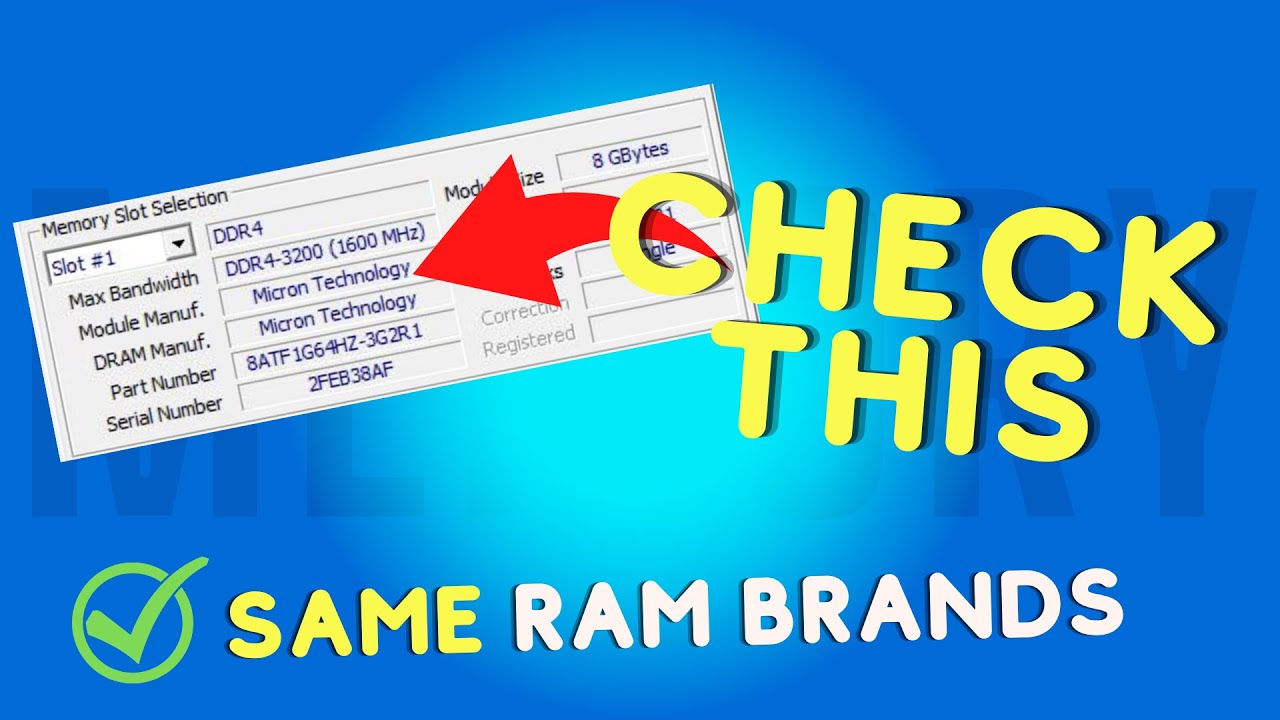
After running the software, you get a list of RAM sticks installed. Look for “Module Size” to see the memory size. The “Type” shows if it is DDR3, DDR4, or DDR5. “Frequency” or “Speed” tells how fast the RAM runs. Manufacturer names appear under “Manufacturer” or “Part Number.” This information helps to match or upgrade your RAM correctly.
Tips For Accurate Ram Identification
Knowing the exact RAM sticks inside your computer helps with upgrades and troubleshooting. It avoids buying the wrong type or size. Accurate identification means better performance and less hassle.
Use simple tools or check your system details carefully. This guide shows easy tips to identify your RAM correctly.
Check For Multiple Sticks
Many computers have more than one RAM stick. Check the number of slots on your motherboard. You can open the case or use software tools to see installed sticks. Each stick may have different size or speed. Knowing this helps when upgrading or replacing parts.
Verify Speed And Capacity
RAM speed affects your computer’s performance. Check the speed in MHz from system settings or tools. Capacity shows how much memory each stick holds, usually in GB. Confirm both speed and size to match new RAM if upgrading. This avoids compatibility issues and slowdowns.
Frequently Asked Questions
How Do I Check My Ram Stick Type On Windows?
Open Task Manager, go to Performance tab, and select Memory. It shows RAM type, size, and speed clearly.
Can I See Ram Details Using Command Prompt?
Yes, type wmic memorychip get command in Command Prompt. It displays RAM capacity, speed, and manufacturer information.
How To Identify Ram Sticks On A Mac?
Click Apple menu, choose About This Mac, then System Report. Under Memory, you find detailed RAM stick info.
Is There Software To Detect Ram Stick Specs Easily?
Yes, apps like CPU-Z and Speccy provide detailed RAM specifications quickly and accurately for Windows users.
Conclusion
Knowing what RAM sticks you have helps you upgrade your computer easily. You can check this information using built-in tools or third-party apps. Opening your computer case is another way, but be careful. Always write down the details you find for future use.
This simple step saves time and avoids mistakes later. Now, you can make better choices for your computer’s memory. Keep your system running smoothly and fast. Understanding your RAM is a small task with big benefits. Try it today and see the difference yourself.