How to Know What Ram is Compatible With My Pc: Ultimate Guide
Are you thinking about upgrading your PC’s memory but unsure which RAM will work with your system? Choosing the wrong RAM can lead to wasted money and frustration.
But don’t worry—this guide will help you quickly figure out exactly what type of RAM is compatible with your PC. By the end, you’ll feel confident picking the perfect memory that boosts your computer’s speed and performance without any guesswork.
Keep reading to unlock the simple steps that make upgrading your RAM easy and hassle-free.
Credit: www.liftingitalia.com
Check Your Motherboard Specs
Checking your motherboard specs is the first step to find compatible RAM for your PC. The motherboard controls what type and how much RAM you can install. Knowing these details helps you choose the right memory without causing issues.
Locate Your Motherboard Model
Find the exact model of your motherboard. You can check the manual or look for the model number printed on the board itself. Another way is to use system tools like CPU-Z to find the model in software. This information is crucial for the next steps.
Identify Supported Ram Types
Motherboards support specific RAM types such as DDR3, DDR4, or DDR5. Check the motherboard specs to see which type it accepts. Using the wrong type can cause your PC to not start or not recognize the memory. Match the RAM type exactly for best results.
Maximum Ram Capacity
Each motherboard has a limit on how much RAM it can handle. Check this limit before buying new memory. Exceeding the maximum capacity can cause errors or prevent your PC from booting. Stay within the supported range for smooth performance.
Credit: www.liftingitalia.com
Understand Ram Types
Understanding RAM types is key to choosing the right memory for your PC. RAM comes in different forms, speeds, and sizes. Knowing these differences helps avoid buying incompatible parts. It also ensures your PC runs smoothly and fast.
Ddr Generations Explained
RAM uses DDR technology, which stands for Double Data Rate. Each new generation improves speed and power use. DDR3, DDR4, and DDR5 are common types today. Your PC supports only one or two DDR types. Mixing them will not work. Check your motherboard specs to find the right DDR generation.
Form Factors: Dimm Vs So-dimm
RAM modules come in two main sizes: DIMM and SO-DIMM. DIMM is larger and fits desktop PCs. SO-DIMM is smaller, designed for laptops and small devices. The shape and pin count differ between these types. You must pick the form factor that matches your PC’s slot. Using the wrong size will not fit or work.
Ram Speed And Latency
RAM speed is how fast the memory can work. It is measured in MHz. Higher speed means better performance but depends on your PC support. Latency shows how quickly RAM responds to requests. Lower latency means faster response time. Choose RAM with a good balance of speed and latency for your needs.
Use System Information Tools
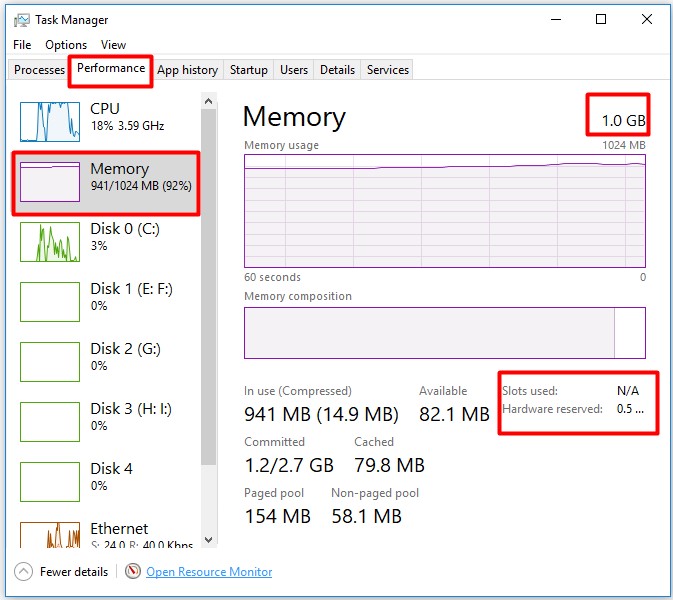
Using system information tools helps you find out which RAM works with your PC. These tools show details about your current memory and motherboard. You can check RAM type, speed, and slots available. This makes choosing compatible RAM easier and safer.
Built-in Os Tools
Most operating systems have built-in tools to check system details. On Windows, use “System Information” by typing it in the search bar. It lists memory size and type. On Mac, click “About This Mac” under the Apple menu. It shows RAM installed and speed. These tools are quick and need no extra downloads.
Third-party Software Options
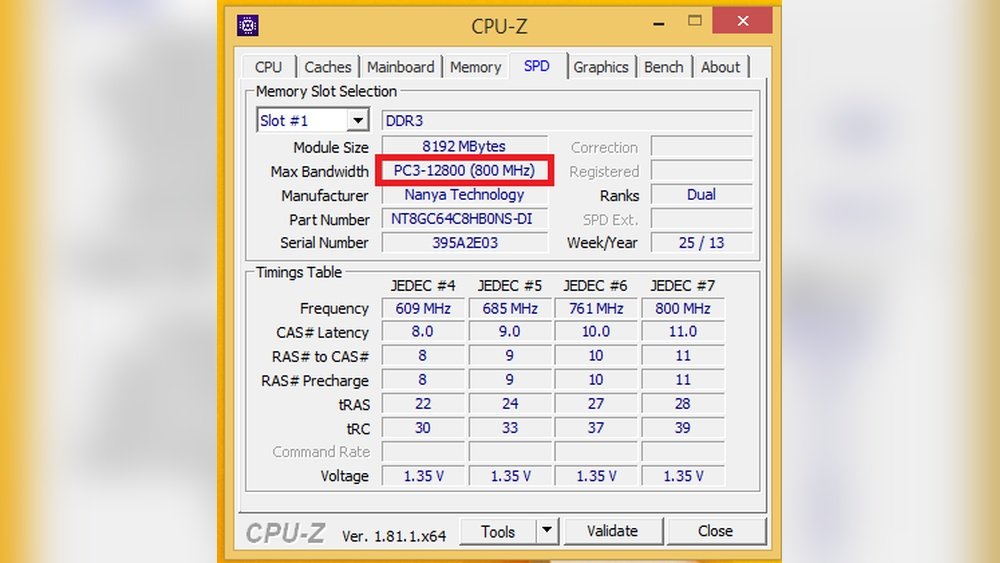
Third-party programs give more detailed RAM info. Tools like CPU-Z and Speccy scan your hardware deeply. They show RAM type, size, speed, and slot usage. Many of these tools are free and easy to use. They help confirm your PC’s RAM specs accurately.
Reading Ram Details
Look for RAM type such as DDR3 or DDR4. Check the speed in MHz to match new RAM. Note the size of each RAM stick installed. Also, count how many RAM slots your motherboard has. These details ensure the new RAM fits and works well.
Consider Your Cpu Compatibility
Choosing RAM that fits your PC means checking the CPU first. The CPU controls how memory works. Not all RAM fits every processor. Knowing your CPU’s memory rules helps pick the right RAM. This saves time and avoids errors. Let’s explore CPU memory limits and channel support.
Cpu Memory Controller Limits
The CPU has a memory controller inside. It sets the maximum RAM speed and size. For example, some CPUs support up to 64GB RAM. Others may only handle 32GB. The memory controller also limits RAM speed. Installing faster RAM than supported won’t increase speed.
Check your CPU specs on the official site. Find the maximum RAM size and speed it supports. Choose RAM within these limits. This ensures your PC runs smoothly without crashes or slowdowns.
Dual Vs Quad Channel Support
CPUs support different memory channel types. Dual channel uses two RAM sticks working together. Quad channel uses four sticks at once. More channels mean better performance in some tasks. But your CPU and motherboard must support it.
If your CPU supports dual channel, install RAM in pairs. For quad channel, use four sticks of the same size and speed. Mixing channels or uneven RAM can reduce performance. Match RAM to your CPU’s channel support for best results.
Match Ram With Existing Modules
Matching new RAM with existing modules in your PC helps maintain system stability. It ensures your computer runs smoothly without crashes or errors. This section explains how to match RAM properly with what you already have installed.
Checking Current Ram Specs
Start by finding out the details of your current RAM. Check its size, speed, and type. Use system tools or open your PC to read the labels on the modules. Knowing these specs helps you choose compatible RAM.
Mixing Different Ram Brands
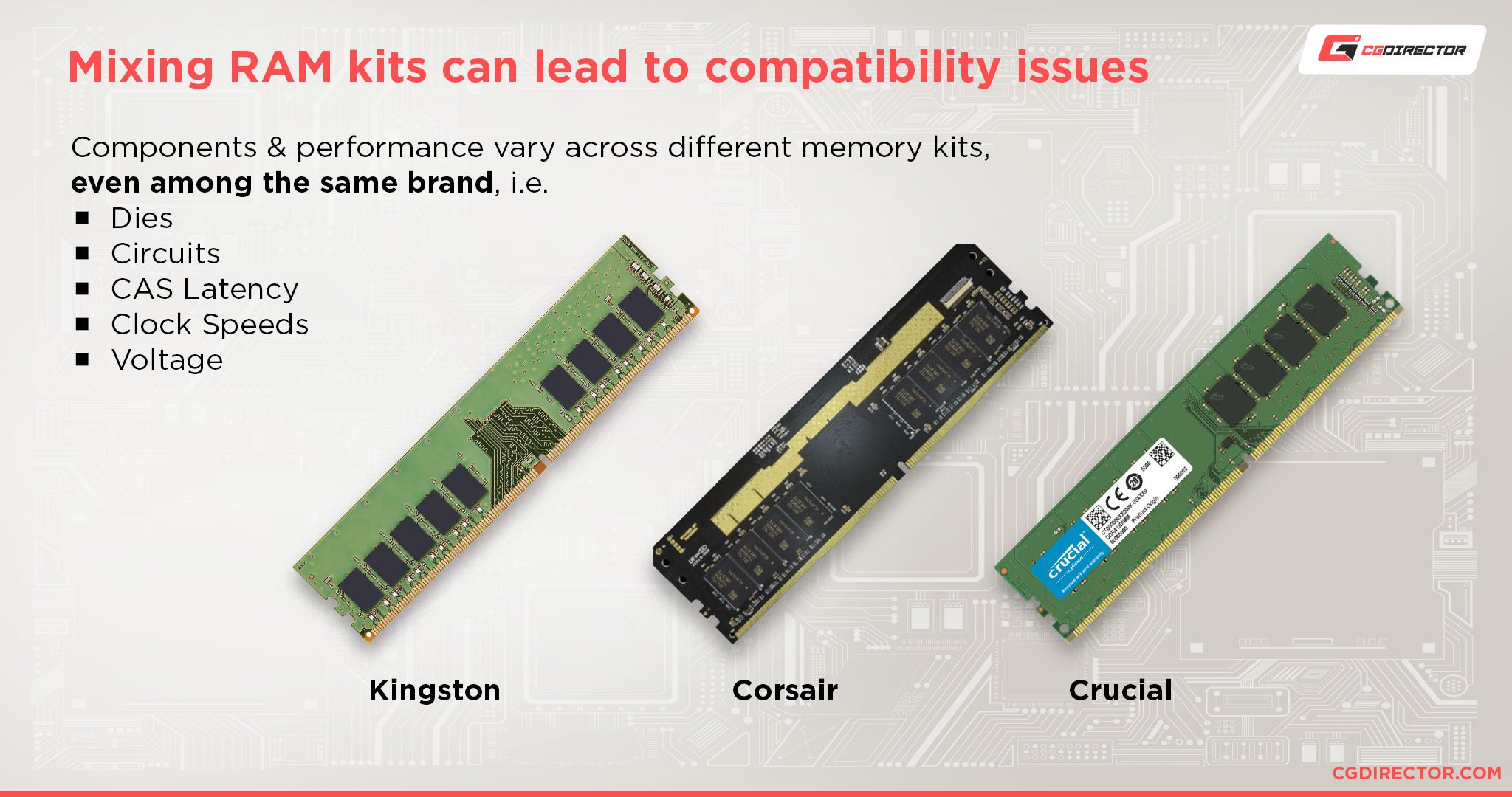
Using different RAM brands is possible but not ideal. Different brands may have slight variations in performance. These differences can cause the system to slow down or become unstable. For best results, try to use the same brand and model.
Ensuring Voltage And Timing Compatibility
RAM voltage and timing must match for proper function. If these settings differ, your PC might fail to boot or crash. Check your current RAM’s voltage and timing values. Buy new modules with the same or very close specifications.

Credit: www.youtube.com
Consult Manufacturer Resources
Consulting manufacturer resources is a smart way to find compatible RAM for your PC. These resources provide tested and reliable information. They help avoid guesswork and potential hardware issues.
Manufacturers often publish detailed compatibility lists and tools. These guide you in selecting RAM that matches your motherboard and system requirements. Use these official sources for the best results.
Motherboard Qvl Lists
QVL stands for Qualified Vendor List. It shows RAM modules tested and approved by the motherboard maker. This list ensures the RAM works well with your specific motherboard model.
Check the motherboard’s official website to find the QVL. The list includes details like RAM speed, size, and brand. Choosing from this list reduces compatibility risks and system errors.
Ram Manufacturer Compatibility Tools
RAM makers offer online tools to check compatibility. These tools ask for your motherboard model or PC details. Then, they suggest RAM options that fit your system.
Using these tools saves time and avoids buying wrong RAM. They also provide information on RAM speed, voltage, and size. These details help you pick the right memory for smooth performance.
Plan For Future Upgrades
Planning for future upgrades is smart when choosing RAM for your PC. It saves time and money later. Your computer’s needs can grow with new software or tasks. Picking RAM that fits your current and future needs is wise.
Leave Room For Expansion
Check how many RAM slots your motherboard has. Use only some slots now to keep space free. This way, you can add more RAM later. More slots mean easier upgrades without replacing old RAM. Always leave empty slots for future use.
Choosing Ram For Longevity
Select RAM with good speed and capacity for longer use. Higher speed helps your PC run faster over time. Buy RAM that matches your motherboard’s maximum supported speed. Choose slightly more RAM than you need today. This helps your PC stay fast as programs get bigger.
Purchase And Install Ram
Buying and installing RAM can improve your PC’s speed and performance. It is important to pick the right RAM that fits your computer. After buying, you must install it carefully to avoid damage. Proper installation helps your PC run smoothly and fast.
Trusted Retailers And Brands
Choose RAM from well-known brands for quality and reliability. Brands like Corsair, Kingston, and Crucial are popular choices. Buy from trusted stores or official websites to avoid fake products. Check reviews and ratings before purchasing. This ensures your RAM will work well with your PC.
Installation Tips
Turn off your PC and unplug it before installing RAM. Open the case carefully, following your PC’s manual instructions. Align the RAM stick with the slot and press gently until it clicks. Avoid touching the gold connectors to prevent damage. Secure the case before turning on your computer again.
Testing New Ram
After installation, turn on your PC and check if it recognizes the new RAM. Use built-in tools like Windows Memory Diagnostic to test the RAM’s health. Look for any errors or crashes during use. If problems appear, reseat the RAM or check compatibility. Proper testing ensures your PC runs without issues.
Frequently Asked Questions
What Type Of Ram Does My Pc Support?
Check your motherboard’s specifications or manual to find supported RAM types. Common types include DDR3, DDR4, and DDR5. Using compatible RAM ensures stability and optimal performance.
How Much Ram Can My Pc Handle?
Your motherboard and operating system determine the maximum RAM capacity. Refer to your motherboard specs for max RAM slots and size per slot. This helps avoid buying unsupported RAM modules.
How Do I Check My Current Ram Speed?
You can check RAM speed via system settings or third-party apps like CPU-Z. Matching RAM speed with your motherboard’s supported speeds avoids compatibility issues and boosts performance.
Can I Mix Different Ram Brands In My Pc?
Mixing RAM brands is possible but not recommended. Different brands may cause stability issues or reduced performance. For best results, use identical RAM sticks for compatibility.
Conclusion
Choosing the right RAM for your PC is simple with the right info. Check your motherboard’s specs first. Match the RAM type, speed, and size carefully. Don’t forget to consider your system’s limits. This helps avoid compatibility issues and ensures smooth performance.
A little research goes a long way. Your PC will run better with compatible RAM. Stay patient and double-check before buying. It pays off in the end.