How to Clean a Cpu Cooler: Easy Steps for Optimal Performance
Is your computer running hotter than usual or making strange noises? It might be time to clean your CPU cooler.
Keeping your cooler clean is one of the easiest ways to boost your PC’s performance and extend its life. In this guide, you’ll learn simple steps to safely clean your CPU cooler and prevent overheating. By the end, you’ll know exactly how to keep your system cool and quiet, without spending a fortune or needing special tools.
Ready to give your PC the care it deserves? Let’s get started!
Signs Your Cpu Cooler Needs Cleaning
Your CPU cooler works hard to keep your processor cool. Dirt and dust can block its performance over time. Knowing the signs of a dirty CPU cooler helps protect your computer. Watch for these key indicators to keep your system running smoothly.
Overheating Symptoms
One clear sign is your computer heating up more than usual. The CPU may slow down or shut off suddenly. Programs might freeze or crash often. This happens because the cooler cannot remove heat well. Overheating can damage your CPU if ignored.
Unusual Fan Noise
Listen for louder or strange sounds from the fan. Dust buildup makes the fan work harder and spin unevenly. You might hear rattling or buzzing noises. These sounds mean the cooler struggles to cool the CPU. Regular cleaning keeps the fan quiet and efficient.
Visible Dust Buildup
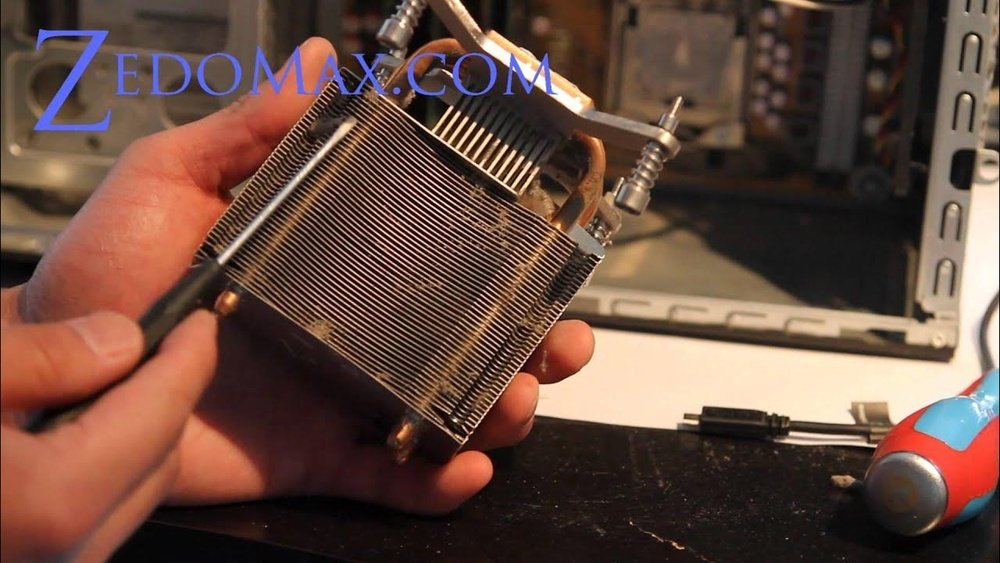
Look inside your computer case for dust on the cooler. Dust gathers on the fan blades and heat sink fins. Thick layers block airflow and trap heat. Even a small amount of dust reduces cooling power. Cleaning removes dust and improves airflow instantly.
Tools And Materials Needed
Cleaning a CPU cooler requires the right tools and materials. Having everything prepared makes the process easier and safer. This section covers the essential items needed for an effective cleaning session. It also highlights important safety steps to protect both you and your hardware.
Essential Cleaning Supplies
Start with a soft brush to remove dust from fins and fans. Use compressed air cans to blow away stubborn dirt without touching parts. Microfiber cloths are perfect for wiping surfaces without scratching. Isopropyl alcohol, at least 90%, helps clean thermal paste and sticky grime. Thermal paste is necessary for reapplying after cleaning. Cotton swabs assist in reaching tight spots. A small screwdriver set is useful for removing the cooler from the CPU.
Safety Precautions
Unplug your computer before starting to avoid electric shock. Ground yourself to prevent static damage to components. Handle all parts gently to avoid bending fins or breaking wires. Use compressed air in short bursts to prevent moisture buildup. Work in a clean, dust-free area to keep parts safe. Avoid using water or household cleaners that can harm the cooler. Follow manufacturer guidelines for disassembly and reassembly.
Preparing Your Pc For Cleaning
Cleaning your CPU cooler helps keep your computer running cool and fast. Dirt and dust build up over time. This buildup can block airflow and cause overheating. Preparing your PC correctly makes the cleaning safe and effective. Follow each step carefully to avoid damage.
Powering Down And Unplugging
Start by shutting down your PC completely. Wait for it to cool down for 10 to 15 minutes. This prevents burns or damage to parts. Next, unplug the power cable from the wall outlet. Disconnect all other cables and accessories. This step avoids any electric shock or short circuits.
Accessing The Cpu Cooler
Open your PC case carefully. Most cases have screws or clips to remove the side panel. Find the CPU cooler inside, attached to the motherboard. Sometimes, you may need to remove other components for better access. Work slowly and keep track of all screws. This keeps your parts safe and organized.
Removing The Cpu Cooler
Removing the CPU cooler is the first step in cleaning it properly. This task helps avoid damage to the cooler and the CPU. Take your time and follow the steps carefully. Safety matters. Power off your computer and unplug it before starting.
Handle the parts gently. This prevents any breakage or loose connections. Keeping the workspace clean also helps. Dust and static can cause issues.
Detaching The Fan
Start by locating the fan attached to the cooler. Most fans have clips or screws holding them. Use a screwdriver or your fingers to release these. Pull the fan cable from the motherboard carefully. Do not yank or twist the cable.
Removing the fan first gives better access to the cooler base. It also prevents dust from falling inside the fan blades during cleaning.
Unfastening The Cooler
Next, find the screws or clamps securing the cooler to the CPU. These hold the cooler firmly in place. Use the proper screwdriver to loosen each screw evenly. Turn screws in a diagonal pattern to reduce pressure on the CPU.
Once loose, gently lift the cooler straight up. Avoid tilting or twisting to protect the CPU. If the cooler feels stuck, wiggle slightly but do not force it. The thermal paste may cause some resistance.
Cleaning The Cooler Components
Cleaning the cooler components is key to keeping your CPU running cool. Dust and dirt build up over time. This buildup slows down the cooler and raises temperatures. Regular cleaning helps your PC work better and last longer.
Focus on three main parts: the fan, the heat sink, and dust around them. Each part needs careful cleaning to avoid damage. Use gentle tools and simple methods for best results.
Dust Removal Techniques
Start with dust removal. Use a can of compressed air. Hold the fan and heat sink steady. Spray short bursts to blow away dust. Avoid spinning the fan fast with air. It can damage the motor.
Use a soft brush to loosen stuck dust. A small paintbrush or makeup brush works well. Clean in a well-ventilated area. Dust can spread easily.
Cleaning The Fan Blades
Fan blades collect dirt and grease. This reduces airflow and cooling power. Wipe each blade gently with a cloth dampened in rubbing alcohol. Avoid wetting the motor hub. Use cotton swabs for hard-to-reach spots.
Make sure the blades are dry before turning the fan on. Wet blades can cause noise or damage.
Cleaning The Heat Sink
The heat sink has thin metal fins that trap dust. Use compressed air to clean between the fins. Hold the fins carefully to avoid bending them. If dust sticks, use a soft brush gently. Never use water on the heat sink.
Check for thermal paste residue on the base. Clean it with isopropyl alcohol and a lint-free cloth before reapplying new paste.

Credit: www.vortez.net
Reapplying Thermal Paste
Reapplying thermal paste is a key step in cleaning your CPU cooler. Thermal paste helps the CPU and cooler work well by filling tiny gaps. Old paste can dry out and stop working properly. This causes your CPU to get hotter. Fresh paste improves heat transfer and keeps your CPU cool. Follow these steps carefully to do it right.
Removing Old Thermal Paste
First, turn off your computer and unplug it. Remove the CPU cooler gently from the CPU. Use a soft cloth or paper towel to wipe off the old thermal paste. You can use isopropyl alcohol for better cleaning. Make sure the surface is clean and dry before applying new paste.
Applying New Thermal Paste Correctly
Apply a small pea-sized drop of thermal paste in the center of the CPU. Do not spread it yourself. When you place the cooler back, it will spread the paste evenly. Tighten the cooler screws gently in a diagonal order. This ensures good contact and better heat transfer.
Reassembling And Testing
After cleaning your CPU cooler, putting it back correctly is important. Careful reassembly ensures good cooling and protects your CPU. Testing follows to check that everything works well. This step confirms the cooler cools properly and the system runs safely.
Reinstalling The Cpu Cooler
Place the cooler carefully over the CPU. Align it with the mounting holes on the motherboard. Tighten screws evenly, not too tight to avoid damage. Connect the fan cable to the CPU fan header. Make sure the cooler sits flat for good contact. Apply new thermal paste if needed before mounting.
Powering On And Monitoring Temperatures
Turn on your computer after reassembly. Watch the fan spin to confirm it runs smoothly. Open a temperature monitoring program like HWMonitor or Core Temp. Check CPU temperatures at idle and under load. Temperatures should stay within safe limits. If temperatures are high, check the cooler installation again.

Credit: www.youtube.com
Tips For Maintaining Your Cpu Cooler
Keeping your CPU cooler in good shape helps your computer run smoothly. Dirt and dust can slow down the cooler and make your CPU hotter. Follow some easy tips to keep your cooler clean and working well.
Regular Cleaning Schedule
Set a regular time to clean your CPU cooler. Every three to six months works well for most users. Use a soft brush or compressed air to remove dust from the fan and heatsink. Avoid using a vacuum, as it can damage the parts. Regular cleaning keeps the cooler efficient and extends its life.
Optimizing Airflow
Good airflow helps your CPU cooler work better. Make sure cables inside the case do not block air paths. Arrange fans to push hot air out and pull cool air in. Keep the case open enough for air to move freely. Proper airflow reduces heat and improves performance.
Using Dust Filters
Install dust filters on your computer case vents. These filters catch dust before it reaches the cooler. Clean the filters often to keep air flowing well. Dust filters reduce the need for deep cleaning inside the case. They protect your cooler and keep your CPU cooler for longer.

Credit: www.vortez.net
Frequently Asked Questions
How Often Should I Clean My Cpu Cooler?
Clean your CPU cooler every 3 to 6 months. Regular cleaning prevents dust buildup, which improves cooling efficiency and prolongs hardware life.
What Tools Do I Need To Clean A Cpu Cooler?
You need a soft brush, compressed air can, microfiber cloth, and thermal paste. These help remove dust and safely clean fan blades and heatsinks.
Can I Clean My Cpu Cooler Without Removing It?
Yes, you can use compressed air to blow out dust without removal. However, deep cleaning requires detaching the cooler for thorough cleaning and thermal paste replacement.
How Do I Safely Remove Dust From Cpu Cooler Fans?
Use a soft brush or compressed air to gently clean fan blades. Avoid spinning fans too fast to prevent damage or dislodging components.
Conclusion
Cleaning your CPU cooler keeps your computer running cool and fast. Dust and dirt block airflow and cause overheating. Regular cleaning helps avoid crashes and slowdowns. Use gentle tools like a soft brush and compressed air. Take your time and be careful with parts.
A clean cooler means better performance and longer computer life. Remember, small efforts now save big problems later. Keep your PC healthy by cleaning the cooler often. Simple steps can make a big difference.