How to Remove the Cpu: Easy Steps for Safe and Quick Removal
Are you looking to remove your CPU but not sure where to start? Taking out your CPU might seem tricky, but with the right steps, you can do it safely and easily.
Whether you want to upgrade your computer or fix a problem, knowing how to remove your CPU correctly is essential. In this guide, you’ll discover simple, clear instructions that make the process straightforward. Keep reading, and by the end, you’ll feel confident handling your CPU like a pro.
Credit: docs.oracle.com
Preparing Your Workspace
Preparing your workspace is the first step before removing the CPU. A clean and organized area helps avoid mistakes and protects your computer parts. Taking time to prepare makes the process smoother and safer.
Gathering Necessary Tools
Collect all tools needed before starting. Common tools include a screwdriver, thermal paste remover, and a clean cloth. Having these ready saves time and prevents interruptions. Use a small Phillips-head screwdriver for most screws.
Keep everything within reach. Avoid rushing by having all items close. Check your computer manual for any special tools required.
Ensuring Static-free Environment
Static electricity can damage the CPU and other parts. Prevent static by working on a non-carpeted surface. Use an anti-static wrist strap if possible. Attach it to a metal part of the computer case.
Touch a grounded metal object often to discharge static. Avoid wearing wool or synthetic clothes that create static. Keep your workspace clean and dry to reduce static risks.

Credit: www.youtube.com
Powering Down And Disconnecting
Powering down and disconnecting your computer is the first step to safely remove the CPU. This process prevents damage to components and protects you from electric shock. Taking time to do this right makes the rest of the work easier and safer.
Shutting Down The Computer
Start by closing all programs on your computer. Save any open files to avoid losing work. Use the operating system’s shutdown option. Wait for the screen to go completely black. This means the computer is fully off. Do not just press the power button to turn it off.
Unplugging Power And Peripherals
Unplug the power cable from the wall outlet or power strip. Remove all connected devices like the keyboard, mouse, and monitor. This ensures no power is running through the system. It also frees you to open the computer case without risk. Handle all cables gently to avoid damage.
Accessing The Cpu
Accessing the CPU is the first step to removing it safely. This process requires care and patience. You must prepare your workspace and tools before starting. A clean and static-free area helps protect computer parts. Follow each step closely to avoid damage.
Opening The Computer Case
Turn off your computer and unplug all cables. Place the computer on a flat surface with good light. Locate the screws or latches holding the case cover. Use a screwdriver to remove the screws carefully. Slide or lift the case cover off gently. Set the cover aside in a safe place.
Locating The Cpu Socket
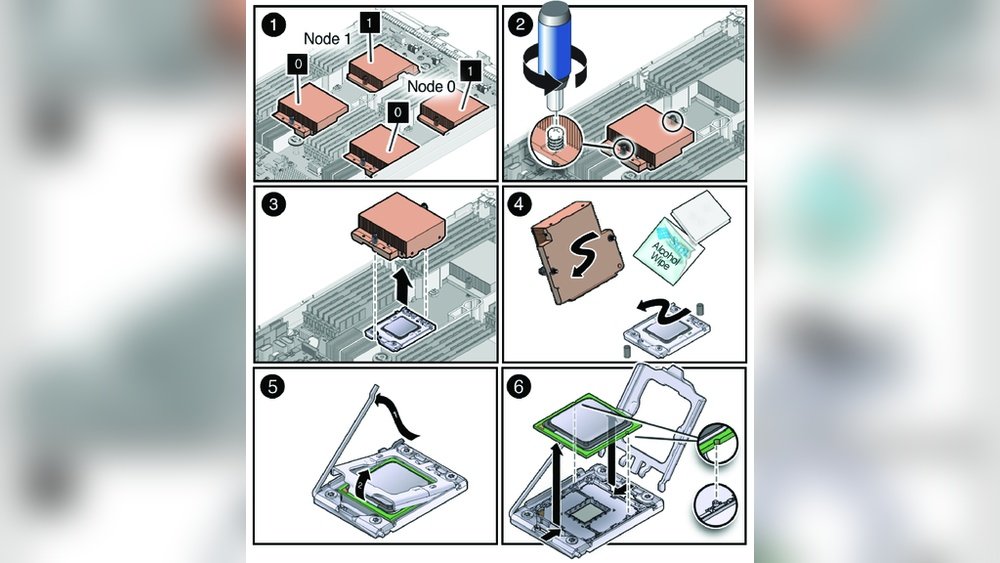
Inside the case, find the motherboard. The CPU socket sits near the center or top. It looks like a square with many tiny pins or holes. A large fan or heatsink covers the CPU. Remove the fan carefully by unscrewing or unclipping it. This exposes the CPU socket clearly for the next steps.

Credit: www.youtube.com
Removing The Cpu Cooler
Removing the CPU cooler is a key step before taking out the CPU itself. The cooler keeps the CPU from overheating by drawing heat away. Detaching it properly avoids damage to the CPU and motherboard.
Take your time and work carefully. The cooler usually has a fan and a heat sink. These parts can be stuck tightly to the CPU due to thermal paste. Removing them without care can pull the CPU out or damage pins.
Detaching Fan And Heat Sink
First, unplug the fan cable from the motherboard. This stops any power running to the cooler.
Next, loosen screws or clips holding the heat sink. Turn them slowly and evenly to avoid pressure on one side.
If the cooler feels stuck, gently twist it side to side. This helps break the seal without force.
Lift the cooler straight up once it feels loose. Do not pull at an angle to avoid bending CPU pins.
Handling Thermal Paste
Thermal paste sticks the heat sink to the CPU. It dries and hardens over time.
Use a soft cloth or paper towel to clean off old paste. Apply gentle pressure and wipe carefully.
For stubborn paste, use isopropyl alcohol on the cloth. This helps dissolve residue without damage.
Clean the CPU surface and the heat sink base thoroughly. This prepares them for new thermal paste later.
Releasing The Cpu
Releasing the CPU from its socket is a careful process. It requires patience and a gentle touch. Follow simple steps to avoid damage and keep your parts safe.
Unlocking The Cpu Socket Lever
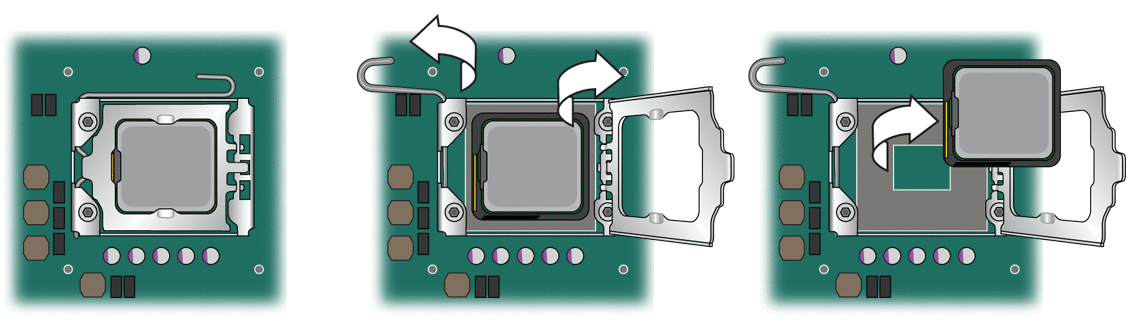
Locate the small metal lever on the side of the CPU socket. This lever holds the CPU tightly in place. Press it down gently and then move it away from the socket. The lever should lift slightly. This action releases the pressure on the CPU. Do not force the lever. If it feels stuck, check for any screws or locks nearby.
Gently Lifting The Cpu
After unlocking, the CPU is free to be removed. Use your fingers to hold the edges of the CPU. Avoid touching the pins or the bottom side. Slowly lift the CPU straight up. Do not twist or bend it. Keep the CPU level to prevent any damage. Place the CPU on a clean, static-free surface once removed.
Handling And Storing The Cpu
Handling and storing the CPU is a key step after removing it from a computer. The CPU is a delicate part and needs careful treatment. Proper care prevents damage and keeps it safe for future use or installation.
Avoiding Damage
Hold the CPU by its edges only. Avoid touching the pins or the top surface. Oils and dirt from fingers can cause problems. Never bend or force the pins. Keep the CPU on a flat, clean surface. Avoid static electricity by grounding yourself before touching the CPU. Static can harm the tiny circuits inside.
Proper Storage Techniques
Store the CPU in an anti-static bag or container. Use a padded box to protect it from shocks. Keep the CPU away from heat, moisture, and dust. Label the container to avoid confusion. Store it in a dry, cool place. Avoid stacking heavy objects on top of the CPU.
Frequently Asked Questions
How Do I Safely Remove A Cpu From Motherboard?
First, power off and unplug your PC. Discharge static by grounding yourself. Unlock the CPU socket lever carefully. Gently lift the CPU straight out without bending pins. Avoid touching pins or contacts to prevent damage.
What Tools Do I Need To Remove A Cpu?
Typically, no special tools are required. You only need a screwdriver to open the PC case. The CPU socket lever unlocks manually. Use an anti-static wrist strap for safety. Handle components carefully to avoid static damage.
Can I Remove Cpu Without Damaging The Motherboard?
Yes, by following proper steps. Power off, unplug, and ground yourself first. Unlock the CPU socket lever gently. Lift the CPU straight up without force. Avoid touching socket pins or contacts to prevent damage.
How To Avoid Static Damage When Removing Cpu?
Use an anti-static wrist strap to ground yourself. Work on a non-conductive surface. Avoid carpeted areas or static-prone environments. Touch a grounded metal object before handling components. Keep components in anti-static bags when not in use.
Conclusion
Removing a CPU is simple with the right steps and care. Take your time and stay gentle to avoid damage. Keep track of screws and parts for easy reassembly. Always ground yourself to prevent static shocks. This guide helps you handle the CPU safely and confidently.
Practice makes the process easier each time. Now, you can remove a CPU without stress or confusion.