How to See How Much Ram My Pc Has: Quick & Easy Guide
Do you ever wonder if your PC has enough memory to run your favorite programs smoothly? Knowing how much RAM your computer has can make a big difference in its speed and performance.
But finding this information isn’t always obvious, especially if you’re not a tech expert. Don’t worry—this guide will show you exactly how to check your PC’s RAM quickly and easily. By the end, you’ll have the confidence to understand your computer better and make smarter decisions about upgrades or troubleshooting.
Ready to unlock your PC’s potential? Let’s dive in!
Credit: www.avast.com
Check Ram On Windows
Checking the RAM on your Windows PC is simple and fast. Knowing your RAM helps you understand your computer’s speed and performance. You can find this information using built-in Windows tools. Here are three easy ways to check your RAM on Windows.
Using System Settings
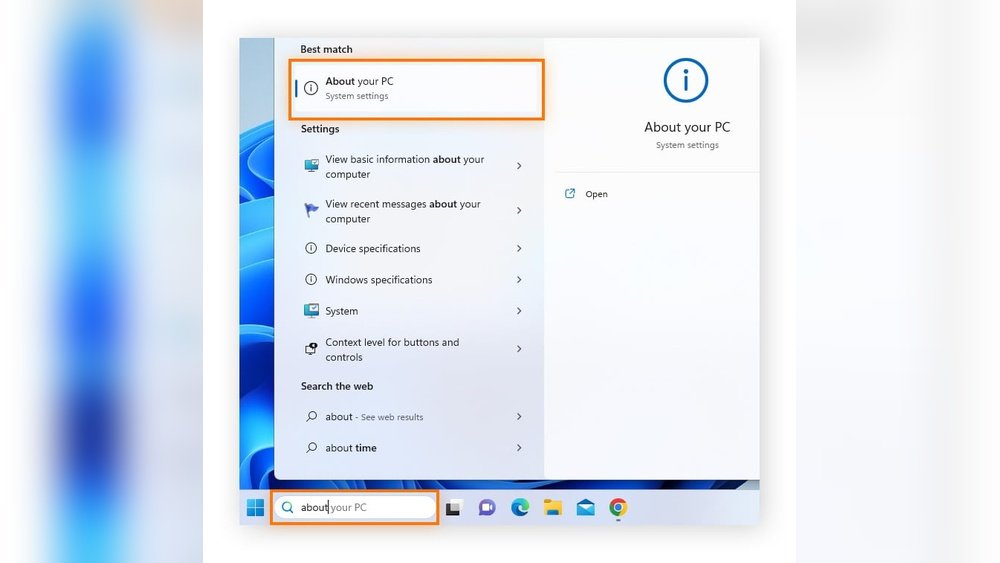
Open the Start menu and click on Settings.
Go to the “System” section and then select “About.”
Look for “Installed RAM” under Device specifications. This shows your total memory.
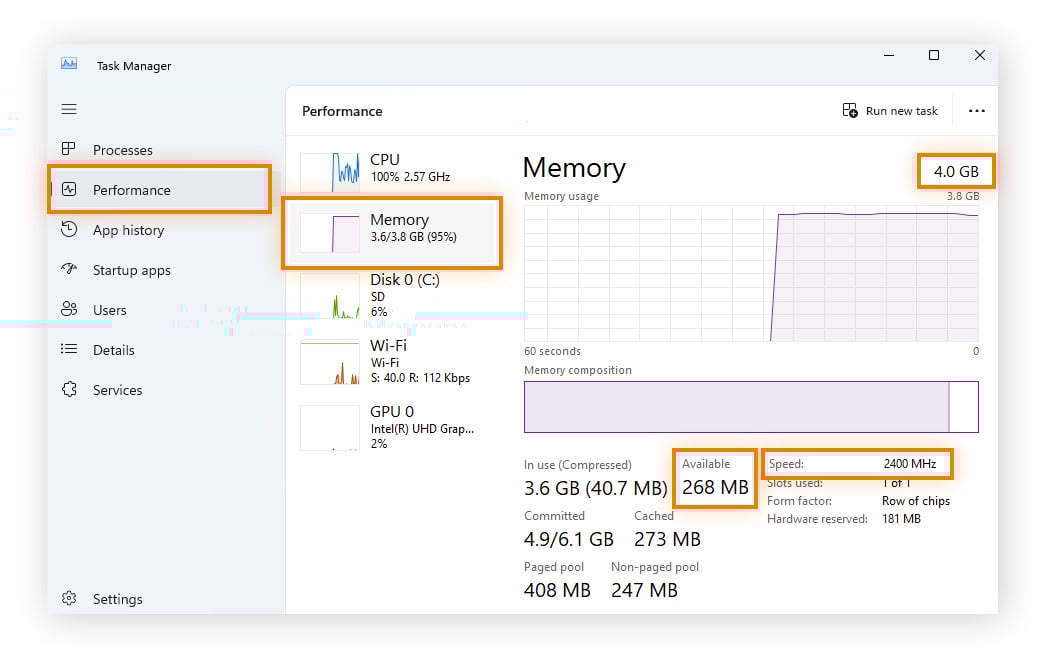
Using Task Manager
Click the “Performance” tab at the top.
Select “Memory” on the left side to see RAM details like size and speed.
Using Command Prompt
Press Windows + R keys, type “cmd,” and hit Enter.
Type the command wmic memorychip get capacity and press Enter.
This shows the size of each RAM module in bytes. Add them up for total RAM.
Check Ram On Mac
Checking the RAM on a Mac helps you understand your computer’s memory capacity. This information is useful for running apps smoothly and knowing when to upgrade. Macs offer simple ways to see your RAM size. Two common methods are using About This Mac and Activity Monitor.
Using About This Mac
Click the Apple icon in the top-left corner of your screen. Select “About This Mac” from the dropdown menu. A window appears with an overview of your Mac. Look for the “Memory” section. It shows the total RAM installed. This method is quick and easy. You can also see the type and speed of the RAM here.
Using Activity Monitor
Open the Finder and go to Applications. Find and open the “Utilities” folder. Launch the “Activity Monitor” app. Click the “Memory” tab at the top. You see detailed information about RAM usage. Look at the “Memory Used” and “Physical Memory” fields. This shows how much RAM your Mac has and how much is in use. It helps monitor your memory in real time.
Check Ram On Linux
Checking the RAM on a Linux system is simple and quick. You can use either the terminal or the system monitor. Both methods show how much memory your computer has. This helps in managing your computer’s performance and running apps smoothly.
Using Terminal Commands
Open the terminal by pressing Ctrl + Alt + T. Type free -h and press Enter. This command shows total, used, and free memory in a human-readable format.
Another command is cat /proc/meminfo. It gives detailed info about your RAM. Look for the line starting with “MemTotal” to see the total RAM size.
You can also use vmstat -s to get memory statistics. These commands work on almost all Linux distributions.
Using System Monitor
Open the system monitor from your applications menu. It shows CPU, memory, and disk usage in real time.
Find the memory tab or section. It displays total RAM and current usage. This method is easy for users who prefer a graphical interface.
System monitor tools vary by Linux version but all show RAM info clearly. This is a quick way to check memory without typing commands.

Credit: www.breezeresidency.com
Interpreting Ram Information
Understanding your PC’s RAM details helps improve its performance. RAM affects how many programs run smoothly. Knowing the right info guides you in upgrading or troubleshooting.
Total Vs Available Ram
Total RAM means all the memory installed in your PC. Available RAM is the free memory left for programs to use. If available RAM is low, your PC may slow down. Check both to know how much memory your system can really use.
Ram Speed And Type
RAM speed shows how fast your memory works. It is measured in megahertz (MHz). Higher speed means quicker data access. RAM type tells you the generation, like DDR3 or DDR4. Newer types run faster and use less power. Knowing speed and type helps pick the best RAM for your PC.
Tips To Upgrade Ram
Upgrading your PC’s RAM can boost its speed and performance. Adding more memory helps your computer run programs smoothly and handle more tasks at once. Before buying new RAM, some important steps ensure a smooth upgrade.
Checking Compatibility
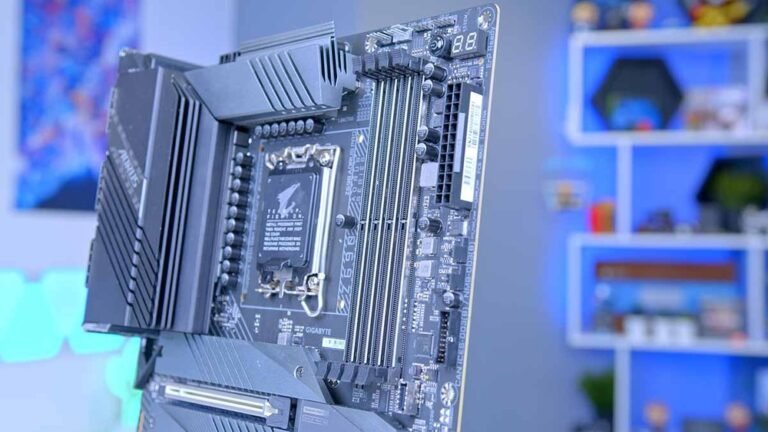
First, check your PC’s motherboard for RAM type and speed support. Use system tools or manuals to find this information. Buying RAM that matches your motherboard avoids errors and problems. Also, note the maximum RAM capacity your PC can support. Make sure the new modules fit your system’s slots and specifications.
Installing New Ram Modules
Turn off your PC and unplug it before installing new RAM. Open the case carefully to access the memory slots. Align the RAM module with the slot, matching the notch and pins. Press firmly until the clips snap in place. Close the case and power on your PC. Check the system settings to confirm the new RAM is recognized.

Credit: yao.com.do
Frequently Asked Questions
How Do I Check Ram On Windows 10?
To check RAM on Windows 10, open Settings and go to System > About. Here, you’ll see the installed RAM under Device specifications.
Can I Find Ram Size Using Task Manager?
Yes, open Task Manager with Ctrl + Shift + Esc, click Performance, then select Memory. The total RAM size displays in the top-right corner.
How To Check Ram On Mac?
Click the Apple menu, select About This Mac, then view the Memory tab. It shows the total RAM installed on your Mac.
Is There A Command To See Ram On Pc?
Yes, open Command Prompt and type “wmic MEMORYCHIP get Capacity. ” This command lists RAM module sizes in bytes.
Conclusion
Knowing how much RAM your PC has helps you understand its speed. You can check this quickly using simple steps. This information guides you in deciding if you need an upgrade. More RAM often means your computer runs smoother. Keep these easy methods in mind for future use.
Checking your RAM is a small task with big benefits. Stay aware of your PC’s memory to keep it working well. Simple and clear steps make this process stress-free.