

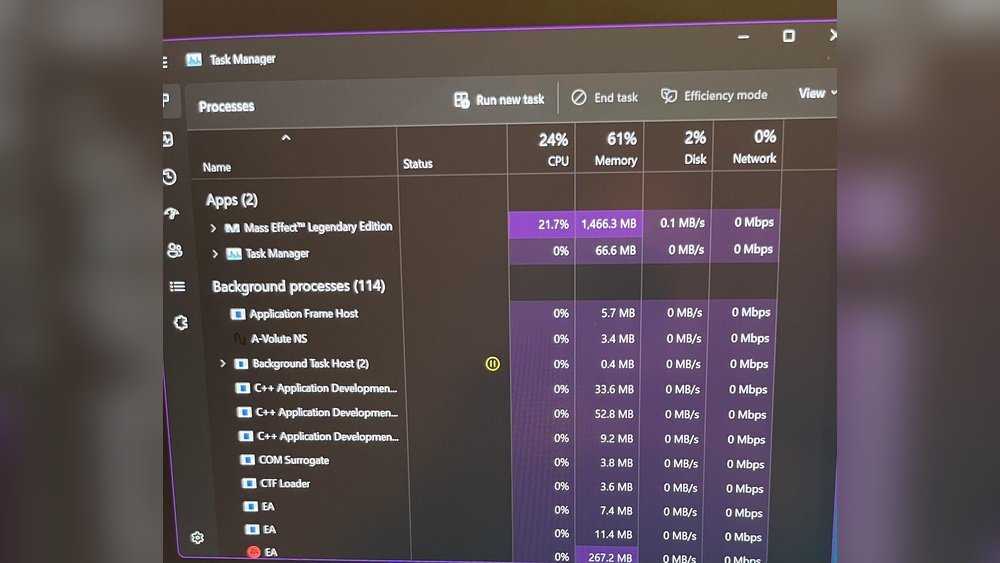
Are you tired of your game lagging or freezing just when the action heats up? High CPU usage can slow down your gaming experience and leave you frustrated.
But what if you could take control and make your computer run smoother while you play? You’ll discover simple, effective ways to reduce CPU usage during gaming. These tips are easy to follow and can instantly boost your game’s performance.
Keep reading to unlock the secret to smoother gameplay and get the most out of your PC!
Optimize Game Settings
Optimizing game settings helps reduce CPU usage and improves gaming performance. It makes the game run smoother and lowers the stress on your computer. Small changes in settings can make a big difference.
Lower Graphics Quality
Reducing graphics quality lowers the demand on your CPU. Choose settings like low or medium instead of high or ultra. Turn off effects like shadows and reflections. This lets your CPU focus on running the game, not on heavy visuals.
Adjust Resolution
Lowering the screen resolution reduces the number of pixels your CPU must process. Use a resolution that still looks good but is easier to handle. This can make the game faster and reduce lag during play.
Disable Background Processes
Close apps and programs running in the background before gaming. These use CPU power that could slow your game. Check your task manager and stop unnecessary tasks. This frees up CPU resources for a better gaming experience.

Credit: www.youtube.com
Update Drivers And Software
Updating drivers and software is a key step to lower CPU usage during gaming. Old drivers can slow down your system and cause high CPU load. Keeping everything up to date helps your computer run games smoothly and use less power. This simple action improves performance and reduces lag.
Update Graphics Drivers
Graphics drivers control how your video card works with games. Outdated drivers can cause slowdowns and high CPU use. Visit the official website of your graphics card maker. Download and install the latest drivers. This update fixes bugs and improves game performance. It also helps your CPU focus on the game, not on fixing errors.
Keep Operating System Updated
Your operating system manages all hardware and software tasks. Updates include fixes and improvements that reduce CPU load. Check for system updates regularly. Install important patches and upgrades. These updates can improve how your CPU and games work together. A clean, updated system uses less CPU power.
Use Game Mode Features
Many computers have a Game Mode feature. It prioritizes gaming tasks over background processes. Turning on Game Mode lowers CPU use by other apps. This makes your CPU focus on the game. Activate Game Mode in your system settings before playing. It helps keep CPU use low and gameplay smooth.
Manage Startup Programs
Managing startup programs is key to lowering CPU usage during gaming. Many apps run in the background as soon as Windows starts. These apps use CPU power even if you do not need them while gaming.
Stopping unnecessary apps from starting up frees CPU resources. Your game can then get more power from the CPU. This can improve game speed and reduce lag.
Disable Unnecessary Startup Apps
Open the Startup settings on your computer. Look through the list of apps that start with Windows. Identify apps that do not need to run while gaming. Examples include update tools and chat apps.
Turn off these apps by selecting “Disable.” This stops them from using CPU at startup. Do not disable essential apps like antivirus software.
Use Task Manager Effectively
Task Manager helps control startup programs easily. Press Ctrl + Shift + Esc to open it. Click the “Startup” tab to see all startup apps. Check the impact column to find heavy CPU users.
Right-click apps that slow your PC and choose “Disable.” This action reduces CPU load when you start your computer. Restart your PC to apply changes before gaming.
Improve Cooling And Hardware
Keeping your CPU cool is key to lowering its usage during gaming. Heat makes your processor work harder and slows down your computer. Improving cooling and updating hardware can help your CPU run smoothly and reduce lag.
Good cooling and strong hardware keep your system stable. They stop overheating and keep games running fast. Simple steps can make a big difference in your gaming experience.
Clean Dust From Components
Dust blocks air and traps heat inside your PC. It builds up on fans, vents, and heatsinks. Use a soft brush or compressed air to remove dust regularly. Clean parts help your PC cool better and work faster. Avoid strong vacuum cleaners that may damage parts.
Ensure Proper Airflow
Airflow moves heat away from your CPU and other parts. Arrange fans so air flows through your case smoothly. Keep cables tidy to avoid blocking air paths. Use extra fans if your case allows. Good airflow lowers temperatures and keeps your CPU calm during gaming.
Consider Hardware Upgrades
Old or weak hardware can struggle with new games. Upgrade your CPU cooler to a better model for stronger cooling. Adding more case fans can improve airflow. Think about a new CPU or motherboard if your system is very old. Stronger hardware handles games easier and reduces CPU load.
Adjust Cpu Settings
Adjusting your CPU settings can help lower its usage during gaming. This process lets your computer focus on the game better. It also stops the CPU from working too hard and overheating. Simple changes in settings can make your games run smoother and faster.
Modify Power Plans
Windows has different power plans that control how your CPU works. Set your power plan to “High Performance” to get the best gaming experience. This plan keeps your CPU running at full speed. It stops the system from slowing down the processor to save power. To change it, go to Control Panel > Power Options and pick “High Performance.”
Set Affinity For Games
CPU affinity means choosing which CPU cores a game uses. Assigning a game to fewer cores can reduce overall CPU load. Open Task Manager, find your game under “Details,” right-click it, and choose “Set affinity.” Select only some cores for the game. This helps balance CPU use across other tasks and reduces lag.
Disable Cpu Throttling
CPU throttling lowers your processor speed to save energy or reduce heat. Turning it off keeps your CPU running at full power during gaming. Check your BIOS or Windows settings to disable throttling. This stops the CPU from slowing down when the system thinks it is too hot. Be careful to monitor your CPU temperature after this change.

Credit: www.youtube.com
Use Performance Monitoring Tools
Performance monitoring tools help manage your CPU usage during gaming. They give clear data about how much CPU power your games and apps use. Using these tools, you can stop your CPU from working too hard. This keeps your game running smoothly and avoids sudden slowdowns.
Track Cpu Usage In Real-time
Real-time tracking shows your CPU load at any moment. It helps spot when the CPU is under heavy strain. You can watch which parts of the game or system cause high CPU use. This live data lets you act fast to reduce the load. Many tools offer graphs and numbers to make it easy to understand.
Identify Resource-heavy Apps
Some apps use more CPU power than others. Monitoring tools list running programs and their CPU use. This helps find apps that eat up CPU resources unnecessarily. You can then close or limit these apps during gaming sessions. This frees CPU power for your game and improves performance.
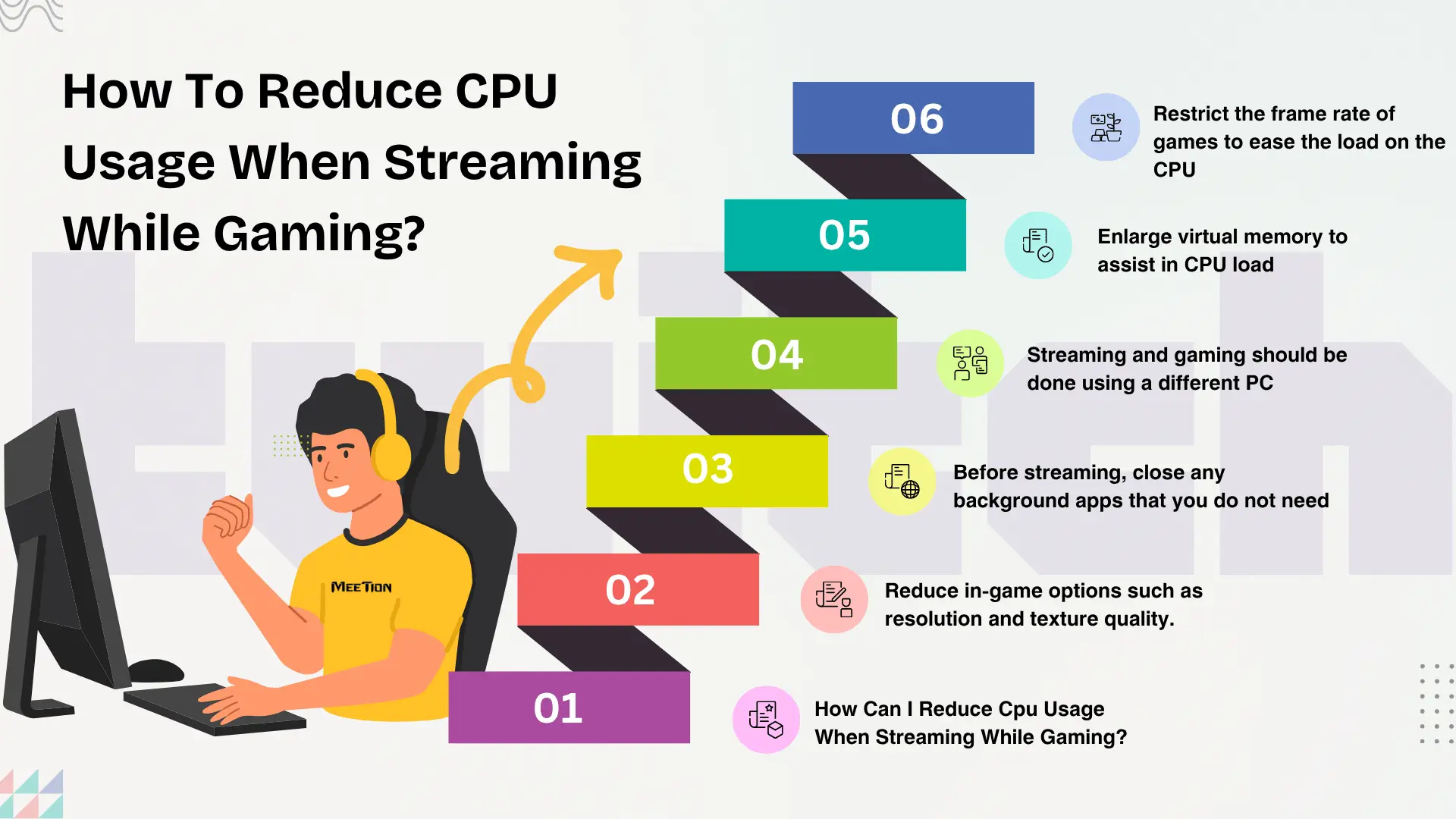
Credit: www.meetion.com
Frequently Asked Questions
How Can I Lower Cpu Usage During Gaming Sessions?
Close unnecessary background apps and processes to free CPU power. Update drivers and game software for better optimization. Adjust in-game settings like resolution and texture quality to reduce CPU load.
What Settings Reduce Cpu Usage In Games?
Lowering graphics settings such as shadows, reflections, and draw distance helps. Disable CPU-intensive features like V-Sync or anti-aliasing. Use game modes or performance presets to balance visuals and CPU demand.
Does Updating Drivers Help Reduce Cpu Usage?
Yes, updating drivers improves hardware efficiency and fixes bugs. Updated CPU and GPU drivers optimize performance and lower resource usage. Regular updates ensure compatibility with the latest game patches.
Can Overheating Cause High Cpu Usage While Gaming?
Yes, overheating can throttle CPU speed and increase usage. Ensure proper cooling with clean fans and good airflow. Use monitoring tools to check CPU temperatures during gaming.
Conclusion
Reducing CPU usage while gaming improves your computer’s performance. Close unnecessary programs to free up resources. Lower game settings to reduce CPU strain. Keep your drivers and system updated for best results. Clean your computer regularly to avoid overheating. Monitor CPU usage with simple tools.
Small changes make a big difference in gameplay. Enjoy smoother and faster gaming sessions. Stay patient and try different methods. Your computer will thank you with better speed.
