How to Replace Cpu: Step-by-Step Guide for Easy Upgrades
Are you ready to boost your computer’s performance or fix a problem that’s been slowing you down? Replacing your CPU might be the key, and it’s easier than you think.
This guide will walk you through every step, making sure you avoid common mistakes and feel confident while working inside your PC. By the end, you’ll know exactly how to swap out your old processor for a new one—and enjoy a faster, smoother experience.
Let’s get started!
Preparing For Cpu Replacement
Preparing for a CPU replacement is important to ensure a smooth process. It helps avoid mistakes and protects your computer parts. Taking time to get ready makes the upgrade easier and safer.
Gathering Necessary Tools
Collect all tools before starting the replacement. You will need a small screwdriver, thermal paste, and an anti-static wrist strap. A clean cloth and some rubbing alcohol are useful for cleaning the CPU and cooler. Having these tools ready saves time and avoids interruptions.
Choosing The Right Cpu
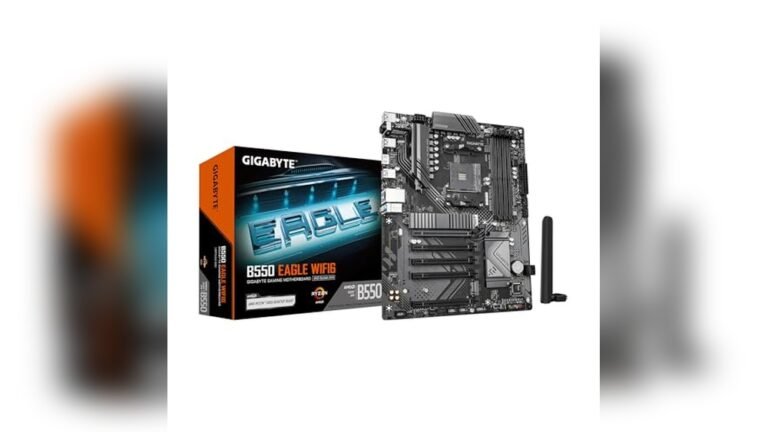
Select a CPU that matches your motherboard socket. Check the motherboard manual or website to find compatible models. Consider the CPU speed and number of cores for your needs. Buy a CPU from a trusted brand to ensure quality and performance.
Backing Up Important Data
Save your important files before replacing the CPU. Use an external drive or cloud storage for backups. This step protects your data from accidental loss during the upgrade. Double-check that all critical files are safely stored.
Removing The Old Cpu
Removing the old CPU is the first step in upgrading your computer’s brain. This process needs care and attention. Any wrong move can damage the CPU or motherboard. Follow clear steps to remove the CPU safely.
Powering Down And Unplugging
Turn off your computer completely. Press the power button and wait for it to shut down. Unplug the power cable from the wall and the computer. This prevents any electricity from flowing. Safety first.
Accessing The Motherboard
Open the computer case carefully. Use a screwdriver if needed. Locate the motherboard inside. It is the large board with many components. Find the CPU area, usually under the fan or cooler.
Releasing The Cpu Cooler
The CPU cooler sits on top of the processor. It keeps the CPU cool during use. Look for screws, clips, or levers holding it. Loosen or lift them gently. Remove the cooler without forcing it.
Unlocking The Cpu Socket
The CPU socket locks the processor in place. Find the small lever or latch next to the socket. Lift or push it to unlock. This releases the CPU from the socket. Do it slowly to avoid damage.
Safely Removing The Cpu
Hold the CPU by the edges. Avoid touching the pins or contacts. Lift the CPU straight up from the socket. Place it on an anti-static surface or container. Handle with care to keep it safe.
Installing The New Cpu
Installing the new CPU is a careful process. It needs attention to detail. A wrong step can damage the CPU or the motherboard. Follow each step slowly and carefully to avoid mistakes.
Aligning The Cpu Correctly
Look for the small triangle on one corner of the CPU. Match it with the triangle on the socket. Do not force the CPU. It should fit easily if aligned right.
Securing The Cpu In The Socket
Once aligned, gently place the CPU into the socket. Lower the socket lever to lock the CPU in place. The lever might need a little pressure but do not press too hard.
Applying Thermal Paste
Put a small dot of thermal paste in the center of the CPU. The paste helps heat move from the CPU to the cooler. Spread it evenly if needed, but a small dot is enough.
Reattaching The Cpu Cooler
Place the cooler carefully over the CPU. Align it with the mounting points on the motherboard. Secure the cooler by tightening screws or clips evenly. Connect the cooler’s fan cable to the motherboard header.

Credit: softwareg.com.au
Post-installation Steps
After installing a new CPU, some important steps follow to ensure your computer works well. These steps help protect your hardware and make sure everything runs smoothly. Taking time now can save problems later.
Reassembling The Computer
Start by putting all parts back in place carefully. Reattach the CPU cooler and secure it properly. Connect the power cables and any other disconnected wires. Close the computer case and tighten screws. Avoid forcing parts to prevent damage.
Booting Up And Bios Configuration
Turn on your computer for the first time after installation. Enter the BIOS by pressing the correct key shown on screen. Check the CPU settings and update the BIOS if needed. Set the correct date, time, and boot order. Save changes before exiting BIOS.
Verifying Cpu Recognition
Once the system boots, check if the CPU is recognized. Open system information or task manager to view CPU details. Confirm the model, speed, and core count match your new CPU. This step ensures the installation was successful.
Running Stress Tests
Run stress tests to check CPU stability and cooling. Use programs like Prime95 or AIDA64 for testing. Monitor temperature and system behavior during the test. Stop testing if temperatures get too high or errors appear.
Troubleshooting Common Issues
Replacing a CPU can be tricky. Some common issues may arise after installation. Knowing how to troubleshoot helps fix problems fast. This saves time and avoids frustration. Below are common problems and easy solutions to try.
Handling Boot Failures
Boot failures happen when the computer won’t start properly. Check if the CPU is seated correctly in the socket. Loose connections cause boot problems. Also, verify the power cables are connected firmly.
Clear the CMOS by removing the battery for a few minutes. This resets the motherboard settings. Incorrect BIOS settings can stop the system from booting. Update the BIOS if your motherboard needs it to support the new CPU.
Fixing Overheating Problems
Overheating can damage your CPU and slow down your computer. Ensure the cooling fan is installed properly. Apply a thin layer of thermal paste between the CPU and heatsink. Too much or too little paste causes poor heat transfer.
Clean any dust inside the computer case. Dust blocks airflow and traps heat. Keep the computer in a well-ventilated area to help cool it down.
Resolving Compatibility Errors
Compatibility errors occur if the CPU does not match the motherboard. Check the CPU socket type before buying a new processor. Use the motherboard manual to confirm compatibility.
Some CPUs require a BIOS update to work correctly. Confirm the BIOS version supports your CPU model. Use compatible RAM and power supply to avoid further conflicts.

Credit: www.instructables.com

Credit: www.youtube.com
Frequently Asked Questions
How Do I Safely Remove An Old Cpu?
First, power off and unplug your PC. Release the CPU socket lever carefully. Gently lift the old CPU straight up. Avoid touching pins or contacts to prevent damage.
What Tools Are Needed To Replace A Cpu?
You mainly need a Phillips-head screwdriver to open the case. Thermal paste and a lint-free cloth are essential. An anti-static wrist strap is recommended to avoid static damage.
How To Apply Thermal Paste When Installing A New Cpu?
Apply a pea-sized dot of thermal paste at the center of the CPU. When the cooler is installed, it spreads the paste evenly for better heat transfer.
Can Replacing A Cpu Improve Computer Performance?
Yes, upgrading your CPU can significantly enhance speed and multitasking. Ensure your motherboard supports the new CPU for compatibility before upgrading.
Conclusion
Replacing a CPU can improve your computer’s speed and performance. Follow each step carefully to avoid damage. Take your time and stay organized throughout the process. Double-check connections before turning your computer back on. With practice, this task will become easier.
Enjoy the benefits of a faster, smoother system. Keep learning and exploring new computer skills. Small upgrades make a big difference.