How to Test Ram Speed: Easy Steps to Boost Your PC Performance
Are you sure your computer’s RAM is running at its full speed? Testing your RAM speed can unlock hidden performance and help you get the most out of your system.
Whether you’re a gamer, a designer, or just someone who wants a smoother experience, knowing how to check your RAM speed is crucial. You’ll discover simple and effective ways to test your RAM speed quickly. Keep reading, and you’ll be able to boost your PC’s performance with confidence.
Credit: www.esseg.eu
Why Ram Speed Matters
RAM speed affects how fast your computer works. It controls how quickly data moves between the processor and memory. Faster RAM means your computer can handle tasks more smoothly. This is important for daily use, gaming, and running programs.
Choosing the right RAM speed helps improve system performance. It can reduce delays and make apps open faster. Knowing why RAM speed matters helps you decide what to test and upgrade.
What Ram Speed Means
RAM speed is the rate data moves inside the memory. It is measured in megahertz (MHz). Higher MHz means faster data transfer. This speed impacts how quickly your computer completes tasks.
Effect On Computer Performance
Higher RAM speed can boost overall system speed. It helps the processor get data faster. This leads to smoother multitasking and less waiting time. Programs run quicker, and games play with fewer lags.
Importance For Different Users
Gamers need fast RAM for better frame rates and smooth play. Video editors benefit from quick data transfer for rendering. Everyday users see faster app loading and better browsing speed. Fast RAM helps all users work more efficiently.
Tools To Check Ram Speed
Testing RAM speed helps understand your computer’s performance. Various tools measure this speed accurately. Some tools come built into your system. Others require downloading special software. Knowing these options helps pick the best method for your needs.
Built-in System Utilities
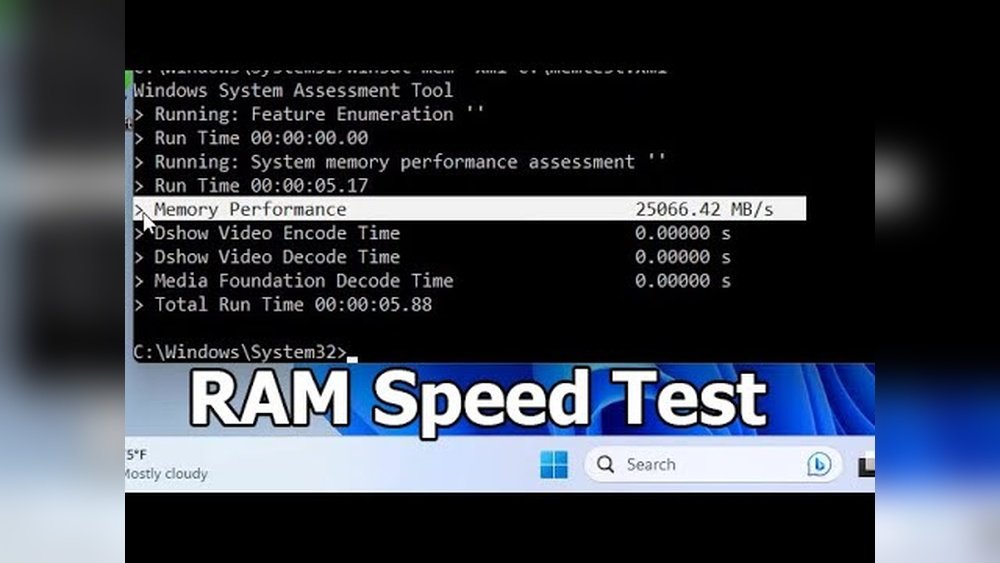
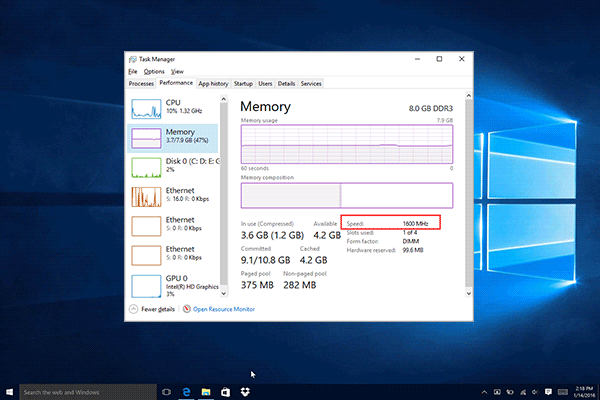
Most operating systems include tools to check RAM speed. On Windows, the Task Manager shows basic RAM details. It lists speed, size, and usage in real time. Another tool is the Command Prompt. Commands like “wmic memorychip get speed” reveal RAM speed directly.
Mac users can use the System Information app. This tool displays memory specifications easily. Linux offers commands like “dmidecode” to fetch RAM details. These built-in tools require no extra download. They provide quick and simple RAM speed checks.
Third-party Software Options
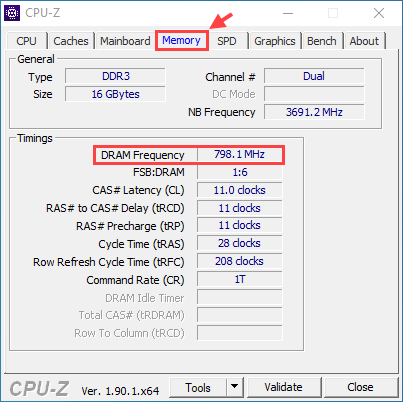
Third-party apps offer deeper RAM analysis. CPU-Z is a popular free tool for Windows. It shows RAM speed, timings, and module info. Another tool, Speccy, provides a full system overview. It highlights RAM speed clearly in its summary.
For detailed benchmarking, MemTest86 tests RAM stability and speed. These programs give more data than built-in tools. They help users troubleshoot and optimize memory performance. Always download software from trusted sources only.
Step-by-step Ram Speed Test
Testing your RAM speed helps check your computer’s memory performance. This process shows how fast your RAM can read and write data. Knowing your RAM speed can help improve your PC’s efficiency.
Follow these steps to test your RAM speed accurately. It involves using BIOS or UEFI settings and software tools. You will also learn how to read and understand the test results.
Accessing Bios Or Uefi Settings
Restart your computer to enter the BIOS or UEFI menu. Usually, press keys like Del, F2, or Esc right after powering on. The exact key depends on your computer brand.
Inside the BIOS or UEFI, look for the memory or RAM section. It shows the current RAM speed and timings. You can also change settings to test different speeds.
Save changes if you make any, then exit BIOS. Your computer will restart with new settings applied.
Using Software To Measure Speed
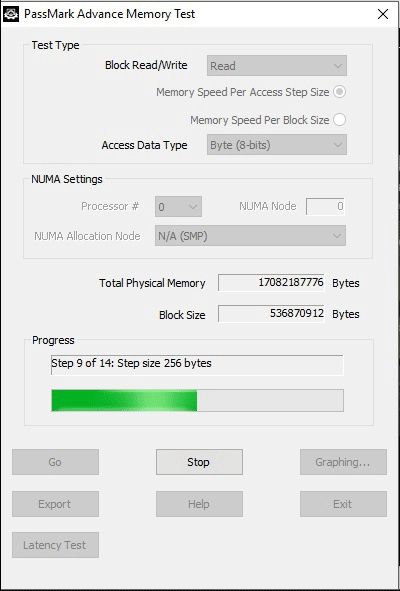
Download reliable software designed to test RAM speed. Some popular tools include CPU-Z, AIDA64, and MemTest86. These programs measure read, write, and latency speeds of your RAM.
Run the software and start the RAM test. It usually takes a few minutes to complete. The software will display your RAM’s speed in megahertz (MHz) or megabytes per second (MB/s).
Interpreting Test Results
Look at the read and write speeds shown by the software. Higher numbers mean faster RAM performance. Check latency too; lower latency means quicker data access.
Compare your results with the RAM’s rated speed. If results are lower, your RAM may not run at full speed. Adjust BIOS settings or update drivers for better performance.
Regular testing can help spot memory issues early. It ensures your RAM works properly and your PC stays fast.
Common Ram Speed Issues
RAM speed problems can slow down your computer’s performance. These issues happen for a few common reasons. Knowing these can help you fix your RAM speed quickly. Understanding these issues makes testing RAM speed easier and more effective.
Mismatched Ram Modules
Using different RAM modules can cause speed problems. Each module may have a different speed and timing. This mismatch forces the system to run all RAM at the slowest speed. It also creates instability and errors. Always try to use RAM sticks that match in brand and speed.
Incorrect Bios Settings
The BIOS controls RAM settings and speed. Wrong settings can limit RAM performance. Sometimes, BIOS uses default or safe settings that lower speed. Check the BIOS to see if RAM speed matches its rated speed. Adjust settings carefully to avoid system crashes.
Outdated Drivers
Drivers help the system communicate with hardware like RAM. Old or missing drivers can cause slow RAM speed. Keeping drivers updated ensures the system uses RAM efficiently. Check your motherboard or system manufacturer’s website for the latest drivers.
Ways To Boost Ram Performance
Boosting RAM performance can help your computer run faster and smoother. Small changes can make a big difference. Understanding simple ways to improve RAM speed helps your system handle tasks better.
Here are some easy methods to increase your RAM’s performance and get the most from your computer.
Enabling Xmp Profiles
XMP stands for Extreme Memory Profile. It lets your RAM run at its highest speed. Most RAM sticks have built-in XMP settings. You can enable this in your computer’s BIOS. This adjustment pushes your RAM to work faster than standard speeds. It is safe and often improves performance noticeably.
Upgrading Ram Modules
Upgrading means adding more RAM or replacing old modules. More RAM allows your computer to handle more programs at once. Faster RAM modules also help speed up your system. Check your motherboard’s limits before buying. Matching the new RAM with your current setup is important for best results.
Optimizing System Settings
System settings can affect RAM speed and efficiency. Closing unused programs frees up memory. Adjusting virtual memory settings can also help. Make sure your operating system is updated. Regular maintenance keeps your RAM working well. Simple tweaks improve overall system speed and stability.
Credit: www.liftingitalia.com
Credit: www.esseg.eu
Frequently Asked Questions
How Can I Check My Ram Speed On Windows?
You can check RAM speed using Task Manager. Open it, go to the Performance tab, and select Memory. The speed is displayed in MHz.
What Tools Are Best For Testing Ram Speed?
Popular tools include CPU-Z, AIDA64, and PassMark. These apps provide detailed RAM speed and performance information.
Does Ram Speed Affect Overall Pc Performance?
Yes, faster RAM improves data transfer and multitasking. It enhances gaming, video editing, and general system responsiveness.
How Often Should I Test My Ram Speed?
Test RAM speed when upgrading or troubleshooting. Regular checks help ensure your system runs optimally.
Conclusion
Testing RAM speed helps you understand your computer’s performance. It shows if your memory runs fast enough for your needs. Simple tools make testing quick and easy. Regular checks can spot problems before they get worse. Knowing your RAM speed guides better upgrades and fixes.
Don’t guess—test and see the real results yourself. Keep your system running smoothly with a quick RAM speed test.