How to Upgrade the Ram: Easy Steps to Boost Your PC Speed
Are you tired of your computer running slow or freezing at the worst moments? Upgrading your RAM can be the simple fix you need to boost your device’s speed and performance instantly.
Imagine opening multiple apps, streaming videos, or playing games without those frustrating delays. You’ll discover exactly how to upgrade your RAM step-by-step, even if you’re not a tech expert. Keep reading, and you’ll learn how to make your computer feel brand new again—faster, smoother, and ready to handle whatever you throw at it.
Credit: www.kingston.com
Signs You Need More Ram
Knowing when your computer needs more RAM is important. RAM helps your system run many programs at once. When it runs low, your computer slows down and acts strange. Watch for signs that show your RAM is not enough.
Slow Performance Indicators
Your computer takes longer to open apps. Switching between programs feels sluggish. Web pages load slowly or freeze. Videos may lag or stop playing smoothly. Simple tasks take more time than usual. These delays often happen when RAM runs out.
Common Memory Errors
Errors pop up while using your computer. Programs close suddenly without warning. You see messages like “Out of Memory.” Some apps fail to open or crash. Your system might restart by itself. These problems point to insufficient RAM for your needs.
Choosing The Right Ram
Choosing the right RAM is essential for a smooth upgrade. The right RAM improves your computer’s speed and multitasking ability. Selecting incompatible or wrong RAM can cause errors or poor performance. Follow simple steps to pick the best RAM for your system.
Check Compatibility
Start by checking your computer’s motherboard specifications. Find out which RAM type it supports, like DDR3 or DDR4. Note the maximum RAM capacity allowed. Check the number of RAM slots available. Use tools or manuals to confirm compatibility. Installing incompatible RAM will prevent your PC from booting.
Types Of Ram Modules
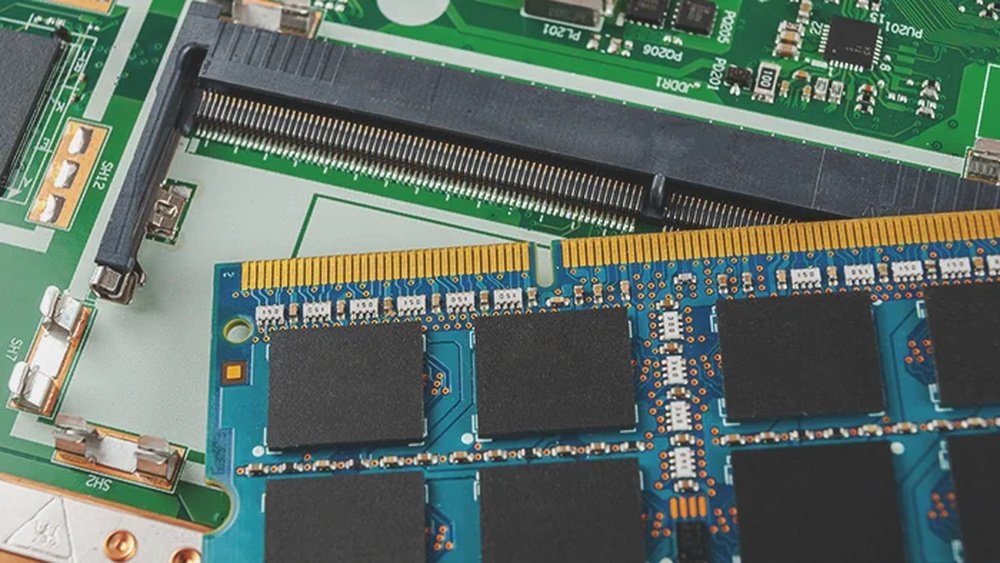
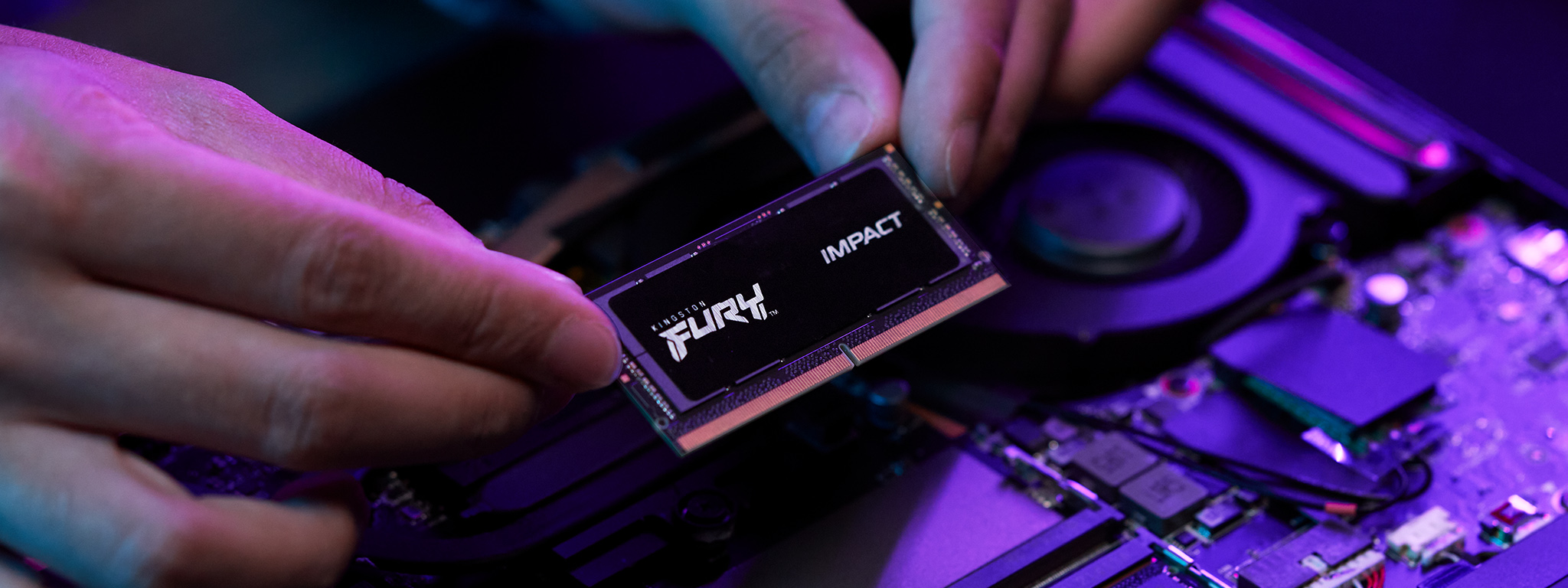
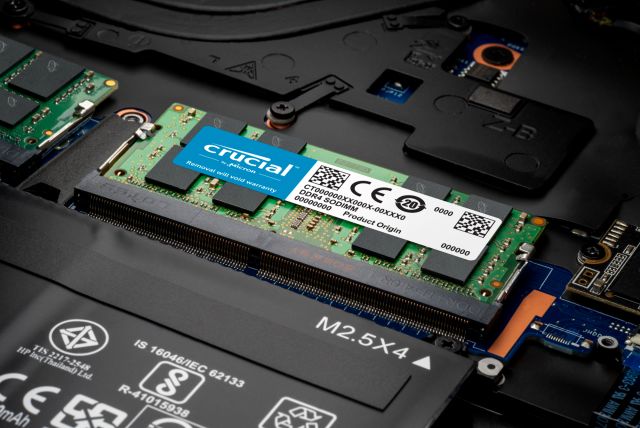
RAM comes in various types and sizes. Desktop computers use DIMM modules. Laptops use smaller SODIMM modules. DDR3 and DDR4 are common types today. DDR4 is faster and uses less power. Match the RAM module to your device type and socket.
Determining Capacity And Speed
Decide how much RAM you need based on your tasks. Basic use needs 4 to 8 GB. Heavy tasks like editing or gaming need 16 GB or more. RAM speed, measured in MHz, affects performance. Higher speed means faster data handling. Balance capacity and speed for the best results.
Preparing For The Upgrade
Preparing to upgrade your RAM is an important first step. It helps ensure the process goes smoothly and safely. Taking time to prepare protects your computer and your data.
This section covers what tools you need, how to back up data, and how to power down your computer safely. Follow these steps carefully for a successful upgrade.
Gathering Tools
Start by collecting all necessary tools. You will usually need a small screwdriver. An anti-static wrist strap is helpful to avoid static damage. Keep a clean cloth or workspace ready. Having tools nearby saves time and frustration.
Backing Up Data
Always back up your important files before upgrading. Use an external hard drive or cloud storage. This step protects your data in case something goes wrong. Save documents, photos, and other key files. It only takes a few minutes but is very important.
Powering Down Safely
Turn off your computer completely before opening it. Unplug the power cable and any connected devices. Press the power button once to drain any leftover electricity. Wait a few minutes before starting the upgrade. This prevents electrical damage and keeps you safe.
Installing New Ram
Installing new RAM is a simple way to improve your computer’s speed. It helps your PC run programs faster and handle more tasks at once. This guide shows you how to add RAM step-by-step.
Opening The Pc Case
First, turn off your computer and unplug all cables. Place your PC on a clean, flat surface. Find the screws or latches on the side panel. Remove them carefully and take off the side panel. Now, you can see the inside of your computer.
Locating Ram Slots
Look for long, thin slots near the CPU. These are the RAM slots. Most PCs have two or four slots. Empty slots are easy to spot; they have no modules installed. Check your motherboard manual if you are unsure.
Inserting Ram Modules
Hold the RAM module by the edges. Align the notch on the RAM with the slot. Push the module down gently but firmly until it clicks. Both sides should lock the RAM in place. Repeat for each module you want to add.
Post-installation Steps
After installing new RAM, some important steps follow to finish the upgrade. These steps help ensure the computer runs smoothly with the new memory. Pay attention to each step to avoid common issues.
Securing The Case
Close the computer case carefully. Make sure all screws or latches are tight. This protects the internal parts from dust and damage. A secured case also keeps the new RAM in place.
Booting The System
Turn on the computer. Watch for any unusual sounds or error messages. The system should start normally. If it does not, check the RAM installation again.
Checking Ram Recognition
Open the system settings or BIOS to check RAM details. Confirm the new memory is listed and has the correct size. This step ensures the computer uses the new RAM fully.

Credit: www.corsair.com
Optimizing Performance
Upgrading RAM improves your computer’s speed and multitasking ability. Yet, extra memory alone does not guarantee better performance. Some settings need adjustment to make the most out of the new RAM. Optimizing these settings ensures smoother and faster operation.
Follow these steps after installing new RAM to boost your system’s efficiency.
Updating Bios
BIOS controls how your computer hardware works together. Sometimes, an old BIOS version may not support new RAM properly. Check your motherboard manufacturer’s website for BIOS updates. Download and install the latest version carefully. This update can improve memory compatibility and stability.
Adjusting Virtual Memory
Virtual memory uses hard drive space to support RAM. Set virtual memory size manually for better balance. Open system settings and find virtual memory options. Increase the paging file size to about 1.5 times your RAM size. This helps prevent slowdowns when RAM fills up.
Running Memory Tests
New RAM can have errors that cause crashes or freezes. Use built-in tools like Windows Memory Diagnostic or MemTest86. Run these tests to check for faulty memory modules. Early detection avoids future system problems and keeps your PC stable.
Troubleshooting Ram Issues
Troubleshooting RAM issues is key to a smooth computer upgrade. Problems with RAM can cause crashes, slowdowns, or failure to start. Identifying and fixing these issues helps keep your system stable and fast.
Many RAM problems stem from installation mistakes or faulty memory modules. Testing and careful checks save time and prevent hardware damage. Below are common problems and ways to diagnose bad RAM.
Common Installation Problems
Improper installation causes most RAM issues. Modules might not sit correctly in the slots. This leads to the computer not recognizing the new memory. Dust or debris in the slot can block proper contact. Always turn off your PC before installing RAM. Push the module firmly until the side clips click into place. Avoid touching the gold connectors to prevent static damage. Check that the RAM type matches your motherboard specs.
Diagnosing Faulty Ram
Faulty RAM causes errors and crashes. Run memory tests to find bad modules. Use tools like Windows Memory Diagnostic or MemTest86. These programs scan your RAM for faults. Remove all but one stick to test them one by one. Swap slots to find a bad slot or module. Look for blue screen errors or random restarts. Replace any RAM that fails these tests for best performance.
Credit: www.crucial.com
Frequently Asked Questions
What Are The Signs You Need To Upgrade Ram?
If your computer slows during multitasking or apps lag, you likely need more RAM. Upgrading improves speed and responsiveness.
How To Check Current Ram Size On My Pc?
Open System Information or Task Manager to view installed RAM size. This helps determine if an upgrade is needed.
Which Type Of Ram Is Compatible With My System?
Check your motherboard specs or use online tools to find compatible RAM type, speed, and size before buying.
Can Upgrading Ram Improve Gaming Performance?
Yes, adding RAM helps games run smoother by reducing lag and loading times, especially with 8GB or more installed.
Conclusion
Upgrading your RAM can make your computer faster and smoother. It helps run more programs at once without slowing down. Follow the steps carefully to avoid mistakes. Check your computer’s manual to find the right RAM type. Take your time and be gentle during installation.
After upgrading, your system will handle tasks better. Enjoy improved performance for work, games, or browsing. Small changes like this can make a big difference. Keep your device updated for the best results.