

Are you curious about how many cores your CPU has? Knowing this can help you understand your computer’s power and speed better.
Whether you’re gaming, working, or just browsing, the number of cores affects how smoothly your tasks run. You’ll learn simple and quick ways to check the cores of your CPU. By the end, you’ll be able to unlock your computer’s full potential and make smarter decisions when upgrading or troubleshooting.
Keep reading to discover how easy it is to find this important info!
Why Cpu Cores Matter
CPU cores are the heart of a computer’s processing power. Each core can work on tasks independently. More cores usually mean better multitasking and faster performance. Understanding why cores matter helps you choose the right CPU for your needs.
Multiple cores allow a CPU to handle many tasks at once. This improves speed for running programs and apps. It also helps when using software that requires heavy processing. Cores split the work, making your computer more efficient.
Improved Multitasking
More cores let your computer run many applications smoothly. You can browse the internet, stream videos, and edit documents all at once. Each core takes care of different tasks without slowing down.
Better Performance For Software
Some programs use many cores to run faster. Video editing, 3D rendering, and gaming benefit from multiple cores. More cores reduce the time needed to complete these tasks.
Energy Efficiency
CPUs with multiple cores can save energy. They distribute work across cores instead of overloading one. This lowers heat and power use, extending your device’s life.
Credit: www.cgdirector.com
Methods To Check Cpu Cores
Knowing how many cores your CPU has helps you understand its power. Multiple methods exist to check this information. Some are built into your system, while others require external tools. Choose the method that suits your skill level and device.
Using System Information Tools
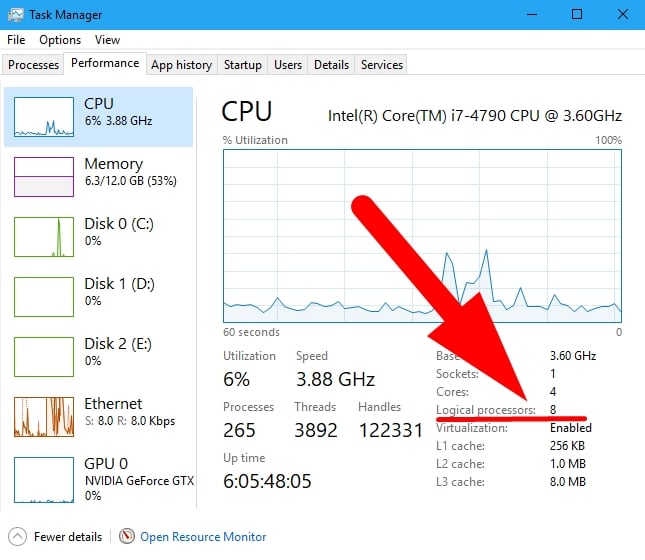
Most computers have a built-in tool that shows CPU details. On Windows, open the Task Manager and go to the Performance tab. The number of cores appears under the CPU section. On macOS, use the System Information app. Find the Hardware overview to see CPU core count. These tools are quick and easy to access.
Checking Via Command Prompt Or Terminal
Command lines provide a precise way to check CPU cores. On Windows, open Command Prompt and type wmic cpu get NumberOfCores. Press Enter to see the result. On macOS or Linux, open Terminal and type sysctl -n hw.ncpu. This command shows the number of cores directly. These methods work well for users comfortable with commands.
Third-party Software Options
Several free programs display detailed CPU information. Tools like CPU-Z or Speccy show core counts and other specs. These apps offer user-friendly interfaces and extra details about your system. Download from official websites for safety. Third-party tools help if built-in options do not provide enough information.
Checking Cpu Cores On Windows
Checking CPU cores on Windows helps you understand your computer’s power. Each core can run tasks separately. More cores mean better multitasking and faster performance in many programs. You can find the number of cores using simple tools built into Windows. No extra software needed.
Task Manager Method
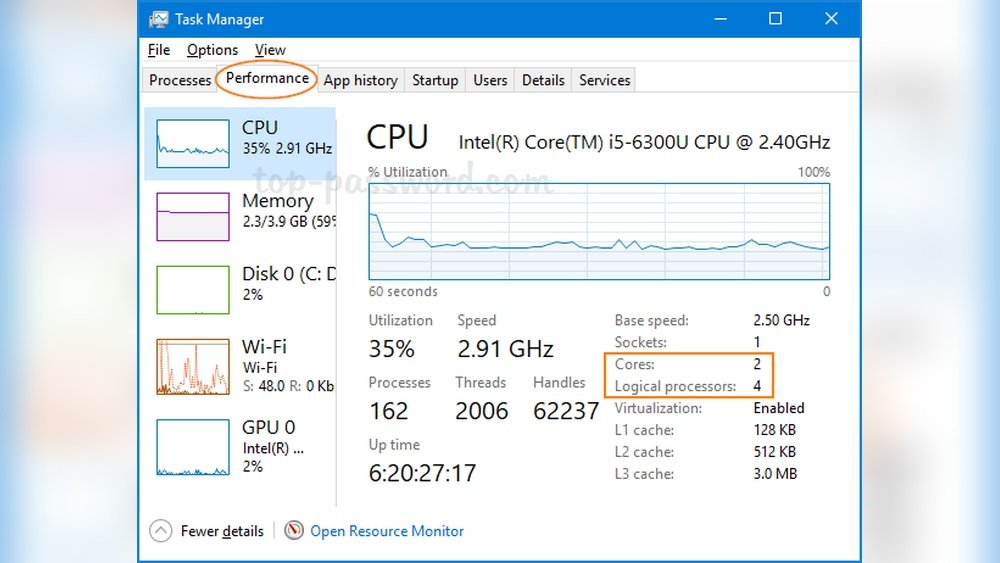
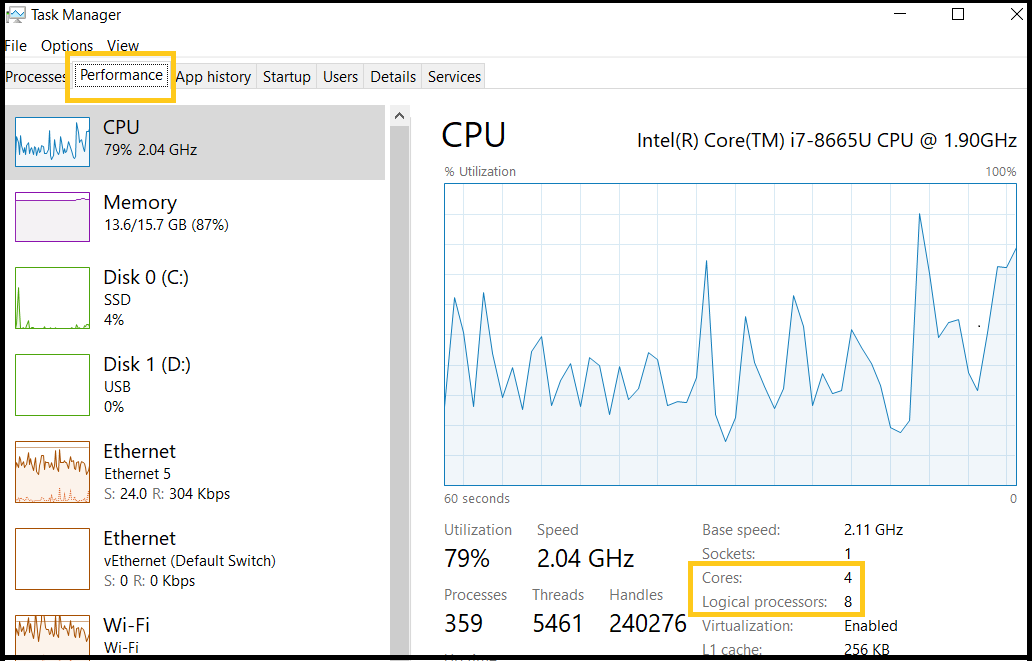
Open Task Manager by pressing Ctrl + Shift + Esc. Click the “Performance” tab. Select “CPU” on the left side. Look at the bottom right corner. You will see the number of cores and logical processors. This method is fast and easy for most users.
System Information Utility
Press Windows + R keys to open the Run dialog. Type “msinfo32” and hit Enter. The System Information window opens. Find “Processor” in the summary list. It shows details about your CPU, including the core count. This tool gives more technical info about your PC.
Command Prompt Commands
Open Command Prompt by typing “cmd” in the Start menu. Type the command wmic cpu get NumberOfCores,NumberOfLogicalProcessors and press Enter. The output shows your CPU’s physical cores and logical processors. This method is quick and works on all Windows versions.
Credit: www.intel.com
Checking Cpu Cores On Macos
Checking the number of CPU cores on a macOS device helps understand its processing power. Cores affect how well the computer handles tasks and runs programs. macOS provides simple ways to find this information without extra software. Two common methods include using the “About This Mac” window and Terminal commands.
About This Mac
Click the Apple logo at the top left of your screen.
Select “About This Mac” from the dropdown menu.
In the window that opens, click “System Report.”
Find “Hardware Overview” on the left sidebar.
Look for “Number of Processors” and “Total Number of Cores.”
This shows how many cores your CPU has in total.
Terminal Commands
Open the Terminal app from the Applications folder or Spotlight search.
Type sysctl -n hw.physicalcpu and press Enter.
This command shows the number of physical CPU cores.
Next, type sysctl -n hw.logicalcpu and press Enter.
This shows the number of logical cores, including hyperthreading.
Use these commands for a quick core count without opening menus.
Checking Cpu Cores On Linux
Checking CPU cores on Linux is simple and fast. Knowing the number of cores helps understand your system’s power. This information guides you in software setup and performance tuning. Linux offers built-in commands to find out core details easily.
Using Lscpu Command
The lscpu command shows detailed CPU information. Open the terminal and type lscpu. Look for the line labeled “CPU(s)”. This number tells how many cores your CPU has. It also shows threads and architecture. This method works on almost all Linux versions.
Checking /proc/cpuinfo File
The /proc/cpuinfo file contains CPU details in text form. Use the command cat /proc/cpuinfo in the terminal. Count the number of “processor” entries. Each entry represents one core or thread. This method is useful for detailed core and model info.
Interpreting Core Counts
Understanding CPU core counts helps you know how powerful your processor is. Core counts affect how many tasks your computer can handle at once. Not all cores are the same. Some are physical, and some are logical. Knowing the difference helps you make better tech decisions.
Physical Vs Logical Cores
Physical cores are the actual hardware units inside the CPU. Each core can run its own task independently. Logical cores come from a technology called Hyper-Threading or SMT. This lets one physical core act like two cores to the system. Logical cores improve efficiency but are not as strong as physical cores.
For example, a CPU with 4 physical cores and 8 logical cores can handle 8 threads at once. But the 8 logical cores share resources from the 4 physical cores. This means logical cores help but do not double performance.
Impact On Performance
More physical cores usually mean better performance for multitasking and heavy work. Logical cores help improve speed in some apps that use many threads. Some software only uses physical cores well. Others benefit from logical cores too.
High core count is good for video editing, 3D rendering, and gaming. Low core count CPUs work fine for web browsing and simple tasks. Balance core counts with clock speed for best results.
Troubleshooting Core Detection Issues
Sometimes, your computer does not show the correct number of CPU cores. This can cause confusion and affect performance checks. Troubleshooting core detection issues helps find and fix these problems quickly. Understanding the common causes of detection errors makes it easier to solve them.
Many factors can stop your system from detecting all cores. Software settings, outdated drivers, or hardware problems often cause this. Checking these areas step-by-step improves the chance of fixing the issue.
Checking Bios Settings For Core Detection
The BIOS controls how your CPU cores are used. Sometimes cores are disabled here by default. Restart your computer and enter the BIOS setup. Look for settings like “CPU Core Control” or “Core Count.” Make sure all cores are enabled. Save changes and reboot. This often solves core detection problems.
Updating Cpu Drivers And System Software
Old or missing drivers can stop your system from seeing all CPU cores. Visit your motherboard or PC maker’s website. Download and install the latest CPU and chipset drivers. Also, keep your operating system up to date. These updates help your system recognize all cores correctly.
Using Task Manager And System Tools
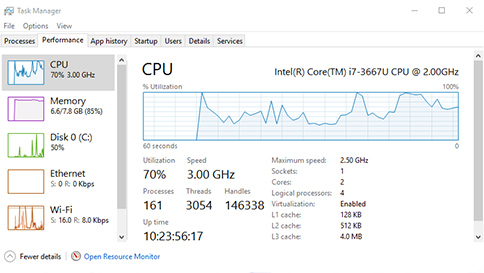
Windows Task Manager shows how many cores your CPU uses. Press Ctrl+Shift+Esc to open it. Click on the “Performance” tab, then “CPU.” Count the cores listed. If it’s less than expected, try running system tools like “msinfo32” or third-party software. These tools can confirm core numbers and spot detection issues.
Checking For Hardware Problems
Physical issues with the CPU or motherboard can hide cores. Dust, poor contact, or damage may cause problems. Turn off your PC and unplug it. Open the case and carefully check the CPU socket. Clean any dust and reseat the CPU if needed. If problems continue, test with another CPU or motherboard if possible.
Credit: support.microsoft.com
Frequently Asked Questions
How Can I Check My Cpu Cores On Windows?
Open Task Manager by pressing Ctrl + Shift + Esc. Go to the Performance tab. Click on CPU. You will see the number of cores and logical processors displayed there.
What Command Shows Cpu Cores On Linux?
Use the command lscpu in the terminal. It displays detailed CPU information including the number of cores. Alternatively, cat /proc/cpuinfo lists core details per processor.
Does My Cpu Core Count Affect Performance?
Yes, more cores allow better multitasking and parallel processing. It improves performance in multi-threaded applications like video editing and gaming.
Can I Check Cpu Cores On Mac Easily?
Yes, open Activity Monitor, go to Window > CPU Usage. It shows core activity. You can also use sysctl -n hw. ncpu in Terminal to see core count.
Conclusion
Knowing how to check your CPU cores helps you understand your computer better. It takes just a few simple steps to find this information. This knowledge can guide you in choosing the right software or upgrades. Remember, the number of cores affects your computer’s speed and multitasking ability.
Keep this in mind when buying or using a PC. Checking your CPU cores is easy and useful for everyone. Give it a try today!
