

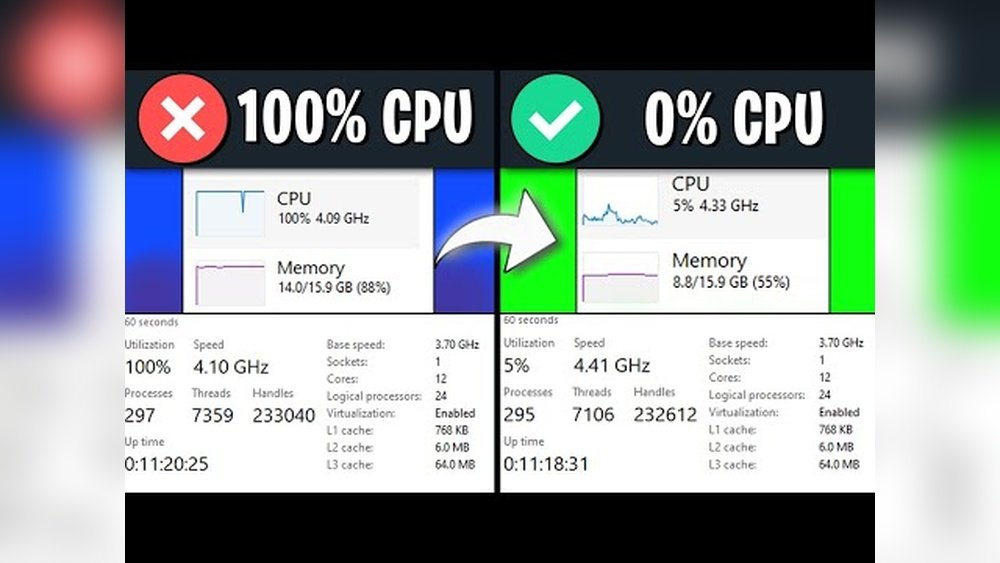
Are you tired of your game slowing down just when the action heats up? When your CPU is overloaded, your gaming experience can turn frustrating fast.
But what if you could keep your system running smoothly without spending a dime on new hardware? You’ll discover simple, effective ways to reduce the load on your CPU while gaming. These tips will help you enjoy faster, smoother gameplay and get the most out of your current setup.
Keep reading—your best gaming sessions are just ahead.
Optimize Game Settings
Optimizing game settings helps reduce the load on your CPU while gaming. It improves game performance and keeps your system cooler. Simple changes in the settings can make a big difference. Adjusting graphics, resolution, and special effects lowers the work your CPU must do. This leads to smoother gameplay and less lag.
Lower Graphics Quality
Reducing graphics quality cuts down the CPU’s workload. Choose lower settings for textures, shadows, and effects. This makes the game less detailed but runs faster. Your computer uses less power and heat. Games still look good but run more smoothly.
Adjust Resolution
Setting a lower resolution helps the CPU process less data. It reduces the number of pixels the game must display. This lightens the CPU and GPU tasks. Your game runs quicker and with fewer stutters. Try different resolutions to find the best balance.
Disable V-sync And Anti-aliasing
V-Sync and anti-aliasing improve visuals but increase CPU load. Turning them off lets your CPU focus on running the game. Disabling these can boost frame rates and reduce lag. The game may look less smooth, but performance improves. Check if your game still feels good without these features.
Credit: www.reddit.com
Close Background Applications
Closing background applications helps reduce CPU load while gaming. Many apps run in the background and use CPU power. This slows down your game and causes lag. Stopping these apps frees up CPU resources for smoother gameplay.
Focus on ending unnecessary tasks and limiting startup programs. These simple steps can improve your gaming experience without extra hardware.
Use Task Manager To End Processes
Open Task Manager by pressing Ctrl + Shift + Esc. Look under the “Processes” tab to see running apps. Find programs using high CPU or memory.
Select the app and click “End Task” to stop it. Be careful not to close important system processes. Ending extra apps reduces CPU use and boosts game performance.
Limit Startup Programs
Many apps start automatically when your computer boots. These apps run in the background and use CPU power. Open Task Manager and go to the “Startup” tab.
Disable apps you don’t need at startup. This prevents unnecessary CPU use and speeds up your system. Fewer startup programs mean more CPU for your games.
Update Drivers And Software
Updating drivers and software helps your PC run games smoothly. New updates fix bugs and improve performance. They reduce the load on your CPU by making tasks easier to handle. Keeping everything updated is a simple way to boost gaming experience and avoid slowdowns.
Keep Gpu Drivers Updated
Your GPU drivers control how your graphics card works with games. Updated drivers improve game visuals and speed. They also fix errors that cause your CPU to work harder. Check your graphics card website often. Download and install the latest driver versions. This keeps your GPU running well and lightens CPU stress.
Update Game And Os Patches
Game updates fix bugs and improve how games use your PC. These patches often reduce CPU load and prevent crashes. Operating system updates also help your computer run better. They fix security holes and improve system efficiency. Regularly update your games and OS to keep your CPU free from extra work.
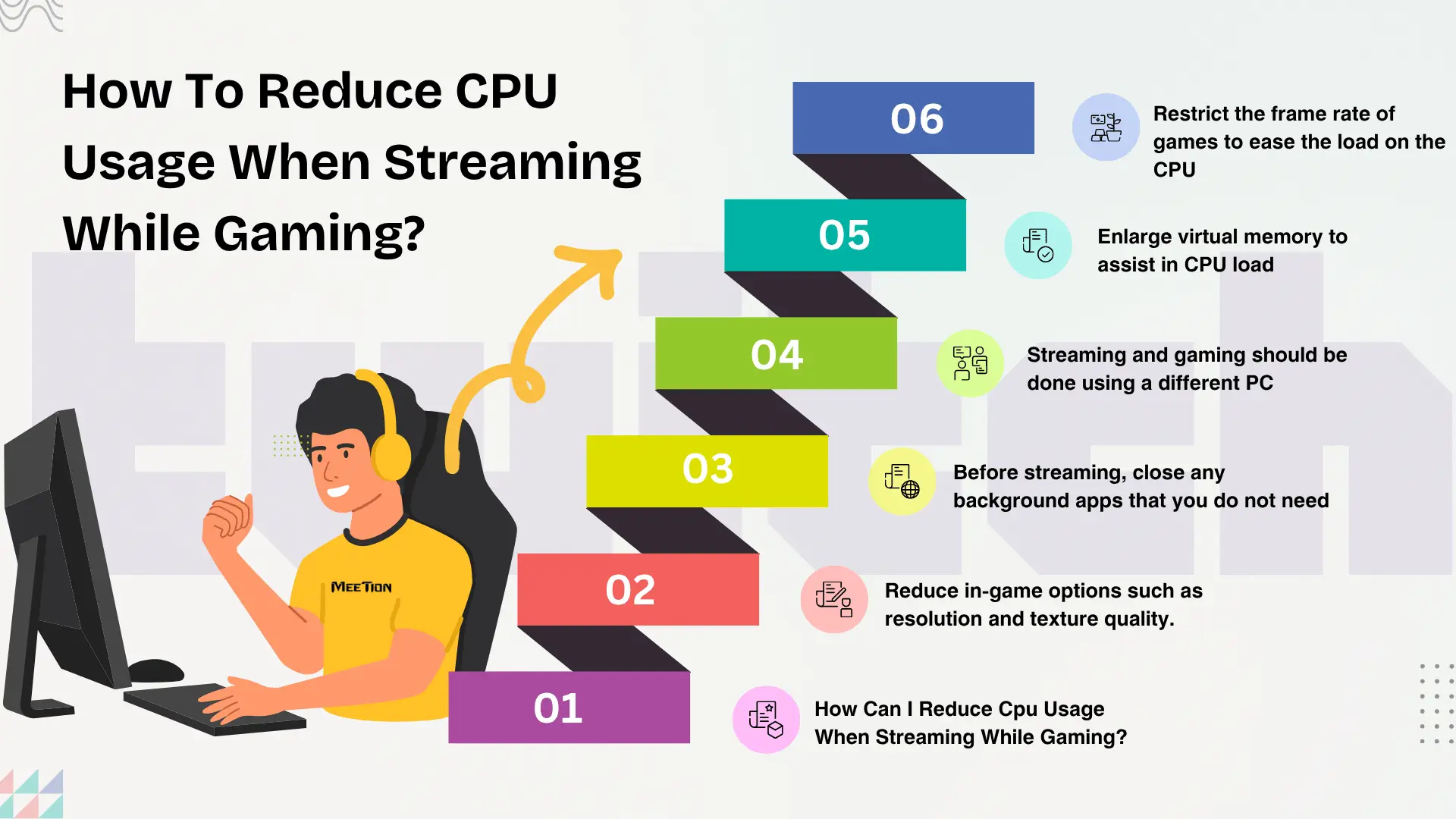
Credit: www.meetion.com
Manage Power Settings
Managing power settings can lower the CPU load while gaming. It helps your computer use energy more efficiently. This can improve game performance and reduce overheating.
Changing power settings is simple and can make a big difference. Two key steps are switching to high-performance mode and adjusting CPU power limits. Both steps focus on balancing power use and processing speed.
Switch To High-performance Mode
High-performance mode lets your CPU run at full speed. It stops the system from slowing down to save power. This mode gives more power to games and apps. It can reduce lag and improve frame rates.
To switch, open your Control Panel or Settings. Find the Power Options menu. Select the High-Performance plan. This setting keeps your CPU ready for heavy tasks like gaming.
Adjust Cpu Power Limits
CPU power limits control how much energy the processor uses. Lower limits can reduce heat and save battery life. But they may also slow down your games.
Raising power limits lets the CPU work harder. This can boost game speed and reduce stuttering. Use tools like Intel XTU or AMD Ryzen Master to adjust limits safely. Monitor temperature to avoid overheating.
Improve Cooling Solutions
Improving your PC’s cooling system helps reduce CPU load during gaming. Better cooling keeps the processor at safe temperatures. This allows the CPU to run smoothly without slowing down. Cooling solutions also extend the life of your components. Here are some ways to improve cooling for better gaming performance.
Clean Dust From Components
Dust blocks airflow and traps heat inside your PC. Clean dust from fans, vents, and heatsinks regularly. Use a soft brush or compressed air to remove dirt. Keep your gaming area clean to reduce dust buildup. A clean system cools more efficiently and lowers CPU temperature.
Use Better Thermal Paste
Thermal paste helps transfer heat from the CPU to the cooler. Old or poor-quality paste dries out and loses effectiveness. Replace thermal paste every year or two for better heat transfer. Use a high-quality thermal paste for improved cooling. Proper application ensures maximum contact and cooling.
Add Extra Fans Or Liquid Cooling
More fans improve airflow inside your PC case. Install extra case fans to push hot air out quickly. Position fans to create a steady airflow path across components. Liquid cooling offers better heat removal than air cooling. It uses coolant to absorb and move heat away from the CPU. Choose a cooling system that fits your budget and PC case size.
Adjust Cpu Affinity And Priority
Adjusting CPU affinity and priority can help reduce CPU load while gaming. It lets you control how your computer’s processor handles game tasks. This can improve game performance and reduce lag. You can tell the CPU which cores to use and how much power to give the game process.
This technique is useful for systems with multiple CPU cores. It allows better resource management by dedicating cores to your game. This way, other background tasks do not slow down your gameplay.
Set Game Process Priority
Setting the game process priority tells Windows to focus more on the game. It gives the game higher access to CPU resources. To do this, open Task Manager by pressing Ctrl+Shift+Esc. Find your game’s process under the “Details” tab.
Right-click the process and choose “Set priority.” Select “Above normal” or “High.” Avoid “Realtime” as it can cause system instability. This change helps the CPU prioritize the game over less important tasks.
Assign Cpu Cores Manually
Assigning CPU cores manually means choosing which cores your game uses. This can prevent the game from spreading across all cores, which may cause lag. Open Task Manager and find your game’s process.
Right-click and select “Set affinity.” A list of CPU cores appears. Check only some cores to limit the game to those. This helps balance CPU load and keeps other cores free for background tasks.
Use Game Mode And Performance Tools
Using game mode and performance tools helps lower CPU load during gaming. These features focus your computer’s power on the game. They reduce background tasks and free up CPU resources. This leads to smoother gameplay and less lag.
Many computers have built-in options to optimize performance. You can also use third-party software to get better results. Both methods improve your gaming experience without needing hardware upgrades.
Enable Windows Game Mode
Windows Game Mode prioritizes gaming processes. It limits background activities that use CPU power. This mode helps your game run more smoothly. To enable it, open Settings and go to Gaming. Click on Game Mode and turn it on. This simple step can reduce CPU strain during play.
Utilize Third-party Optimization Software
Third-party tools help manage CPU and memory use. These programs close unnecessary apps and optimize system settings. Some popular options include Razer Cortex and MSI Afterburner. Run these tools before gaming for better CPU performance. They often come with easy guides for setup.
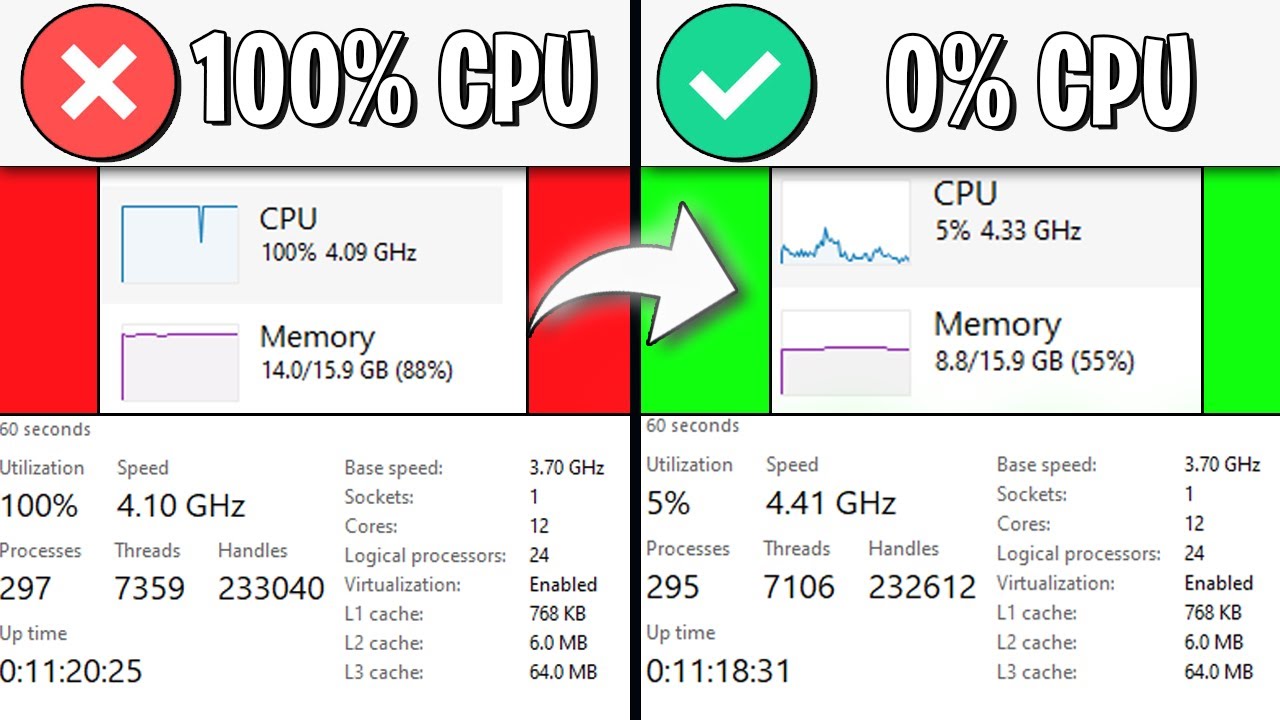
Credit: www.youtube.com
Upgrade Hardware Components
Upgrading your hardware is a direct way to reduce CPU load while gaming. Better parts handle tasks more efficiently. This reduces strain on your processor. It helps games run smoother and faster.
Focus on key components that affect gaming performance. A stronger CPU and more RAM can make a big difference. These upgrades improve how your system manages game data. They allow your CPU to work less hard.
Consider A Better Cpu
The CPU is the brain of your computer. A faster CPU processes game data quicker. It reduces delays and lag during gameplay. Choose a CPU with more cores and higher speed. This helps run modern games smoothly. Look for CPUs designed for gaming tasks. They balance power and efficiency well.
Increase Ram Capacity
RAM stores temporary game data your CPU uses. More RAM means your system handles more tasks at once. It prevents slowdowns when running large games. Aim for at least 16GB of RAM for gaming. Faster RAM speeds also improve performance. Upgrading RAM is often simple and affordable.
Frequently Asked Questions
How Can I Lower Cpu Usage During Gaming?
Close unnecessary background apps and disable startup programs. Update your drivers and optimize game settings for better CPU performance.
What Settings Reduce Cpu Load In Games?
Lower graphics settings like shadows and textures. Enable V-Sync and limit frame rates to ease CPU strain.
Does Upgrading Hardware Reduce Cpu Load?
Yes, upgrading to a faster CPU or adding more RAM helps. It improves multitasking and gaming performance.
How Does Cooling Affect Cpu Load While Gaming?
Proper cooling prevents thermal throttling, keeping CPU performance stable. Clean fans and use quality thermal paste for better cooling.
Conclusion
Reducing CPU load helps games run smoother and prevents overheating. Close apps you don’t need while gaming. Lower game settings to ease the processor’s work. Keep your computer clean and cool for better performance. Regular updates also improve how your CPU handles games.
Small changes make a big difference in play quality. Enjoy gaming without slowdowns or crashes. Try these tips and feel the improvement today.
