

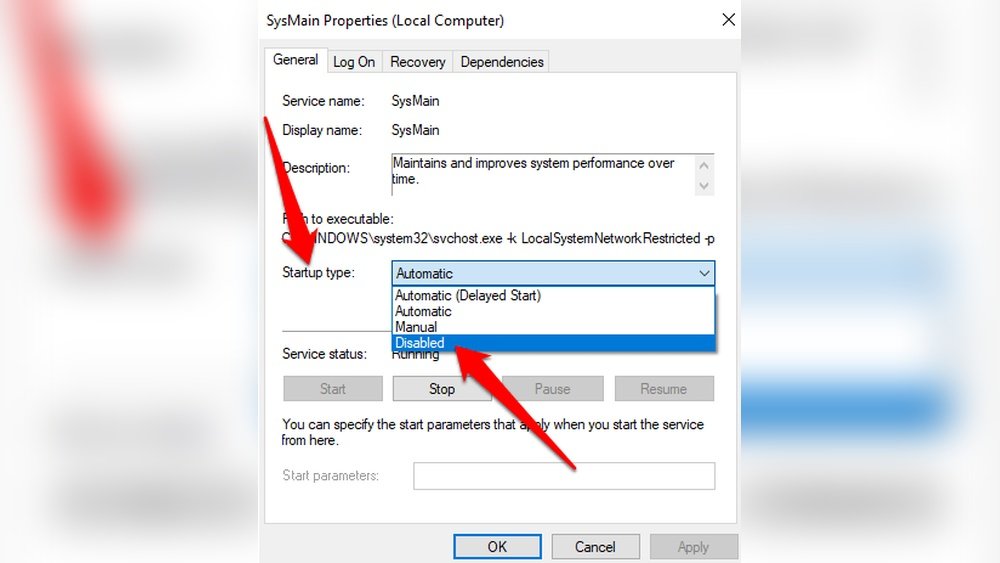
Is your computer running slow or overheating? High CPU usage could be the reason.
When your CPU works too hard, everything feels sluggish, and your system may even freeze. But don’t worry—you have the power to fix this. You’ll discover simple and effective ways to bring down your CPU usage. By the end, your computer will run smoother, faster, and more efficiently.
Ready to take control of your PC’s performance? Let’s dive in!
Credit: www.avast.com
Identify High Cpu Processes
High CPU usage slows down your computer. It makes programs lag and your system hot. Identifying which processes use the most CPU helps you fix this problem. You can stop or manage these processes to bring your CPU usage down.
Use Task Manager Or Activity Monitor
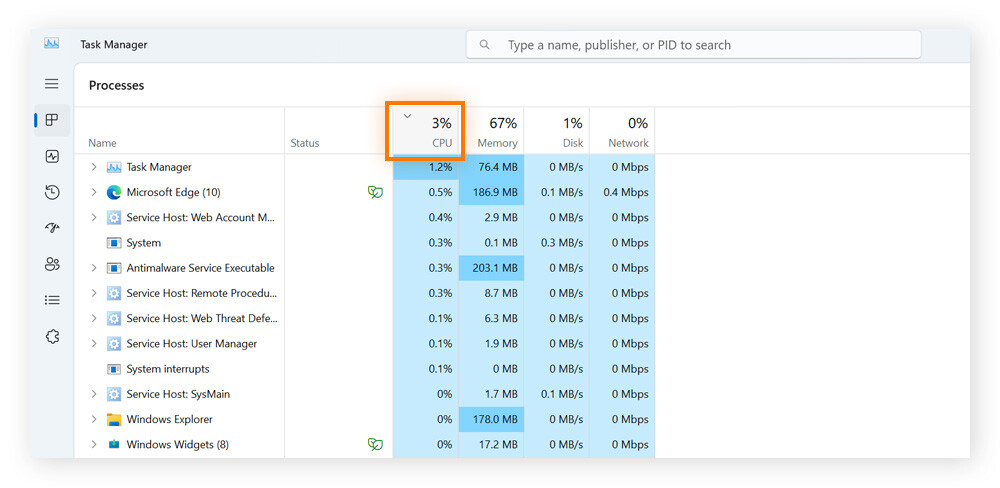
Task Manager on Windows and Activity Monitor on Mac show running processes. They list programs and how much CPU each uses. Open Task Manager by pressing Ctrl + Shift + Esc. On a Mac, find Activity Monitor in Applications > Utilities.
Sort the list by CPU usage to see the top users. Look for apps or processes using a lot of CPU power. These are the main causes of high CPU load. You can then decide which ones to close or adjust.
Check Background Applications
Some apps run quietly in the background. These can eat CPU without your notice. Check for apps that start automatically with your system. They often use CPU even if you don’t open them.
Disable or remove unnecessary background apps. This reduces CPU load and speeds up your computer. Keep only the programs you need running. This simple step can lower CPU usage a lot.
Optimize Startup Programs
Optimizing startup programs helps reduce CPU load right after boot. Many apps start automatically. They use CPU and slow down your computer. Managing these apps can free CPU power. This makes your system faster and more responsive.
Disable Unnecessary Apps
Some apps run at startup without need. These apps waste CPU and memory. You can turn them off easily. Open Task Manager or System Settings. Find the Startup tab. Disable apps you do not use often. This stops them from running automatically. Your CPU gets relief, and boot time improves.
Manage Startup Impact
Startup programs have different effects on CPU. Some use a lot of resources. Others use little. Check the “Startup Impact” column in Task Manager. Focus on apps with high impact first. Disabling these can lower CPU spikes. Keep essential apps enabled. This balance helps your PC run smoothly.
Update Software And Drivers
Keeping your software and drivers updated helps reduce high CPU usage. Updates fix bugs and improve system performance. They ensure your computer runs smoothly and efficiently. Regular updates prevent many problems that cause the CPU to work too hard.
Install Latest Os Updates
Operating system updates include important fixes and improvements. These updates help manage resources better and reduce CPU load. Check for updates in your system settings often. Install them as soon as they become available. Updated OS can handle background tasks more efficiently.
Update Device Drivers
Device drivers control hardware like graphics cards and printers. Outdated drivers may cause your CPU to overwork. Visit the manufacturer’s website to download the latest drivers. Keep all drivers current to avoid slowdowns. New drivers improve compatibility and reduce CPU stress.
Adjust Power Settings
Adjusting power settings can help reduce high CPU usage. Power plans control how your computer uses energy and manages performance. Tweaking these settings balances power use and CPU workload. This can improve your computer’s speed and lower heat.
Switch To Balanced Or High Performance
Choose the Balanced power plan for a mix of power saving and performance. It adjusts CPU speed based on need. High Performance keeps the CPU running at full speed. This helps with demanding tasks but uses more energy. Both plans can reduce CPU strain compared to Power Saver mode.
Customize Power Plans
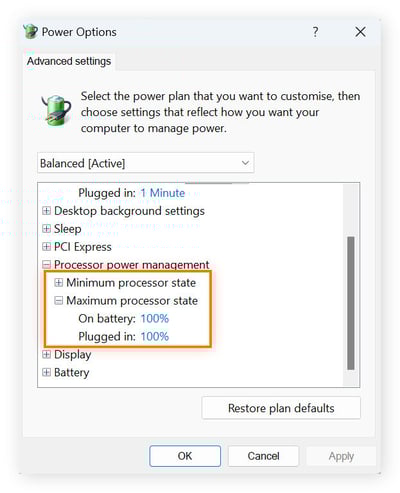
Custom power plans let you control CPU behavior precisely. Change settings like processor state and cooling policy. Lower the maximum processor state to limit CPU speed. This reduces heat and power use. Adjust cooling to active mode to keep the CPU cool. These tweaks help manage CPU load and improve system stability.
Scan For Malware
High CPU usage can slow down your computer and make tasks frustrating. Malware often causes high CPU load by running unwanted processes. Scanning your system for malware helps find and remove these harmful programs. This step is crucial to keep your computer running smoothly and fast.
Use Trusted Antivirus Tools
Choose antivirus software from well-known companies. Trusted tools detect most malware types. They update regularly to protect against new threats. Free versions often work well but paid options offer better protection. Install one and keep it active to stop malware early.
Perform Full System Scans
Run a full scan, not just a quick check. Full scans look at every file and process on your computer. This thorough search finds hidden malware that quick scans might miss. Scanning can take time, but it is necessary for deep cleaning. Schedule scans regularly to maintain low CPU usage.
Credit: www.avast.com
Manage Browser Usage
Browsers can use a lot of CPU power. Managing browser use can lower CPU load. This helps your computer run smoother and faster.
Many browser tabs and extensions run in the background. They consume CPU without you noticing. Managing these can save CPU resources and improve performance.
Limit Open Tabs
Each open tab uses memory and CPU. Keep only the tabs you need open. Close tabs that you are not using. This reduces CPU workload and speeds up your browser.
Use bookmarks to save pages for later. Reopen them when needed. This keeps your browser light and quick.
Disable Unnecessary Extensions
Extensions add extra features but can slow down your browser. Disable extensions that you do not use often. Check your browser’s extension list regularly.
Turn off or remove extensions that cause high CPU use. This frees up resources and improves overall speed. Keep only essential extensions active.
Clean Temporary Files
Temporary files take up space and slow down your CPU. These files build up over time and affect system speed. Cleaning them helps your computer run smoother and faster.
Removing temporary files frees memory and reduces CPU load. It also prevents crashes and improves overall performance. Use simple tools and steps to clear these files regularly.
Use Disk Cleanup Tools
Disk cleanup tools delete unnecessary files safely. Windows has a built-in Disk Cleanup utility. Open it by searching “Disk Cleanup” in the start menu.
Select the drive you want to clean. The tool scans for temporary files, system cache, and other junk. Check the boxes for files to delete. Click “OK” to remove them.
Using these tools regularly keeps your system clean. It reduces CPU work and speeds up your computer.
Clear Cache And Cookies
Web browsers store cache and cookies to load sites faster. These files can grow large and use CPU power. Clear them often to reduce CPU usage.
Go to your browser settings and find the privacy or history section. Select the option to clear cache and cookies. Choose a time range or clear all data.
This step helps browsers run smoothly and lowers CPU demand. It also protects your privacy by removing stored data.

Credit: superuser.com
Upgrade Hardware Components
Upgrading hardware components can significantly reduce high CPU usage. Sometimes, your computer struggles because its parts are outdated. By improving key hardware, the CPU gets less pressure and works smoother. This can lead to faster performance and better multitasking.
Add More Ram
RAM helps your computer run multiple programs at once. If your RAM is low, the CPU handles extra work to compensate. Adding more RAM gives your system space to manage tasks. This reduces CPU load and speeds up your computer.
More RAM means fewer slowdowns during heavy use. It is a simple upgrade that improves overall speed. Especially useful for people using many apps or browser tabs.
Consider Ssd Upgrade
Switching from a hard drive to an SSD can ease CPU workload. SSDs access data faster, so the CPU waits less time. This quick data transfer helps the CPU focus on processing tasks.
An SSD upgrade leads to faster boot times and app launches. It reduces delays caused by slow disk reading. Your system feels more responsive and efficient with an SSD.
Frequently Asked Questions
What Causes High Cpu Usage On My Computer?
High CPU usage is often caused by running multiple programs, background processes, or malware. It can also result from outdated drivers or software bugs. Identifying the specific cause helps in applying the right solution to reduce CPU load effectively.
How Can I Reduce Cpu Usage On Windows?
Close unnecessary programs and disable startup apps to lower CPU usage. Update your drivers and scan for malware regularly. Adjust power settings for better performance and consider upgrading hardware if high CPU usage persists.
Does Uninstalling Unused Software Lower Cpu Usage?
Yes, uninstalling unused software frees up system resources and reduces background processes. This action decreases CPU workload, improves system responsiveness, and helps maintain optimal performance.
Can Antivirus Software Increase Cpu Usage?
Antivirus software can temporarily increase CPU usage during scans or updates. However, it is essential for protecting your system. Schedule scans during idle times to minimize performance impact.
Conclusion
Reducing CPU usage helps your computer run faster and smoother. Close apps you don’t need and remove unnecessary startup programs. Keep your software updated to avoid bugs that slow down your CPU. Scan for viruses and clean your system regularly.
Small changes can make a big difference in performance. Stay patient and monitor your CPU use often. Simple habits keep your computer healthy and efficient. Try these tips today and feel the improvement.
