How to Scan Ram for Errors: Easy Steps to Fix Your PC Fast
Is your computer acting slow or crashing unexpectedly? Your RAM might be the hidden culprit.
Knowing how to scan RAM for errors can save you from frustrating downtime and protect your important files. In this guide, you’ll learn simple, effective steps to check your RAM’s health quickly. Keep reading to find out how to spot problems early and keep your computer running smoothly.
Your system’s performance depends on it!
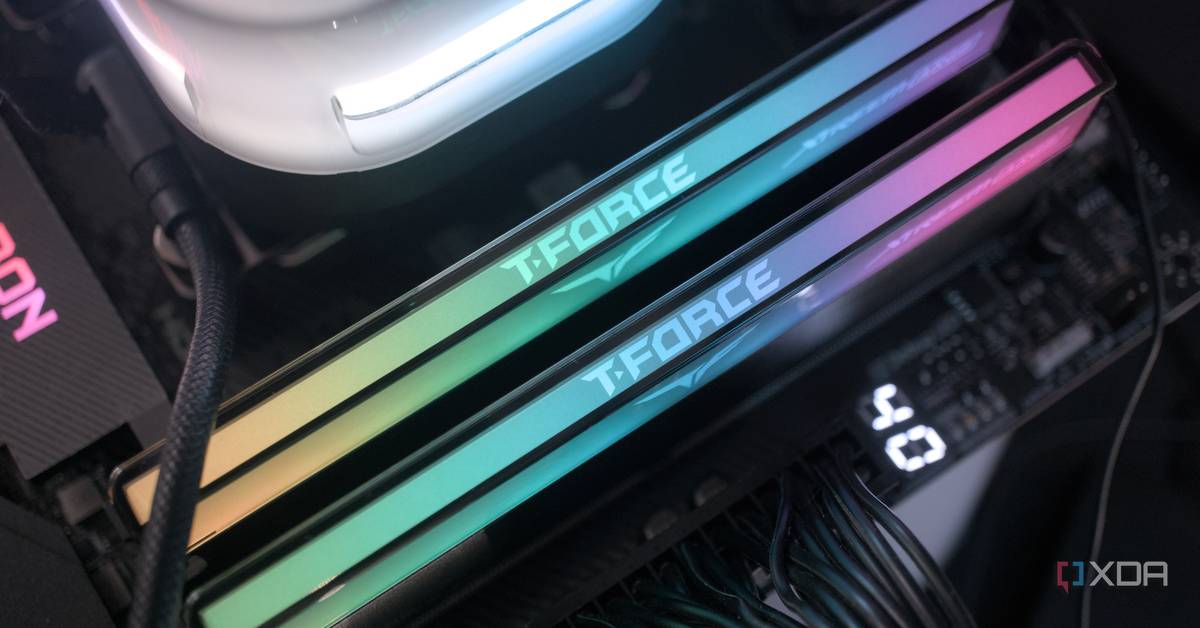
Credit: hotelmurchunga.com
Signs Of Faulty Ram
Faulty RAM can cause many problems on your computer. It affects how your system runs and may lead to crashes or data loss. Spotting signs of bad RAM early helps fix issues fast. This section explains common signs that show your RAM might be failing.
Common Pc Errors Linked To Ram
Random system crashes or blue screens often point to RAM issues. You might see error messages like “Memory Management” or “Page Fault.” Programs may close suddenly without warning. Files can get corrupted or fail to open. Your PC might freeze during startup or while running software. These errors usually mean the RAM is not working properly.
Performance Issues To Watch For
Slow computer speed can signal RAM problems. Tasks take longer than usual to complete. Opening apps might lag or cause delays. Multitasking becomes difficult as the system struggles. You could notice strange behavior like flickering screen or strange noises. These problems often come from RAM errors affecting performance.
Credit: www.liftingitalia.com
Tools To Scan Ram
Scanning your RAM for errors helps keep your computer stable and fast. Faulty RAM can cause crashes and data loss. Several tools can check RAM health and find problems early. These tools vary in complexity and features. Some come built into your computer, while others require extra downloads.
Built-in Windows Memory Diagnostic
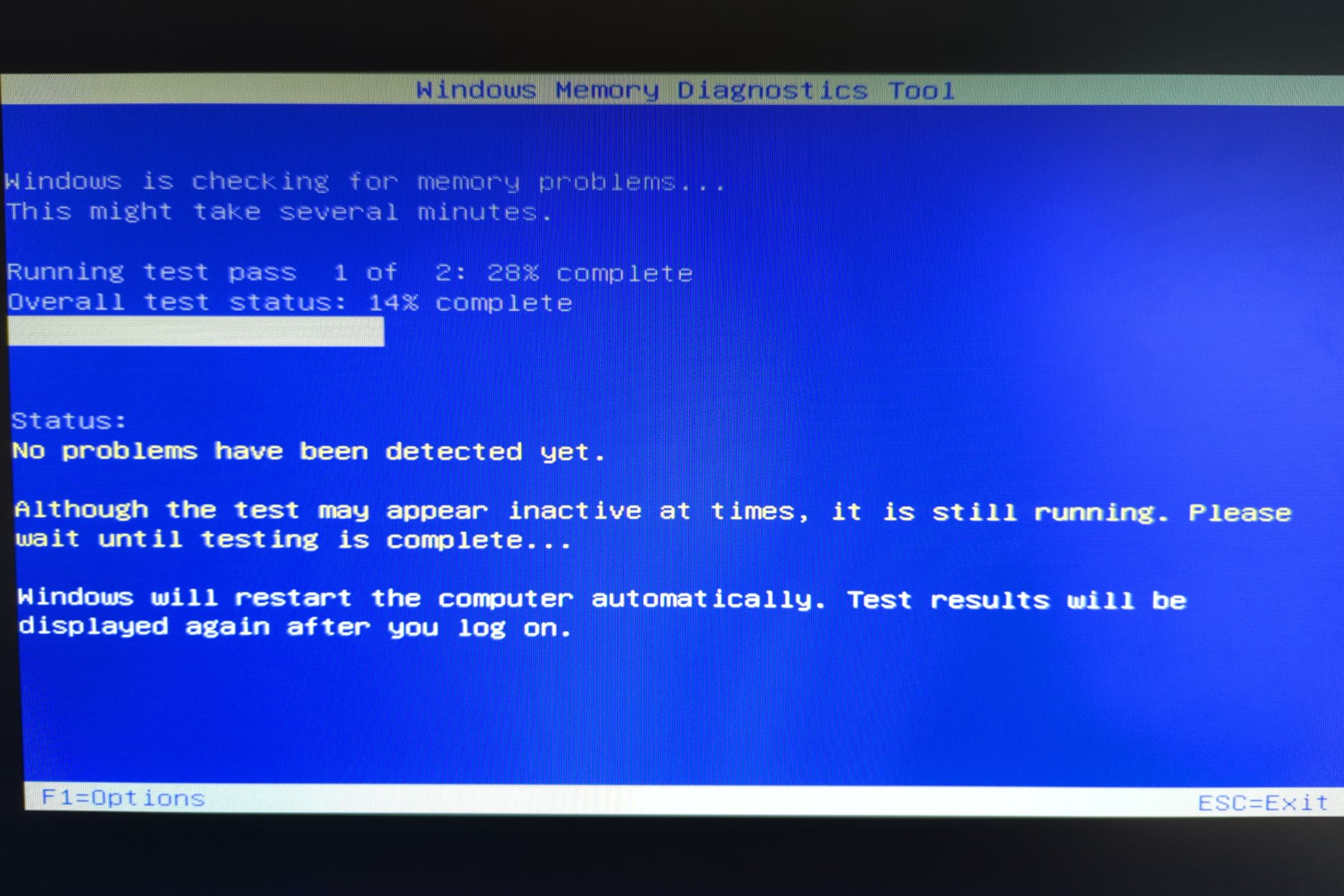
Windows offers a free tool called Windows Memory Diagnostic. It is easy to use and needs no installation. To run it, type “Windows Memory Diagnostic” in the search bar. Choose “Restart now and check for problems.” Your PC will reboot and test your RAM automatically. The tool scans for errors and shows results after the test. It works well for basic memory testing and quick checks.
Third-party Ram Testing Software
Third-party software offers advanced RAM testing options. Programs like MemTest86 and MemTest86+ run deeper scans. They find hidden or rare memory issues. These tools usually run from a USB drive outside the operating system. This method allows a thorough check without interference. Many third-party tools provide detailed reports and error logs. These are useful for troubleshooting persistent computer problems.
Step-by-step Ram Scanning
Scanning your RAM for errors helps keep your PC stable and fast. Faulty RAM causes crashes and freezes. A step-by-step scan finds problems early. This guide walks you through the entire process. Follow each step carefully to get clear results.
Preparing Your Pc For The Scan
Save all your work. Close all open apps. Restart your computer to clear temporary files. Make sure your PC is plugged in. This prevents shutdown during the scan. Disable any antivirus software temporarily. It can block the scan tool. Prepare for a quiet environment. The scan may take several minutes.
Running The Diagnostic Tool
Open the Windows Memory Diagnostic tool. You can search it in the Start menu. Choose “Restart now and check for problems.” Your PC will reboot. The test starts automatically during boot. Wait patiently as it scans the RAM. The process may take 10 to 20 minutes. Do not turn off your PC during the scan.
Interpreting Scan Results
The PC restarts after testing. Windows shows the scan results on the screen. Look for messages about errors or problems. No errors mean your RAM is fine. Errors mean you should replace or test RAM sticks. You can also check results later in Event Viewer. Search for “MemoryDiagnostic” under Windows Logs. Clear and simple results help decide next steps.
Fixing Ram Errors
Fixing RAM errors can improve your computer’s speed and stability. Faulty RAM causes crashes, slowdowns, and data loss. It is important to fix errors quickly to avoid bigger problems. This section covers easy ways to troubleshoot and when to replace RAM modules.
Simple Troubleshooting Tips
Start by restarting your computer. This clears temporary issues. Check if the RAM sticks are properly seated in their slots. Loose RAM often causes errors. Clean the RAM contacts gently with a soft cloth. Dust and dirt can block connections. Run a memory test using built-in tools like Windows Memory Diagnostic. It helps find errors in RAM. Remove one RAM stick at a time if you have more than one. Test the computer after removing each stick. This helps identify the faulty module.
When To Replace Ram Modules
Replace RAM if errors continue after troubleshooting. Frequent crashes or blue screens often mean bad RAM. If a memory test shows many errors, it is time to swap the RAM. Upgrading to new RAM can also improve performance. Choose compatible RAM for your motherboard. Old or damaged RAM cannot be fixed and slows down your system. Investing in new RAM keeps your computer stable and fast.
Preventing Future Ram Issues
Preventing future RAM issues helps keep your computer fast and stable. Taking simple steps can stop many common problems. Avoiding damage and spotting issues early saves time and money.
Proper Handling And Installation
Always handle RAM sticks with care. Hold them by the edges to avoid static damage. Make sure your hands are clean and dry. Use an anti-static wrist strap if possible. Insert RAM firmly into the slot, but do not force it. Check that the clips lock the RAM in place. Installing RAM correctly lowers the chance of errors.
Regular System Maintenance
Run memory tests regularly to catch errors early. Keep your computer free from dust to prevent overheating. Update your system drivers and BIOS for better hardware support. Avoid running too many programs at once to reduce stress on RAM. Restart your computer often to clear temporary data. Regular care helps RAM last longer and run smoothly.
Credit: www.esseg.eu
Frequently Asked Questions
How Do I Scan Ram For Errors On Windows?
Use the built-in Windows Memory Diagnostic tool to scan RAM. Restart your PC, run the tool, and check results after reboot. It detects memory issues and helps fix performance problems efficiently.
What Are Common Signs Of Faulty Ram?
Frequent crashes, blue screen errors, slow performance, and random reboots often indicate faulty RAM. Running a RAM scan confirms if memory errors cause these issues.
Can I Scan Ram Without Third-party Software?
Yes, Windows Memory Diagnostic is a reliable built-in tool to scan RAM without third-party software. It’s easy, free, and effective for detecting memory problems.
How Long Does A Ram Error Scan Usually Take?
RAM scans typically take 15 to 30 minutes, depending on your RAM size. Running a full test ensures all memory segments are checked thoroughly.
Conclusion
Scanning RAM for errors helps keep your computer running smoothly. It finds problems early before they cause big issues. Use simple tools to check your memory regularly. Fixing errors improves speed and prevents crashes. Don’t ignore strange computer behavior—it might be RAM trouble.
Regular checks save time and money on repairs. Stay proactive to protect your system’s health. A healthy RAM means a faster, more reliable PC. Take a few minutes now for better performance later.