How to Get Cpu Info in Linux: Quick and Easy Methods
Are you curious about what’s powering your Linux machine? Knowing your CPU details can help you understand your system’s performance and troubleshoot issues more effectively.
Whether you’re a beginner or an experienced user, getting accurate CPU info in Linux doesn’t have to be complicated. You’ll discover simple and reliable methods to check your CPU specifications quickly. Keep reading, and you’ll be able to unlock valuable insights about your system that you didn’t know before.

Credit: www.cyberciti.biz
Check Cpu Details With Lscpu
The lscpu command is a simple tool to check CPU details on Linux. It shows important information about your processor. This helps understand your system’s power and capabilities.
You can see details like CPU architecture, cores, threads, and speed. The output is easy to read and useful for system monitoring or troubleshooting.
Install Lscpu If Missing
Most Linux systems have lscpu by default. If not, install it using your package manager. On Ubuntu or Debian, type sudo apt install util-linux. This package includes lscpu. For Fedora or CentOS, use sudo dnf install util-linux.
Run Lscpu Command
Open a terminal window. Type lscpu and press Enter. The command runs quickly and shows CPU information on the screen. No extra options are needed for basic details.
Interpret Lscpu Output
The output lists several fields. Look for “Architecture” to know your CPU type. “CPU(s)” tells how many cores exist. “Thread(s) per core” shows if hyper-threading is active. “CPU MHz” gives current processor speed.
Other fields include “Model name” and “Vendor ID” which identify your CPU brand and model. “Flags” show supported features like virtualization. Use this info to compare or check system specs.

Credit: www.cyberciti.biz
View Cpu Info Via /proc/cpuinfo
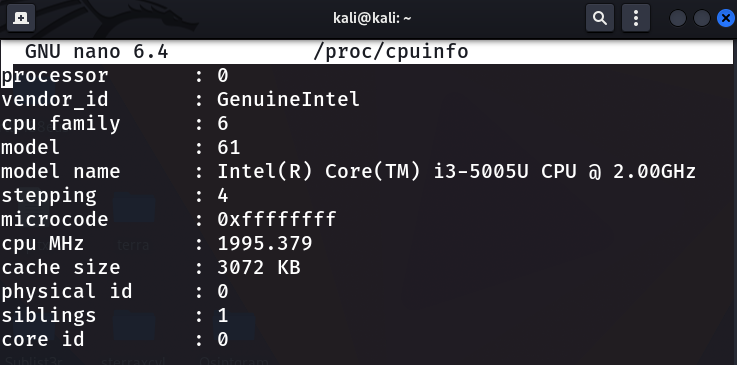
The /proc/cpuinfo file in Linux holds detailed information about the CPU. It is a virtual file that displays real-time data. You can view this file using simple commands to learn about your processor’s specs. This method does not need extra software or root access. It works on almost all Linux distributions.
Access The Cpuinfo File
Open a terminal to access the /proc/cpuinfo file. Type cat /proc/cpuinfo and press Enter. This command prints all CPU details to the screen. The output shows info for each CPU core separately. Scroll through to see all entries.
Key Fields To Note
Look for fields like processor, model name, and cpu MHz. The processor field shows the core number. model name tells the CPU brand and model. cpu MHz shows the current speed of each core. Other useful fields include cache size and flags.
Use Grep For Specific Info
To find certain details faster, use the grep command. For example, type grep 'model name' /proc/cpuinfo to see the CPU model only. Use grep 'cpu MHz' /proc/cpuinfo to get the speed of each core. This method saves time and makes the output easy to read.
Use Dmidecode For Hardware Info
The dmidecode tool gives detailed hardware information on Linux. It reads data from the system’s BIOS and shows info about the CPU, memory, and more. This tool helps understand your system’s hardware without opening the case or using complex commands.
Using dmidecode is simple. It provides clear details about your processor and other components. This makes it useful for system checks and troubleshooting.
Install Dmidecode Tool
Most Linux systems do not have dmidecode installed by default. You can add it easily. Use the package manager for your Linux distro.
For Debian or Ubuntu, run: sudo apt-get install dmidecode. For Fedora or CentOS, use: sudo yum install dmidecode.
After installation, you are ready to extract hardware details.
Extract Processor Data
Run sudo dmidecode -t processor to get CPU info. This command shows processor type, speed, and cache size.
You will see manufacturer details and the number of cores. It helps identify your CPU model and specs quickly.
This info is useful for system upgrades and performance checks.
Security Considerations
dmidecode requires root access to run. This means you need administrative rights.
Be cautious when sharing the output. It can reveal system details to attackers.
Only use dmidecode on trusted machines. Keep your system secure and updated.
Get Cpu Info With Hwinfo
Getting detailed CPU information is easy with the hwinfo tool. It provides a complete view of your processor’s specs. This tool works on most Linux systems and shows useful data like CPU model, speed, cores, and cache.
Using hwinfo helps you understand your hardware better. It can be handy for troubleshooting or checking system performance. The commands are simple to use and give clear output.
Install Hwinfo Package
First, install hwinfo on your Linux machine. Open the terminal and type the install command.
On Debian or Ubuntu, run:
sudo apt-get install hwinfoFor Fedora or Red Hat, use:
sudo dnf install hwinfoOn Arch Linux, try:
sudo pacman -S hwinfoAfter installation, you can start using hwinfo to get CPU details.
Filter Cpu-related Output
Running hwinfo alone shows all hardware info. To see only CPU data, filter the output.
Use this command to get CPU info:
hwinfo --cpuThis shows processor details like model, cores, and cache size. It helps focus on CPU specs only.
For a quick summary, add the --short option:
hwinfo --cpu --shortThis command displays a brief overview of your CPU. Easy to read and understand.
Leverage Top And Htop Commands
Linux provides powerful tools to check CPU information easily. Two popular commands are top and htop. These tools show real-time CPU usage and details. They help monitor system performance quickly. Both commands work in the terminal and offer useful insights.
Check Cpu Usage And Model
The top command shows CPU usage at the top of its display. It updates every few seconds. You can see how much CPU each process uses. To find the CPU model, use the lscpu command separately. top focuses more on usage and process management.
htop is a colorful alternative to top. It shows CPU usage for each core as bars. You get a clear visual of CPU load. htop also lists processes with CPU and memory use. For CPU model details, use cat /proc/cpuinfo in another terminal.
Customize Htop Display
htop lets you change what you see on screen. Press F2 to open the setup menu. You can add or remove columns showing CPU stats. Choose to display CPU frequency, temperature, or process priority.
The display style can change too. Switch between bar graphs and text meters. This helps you understand CPU load better. Save your setup to keep the layout next time. Customizing htop makes monitoring easier and faster.
Utilize Inxi For Detailed Info
In Linux, Inxi is a helpful tool to get detailed CPU information. It shows clear and easy-to-read summaries. Inxi gathers data about your CPU quickly. It works on many Linux distributions. This tool also shows other hardware details if needed.
Using Inxi helps you understand your CPU better. It displays model, speed, cores, and more. This information is useful for system checks and troubleshooting.
Install Inxi Tool
First, install Inxi on your Linux system. Open the terminal. Type the command below for Ubuntu or Debian:
sudo apt-get install inxiFor Fedora, use this command:
sudo dnf install inxiOn Arch Linux, type:
sudo pacman -S inxiAfter installation, verify by typing inxi -V to see the version.
Fetch Cpu Summary
Run this command to get a quick CPU summary:
inxi -CThis shows CPU model, speed, and cores clearly. For more detailed info, use:
inxi -Fxz | grep -i cpuThe output includes CPU vendor, cache size, and architecture. You get a full picture of your processor.
Scripted Approaches For Automation
Automating the process of retrieving CPU information on Linux saves time. Scripts can gather data quickly without manual effort. This helps in monitoring and managing systems efficiently. Scripted methods provide consistent output, ideal for repetitive tasks. Simple scripts can parse system files or combine commands to create useful summaries.
Bash Script To Parse /proc/cpuinfo
The /proc/cpuinfo file contains detailed CPU data. A bash script can extract key details like model, cores, and speed. Here is a basic example:
!/bin/bash echo "CPU Model:" grep "model name" /proc/cpuinfo | uniq echo "CPU Cores:" grep "cpu cores" /proc/cpuinfo | uniq echo "CPU MHz:" grep "cpu MHz" /proc/cpuinfo | uniq This script reads /proc/cpuinfo and filters important lines. The uniq command removes duplicate entries. Users can run this script anytime to get current CPU info.
Combine Commands For Summary
Combining commands in one line creates a quick CPU summary. Using pipes and tools like grep, awk, and sort helps format the output. Try this command:
lscpu | grep -E 'Model name|Socket|Core|Thread|MHz' This command shows model name, sockets, cores, threads, and speed. It provides a clear snapshot of the CPU without scripting. Automate it by placing the command in a script or cron job.
Credit: www.geeksforgeeks.org
Troubleshooting Common Issues
Getting CPU info in Linux is usually simple. Sometimes, problems occur. These issues can stop you from seeing the CPU details. This section helps you fix common problems fast. It covers missing tools and permission errors.
Missing Tools And How To Install
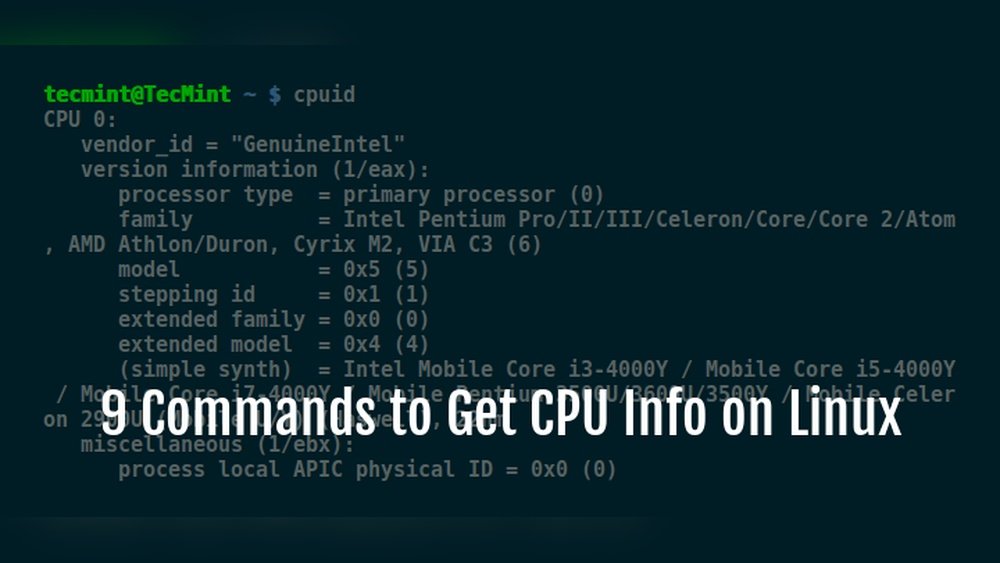
Some Linux versions lack CPU info tools by default. Commands like lscpu or cpuid might not work. The system shows “command not found” error. You need to install these tools manually.
Use your package manager to add missing tools. For Debian or Ubuntu, run: sudo apt install lscpu. For Red Hat or CentOS, use: sudo yum install cpuid. This installs programs needed to view CPU data.
Check if the tool runs after installation. If it still fails, try updating your package list. Enter sudo apt update or sudo yum update. Then install again. This ensures you get the latest version.
Permission Denied Errors
Running CPU info commands may show “permission denied.” This happens if you lack rights to run certain commands. Linux protects system info from regular users.
Use sudo before commands to get admin rights. For example, sudo lscpu runs the command with higher permission. You will be asked to enter your password.
If you don’t have sudo access, contact your system administrator. They can grant permission or run commands for you. Avoid using root login directly for safety reasons.
Frequently Asked Questions
How To Check Cpu Model In Linux?
You can check the CPU model using the command cat /proc/cpuinfo. Look for the “model name” field. It displays the exact CPU model installed on your Linux system. This method is quick and works on most Linux distributions.
What Command Shows Cpu Architecture In Linux?
Use the lscpu command to display CPU architecture details. It shows information like CPU family, model, and architecture. This command provides a clear summary of your Linux CPU’s specifications and is easy to use.
How To Find Cpu Frequency On Linux?
Run cat /proc/cpuinfo and find the “cpu MHz” field. It shows the current CPU frequency in MHz. Alternatively, lscpu also displays CPU speed and other performance data.
Can I Get Cpu Core Count In Linux?
Yes, use nproc or lscpu to find the number of CPU cores. These commands quickly tell you how many cores your Linux system’s processor has, helping you understand its multitasking capability.
Conclusion
Getting CPU info in Linux is simple and quick. Commands like lscpu and cat /proc/cpuinfo show key details. These tools help you check processor type, speed, and cores easily. Knowing your CPU specs aids in system troubleshooting and upgrades. Keep these commands handy for future needs.
Exploring CPU info helps you understand your Linux system better. Try them out and see what your CPU reveals.