How to Replace Cpu Cooler: Easy Steps for Ultimate Cooling Performance
Is your computer running hotter than usual? A faulty or old CPU cooler might be the reason behind those annoying shutdowns or slow performance.
Replacing your CPU cooler may sound tricky, but with the right steps, you can do it yourself and keep your system cool and fast. In this guide, you’ll learn exactly how to replace your CPU cooler safely and effectively. Stick with me, and by the end, you’ll have the confidence to upgrade your cooling setup like a pro.
Choosing The Right Cpu Cooler
Choosing the right CPU cooler is important for your computer’s health. It keeps your CPU from getting too hot. A good cooler helps your PC run faster and last longer.
Not all coolers fit every CPU or case. Some are quiet, some are loud. Some cost more, some less. Picking the right one makes a big difference.
Air Vs Liquid Coolers
Air coolers use fans and metal fins to move heat away. They are simple and easy to install. Most people use air coolers because they work well for normal tasks.
Liquid coolers use water or coolant to carry heat away. They are quieter and can cool better under heavy use. But they cost more and need more care.
Compatibility With Your Cpu
Check your CPU model before buying a cooler. Some coolers fit only certain CPU brands or sockets. Look at the cooler’s specs to see if it matches your CPU.
Also, check your PC case size. Big coolers may not fit small cases. Measure space around your CPU to avoid trouble.
Budget Considerations
Set a budget before choosing a cooler. Air coolers are usually cheaper and work well for most users. Liquid coolers cost more but offer better cooling for heavy use.
Think about how much you want to spend. A mid-range cooler often gives the best balance of price and performance.

Credit: www.wikihow.com
Preparing Your Workspace
Preparing your workspace is a key step before replacing your CPU cooler. A clean and organized area helps you work safely and efficiently. It reduces the risk of damage to your computer parts. Taking time to set up properly saves frustration later. Here are some important steps to prepare your workspace.
Gathering Tools And Materials
Start by collecting all necessary tools. You will need a screwdriver, thermal paste, and cleaning materials. Have a soft cloth or paper towel ready. Keep the new CPU cooler and any instruction manuals nearby. This saves time searching for items mid-task.
Ensuring Static Safety
Static electricity can harm computer parts easily. Use an anti-static wrist strap if possible. If you don’t have one, touch a metal object before touching your PC. Work on a non-carpeted surface to reduce static build-up. Avoid wearing wool or synthetic clothes while working.
Clearing The Pc Area
Clear your workspace of clutter and dust. Make sure there is enough light to see small parts. Place your computer on a stable, flat surface. Keep drinks and food away from the area. This prevents spills and accidents while working.
Removing The Old Cpu Cooler
Removing the old CPU cooler is the first step before installing a new one. This process must be done carefully to avoid damage to your computer parts. Follow each step to safely detach the cooler and prepare the CPU for the new thermal paste and cooler.
Powering Down And Unplugging
Turn off your computer completely. Do not leave it in sleep or hibernate mode. Unplug the power cable from the wall socket or power strip. This stops electricity flow to the system. Press the power button for a few seconds to drain any leftover power inside. This step prevents electrical damage or shock while working inside the case.
Detaching The Cooler
Open the computer case using a screwdriver if needed. Locate the CPU cooler on the motherboard. It sits directly on the CPU chip. Most coolers have screws, clips, or a lever to hold them in place. Carefully loosen or undo these fasteners. Gently twist the cooler back and forth to break the thermal paste seal. Lift the cooler straight up to remove it without bending any pins or cables.
Cleaning Old Thermal Paste
Old thermal paste sticks the cooler to the CPU. It must be cleaned off before applying new paste. Use a soft cloth or paper towel with isopropyl alcohol. Gently wipe the surface of the CPU and the cooler base. Remove all residue until both surfaces are clean and dry. This ensures good contact and heat transfer for the new cooler.
Installing The New Cpu Cooler
Installing the new CPU cooler is an important step to keep your computer running cool. This process needs care and attention. Proper installation helps your CPU work better and last longer. Follow these steps to install the cooler correctly.
Applying Thermal Paste Correctly
Thermal paste helps heat move from the CPU to the cooler. Use only a small amount, about the size of a pea. Put it in the middle of the CPU. Avoid spreading it with your fingers. The cooler will spread the paste evenly when you mount it.
Mounting The Cooler Securely
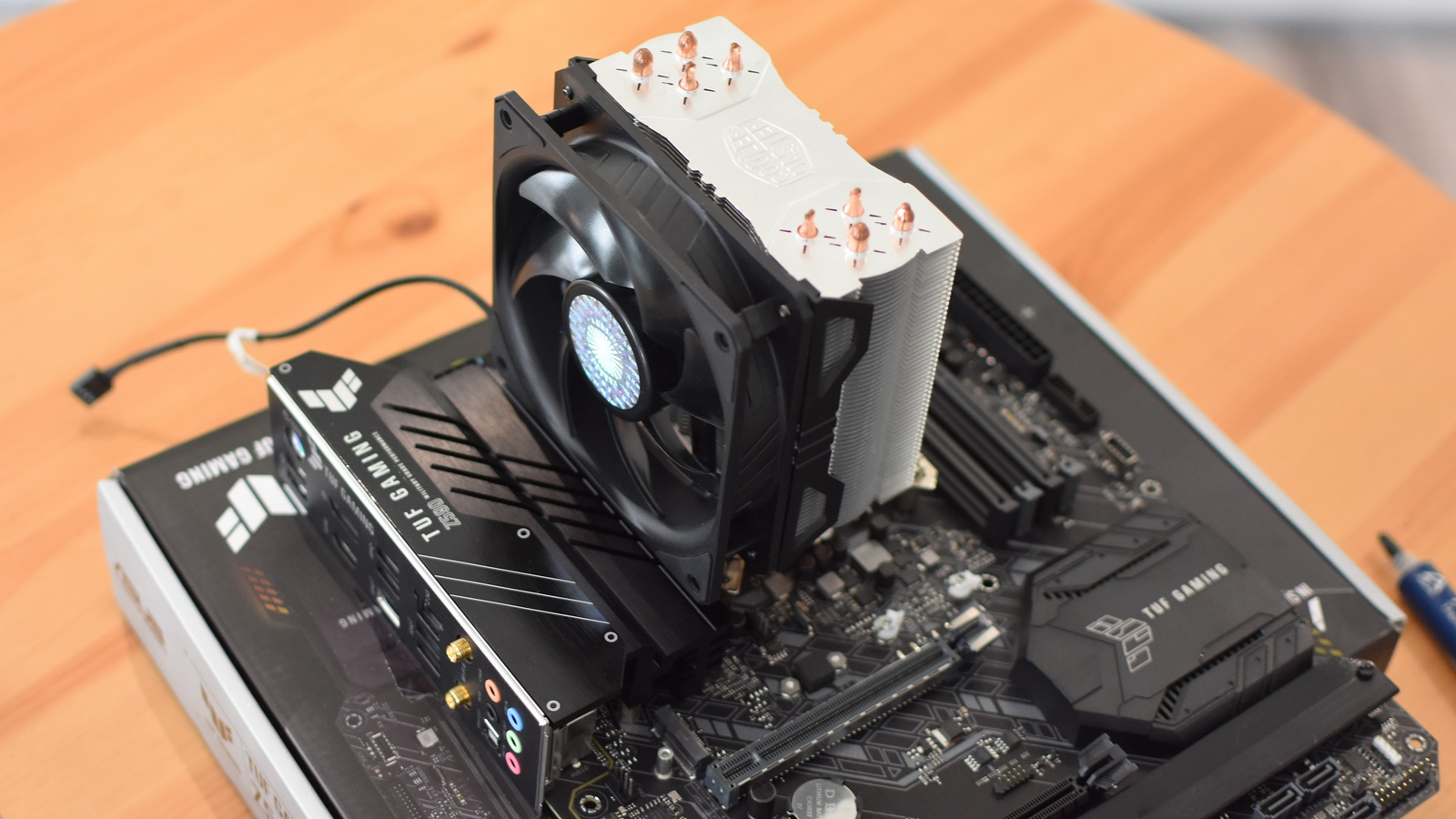
Place the cooler on top of the CPU carefully. Make sure it sits flat and even. Use the screws or clips that came with the cooler. Tighten them slowly and evenly in a diagonal pattern. This stops the cooler from moving or pressing too hard.
Connecting Power Cables
Find the fan cable coming from the cooler. Plug it into the CPU fan header on the motherboard. The connector fits only one way. Check that it is firmly attached. This powers the fan to keep your CPU cool during use.
Testing And Optimizing Cooling
Testing and optimizing your CPU cooler is key to keep your computer safe and fast. After installing the new cooler, it is important to check its performance. This helps avoid overheating and keeps your CPU working well for a long time.
Booting Up And Monitoring Temperatures
Start your computer and enter the BIOS or use software to check temperatures. Look for CPU temperature readings right after boot. Normal idle temperatures usually range between 30°C and 45°C. If the numbers are too high, the cooler may not be installed properly.
Adjusting Fan Speeds
Control fan speeds through BIOS or software for better cooling. Set fan speeds to increase as the CPU gets hotter. This helps keep the temperature low during heavy use. Make sure the fan noise is not too loud for your comfort.
Ensuring Stability Under Load
Run stress tests or heavy programs to check cooler performance. Monitor the CPU temperature while the system is busy. The temperature should stay within safe limits, usually below 80°C. If it rises too much, check the cooler installation and fan settings again.
Credit: www.rockpapershotgun.com
Maintaining Your Cpu Cooler
Maintaining your CPU cooler is key to keeping your computer running smoothly. A clean and well-functioning cooler helps avoid overheating. It also improves your CPU’s lifespan and performance. Regular care ensures your system stays stable during heavy use.
Regular Cleaning Tips
Dust buildup can block airflow and reduce cooling. Use a soft brush or compressed air to remove dust from the fan and heatsink. Clean at least every three months. Avoid using water or wet cloths. Make sure the computer is off and unplugged before cleaning.
Monitoring Performance Over Time
Check your CPU temperature regularly with monitoring software. Normal temperatures vary by CPU model but usually stay below 75°C. Sudden temperature spikes or constant high temperatures signal a cooling issue. Listen for unusual fan noises that may indicate wear or dust inside.
When To Replace Or Upgrade
Replace the cooler if the fan stops spinning or makes loud noises. Consider upgrading if your CPU runs hot during normal use. Newer coolers offer better performance and quieter operation. Upgrading helps if you plan to overclock or use demanding applications.

Credit: www.youtube.com
Frequently Asked Questions
How Do I Safely Remove My Old Cpu Cooler?
First, power off and unplug your PC. Then, disconnect the cooler’s fan cable. Unscrew or unclip the cooler carefully. Gently twist the cooler to break thermal paste seal. Avoid pulling forcefully to prevent CPU or motherboard damage.
What Tools Are Needed To Replace A Cpu Cooler?
You typically need a Phillips-head screwdriver, thermal paste, and cleaning materials. Rubbing alcohol and a lint-free cloth help clean old paste. Some coolers include mounting brackets or screws, so check your cooler’s instructions for specifics.
How Do I Apply Thermal Paste Correctly?
Apply a small pea-sized dot of thermal paste at the CPU center. When the cooler is mounted, it spreads evenly. Avoid using too much paste, which can reduce cooling efficiency. Proper application ensures good heat transfer between CPU and cooler.
How To Know If My Cpu Cooler Needs Replacement?
High CPU temperatures, loud fan noise, or frequent shutdowns indicate cooler issues. Dust buildup and worn fan bearings can also reduce cooling performance. Regularly monitor CPU temps and inspect your cooler for damage or wear.
Conclusion
Replacing a CPU cooler is simpler than it seems. Take your time and follow each step carefully. Clean the old thermal paste well before applying new paste. Secure the new cooler firmly to avoid overheating. Test your system after installation to ensure proper cooling.
Doing this helps your computer run cooler and last longer. With patience and care, anyone can replace a CPU cooler safely. Keep your PC cool and enjoy better performance every day.