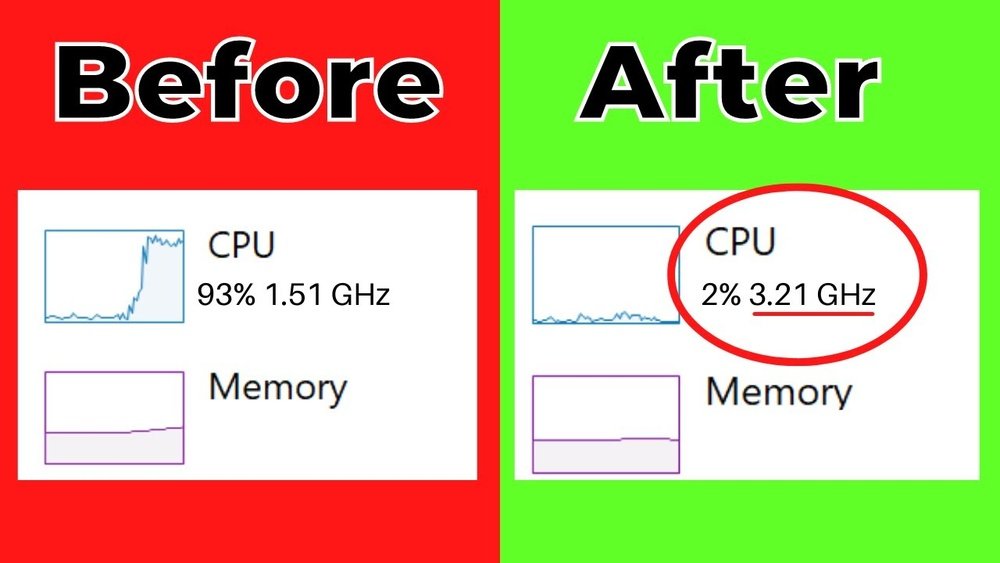
How to Boost Cpu Performance: Ultimate Tips for Maximum Speed
Is your computer feeling slow and unresponsive? You rely on your CPU to keep things running smoothly, but sometimes it just doesn’t keep up.
What if you could unlock hidden power and make your CPU perform faster without spending a dime? You’ll discover simple and effective ways to boost your CPU performance right now. By the end, your computer will feel faster, smoother, and ready to handle whatever you throw at it.
Keep reading—you won’t want to miss these easy tips that anyone can use!
Credit: www.cocosenor.com
Optimize System Settings
Optimizing system settings can help your CPU run smoother and faster. Small changes in your computer’s setup make a big difference in speed. These tweaks use your hardware better and reduce delays.
Focus on power options, startup programs, and driver updates. Each step helps your CPU perform at its best. Let’s explore how to adjust these settings easily.
Adjust Power Options
Set your computer to High Performance mode. This stops it from saving power by slowing down the CPU. Open Control Panel, then Power Options, and choose High Performance. This keeps your CPU running at full speed. It uses more energy but gives better results.
Manage Startup Programs
Many programs start automatically and slow your CPU. Disable unnecessary startup items. Press Ctrl + Shift + Esc to open Task Manager. Go to the Startup tab and turn off apps you don’t need right away. This frees CPU power for important tasks.
Update Drivers And Bios
Old drivers and BIOS can limit CPU speed. Check your motherboard or laptop maker’s website for updates. Install the latest drivers for your CPU and chipset. Update the BIOS carefully to improve hardware communication. These updates fix bugs and improve performance.
Enhance Cooling Solutions
Enhancing cooling solutions plays a key role in boosting CPU performance. A cool CPU runs faster and lasts longer. Overheating causes the processor to slow down to protect itself. Improving your cooling setup helps maintain steady speeds and avoids crashes.
Proper cooling keeps internal parts stable. It reduces thermal throttling, which slows the CPU under heat. Better cooling means your computer can handle more tasks smoothly. It also prevents damage from heat stress.
Clean Dust And Debris
Dust blocks airflow and traps heat inside your computer. It collects on fans, vents, and heat sinks. Regularly clean dust using compressed air or a soft brush. Turn off and unplug your PC before cleaning. Removing dust improves air circulation and cooling efficiency.
Upgrade Cooling Fans
Stock fans may not provide enough airflow for heavy CPU use. Consider replacing them with higher-quality fans. Look for fans with better airflow and low noise levels. Larger or multiple fans increase cooling power. Position fans to create good air movement through the case.
Apply Thermal Paste Correctly
Thermal paste fills gaps between the CPU and heat sink. It helps transfer heat away from the processor. Old or dried-out paste reduces cooling ability. Clean off old paste with alcohol and apply a small, even layer of new paste. Proper application improves heat conduction and CPU temperature.
Overclocking Techniques
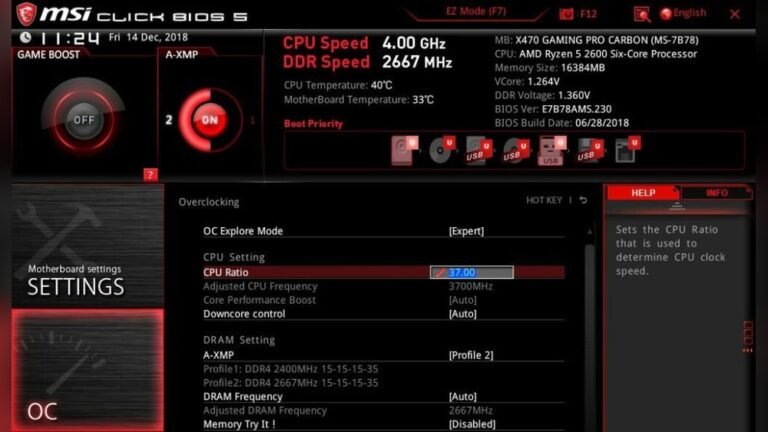
Overclocking techniques help increase your CPU’s speed beyond its default settings. This can improve your computer’s performance for tasks like gaming, video editing, or running heavy software. Overclocking requires care to avoid damage and keep your system stable.
Safe Overclocking Basics
Start by understanding your CPU’s limits. Increase the clock speed slowly, step by step. Avoid jumping to high speeds at once. Use the BIOS or UEFI settings to adjust your CPU frequency. Keep voltage changes low to reduce risk. Always save your settings before rebooting.
Use Overclocking Software
Many programs help overclock your CPU safely. These tools offer easy controls to change speed and voltage. Popular software shows real-time data on your CPU’s performance. Use the software to test different settings without entering BIOS. Some apps also provide presets for common CPU models.
Monitor Temperature And Stability
Overclocking raises CPU temperature. Watch your CPU temperature closely during tests. Use temperature monitoring apps to track heat levels. Keep temperatures below the maximum safe limit. Run stability tests to ensure the system doesn’t crash. Stop overclocking if your PC becomes unstable or too hot.

Credit: softwareg.com.au
Manage Software And Processes
Managing software and processes is key to improving CPU performance. Running many programs at once can slow your computer down. Some apps use a lot of CPU power even if you do not see them. Stopping or reducing these apps frees up CPU resources. This lets your computer work faster and smoother.
Close Unnecessary Background Apps
Many programs run in the background without your knowledge. These apps use CPU power and memory. Check your task manager to see which apps use the most resources. Close apps that you do not need at the moment. This simple step helps your CPU focus on important tasks.
Use Lightweight Alternatives
Some software uses more CPU power than others. Choose apps that use less memory and CPU. For example, use a simple text editor instead of a heavy word processor. Lightweight programs run faster and reduce CPU load. This keeps your computer responsive and quick.
Scan For Malware And Viruses
Malware and viruses can slow down your CPU. They run hidden tasks that use CPU power. Use a trusted antivirus program to scan your system regularly. Remove any threats found to protect your CPU performance. Clean systems run more efficiently and stay faster.
Hardware Upgrades
Upgrading hardware is a direct way to improve your CPU’s performance. It helps your computer run faster and handle more tasks smoothly. Simple changes inside your PC can make a big difference.
Hardware upgrades also extend the life of your computer. They keep it current with new software and programs. Below are key upgrades that boost your CPU’s power and speed.
Increase Ram Capacity
More RAM lets your CPU manage multiple tasks better. It reduces slowdowns during work or play. Adding RAM is usually easy and affordable. Check your motherboard’s max RAM before buying.
Switch To Ssd Storage
SSD drives are faster than traditional hard drives. They speed up data access and boot times. This reduces CPU waiting time. SSDs also use less power and run quietly. Installing an SSD improves overall system speed.
Upgrade To A Faster Cpu
A faster CPU handles instructions quicker. It boosts performance in heavy applications and games. Ensure your motherboard supports the new CPU. Installing a new CPU may need technical skills or help.
Regular Maintenance Tips
Regular maintenance keeps your CPU running smoothly. Small tasks done often prevent slowdowns. It helps your computer stay fast and reliable. Follow these simple tips to maintain your system’s health.
Perform Disk Cleanup
Disk Cleanup removes unnecessary files from your computer. These files take up space and slow down performance. Use built-in tools to delete temporary files and recycle bin data. This frees up storage and helps your CPU work better.
Defragment Hard Drives
Defragmenting organizes scattered data on your hard drive. It makes file access faster and reduces CPU strain. Use the defragment tool in your operating system regularly. This step is important for traditional hard drives, not SSDs.
Keep Operating System Updated
Updates fix bugs and improve system efficiency. They also enhance security and compatibility. Regularly check for updates and install them promptly. An updated OS supports better CPU performance and stability.

Credit: www.youtube.com
Frequently Asked Questions
How Can I Improve Cpu Performance Quickly?
To boost CPU performance quickly, close unnecessary apps and background processes. Update your drivers and operating system regularly. Use performance mode in your system settings for better speed.
Does Overclocking Increase Cpu Speed Safely?
Overclocking can increase CPU speed but may cause overheating. Use proper cooling solutions and monitor temperatures to avoid damage. It’s best for advanced users familiar with hardware risks.
What Software Helps Monitor Cpu Performance?
Tools like CPU-Z, HWMonitor, and Task Manager help track CPU usage and temperature. These programs identify bottlenecks and ensure your CPU runs efficiently without overheating.
Can Upgrading Hardware Boost Cpu Performance?
Upgrading to a faster CPU or adding more RAM can improve system performance. Ensure compatibility with your motherboard before upgrading to avoid issues.
Conclusion
Boosting CPU performance can improve your computer’s speed and efficiency. Simple steps like cleaning your system and closing unused programs help a lot. Keeping your software updated also supports better CPU function. Regularly checking for malware prevents slowdowns. Small changes add up to a smoother experience.
Try these tips to keep your CPU running well. Consistent care makes a big difference over time. Stay patient and keep your system healthy. Your computer will thank you with better performance every day.