How to Fix an Overheating Cpu: Easy Steps to Cool It Down Fast
Is your computer running hot and slowing down? An overheating CPU can cause serious problems, from crashes to permanent damage.
But don’t worry—you don’t need to be a tech expert to fix it. You’ll discover simple, effective steps to cool down your CPU and keep your system running smoothly. Keep reading, because solving this issue could save you time, money, and a lot of frustration.
Causes Of Cpu Overheating
CPU overheating happens when the processor gets too hot. This can cause your computer to slow down or shut off. Understanding what causes the heat helps to fix the problem quickly. Several factors can lead to a CPU running hotter than it should.
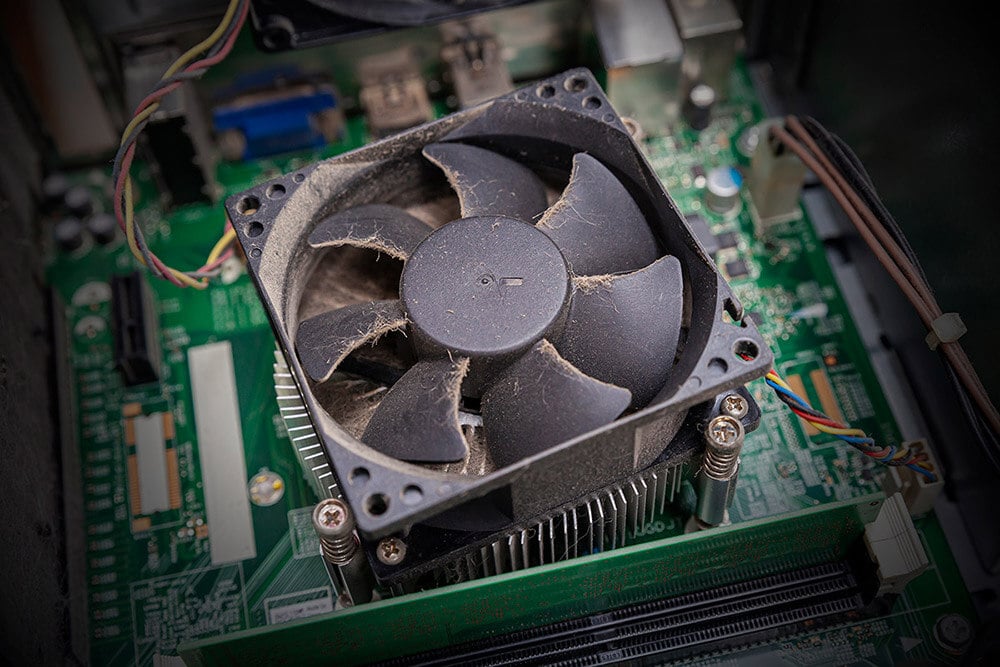
Poor Airflow And Dust Buildup
Good airflow is key to keeping your CPU cool. Dust blocks vents and fans, stopping air from moving freely. This traps heat inside the case. Over time, dust buildup makes cooling less effective. Regular cleaning helps keep airflow steady and cools the CPU.
Faulty Cooling System
The cooling system includes fans, heatsinks, and sometimes liquid coolers. If any part breaks or stops working well, heat will build up. Fans may stop spinning or run slowly. A broken cooler cannot remove heat from the CPU. This causes the temperature to rise quickly.
Excessive Overclocking
Overclocking makes the CPU run faster than normal. This creates extra heat. Without proper cooling, the CPU can overheat very fast. Overclocking needs good cooling and careful settings. Too much overclocking pushes the CPU beyond its safe limits.
Thermal Paste Issues
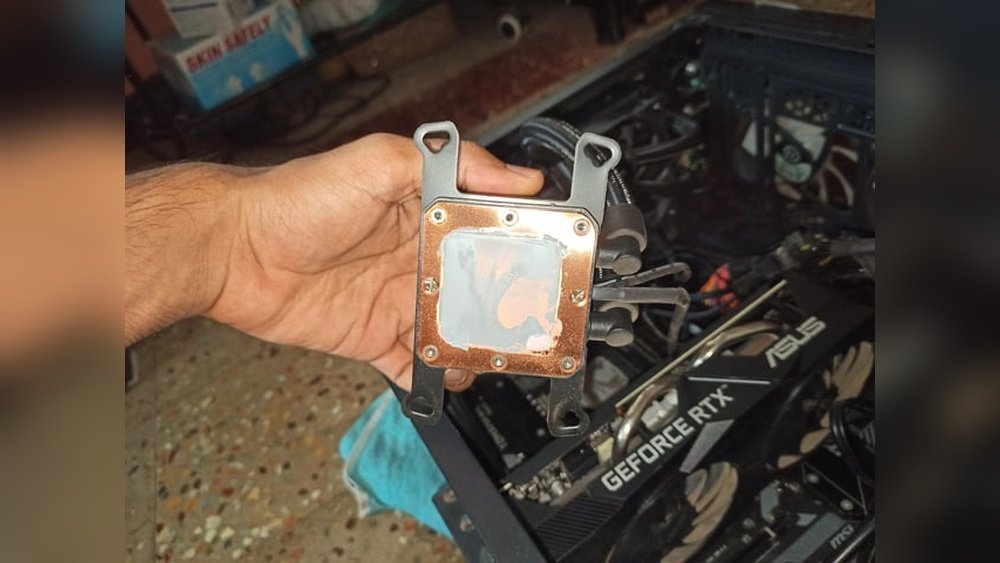
Thermal paste helps transfer heat from the CPU to the cooler. Old or dried-out paste does not work well. It creates a barrier, trapping heat in the CPU. Applying fresh thermal paste improves heat transfer. This helps keep the CPU temperature low.
Credit: www.avast.com
Identifying Overheating Symptoms
Knowing the signs of an overheating CPU helps protect your computer. Early detection stops damage and keeps your system running smoothly. Watch for unusual behavior and noises. Check temperatures to catch problems fast.
System Crashes And Freezes
Your computer may crash or freeze without warning. Overheating causes the CPU to fail under stress. Programs might close suddenly or stop responding. Frequent crashes signal a heat issue inside your PC.
Unusual Fan Noise
Fans work harder to cool a hot CPU. You may hear louder, faster spinning sounds than usual. Strange or uneven fan noises can mean overheating. The fan tries to lower temperature but struggles.
High Temperature Readings
Use software tools to check CPU temperature. Normal temps range from 30°C to 50°C at idle. Temperatures above 80°C during use are dangerous. Consistently high readings show the CPU is too hot.
Basic Cooling Solutions
Basic cooling solutions help fix an overheating CPU. These simple steps improve airflow and reduce heat. They prevent damage and boost your computer’s performance. You do not need special tools or skills. Just some care and attention.
Cleaning Dust From Fans And Vents
Dust blocks airflow and traps heat inside the case. Use a soft brush or compressed air to clean fans and vents. Turn off the computer before cleaning. Remove dust gently to avoid damage. Clean both intake and exhaust vents for better air movement.
Improving Case Ventilation
Good case ventilation helps cool the CPU faster. Arrange cables neatly to avoid blocking airflow. Add extra fans if the case allows. Place intake fans at the front and exhaust fans at the back or top. Keep the PC away from walls or tight spaces for better air circulation.
Reapplying Thermal Paste
Thermal paste helps transfer heat from the CPU to the cooler. Old or dried paste can cause overheating. Remove the CPU cooler carefully and clean the old paste with isopropyl alcohol. Apply a small pea-sized amount of new thermal paste on the CPU. Reattach the cooler firmly but gently. This improves heat transfer and lowers CPU temperature.

Credit: www.reddit.com
Advanced Cooling Techniques
Advanced cooling techniques help keep your CPU temperature low. They improve performance and extend your computer’s life. These methods go beyond basic cleaning and fan adjustments. They use better hardware and smarter setups to cool the CPU efficiently.
Upgrading Cpu Cooler
A better CPU cooler removes heat faster. Stock coolers may not handle high temperatures well. Choose coolers with bigger heatsinks or more heat pipes. High-quality fans help move heat away from the CPU. This upgrade lowers the risk of overheating during heavy use.
Installing Additional Case Fans
Extra case fans improve airflow inside your computer. Good airflow pushes hot air out and pulls cool air in. Place fans at the front for intake and at the back for exhaust. Proper fan placement creates a steady air path. This helps lower overall system temperature, including the CPU.
Using Liquid Cooling Systems
Liquid cooling uses water or coolant to absorb CPU heat. It moves heat to a radiator where fans cool it down. This method is quieter and more effective than air cooling. Liquid cooling suits high-performance CPUs and gaming PCs. It keeps temperatures low even under heavy load.
Software Tweaks To Reduce Heat
Software tweaks play a key role in lowering CPU heat. These settings help control how your CPU works and cools down. Simple changes in software can stop your CPU from getting too hot. Let’s explore some easy steps to reduce heat with software.
Adjusting Fan Speed Settings
Fans help cool your CPU by moving air. Adjusting fan speed can improve cooling. Many computers allow you to change fan speed in BIOS or with special software. Increasing fan speed helps move more air and lowers temperature. Be careful not to set fans too loud or they might wear out faster.
Monitoring Cpu Temperature
Keeping an eye on CPU temperature is important. Use free tools like HWMonitor or Core Temp to check heat levels. These tools show real-time temperature and alert you if it gets too high. Regular monitoring helps you know when to cool your CPU better. This way, you avoid damage and keep performance steady.
Reducing Overclocking Or Underclocking
Overclocking makes your CPU run faster but creates extra heat. Lowering or stopping overclocking can reduce temperature. Underclocking slows CPU speed and cuts heat further. Adjust these settings in BIOS or software provided by your CPU maker. Reducing clock speed helps keep the CPU cool and safe from overheating.

Credit: www.avira.com
Preventive Measures For Long-term Cooling
Keeping your CPU cool over time protects your computer from damage. Preventive measures help avoid overheating and improve performance. Simple habits keep your CPU running smoothly for years.
Regular Maintenance Schedule
Clean dust from fans and vents every few months. Dust blocks airflow and traps heat inside the case. Check thermal paste between the CPU and cooler. Replace it if it looks dry or cracked. Tighten loose screws on the cooler to ensure firm contact.
Optimizing Room Temperature
Keep your computer in a cool, well-ventilated room. Avoid placing it near heaters or direct sunlight. Use an air conditioner or fan to lower room temperature. Cooler air helps the CPU shed heat faster. Small changes in room temperature make a big difference.
Choosing Quality Cooling Components
Invest in a good quality CPU cooler or fan. Better coolers remove heat more efficiently and quietly. Consider liquid cooling for high-performance CPUs. Choose fans with high airflow and low noise levels. Check compatibility with your CPU and case size.
Frequently Asked Questions
What Causes A Cpu To Overheat Quickly?
A CPU overheats due to poor ventilation, dust buildup, or dried thermal paste. High workload and faulty cooling also contribute.
How Can I Check My Cpu Temperature Safely?
Use software like HWMonitor or Core Temp to monitor CPU temperature. Check temperatures regularly to avoid overheating.
What Is The Best Way To Clean Cpu Cooling Fans?
Power off and unplug your PC. Use compressed air to blow out dust from fans and vents gently.
Can Replacing Thermal Paste Reduce Cpu Overheating?
Yes, applying fresh thermal paste improves heat transfer between CPU and cooler, reducing overheating effectively.
Conclusion
Fixing an overheating CPU keeps your computer safe and fast. Clean dust from fans and vents often. Check that thermal paste is fresh and applied well. Make sure your cooling system works properly. Avoid blocking airflow around your device. Monitor temperatures regularly to catch problems early.
Small steps can prevent big damage later. Keep your computer cool, and it will last longer. Stay mindful of heat to enjoy smooth performance every day.