How to Look at Cpu Temp: Easy Steps to Monitor Your PC Safely
Are you worried your computer might be running too hot? Knowing how to look at your CPU temperature is one of the easiest ways to keep your system safe and running smoothly.
If your CPU gets too hot, it can slow down, crash, or even get damaged. But don’t worry—you don’t need to be a tech expert to check this important number. You’ll learn simple steps to monitor your CPU temperature and keep your computer in top shape.
Keep reading, and take control of your PC’s health today!
Why Cpu Temperature Matters
CPU temperature is a key factor in your computer’s health. It shows how hot the processor is while working. Monitoring this temperature helps avoid serious problems. A safe CPU temperature keeps your system running smooth and stable.
Effects Of Overheating
Overheating can cause your CPU to slow down. The processor reduces speed to cool itself. This leads to lag and poor performance. Extreme heat may shut down your computer to stop damage. Persistent high temperatures can harm CPU parts permanently.
Performance And Longevity
Keeping the CPU cool improves speed and response. A cooler processor can handle tasks better. It also helps the CPU last longer. Heat wears out the CPU over time. Proper temperature control protects your investment and keeps your system reliable.
Common Cpu Temperature Ranges
Understanding common CPU temperature ranges helps protect your computer. Each CPU works best within certain temperature limits. Knowing these ranges avoids damage and keeps performance steady. Let’s explore typical temperature zones for CPUs.
Idle Temperature Norms
Idle temperature means the CPU is running but not busy. Usually, this range is between 30°C and 45°C. Cooler CPUs at idle show good cooling and airflow. If temperatures are higher, check your cooling system or dust buildup.
Safe Operating Limits
When the CPU is in use, it heats up more. Safe operating temperatures usually stay below 70°C. Most CPUs handle this range well during normal tasks. Staying in this zone prevents overheating and system crashes. Watch your CPU temperature during heavy use.
Critical Temperature Thresholds
Temperatures above 85°C are risky for most CPUs. This level can cause throttling or automatic shutdowns. High temps may damage the CPU over time. Immediate action is needed if temps reach this zone. Improve cooling or reduce workload to protect your CPU.
Tools To Check Cpu Temperature
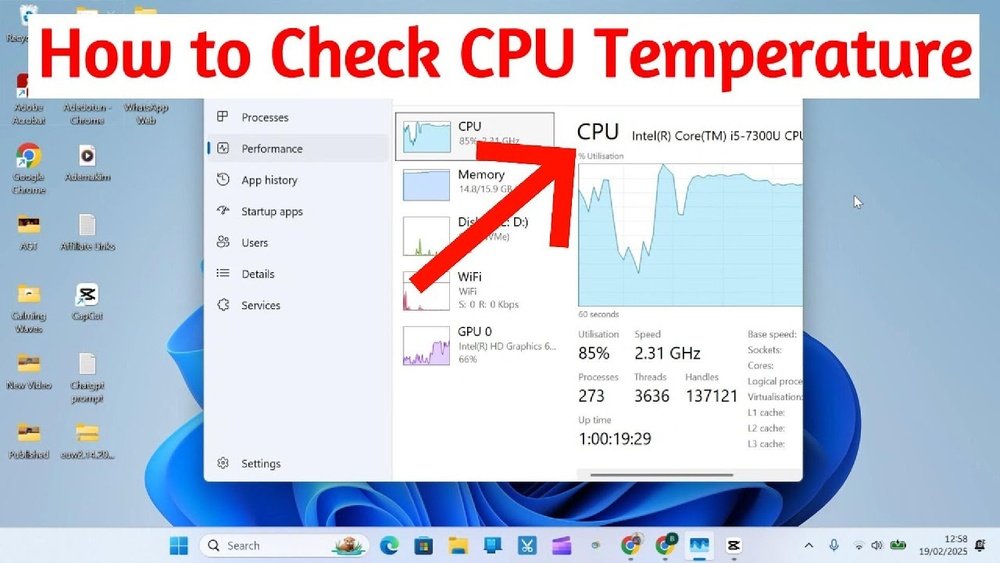
Checking your CPU temperature helps keep your computer safe. Overheating can cause slowdowns or damage. Using the right tools makes this task easy. Here are three common ways to monitor your CPU temperature.
Built-in Bios/uefi Monitoring
Most computers include temperature checks in BIOS or UEFI settings. You can access these by pressing a key during startup. This tool shows real-time CPU temperature without extra software. It is basic but reliable. No need to install anything.
Third-party Software Options
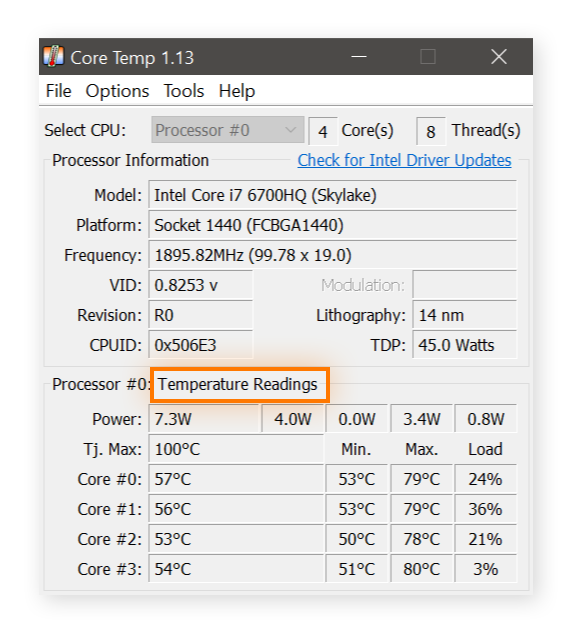
Many programs offer detailed temperature readings and alerts. Some popular ones are HWMonitor, Core Temp, and SpeedFan. These apps run inside Windows and show temperature trends. They also monitor other parts like GPU and fans. Easy to use with clear displays.
Using Hardware Monitoring Devices
External hardware sensors connect to your motherboard or CPU. These devices provide accurate temperature data. Some include small screens or connect to your phone. Useful for advanced users or custom PC builders. Helps track temperature even outside the operating system.

Credit: softwareg.com.au
Step-by-step Temperature Monitoring
Monitoring your CPU temperature helps keep your computer safe. It shows if your CPU runs too hot. You can catch problems early by checking temperatures regularly. Follow these clear steps to check your CPU temperature easily.
Accessing Bios/uefi Temperature Readings
Turn off your computer. Press the key to enter BIOS or UEFI when it starts. Common keys are F2, Delete, or Esc. Look for a section named “Hardware Monitor” or “PC Health.” You will see the CPU temperature displayed there. This method shows real-time temperature without any software.
Installing And Using Software Tools
Download a trusted CPU temperature tool like HWMonitor or Core Temp. Install the program by following the instructions. Open the software after installation. The tool shows your CPU temperature in degrees Celsius or Fahrenheit. You can check temperatures while the computer runs normally. Some tools update temperature readings every few seconds.
Interpreting Temperature Data
Normal CPU temperatures usually range from 30°C to 50°C at idle. Temperatures above 70°C under load may indicate overheating. Consistent temperatures above 80°C can cause damage over time. Watch for sudden spikes or rapid changes in temperature. High temperatures may require cleaning fans or improving airflow.
Tips To Keep Cpu Temperature Low
High CPU temperature can slow down your computer and cause damage. Keeping it cool helps your PC run faster and last longer. Follow these simple tips to lower the temperature and protect your CPU from overheating.
Improving Airflow And Cooling
Good airflow moves hot air out and brings cool air in. Place your computer in a spot with enough space around it. Use extra fans or upgrade to a better CPU cooler if needed. Make sure all fans run smoothly and are not blocked.
Cleaning Dust And Debris
Dust blocks airflow and makes your CPU hotter. Turn off your PC and open the case carefully. Use a soft brush or compressed air to clean dust from fans, vents, and components. Clean your computer regularly to keep it cool.
Applying Thermal Paste Properly
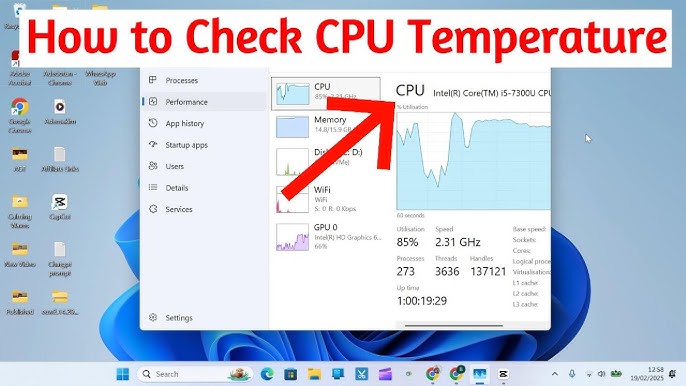
Thermal paste helps heat move from the CPU to the cooler. Old or badly applied paste lowers cooling performance. Remove old paste with alcohol and apply a small, even layer of fresh paste. Proper application improves heat transfer and lowers CPU temperature.
Credit: www.youtube.com
When To Seek Professional Help
Knowing when to ask for professional help is key to protecting your computer. Some temperature problems need expert care. Ignoring these signs can cause serious damage. Understanding these moments helps keep your CPU safe and running well.
Persistent Overheating Issues
If your CPU keeps getting very hot, it is a warning. Regularly high temperatures can mean a bigger problem inside. Simple fixes like cleaning dust or changing thermal paste may not work. Constant overheating can harm your CPU and shorten its life. A technician can find hidden faults and fix them right.
Hardware Replacement Considerations
Sometimes parts inside your computer wear out or break. Old or damaged cooling fans and heat sinks may not cool your CPU well. Professional help is needed to choose and install the right replacements. Using the wrong parts can cause more heat or damage. Experts ensure your CPU stays cool and your system works smoothly.
Credit: www.avast.com
Frequently Asked Questions
How Do I Check My Cpu Temperature?
You can check CPU temperature using software like HWMonitor or Core Temp. These tools display real-time temperature readings easily.
What Is A Safe Cpu Temperature Range?
A safe CPU temperature usually ranges between 30°C and 70°C during normal use. Temperatures above 80°C may cause damage.
Why Is Monitoring Cpu Temperature Important?
Monitoring CPU temperature prevents overheating, which can reduce performance and damage your processor. It helps maintain system stability.
Can High Cpu Temperature Damage My Computer?
Yes, prolonged high CPU temperature can cause hardware failure and shorten your computer’s lifespan. Cooling solutions are essential.
Conclusion
Checking your CPU temperature helps keep your computer safe. High temperatures can cause damage or slow down your device. Use simple tools to watch the temperature often. Keep your PC clean and cool for better performance. Regular checks can prevent problems before they start.
Stay aware of your CPU’s heat to ensure smooth use. Small steps make a big difference in computer health.