How to Stop Overclocking Cpu: Easy Steps to Protect Your PC
Are you worried that your CPU might be pushed too hard? Overclocking your processor can boost performance, but it can also cause overheating, crashes, and even permanent damage if not managed properly.
If you’ve been pushing your CPU beyond its limits and want to stop before it’s too late, this guide is for you. You’ll learn simple, effective steps to safely dial back your CPU’s speed and protect your computer. Keep reading to take control of your system and avoid costly problems down the line.

Credit: softwareg.com.au
Risks Of Overclocking
Overclocking a CPU pushes the processor to run faster than its original speed. This might seem like a quick way to boost performance. Yet, it comes with real risks. These risks can affect your computer’s health and your overall experience. Understanding them helps you make safer choices about overclocking.
Impact On Cpu Lifespan
Overclocking increases the stress on your CPU. It forces the processor to work harder than designed. This extra strain can shorten the CPU’s life. The constant high speed causes wear and tear inside the chip. Over time, this damage can lead to permanent failure.
System Stability Issues
Overclocked CPUs often cause system crashes and freezes. The processor may not handle the higher speed well. This leads to errors and data loss. Your computer might restart without warning. These stability problems disrupt work and cause frustration.
Overheating Concerns
Running a CPU faster produces more heat. Overclocking raises the temperature beyond safe levels. Without proper cooling, the CPU can overheat quickly. Overheating may cause your system to shut down to protect itself. Long-term heat damage can harm other parts too.
Signs To Stop Overclocking
Overclocking a CPU can boost your computer’s speed. But it also brings risks that can harm your system. Watch for warning signs that tell you to stop overclocking. Recognizing these signs early keeps your computer safe and stable.
Frequent Crashes And Freezes
Sudden crashes or freezes are clear signals of trouble. Overclocking pushes your CPU beyond its limits. This strain can cause your system to shut down unexpectedly. If crashes happen more often, reduce or stop overclocking to protect your hardware.
Unusual Temperature Spikes
High temperatures damage your CPU quickly. Overclocking raises heat output. Check your CPU temperature regularly. If it spikes above safe levels, stop overclocking immediately. Use cooling solutions to manage heat but do not ignore persistent spikes.
Performance Drops
Overclocking aims to increase speed, not reduce it. Noticeable slowdowns or lag show instability. When performance drops, your CPU may be overheating or unstable. Stop overclocking to prevent further damage and restore normal operation.
Accessing Bios Settings
Accessing BIOS settings is the first step to stop overclocking your CPU. BIOS controls your computer’s hardware at a low level. It lets you change CPU speed and voltage settings. To stop overclocking, you need to enter BIOS and reset these changes.
This process is simple but needs careful attention. Small mistakes can affect your system’s stability. Follow the steps below to enter BIOS and find the overclocking options.
Entering Bios On Boot
Turn off your computer. Press the power button to start it again. Watch the screen closely.
Press the BIOS key quickly. Common keys include Delete, F2, or Esc. The right key depends on your computer brand.
Press the key repeatedly until the BIOS screen appears. This screen looks different from your normal desktop.
If the computer boots to the operating system, restart and try again. Timing is important.
Navigating Overclocking Menus
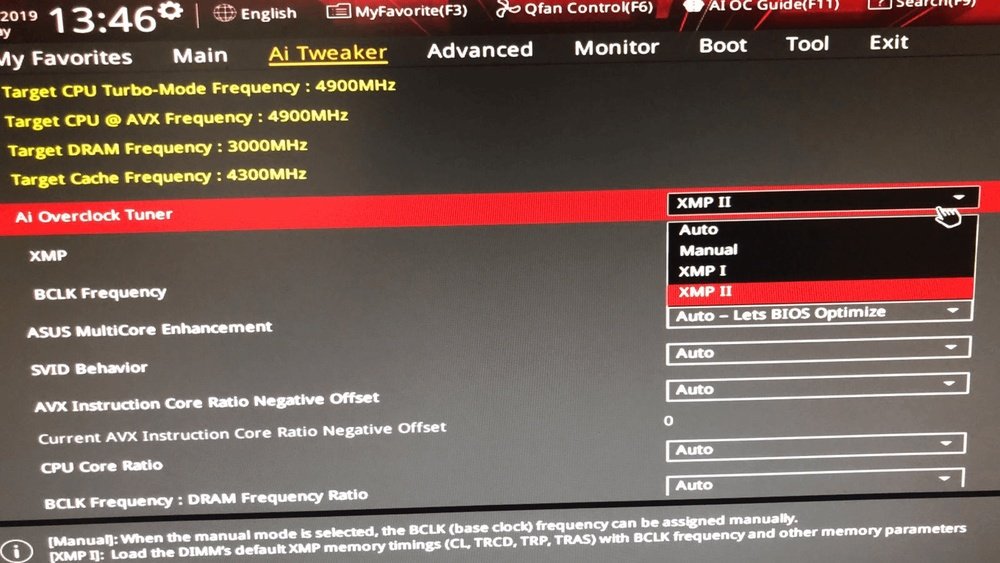
Inside BIOS, use arrow keys to move through menus. Look for labels like “Overclocking,” “OC,” or “CPU Settings.”
Open the overclocking menu. Here, you find CPU speed and voltage settings.
Look for options like “CPU Ratio,” “Multiplier,” or “CPU Frequency.” These control the CPU speed.
Set these values back to “Auto” or default numbers. This stops the CPU from running faster than normal.
Save your changes before exiting BIOS. Usually, press F10 and confirm to save and restart.

Credit: superuser.com
Disabling Cpu Overclock
Disabling CPU overclock is essential to keep your computer stable and cool. Overclocking pushes the CPU beyond its standard limits. This can cause crashes, heat issues, or hardware damage. Stopping overclocking helps protect your system and improve reliability. The process mainly involves changes in the BIOS settings. Here is how to do it step by step.
Resetting To Default Clock Speeds
Start by entering your BIOS or UEFI settings. Look for the CPU clock or frequency section. Select the option to reset or load default settings. This will restore the CPU speed to the manufacturer’s original rate. Avoid manually changing clock speeds unless you know what you are doing. Saving these changes will stop the CPU from running faster than it should.
Turning Off Xmp Profiles
XMP profiles adjust your RAM speed and can indirectly affect CPU performance. Find the XMP setting in the BIOS memory or overclocking menu. Disable or turn off the XMP profile. This prevents your RAM from running at higher speeds that support overclocking. Disabling XMP helps ensure all components run at standard speeds.
Saving And Exiting Bios
After making the changes, save your BIOS settings. Choose the option to save and exit, usually found at the bottom or in the exit menu. Your computer will restart with the default CPU settings. Check your system stability and temperatures after reboot. This confirms the overclock has been successfully disabled.
Using Software Tools
Using software tools is one of the easiest ways to stop CPU overclocking. These tools help you change settings without opening your computer case or BIOS. You can reset your CPU speed and monitor its performance with simple programs. This method is safe and fast, especially for beginners.
Resetting Through Manufacturer Software
Many CPU makers offer software to control your processor. These apps allow you to reset the clock speed to default with just a few clicks. Look for software from brands like Intel or AMD. They provide user-friendly interfaces to undo overclocking safely. Resetting your CPU speed using this software prevents damage and keeps your system stable.
Monitoring Cpu Performance
After resetting, you need to check your CPU’s performance. Use monitoring tools to track temperature and speed in real-time. Programs like HWMonitor or Core Temp show if your CPU runs at normal levels. Watching these stats helps you avoid overheating or crashes. Regular checks ensure your CPU stays within safe limits.
Cooling And Maintenance Tips
Keeping your CPU cool is key to stopping overclocking safely. Good cooling and regular maintenance help your computer run smoothly. They prevent overheating and extend your CPU’s life.
This section shares simple tips to improve cooling and maintain your PC. Small changes make a big difference.
Improving Airflow
Airflow moves hot air out and brings cool air in. Use case fans to create a steady air path. Place intake fans at the front and exhaust fans at the back. Avoid blocking vents with cables or objects. Keep your PC in a cool, open space.
Cleaning Dust From Components
Dust blocks airflow and traps heat. Turn off and unplug your PC before cleaning. Use compressed air to blow dust from fans, heatsinks, and vents. Clean inside your case every few months. Dust buildup can cause your CPU to overheat quickly.
Replacing Thermal Paste
Thermal paste helps heat move from the CPU to the cooler. Old paste dries out and stops working well. Remove the CPU cooler carefully to access the paste. Clean old paste with isopropyl alcohol and a soft cloth. Apply a small, pea-sized amount of new thermal paste. Reattach the cooler firmly but gently.
Preventing Future Overclocking
Stopping overclocking is not just about turning settings off once. It also means making changes to avoid accidental overclocking later. This section explains simple steps to keep your CPU running at safe speeds.
Disabling Overclocking Profiles
Many motherboards have overclocking profiles saved in BIOS. These profiles automatically change CPU settings. Delete or disable these profiles to stop the system from using them again. This stops the CPU from running faster than it should.
Updating Bios Firmware
BIOS updates often fix bugs and improve system stability. Some updates add better control over CPU settings. Updating BIOS can remove old overclocking options or add warnings. This helps keep your computer safe from accidental overclocking.
Setting System Alerts
Some software and BIOS allow alerts for CPU speed changes. Set alerts to notify you if the CPU speed goes above normal. This helps catch overclocking quickly. Early warnings prevent damage and keep the system stable.

Credit: www.youtube.com
Frequently Asked Questions
How Do I Safely Stop Cpu Overclocking?
To safely stop CPU overclocking, enter your BIOS settings during boot. Reset all CPU frequency and voltage settings to default. Save changes and restart your computer. This prevents hardware damage and ensures system stability.
Can I Stop Overclocking Without Bios Access?
Yes, you can stop overclocking by restoring default power plans in your operating system. Use system utilities like Windows’ “Restore default settings” option to reset CPU behavior. However, BIOS reset is more effective for complete overclock removal.
What Happens If I Stop Cpu Overclocking Suddenly?
Stopping CPU overclocking suddenly reverts your processor to factory settings. This reduces heat and power consumption. It improves system stability and may extend CPU lifespan. Performance will return to standard levels without overclock gains.
Will Stopping Cpu Overclocking Improve System Stability?
Yes, stopping CPU overclocking can improve system stability. Overclocking may cause crashes or freezes if settings are too aggressive. Resetting to default ensures the CPU runs within tested limits, reducing errors and improving reliability.
Conclusion
Stopping CPU overclocking protects your computer’s health and speed. It lowers heat and stops crashes. You keep your system stable and safe. Check settings carefully to avoid damage. Simple steps can save you from big problems. Take control of your PC’s performance today.
A balanced computer runs longer and works better. Don’t ignore warning signs from your CPU. Your system will thank you with smooth operation. Safe use is always the best choice.