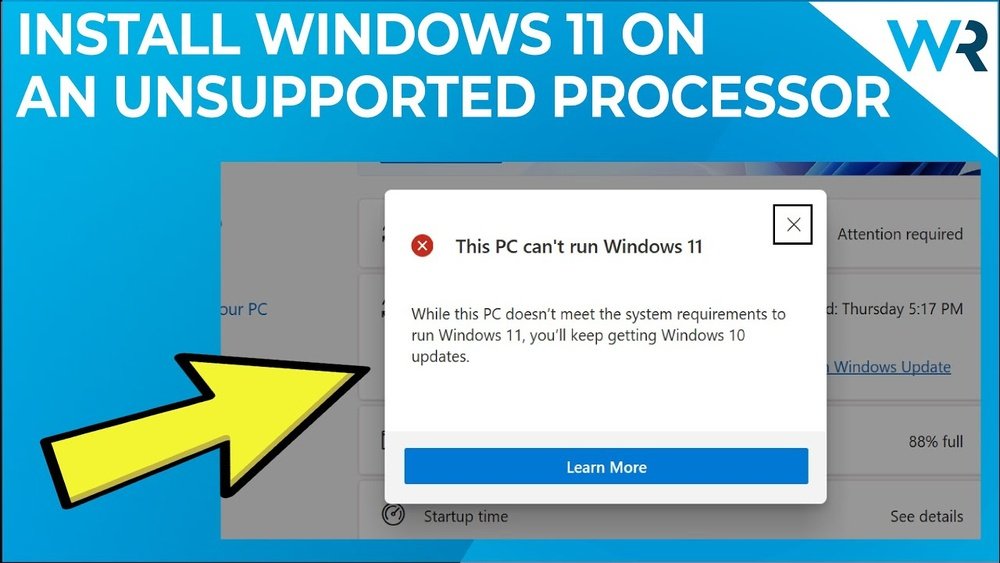
How to Install Windows 11 on Unsupported Cpu: Easy Step-by-Step Guide
Are you eager to upgrade to Windows 11 but worried your CPU isn’t supported? You’re not alone.
Many users face this roadblock and feel stuck with older versions of Windows. What if you could bypass those restrictions and enjoy the latest features without buying new hardware? In this guide, you’ll discover simple, step-by-step methods to install Windows 11 on an unsupported CPU.
By the end, you’ll have the confidence to take control of your PC and unlock its full potential. Keep reading—your Windows 11 upgrade is closer than you think.

Credit: blog.mrkeyshop.com
Check Windows 11 Compatibility
Before installing Windows 11 on an unsupported CPU, checking compatibility is key. This step helps avoid installation problems and poor performance. You need to know what your PC requires and if your CPU fits those needs. Understanding these details saves time and effort during setup.
Check the hardware carefully. Windows 11 has specific rules for CPU and other parts. Knowing these rules guides you on how to proceed with your installation.
Minimum Requirements For Windows 11
Windows 11 needs a 1 GHz or faster CPU with two or more cores. The processor must be 64-bit compatible. RAM should be at least 4 GB, and storage needs a minimum of 64 GB. Your system also requires UEFI firmware with Secure Boot capability. TPM version 2.0 is mandatory for security features. A DirectX 12 compatible graphics card is necessary for proper display. These are the basics for running Windows 11 smoothly.
Identify Unsupported Cpus
Unsupported CPUs do not meet the minimum standards set by Microsoft. Older processors, like Intel 7th generation or AMD Ryzen 1000 series and below, often fall outside the supported list. Check your CPU model against Microsoft’s official compatibility list. You can find this in the PC Health Check app or online. Knowing if your CPU is unsupported helps plan the installation steps clearly.
Prepare Your Pc
Preparing your PC is the first step to install Windows 11 on an unsupported CPU. This ensures a smooth and safe installation process. Taking the right precautions helps avoid data loss and errors. Follow these key steps carefully to get your PC ready.
Backup Important Data
Save all your important files before starting the installation. Copy documents, photos, and videos to an external drive or cloud storage. This protects your data if anything goes wrong. A full backup gives peace of mind during changes.
Create Windows 11 Installation Media
Download the official Windows 11 ISO file from Microsoft’s website. Use a USB drive with at least 8 GB space. Tools like Rufus or the Media Creation Tool can help create bootable media. This USB will install Windows 11 on your PC. Make sure the USB is ready before you start.
Modify Windows 11 Installation Files
Modifying the Windows 11 installation files lets you bypass CPU restrictions. This method helps install Windows 11 on unsupported processors. You can change specific settings inside the installation files to skip the CPU check. This step is crucial for users with older hardware.
There are two main ways to modify the files. One is by editing the Windows registry during setup. The other uses third-party tools designed to adjust compatibility checks. Both methods are straightforward and effective for bypassing CPU limits.
Bypass Cpu Check Using Registry Edits
This method involves changing registry values while installing Windows 11. You start the setup and open the command prompt by pressing Shift + F10. Then, launch the Registry Editor by typing regedit.
Inside the registry editor, navigate to HKEY_LOCAL_MACHINESYSTEMSetupMoSetup. Create a new DWORD value named AllowUpgradesWithUnsupportedTPMOrCPU. Set its value to 1. This change tells Windows to ignore CPU compatibility checks during installation.
Close the editor and command prompt. Continue with the installation. Windows will now bypass the CPU check and proceed as usual.
Use Third-party Tools For Compatibility
Several tools help modify Windows 11 installation files automatically. These tools patch the installation media to skip CPU and TPM checks. They simplify the process by handling all necessary edits.
Download a trusted compatibility tool. Run it and select your Windows 11 ISO file. The tool will create a new, modified ISO ready for installation on unsupported CPUs.
Use this modified ISO to install Windows 11. The setup will ignore CPU restrictions and complete successfully.
Install Windows 11 On Unsupported Cpu
Installing Windows 11 on an unsupported CPU is possible with some careful steps. This guide helps you bypass restrictions and get Windows 11 running on your PC. Follow the instructions below to complete the process smoothly and safely.
Boot From Installation Media
Create a Windows 11 installation USB drive using the Media Creation Tool. Insert the USB drive into your PC and restart it. Access the boot menu by pressing the correct key during startup. Select the USB drive to boot from the installation media. This step loads the Windows 11 setup environment.
Perform Custom Installation
In the Windows setup screen, choose “Custom: Install Windows only.” This option lets you install a fresh copy of Windows 11. Delete existing partitions if needed, or select the partition for installation. Ignore any CPU compatibility warnings by editing the registry or using patched installation files. The setup will continue without blocking unsupported CPUs.
Complete Setup Process
After copying files, the system restarts automatically. Follow on-screen instructions to set up your preferences. Create a user account and configure settings like language and privacy. The process finalizes the installation. Your PC now runs Windows 11 despite an unsupported CPU.
Troubleshoot Common Issues
Troubleshooting is key to installing Windows 11 on an unsupported CPU. Problems may appear during installation or after setup. Knowing how to solve these issues helps you finish the process smoothly.
Many errors come from compatibility problems or missing files. Fixing these quickly saves time and avoids frustration. Below are common issues and easy ways to fix them.
Fix Installation Errors
Installation errors often happen due to missing system files or wrong settings. Check your BIOS settings first. Enable Secure Boot and TPM if your motherboard supports them. These settings help Windows 11 install correctly.
Use the official Microsoft media creation tool to create your installation USB. This reduces corrupted files. If errors persist, try running the installation in Safe Mode. Safe Mode limits background processes that may cause conflicts.
Clear space on your hard drive. Windows 11 needs enough free space to install. Delete unnecessary files or move them to an external drive. This prevents storage-related errors.
Resolve Driver Compatibility Problems
Unsupported CPUs may lack drivers for Windows 11. This causes devices to stop working. Start by updating all drivers from your PC manufacturer’s website. Download the latest versions made for Windows 10 or 11.
Use Device Manager to identify any missing drivers. Look for yellow warning signs. Search online for compatible drivers if Windows cannot find them automatically.
Sometimes, older drivers work better. Roll back to previous versions if new drivers cause problems. Avoid installing drivers from unknown sources. They may harm your system or cause crashes.

Credit: www.theverge.com
Post-installation Tips
After installing Windows 11 on an unsupported CPU, some steps improve your experience. These tips help keep your system safe and running smoothly. They also fix common issues that may appear after installation.
Enable Windows Updates
Windows Updates bring important security patches and bug fixes. Enabling updates protects your PC from new threats. Go to Settings, then Update & Security, and click Check for updates. Even on unsupported CPUs, some updates still work. Keep your system updated to avoid errors and crashes. Updates can improve hardware compatibility and add new features. Check updates regularly to keep your system fresh and secure.
Optimize System Performance
Unsupported CPUs may slow down your system. Turn off unnecessary startup programs to save memory and CPU power. Open Task Manager and disable apps you don’t need at startup. Adjust visual effects for better speed. Go to System Properties, then Advanced, and select Settings under Performance. Choose “Adjust for best performance” or custom options. Clean your disk using the built-in Disk Cleanup tool. Remove temporary files to free space. This helps Windows run faster and smoother on older CPUs.

Credit: www.theverge.com
Frequently Asked Questions
Can I Install Windows 11 On An Unsupported Cpu?
Yes, you can install Windows 11 on unsupported CPUs using specific workarounds. These include modifying registry settings or using third-party tools to bypass hardware checks during installation.
What Are The Risks Of Installing Windows 11 On Unsupported Cpus?
Installing Windows 11 on unsupported CPUs may cause stability issues, limited updates, and security risks. Microsoft may block updates, affecting system performance and security.
How To Bypass Cpu Compatibility Check For Windows 11?
You can bypass CPU checks by editing the Windows Registry or using installation media with modified files. This allows installation despite hardware restrictions.
Will Windows 11 Run Smoothly On Unsupported Processors?
Performance varies; some unsupported CPUs run Windows 11 smoothly, while others may face lag or crashes. Compatibility depends on hardware capabilities and drivers.
Conclusion
Installing Windows 11 on an unsupported CPU is doable with care. Follow the steps closely to avoid errors. Remember, some features might not work perfectly. Keep backups before starting to protect your data. This method helps extend your PC’s life without buying new hardware.
Stay patient and take your time during installation. Enjoy exploring Windows 11 on your machine safely and confidently.