How to Get Cpu Temp: Easy Tips to Monitor Your PC’s Health
Are you curious about how hot your computer’s brain is running right now? Knowing your CPU temperature is key to keeping your system safe and performing at its best.
If your CPU gets too hot, it can slow down, crash, or even get damaged. But don’t worry—checking your CPU temp is easier than you think. You’ll discover simple and effective ways to monitor your CPU temperature, so you can avoid costly problems and keep your computer running smoothly.
Keep reading to find out how to get your CPU temp quickly and easily.

Credit: www.alcpu.com
Why Monitor Cpu Temperature
Monitoring your CPU temperature is very important. It helps keep your computer running smoothly. Knowing the temperature stops small problems from becoming big ones. It also saves you money by protecting your computer parts.
Impact On Performance
High CPU temperature can slow down your computer. The CPU lowers its speed to cool down. This makes programs run slower and tasks take longer. Keeping the CPU cool means your computer works faster. It helps you finish work without delays.
Preventing Overheating
Overheating can cause your computer to shut down suddenly. It can also damage important parts inside. Watching the CPU temperature helps you catch heat problems early. You can fix cooling issues before they cause harm. This keeps your computer safe and stable.
Extending Hardware Life
Heat wears out computer parts quickly. A hot CPU breaks down faster than a cool one. By controlling temperature, you protect your investment. Your CPU and other parts last longer. This means fewer repairs and less spending on new parts.
Signs Of High Cpu Temperature
High CPU temperature can cause many problems in your computer. It affects performance and can damage parts. Watch for signs that show your CPU is too hot. These signs help you fix issues before serious damage.
System Slowdowns
Your computer may run very slowly. Programs take longer to open. Tasks that were fast become frustrating. Heat forces the CPU to reduce speed to cool down. This limits how much work it can do.
Unexpected Shutdowns
The computer may turn off without warning. This protects the CPU from overheating damage. Sudden shutdowns mean the temperature is dangerously high. Avoid losing work by checking the CPU temperature often.
Loud Fan Noise
Fans spin faster to cool the CPU. You hear loud and constant noise from the computer. This noise shows the system is trying to lower temperature. Persistent loud fans need your attention to prevent overheating.
Built-in Tools To Check Cpu Temp
Checking your CPU temperature is important to keep your computer safe. High temperatures can cause damage or slow down your device. Many computers have built-in tools to help you see the CPU temperature. These tools are easy to use and do not need extra software. Below are some common options for different systems.
Bios/uefi Monitoring
The BIOS or UEFI is the firmware that starts your computer. It often shows the CPU temperature in its hardware monitor section. You can access BIOS/UEFI by pressing a key like F2 or Delete during startup. Look for a menu named Hardware Monitor or PC Health. This method shows real-time temperature before the operating system loads. It’s simple and reliable but not very detailed.
Windows Task Manager
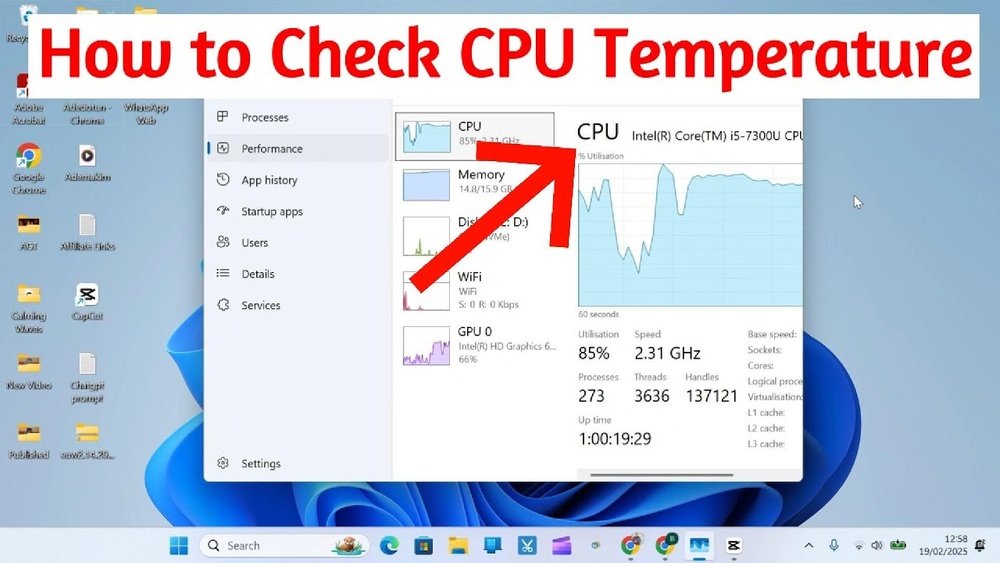
Windows Task Manager is a tool to check system performance. In the latest Windows versions, it can show some temperature info, but not always for CPU. You can open it by pressing Ctrl + Shift + Esc. Click on the Performance tab and select CPU. For full temperature details, use other tools. Still, Task Manager helps monitor CPU load and speed easily.
Mac Activity Monitor
Mac Activity Monitor shows how your system uses resources. It does not display CPU temperature directly. You can open it from Applications > Utilities. Check CPU and Memory tabs for usage stats. For temperature, you need third-party apps on Mac. Activity Monitor helps understand CPU work but not heat levels.

Credit: softwareg.com.au
Popular Third-party Software
Many users want to monitor their CPU temperature to avoid overheating. Several third-party software options provide easy ways to check CPU temps. These tools work well on most Windows PCs and offer clear temperature readings.
These programs also show other important hardware information. They help keep your computer safe and running smoothly. Here are some popular third-party apps to check CPU temperature.
Core Temp
Core Temp shows real-time CPU temperature for each core. It supports many processor models and brands. The program is lightweight and simple to use. It also logs temperature data for later review. Users can customize alerts for high temperatures. Core Temp runs quietly in the system tray.
Hwmonitor
HWMonitor tracks CPU temperature along with voltages and fan speeds. It displays detailed sensor information from various hardware parts. The interface is easy to read and understand. HWMonitor works with most CPUs and motherboards. It helps spot overheating and power issues fast.
Speedfan
SpeedFan monitors CPU temperature and controls fan speeds. It allows users to adjust cooling to reduce noise. The software also shows voltages and hard drive temperatures. SpeedFan is useful for both beginners and advanced users. It provides real-time data to prevent overheating problems.
Using Command Line To Get Cpu Temp
Using the command line to check your CPU temperature is fast and effective. It lets you see real-time data without extra software. This method works well for users who like simple, direct tools. Command line tools are built into most systems or easy to install.
Below are easy ways to get CPU temperature using command line on Windows, Linux, and Mac.
Windows Powershell Commands
Windows does not have a built-in tool for CPU temperature in PowerShell. You can use third-party modules like “Open Hardware Monitor” with PowerShell scripts. First, download and run Open Hardware Monitor. Then, use PowerShell to get temperature data from it.
Example command:
Get-WmiObject MSAcpi_ThermalZoneTemperature -Namespace "root/wmi"This shows CPU temperature in tenths of Kelvin. Convert to Celsius by subtracting 2732 and dividing by 10.
Linux Terminal Tools
Linux has many tools for CPU temperature in the terminal. The most common is “lm-sensors.” Install it using your package manager, like apt or yum.
Run the command:
sudo sensorsThis shows detailed temperature info for your CPU and other components. Another tool is “hddtemp” for hard drive temperature.
Mac Terminal Options
Mac does not provide CPU temperature by default in Terminal. Use third-party tools like “osx-cpu-temp.” Install it with Homebrew using:
brew install osx-cpu-tempThen run:
osx-cpu-tempThis command shows the current CPU temperature in Celsius.

Credit: softwareg.com.au
Tips To Lower Cpu Temperature
Keeping your CPU temperature low helps your computer run smoothly. High temperatures can cause slowdowns and damage parts. Follow these tips to keep your CPU cool and safe. Simple steps can make a big difference.
Improving Airflow
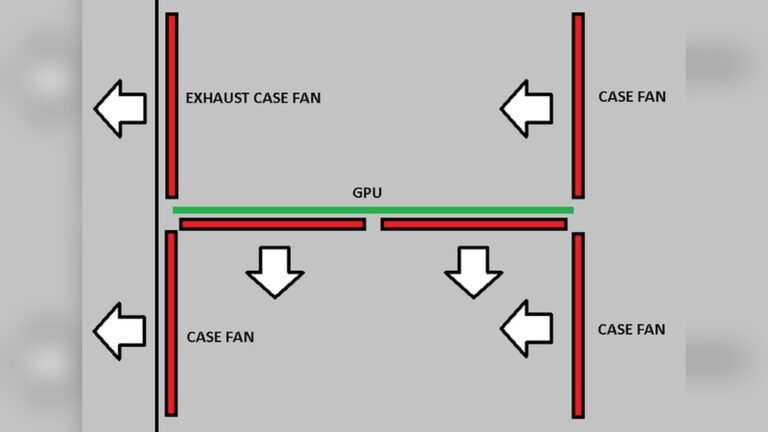
Good airflow moves hot air away from the CPU fast. Make sure your computer case has enough fans. Place fans to pull cool air in and push hot air out. Avoid blocking vents with cables or objects. Open spaces inside the case help air move freely.
Cleaning Dust And Debris
Dust blocks airflow and traps heat. Clean your computer regularly to remove dust from fans and vents. Use a soft brush or compressed air to clear dirt. Turn off and unplug your device before cleaning. Keeping parts clean keeps them cool and working well.
Applying Thermal Paste
Thermal paste helps heat move from the CPU to the cooler. Old or dry paste loses its ability to transfer heat. Remove the old paste carefully with alcohol and a soft cloth. Apply a new, thin layer of thermal paste evenly on the CPU. This improves cooling and lowers temperature quickly.
When To Seek Professional Help
Knowing your CPU temperature helps keep your computer safe. Sometimes, the heat is too much to handle alone. Some problems need a professional’s touch. They have the tools and skill to fix complex issues. Here are signs that it’s time to ask for help.
Persistent High Temps
High CPU temperatures that do not drop need attention. This can mean your cooling system is failing. Constant heat can damage your CPU and other parts. A professional can find hidden problems causing the heat. They will help keep your computer running smoothly.
Hardware Failures
Unusual noises or crashes may point to broken parts. Faulty fans or thermal sensors cause temperature spikes. These issues require expert checks and repairs. Trying to fix hardware without knowledge can cause more damage. A technician can replace or repair parts safely.
Upgrading Cooling Systems
Sometimes, your computer needs better cooling. Upgrading fans or adding liquid cooling improves temperature control. Professionals know the best options for your setup. They install new parts correctly to avoid leaks or damage. This helps your CPU stay cool under heavy use.
Frequently Asked Questions
How Can I Check My Cpu Temperature On Windows?
You can check CPU temperature using software like HWMonitor or Core Temp. These tools display real-time temps easily and accurately. Some motherboards also provide temperature info in BIOS settings. Monitoring helps prevent overheating and ensures optimal performance.
What Is A Safe Cpu Temperature Range?
A safe CPU temperature typically ranges between 30°C and 70°C during normal use. Temperatures above 80°C may cause damage or throttling. Always keep your CPU cool to maintain system stability and extend hardware lifespan. Use cooling solutions if temps rise too high.
Can Bios Show Cpu Temperature?
Yes, most modern BIOS versions display CPU temperature in hardware monitoring sections. You can access BIOS by pressing a key like F2 or DEL during startup. This method helps check temps without third-party software, especially if your system is unstable or unbootable.
Why Is My Cpu Temperature Suddenly High?
High CPU temperature can result from dust buildup, poor ventilation, or failing fans. Overclocking or heavy workloads also raise temps. Ensure your cooling system works well and clean dust regularly. Addressing these issues prevents overheating and potential hardware damage.
Conclusion
Monitoring your CPU temperature helps keep your computer safe. You can use simple tools to check it anytime. Watching the temperature stops your device from overheating. It also helps your computer run smoothly. Knowing how to get CPU temp is useful for everyone.
Try checking it regularly to avoid problems. Stay aware and protect your hardware well.