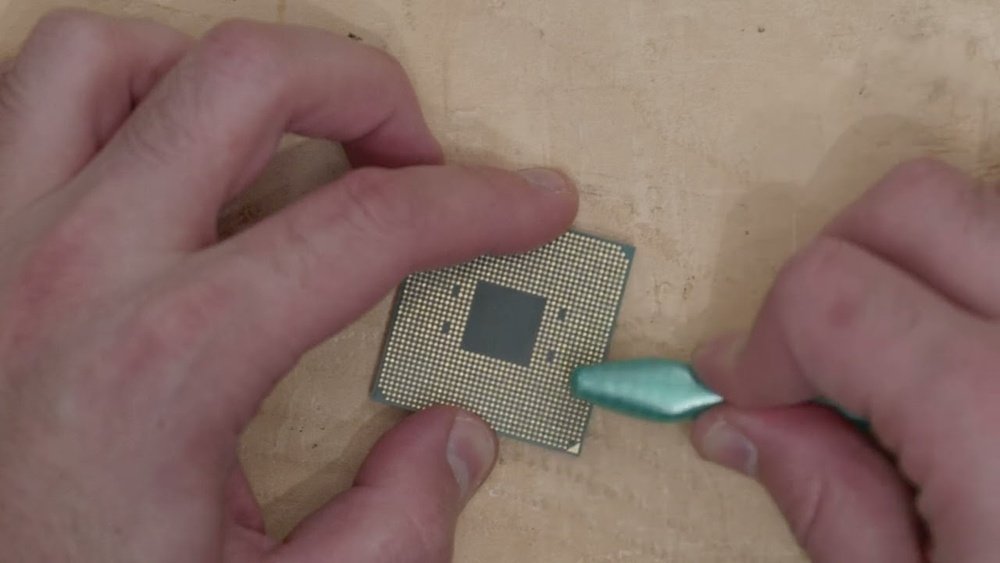
How to Clean Cpu Pins: Easy Steps for Safe and Effective Cleaning
If you’ve ever opened your computer to upgrade or fix it, you know how delicate your CPU pins are. These tiny pins play a crucial role in making sure your CPU connects perfectly to your motherboard.
But what happens when they get dirty or bent? Your computer might not work properly, or worse, it could stop working altogether. You might feel nervous about cleaning them because they look so fragile. Don’t worry—this guide will show you simple, safe steps to clean your CPU pins without causing damage.
Keep reading, and you’ll learn how to protect your investment and keep your PC running smoothly.
Credit: www.reddit.com
Tools Needed
Cleaning CPU pins requires careful handling and the right tools. Using proper supplies protects the pins from damage and ensures a good connection. Preparing these tools before starting saves time and effort.
Essential Cleaning Supplies
A soft-bristle brush helps remove dust and dirt gently. Isopropyl alcohol with at least 90% purity cleans without leaving moisture. A lint-free cloth or microfiber cloth wipes away residues safely. Compressed air cans blow out tiny particles from hard-to-reach spots. Tweezers assist in handling small debris carefully without bending pins.
Optional Accessories
A magnifying glass or jeweler’s loupe helps inspect pins closely. Anti-static wrist straps prevent damage from static electricity. Cotton swabs can reach tight spaces but must be used gently. Small containers keep screws and parts organized during cleaning. A soft eraser can remove stubborn corrosion lightly without harming pins.
Credit: koolingmonster.com
Preparing The Cpu
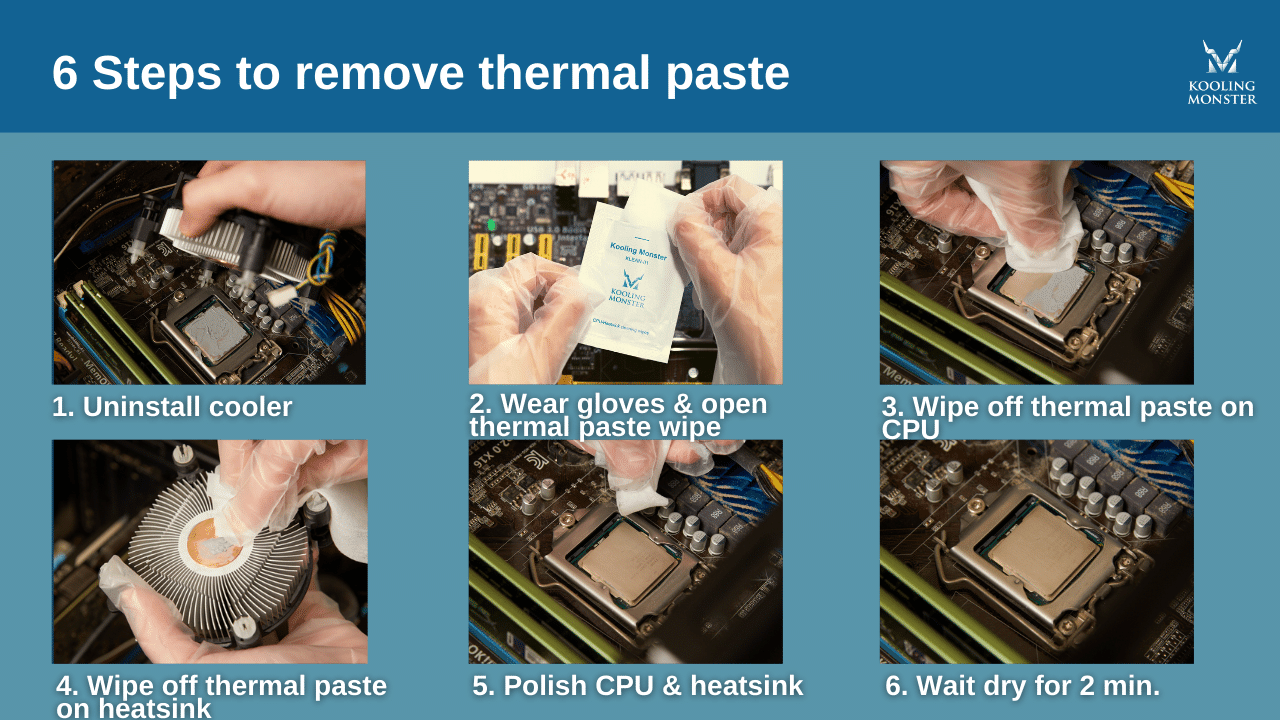
Preparing the CPU is the first step before cleaning its pins. It helps avoid damage and ensures a smooth process. Handle the CPU carefully and create a safe workspace. Use a clean, static-free surface to place the CPU once removed.
Removing The Cpu Safely
Turn off the computer and unplug all cables. Open the computer case gently and find the CPU socket. Release the CPU locking mechanism slowly. Lift the CPU straight up without bending the pins. Place the CPU on an anti-static mat or a clean, flat surface.
Inspecting The Pins
Look closely at the pins using good light. Check for bent or missing pins carefully. Do not touch the pins with your fingers. Use a magnifying glass for a better view. Clean any dust or dirt with a soft brush before cleaning pins.
Cleaning Techniques
Cleaning CPU pins is a delicate task. Proper techniques help keep your CPU safe and working well. Dirt, dust, or bent pins can cause issues. Using the right tools and methods is key. Below are simple ways to clean CPU pins carefully.
Using Isopropyl Alcohol
Isopropyl alcohol cleans CPU pins effectively. Use a 90% or higher concentration. Dampen a lint-free cloth or cotton swab with alcohol. Gently wipe the pins without bending them. Alcohol evaporates quickly and leaves no residue. Avoid soaking the CPU to protect it from damage.
Cleaning With A Soft Brush
A soft brush removes dust and dirt from pins. Choose a small brush with soft bristles, like a paintbrush. Lightly brush in one direction to avoid bending pins. Brush the pins gently to clear debris. This method is safe and does not use liquids.
Avoiding Damage
Handle the CPU with care during cleaning. Avoid touching pins directly with your fingers. Use tools that do not scratch or bend pins. Clean in a static-free environment to protect the CPU. Never apply too much pressure on the pins. Small mistakes can lead to permanent damage.
Drying And Reinstalling
After cleaning your CPU pins, drying and reinstalling are crucial steps. Proper drying stops moisture from causing damage. Careful reinstallation ensures your CPU works well. Follow these steps to keep your CPU safe and functional.
Proper Drying Methods
Use a soft, dry cloth to remove excess moisture. Avoid paper towels that can leave fibers behind. Let the CPU air dry in a warm, dry place. Do not use heat sources like hair dryers. They can bend or damage the pins. Give it at least one hour to dry fully. Make sure no water remains before reinstalling.
Reinserting The Cpu
Align the CPU pins with the socket carefully. Check the triangle mark on the CPU and socket. Do not force the CPU into place. Gently lower it and let it settle naturally. Lock the CPU lever to secure it. Double-check that the CPU sits flat in the socket. Proper insertion avoids pin damage and ensures good contact.
Troubleshooting Common Issues
Troubleshooting common issues while cleaning CPU pins is important. Pins are delicate and can bend easily. Dirt or debris can stick to pins and cause problems. Fixing these issues carefully saves your CPU from damage. Here are some ways to handle typical problems.
Bent Pins Solutions
Bent pins can stop your CPU from working properly. Use a small tool like a needle or tweezers to straighten pins gently. Work slowly and avoid bending pins more. Place the CPU on a flat surface to see pins clearly. Check if all pins are aligned before reinstalling.
Dealing With Stubborn Dirt
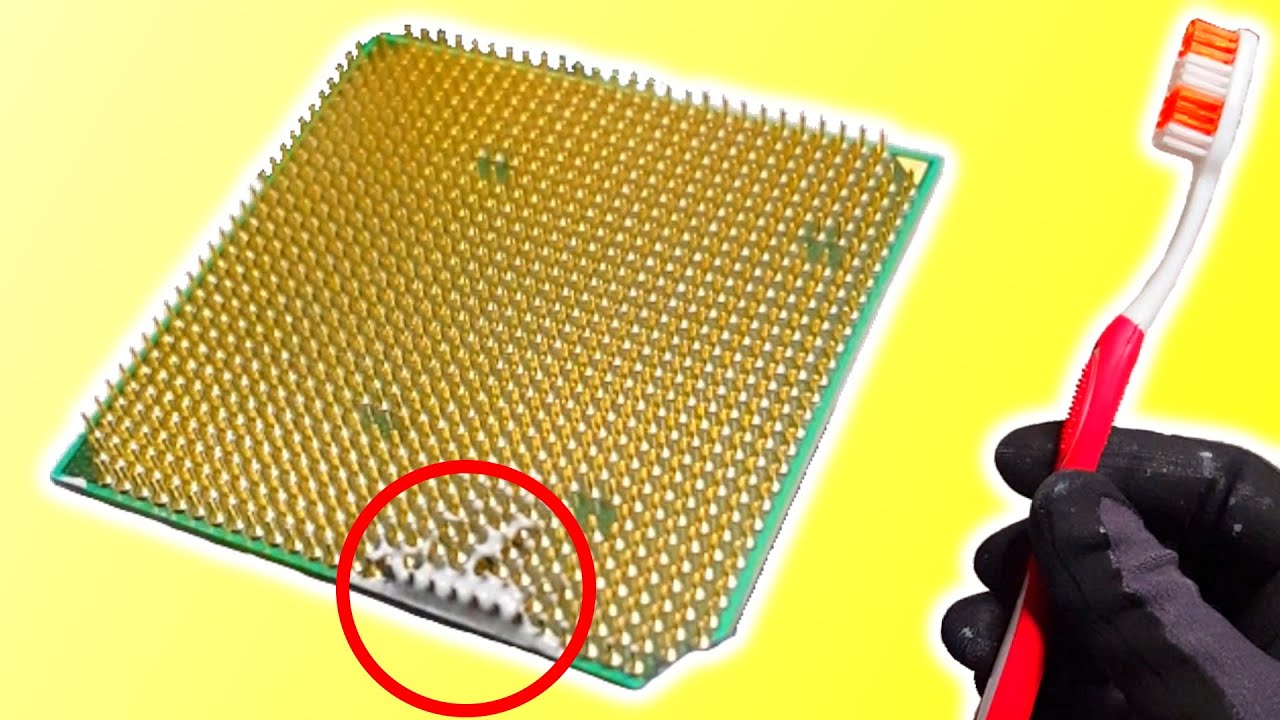
Some dirt may not come off with light cleaning. Use a soft brush or a clean toothbrush to loosen the dirt. Apply a small amount of isopropyl alcohol to help remove tough grime. Avoid using water or harsh chemicals that can damage pins. Let the CPU dry completely before use.
Credit: www.youtube.com
Maintenance Tips
Proper maintenance helps keep CPU pins clean and functional. Dirt and dust cause poor connections and overheating. Simple care extends your CPU’s life and improves performance. Follow these tips to maintain your CPU pins safely.
Regular Cleaning Schedule
Set a routine to clean CPU pins every few months. Use a soft brush or compressed air to remove dust. Avoid liquid cleaners unless recommended by the manufacturer. Keep the area around your CPU free of debris. Regular cleaning prevents buildup that can harm your system.
Handling Tips To Prevent Damage
Handle the CPU with care to avoid bending pins. Always hold the edges and avoid touching the pin area. Use an anti-static wrist strap to protect against static electricity. Place the CPU on a soft, clean surface during cleaning. Avoid excessive force when cleaning or installing the CPU.
Frequently Asked Questions
How Do I Safely Clean Cpu Pins?
Use a soft brush or compressed air to remove dust gently. Avoid bending pins by handling the CPU carefully. If needed, use isopropyl alcohol with a lint-free cloth for stubborn dirt.
What Tools Are Best For Cleaning Cpu Pins?
A soft-bristle brush, compressed air can, and isopropyl alcohol are ideal. Avoid metal tools to prevent pin damage. Use lint-free cloths for wiping.
Can Water Damage Cpu Pins During Cleaning?
Yes, water can cause corrosion and electrical damage. Always use isopropyl alcohol or specialized electronics cleaners instead. Ensure the CPU is completely dry before reinstalling.
How Often Should Cpu Pins Be Cleaned?
Clean CPU pins only when necessary, such as during maintenance or before installation. Frequent cleaning can increase the risk of damage. Inspect pins regularly for dust or debris.
Conclusion
Cleaning CPU pins helps keep your computer running well. Take your time and be gentle with the pins. Use the right tools like a soft brush or rubbing alcohol. Avoid bending or breaking the pins to prevent damage. Regular cleaning can improve connection and performance.
Keep your workspace clean and static-free for safety. Small steps make a big difference in CPU care. Stay patient and careful during the process. Your computer will thank you with better speed and stability.