How To Fix RAM Causing Blue Screen: Expert Solutions For 2026
introduction
A blue screen error, also known as the Blue Screen of Death (BSOD), can be frustrating and disruptive. One common cause is faulty or incompatible RAM. If you’re wondering how to fix RAM causing blue screen errors, this guide will walk you through the steps to diagnose and resolve the issue. We’ll cover everything from basic troubleshooting to advanced solutions, ensuring your computer runs smoothly again.
Signs of RAM Failure
Before diving into how to fix RAM causing blue screen errors, it’s important to recognize the signs of RAM failure. Common symptoms include frequent crashes, random reboots, and corrupted files. If your computer displays a blue screen with error codes like MEMORY_MANAGEMENT or PAGE_FAULT_IN_NONPAGED_AREA, your RAM might be the culprit.

Tools Needed
To diagnose and fix RAM issues, you’ll need a few tools. A RAM tester is essential for identifying faulty modules. Here are some recommended tools:
RAM Testing Tools
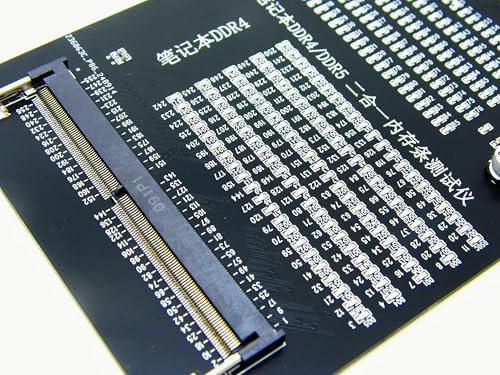
- Lingvetron Laptop DDR4 DDR5 Computer RAM Module Tester
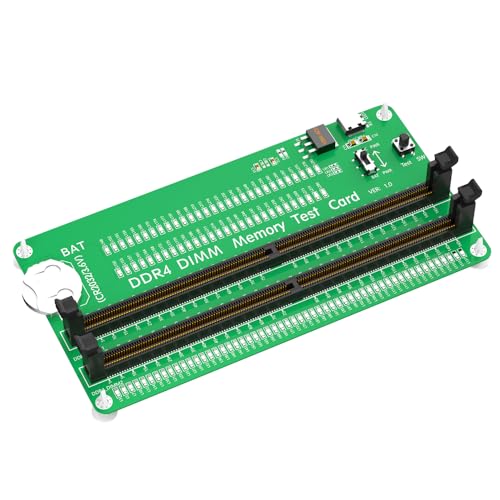
- DDR4 Memory Tester with LED Indicators
- 4-in-1 DDR3/DDR4/DDR5 Memory Tester
- 2-in-1 DDR4/DDR5 Tester Card
- Nice DDR4 Desktop PC Server Memory RAM Module Tester
Other Tools
- Screwdriver (for opening your computer case)
- Anti-static wrist strap (to prevent static damage)
- Compressed air (for cleaning RAM slots)
Steps to Fix RAM Causing Blue Screen
Follow these steps to diagnose and fix RAM-related blue screen errors. This process will help you identify whether your RAM is the issue and how to resolve it.
Check for Loose RAM
Turn off your computer and unplug it. Open the case and ensure the RAM modules are securely seated in their slots. If they’re loose, reseat them firmly.
Clean RAM Slots
Use compressed air to blow out dust from the RAM slots. Dust can cause connection issues leading to blue screen errors.
Test RAM Modules
Use a RAM tester tool to check each module individually. Remove all but one RAM stick and test each one to identify the faulty module.
Update BIOS
An outdated BIOS can cause compatibility issues with RAM. Visit your motherboard manufacturer’s website to download and install the latest BIOS update.
Replace Faulty RAM
If a RAM module fails testing, replace it with a compatible one. Ensure the new RAM matches your system’s specifications.

Preventative Measures
To avoid future RAM-related blue screen errors, follow these best practices:
Hardware Tips
- Handle RAM modules carefully to avoid static damage.
- Use an anti-static wrist strap when installing or removing RAM.
- Keep your computer’s interior clean and dust-free.
Software Tips
- Regularly update your operating system and drivers.
- Run memory diagnostics periodically to catch issues early.
- Avoid overclocking RAM unless you’re experienced.
FAQs
Here are some common questions about how to fix RAM causing blue screen errors:
Yes, faulty or incompatible RAM is a common cause of blue screen errors. Testing your RAM can confirm if it’s the issue.
Signs include frequent crashes, blue screens, and corrupted files. A RAM tester can help diagnose the problem.
No, physically damaged RAM cannot be repaired. It must be replaced with a new module.
If you experience frequent crashes or after installing new RAM, it’s a good idea to test it. Otherwise, periodic checks every few months are sufficient.
Conclusion
Learning how to fix RAM causing blue screen errors can save you time and frustration. By following the steps outlined above, you can diagnose and resolve RAM-related issues efficiently. Remember to use the right tools, handle components carefully, and replace faulty modules as needed. Your computer will thank you with smooth, crash-free performance.