How to Overclock a Cpu on a Laptop: Ultimate Speed Boost Guide
Are you ready to unlock the hidden power inside your laptop? Overclocking your CPU can give your machine a serious speed boost, making games run smoother and programs load faster.
But it’s not just about pushing limits—it’s about doing it safely and smartly, so you get the best performance without risking damage. If you want to learn how to overclock your laptop’s CPU step-by-step, this guide is made for you.
Keep reading, and you’ll discover the secrets to making your laptop work harder and faster, right now.
:max_bytes(150000):strip_icc()/A3-OverclockaLaptop-annotated-81e3f7de3a794dd19bf7e98f60d8c457.jpg)
Credit: www.lifewire.com
Laptop Overclocking Basics
Overclocking a laptop CPU means making it run faster than its original speed. This can help improve performance for tasks like gaming or video editing. But laptops have limits due to their size and cooling systems.
Understanding the basics will help you decide if overclocking is right for your laptop. It also helps you avoid damaging your device. Let’s explore what overclocking means, its benefits and risks, and the tools you need.
What Overclocking Means For Laptops
Overclocking increases the CPU’s clock speed beyond factory settings. This makes the processor work harder and faster. Laptops are different from desktops because they have less space for cooling. This limits how much you can safely overclock.
Many laptops have locked CPUs, making overclocking difficult or impossible. Some gaming laptops offer unlocked processors or special software to allow overclocking. It is important to check your laptop’s model before trying.
Benefits And Risks
Overclocking can boost your laptop’s speed and improve performance in demanding apps. It can make games run smoother and reduce wait times for heavy tasks. However, it also raises the CPU’s temperature.
Higher heat can cause damage or reduce your laptop’s lifespan. Overclocking may also cause crashes or system instability. It might void your warranty. Always weigh these risks against the benefits before starting.
Required Tools And Software
You need specific tools to overclock your laptop CPU safely. A good temperature monitoring program is essential. It helps you watch the CPU heat in real time. Examples include HWMonitor and Core Temp.
Overclocking software varies by laptop brand. Some laptops use BIOS settings for overclocking. Others require third-party tools like Intel XTU or AMD Ryzen Master. Always use trusted software and follow instructions carefully.
Preparing Your Laptop
Preparing your laptop for CPU overclocking is a key step. This process helps avoid problems during overclocking. It also keeps your laptop safe and stable. Follow these steps before changing any settings.
Checking Cpu Compatibility
Not all laptop CPUs support overclocking. Check your CPU model online to see if overclocking is possible. Intel’s “K” series and some AMD Ryzen chips allow overclocking. Using an unsupported CPU can cause damage or system crashes. Confirm compatibility before proceeding.
Updating Bios And Drivers
BIOS controls your laptop’s hardware settings. An outdated BIOS may limit overclocking options. Visit your laptop manufacturer’s website to download the latest BIOS version. Also, update your chipset and CPU drivers. Updated software improves stability and performance during overclocking.
Ensuring Adequate Cooling
Overclocking increases CPU heat significantly. Proper cooling prevents overheating and hardware damage. Clean your laptop’s vents and fans to remove dust. Consider using a cooling pad for extra airflow. Monitor temperatures regularly to keep your laptop safe.
Overclocking Steps
Overclocking a laptop CPU can boost performance for demanding tasks. The process requires careful steps to avoid damage. Follow this guide to adjust settings safely and test stability.
Accessing Bios Settings
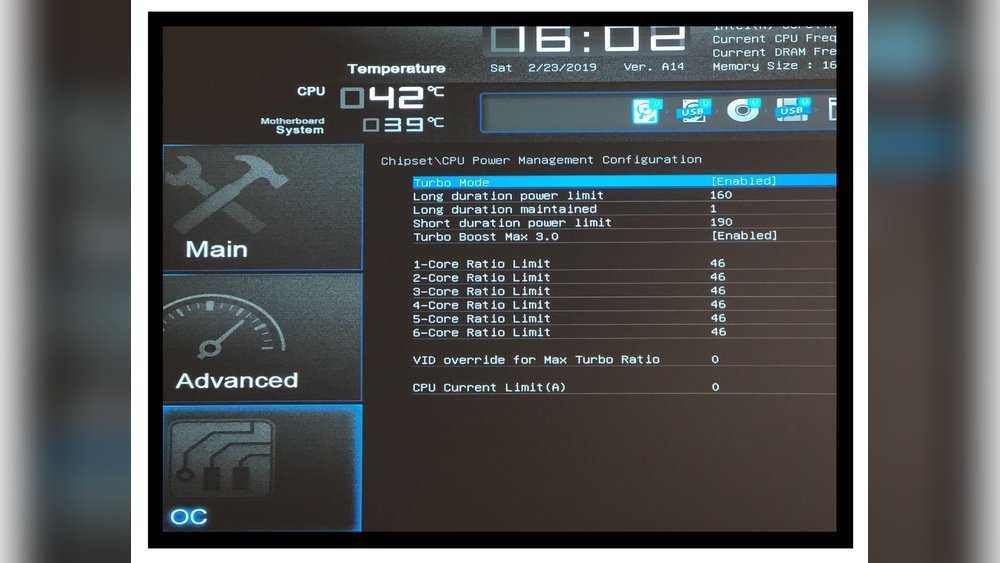
Start by restarting your laptop. Press the key to enter BIOS during boot-up. Common keys are F2, Delete, or Esc. Check your laptop manual for the exact key. Inside BIOS, look for the “Advanced” or “Overclock” menu. Not all laptops support overclocking. If options are missing, your laptop might not allow CPU changes.
Adjusting Cpu Multiplier And Voltage
Find the CPU multiplier setting in BIOS. Increase it step by step to raise CPU speed. Avoid large jumps to prevent crashes. Next, adjust the CPU voltage carefully. Slightly higher voltage helps stability at faster speeds. Never increase voltage too much. This can overheat or damage the CPU. Save changes before exiting BIOS.
Testing Stability
Boot into your operating system after BIOS changes. Run stress test software to check CPU stability. Monitor temperatures during the test. If the system crashes or heats too much, lower the multiplier or voltage. Repeat adjustments and tests until stable. Stable overclocking means better performance without risks.

Credit: www.wikihow.com
Using Software For Overclocking
Using software for overclocking a laptop CPU offers a simple way to boost performance. It removes the need to enter complex BIOS menus. Software tools provide user-friendly interfaces to change clock speeds and voltages.
These apps often include presets for beginners. They also offer advanced controls for experienced users. Overclocking software helps adjust settings and monitor the CPU in real time. This approach makes the process safer and more efficient.
Popular Overclocking Apps
Several apps are popular for laptop CPU overclocking. Intel Extreme Tuning Utility (XTU) works well with Intel processors. AMD Ryzen Master suits laptops with AMD CPUs. MSI Afterburner is another option, mainly for GPU but supports some CPU features. These apps provide control over clock speeds, voltages, and fan speeds.
Configuring Settings Safely
Start with small increments in clock speed. Avoid pushing the CPU too hard at once. Increase voltage only if necessary and in small steps. Save your settings after each change. Test the laptop’s stability before continuing. Reset to default if crashes or freezes occur. Always keep an eye on temperature limits to prevent damage.
Monitoring Performance And Temperatures
Use built-in monitoring tools in the software. They show CPU speed, voltage, and temperature in real time. Keep temperatures below 85°C to avoid overheating. Watch for sudden spikes or unusual drops in performance. Regularly check fan speeds and system stability. This helps maintain a safe overclock and extends laptop life.
Troubleshooting And Safety Tips
Overclocking a laptop CPU can boost speed but may cause problems. Knowing how to spot issues and fix them keeps your laptop safe. Follow these tips to avoid damage and keep your system stable.
Recognizing Overclocking Issues
Watch for sudden crashes or freezes. Your laptop may overheat or become very loud. Slow performance or strange errors also signal trouble. These signs mean the CPU is pushed too hard.
Reverting To Default Settings
Return to original CPU settings if problems appear. Use your BIOS or overclocking software to reset. This step protects your laptop from lasting harm. Restart your system after resetting to check stability.
Maintaining Laptop Longevity
Keep your laptop cool with proper ventilation. Clean fans and vents regularly to prevent dust build-up. Avoid long overclocking sessions to reduce wear. Monitor temperatures often to ensure safe operation.

Credit: www.avast.com
Frequently Asked Questions
What Is Cpu Overclocking On A Laptop?
CPU overclocking on a laptop means increasing its processor speed beyond factory settings. It boosts performance but raises heat and power use. Proper cooling and careful adjustments are essential to avoid damage or instability.
Is Overclocking Safe For Laptop Cpus?
Overclocking can be safe if done cautiously. Use reliable software, monitor temperatures, and increase speeds gradually. However, it may void warranties and shorten hardware lifespan if not managed well.
How Do I Monitor Laptop Cpu Temperature When Overclocking?
Use software like HWMonitor or Core Temp to track CPU temperatures. Keep temps below 85°C to prevent overheating. Regular monitoring helps maintain stability during overclocking.
Can Overclocking Improve Laptop Gaming Performance?
Yes, overclocking can enhance gaming by increasing CPU speed, leading to smoother gameplay. However, gains depend on cooling efficiency and game optimization.
Conclusion
Overclocking a laptop CPU can boost speed and performance. It needs care and patience to avoid damage. Watch temperatures closely and keep your laptop cool. Small changes make a big difference in stability. Test your system after each adjustment. Remember, not all laptops handle overclocking well.
Always back up important data before starting. With careful steps, you can improve your laptop’s power safely. Try it slowly and enjoy the extra speed.