How to Check Cpu on Pc: Easy Steps for Instant Results
Do you ever wonder what kind of CPU powers your PC? Knowing your CPU details can help you understand your computer’s speed, upgrade options, and overall performance.
Whether you want to check your CPU for gaming, work, or simple curiosity, this guide will show you exactly how to find that information quickly and easily. By the end, you’ll feel confident about your PC’s heart and know exactly what it’s capable of.
Let’s dive in and uncover what’s inside your machine!
Credit: rog.asus.com
Check Cpu Using System Settings
Checking your CPU on a PC is simple using system settings. This method shows important details about your processor. It helps you know your PC’s power and performance. Follow easy steps to find this information quickly.
Access System Information
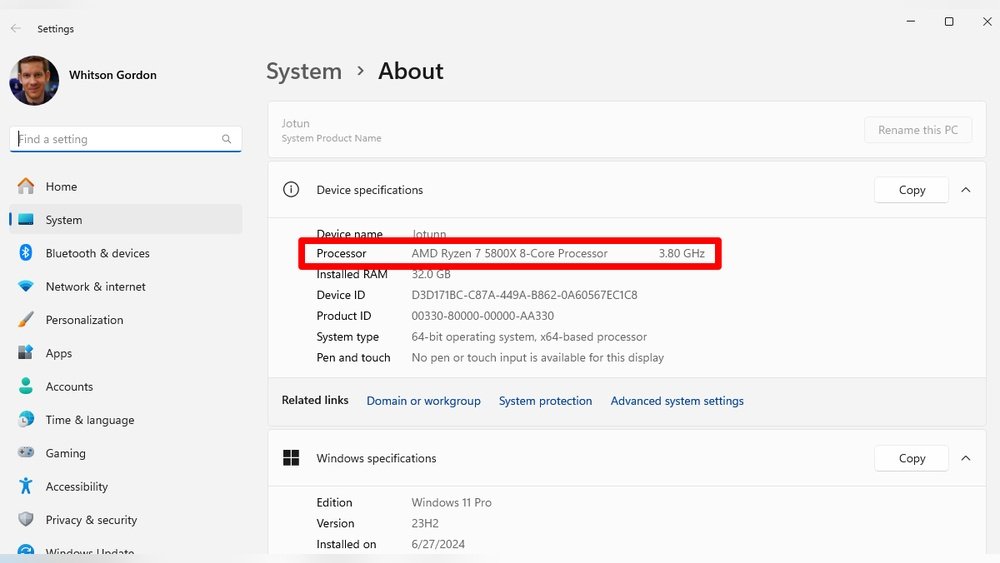
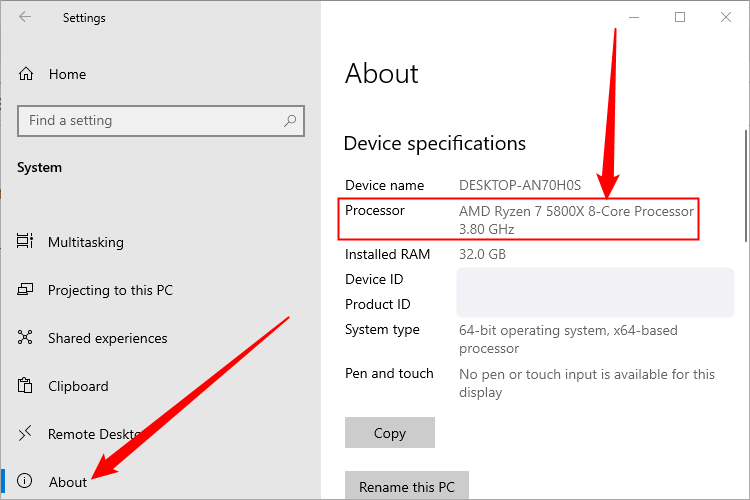
Start by opening the system settings on your PC. Click the Start menu and select Settings. Choose the System option in the menu. Scroll down and click About. This section contains key information about your computer.
Find Cpu Details
In the About section, look for the Device specifications. Here, you will see the processor name and speed. This tells you the type and model of your CPU. You can also find other details like installed RAM and system type. These details help understand your PC’s hardware better.
Credit: www.businessinsider.com
Use Task Manager For Quick Info
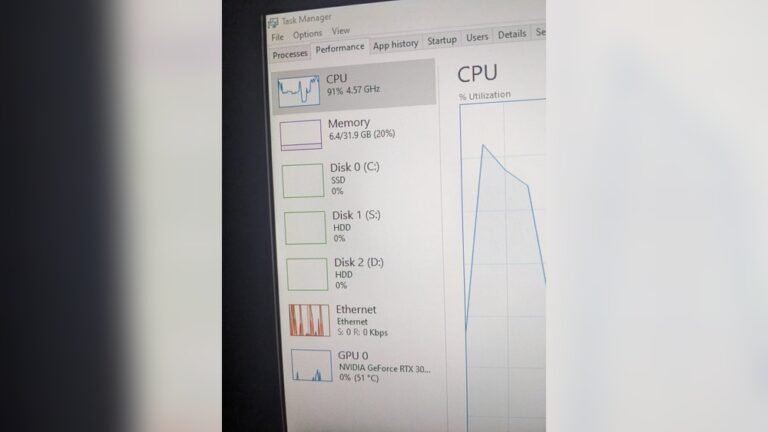
Using Task Manager is a fast way to check your CPU on a PC. It shows real-time details about your processor’s activity. You do not need extra tools or software. Just a few clicks and you get the info you want. This method helps you see if your CPU is busy or idle. It also shows how many cores your CPU has and its speed. Let’s learn how to open Task Manager and find the CPU details quickly.
Open Task Manager
Press Ctrl + Shift + Esc on your keyboard. This opens Task Manager right away. Another way is to press Ctrl + Alt + Delete and choose Task Manager from the menu. You can also right-click the taskbar and select Task Manager. The window will show apps running and system performance.
Locate Cpu Performance Tab
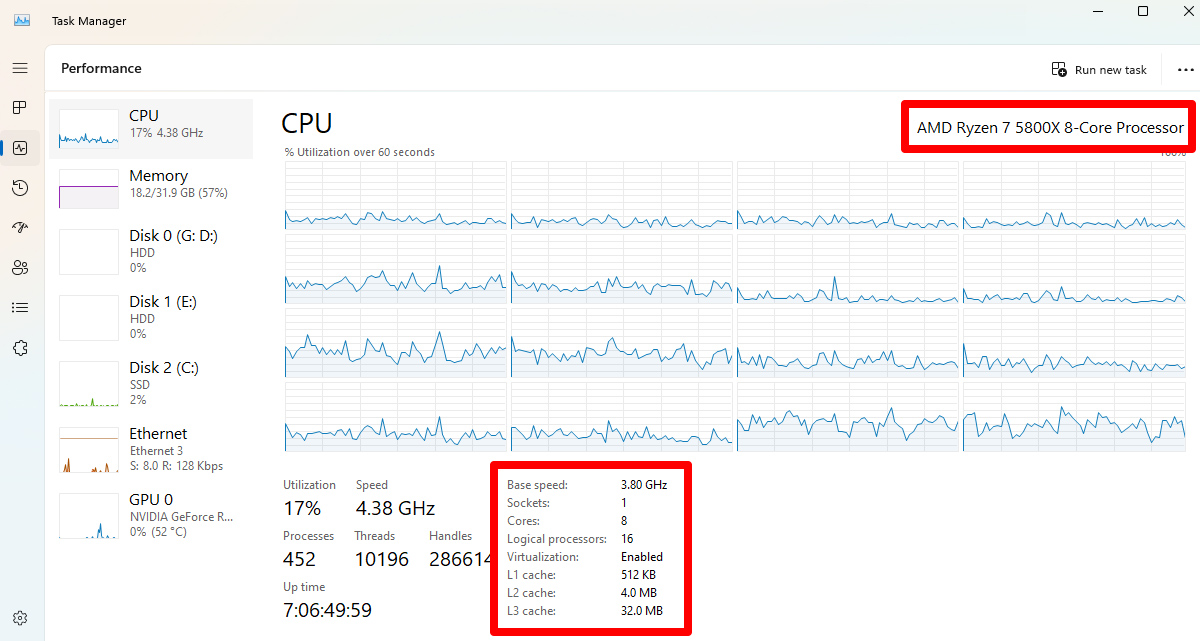
In Task Manager, click the Performance tab at the top. Look for the CPU section on the left side. Here, you see graphs and numbers about CPU use. It shows how much of your CPU is busy now. You can see the number of cores and logical processors. The speed of the CPU is also listed. This view gives quick and clear CPU info.
Command Prompt Methods
Command Prompt methods offer a quick way to check your PC’s CPU details. These methods use simple commands you type into the Command Prompt window. They do not require additional software. Anyone can use them to get clear, detailed information about the processor.
Run Wmic Command
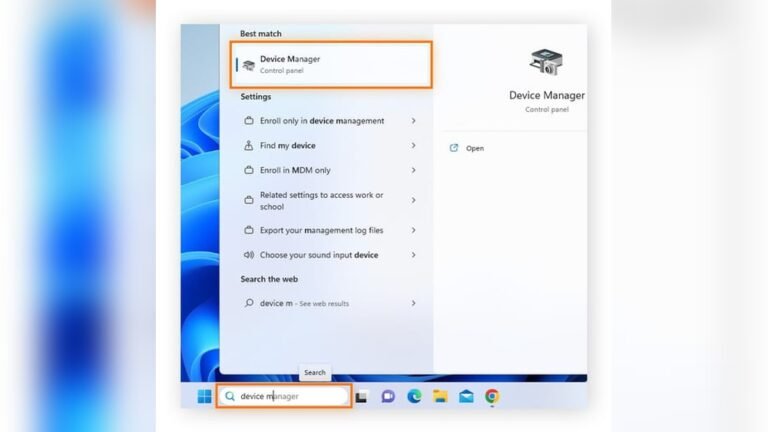
Open the Command Prompt by typing cmd in the Start menu search bar. Press Enter to open it. Type wmic cpu get name, maxclockspeed, status and press Enter. This command shows the CPU name, max speed, and status. It provides a clear snapshot of your processor’s main features.
The results help you know the exact CPU model and its speed. This method works on most Windows versions. It is fast and reliable for basic CPU info.
Use Systeminfo Command
In the Command Prompt window, type systeminfo and press Enter. This command gives a full report about your system, including CPU details. Scroll through the list to find the “Processor(s)” section.
It shows the processor name and other system info like BIOS and memory. This method is useful to get a bigger picture of your PC’s hardware. It takes a bit more time but provides detailed data.
Credit: www.howtogeek.com
Third-party Software Tools
Third-party software tools provide detailed information about your CPU. They offer more data than basic system settings. These tools are easy to download and use. They help users check CPU specs, temperature, and performance. Many tools are free and lightweight. Using these tools helps understand your PC better.
Cpu-z Overview
CPU-Z is a popular tool for CPU information. It shows processor name, number, and code name. You can see clock speeds and cache details. The interface is simple and easy to navigate. CPU-Z also displays motherboard and memory info. It updates data in real-time for accuracy. Many users trust CPU-Z for quick CPU checks.
Speccy Features
Speccy gives a full snapshot of your PC. It shows CPU model, speed, and temperature. You can view RAM, storage, and graphics card details. Speccy uses color codes to highlight issues. It offers both summary and detailed views. The program is user-friendly for beginners. Speccy can save reports for later use or sharing.
Check Cpu On Mac
Knowing your Mac’s CPU details helps you understand its speed and power. You can check the CPU information quickly using built-in tools. These tools show the type, speed, and cores of your processor.
Follow simple steps to find this information on your Mac. No extra software needed. Just a few clicks.
Open About This Mac
Click the Apple icon at the top-left corner of the screen. Select “About This Mac” from the menu. A window will open showing an overview of your Mac.
The first tab shows the processor type and speed. You will see the CPU name, such as “Intel Core i5” or “Apple M1.” This gives a quick look at your Mac’s processor.
View System Report
In the “About This Mac” window, click the “System Report” button. This opens a detailed system information window. Here, select “Hardware” from the sidebar.
Look for the “Processor Name,” “Processor Speed,” and “Number of Processors.” This section gives full details about your CPU. It helps if you want to know more than just the basics.
Tips For Accurate Cpu Info
Getting accurate CPU information is important for managing your PC well. Wrong details can cause confusion or mistakes. Simple steps help ensure the data you see is correct. This section shares key tips to get accurate CPU info on your PC. Follow these tips to avoid errors and get reliable results.
Keep Software Updated
Always use the latest version of your system tools. Updates fix bugs and improve CPU detection. Old software might miss new CPU features or give wrong details. Check for updates regularly and install them fast. Updated tools give you the most accurate CPU data.
Verify With Multiple Methods
Check CPU info using different tools to be sure. Use built-in Windows tools like Task Manager or System Information. Try third-party apps such as CPU-Z or Speccy. If all methods show the same results, you can trust the info. Different tools can catch errors one method may miss.
Frequently Asked Questions
How Can I Check My Cpu On Windows Pc?
You can check your CPU by opening Task Manager. Press Ctrl+Shift+Esc, then go to the Performance tab. Click on CPU to see details like model, speed, and usage.
What Is The Easiest Way To Find Cpu Info?
The easiest way is to use the System Information tool. Press Windows + R, type “msinfo32,” and hit Enter. Look for “Processor” under System Summary.
Can I Check Cpu Specs Without Software?
Yes, you can use built-in Windows tools like Task Manager or System Information. No third-party software is needed to view CPU details.
How To Identify Cpu Model On Pc?
Open Task Manager and click the Performance tab. Select CPU on the left side. The CPU model name appears at the top right.
Conclusion
Checking your PC’s CPU is simple and quick. Knowing your CPU helps with upgrades and troubleshooting. Use the built-in tools on your computer to find details easily. Understanding your CPU’s speed and type improves your device use. Keep this guide handy whenever you need to check your CPU.
Stay informed to make better decisions about your PC.