How to Find Out What Cpu Cooler I Have: Quick & Easy Guide
Are you curious about your computer’s CPU cooler but don’t know where to start? Knowing exactly what cooler you have can help you keep your system running smoothly and even improve its performance.
You’ll discover simple and effective ways to identify your CPU cooler quickly—no tech expertise needed. Keep reading, and you’ll gain the confidence to check your cooler like a pro.
Credit: www.xda-developers.com
Check Physically
Checking your CPU cooler physically is a direct way to know its details. This method avoids guesswork or software errors. You get a clear view and exact information. It also helps you understand your PC setup better.
Open Your Pc Case
Start by turning off your computer and unplugging it. Remove the screws holding the side panel. Slide the panel off carefully to expose the inside. Make sure you touch metal to discharge static electricity. This protects your PC parts from damage.
Identify Cooler Brand And Model
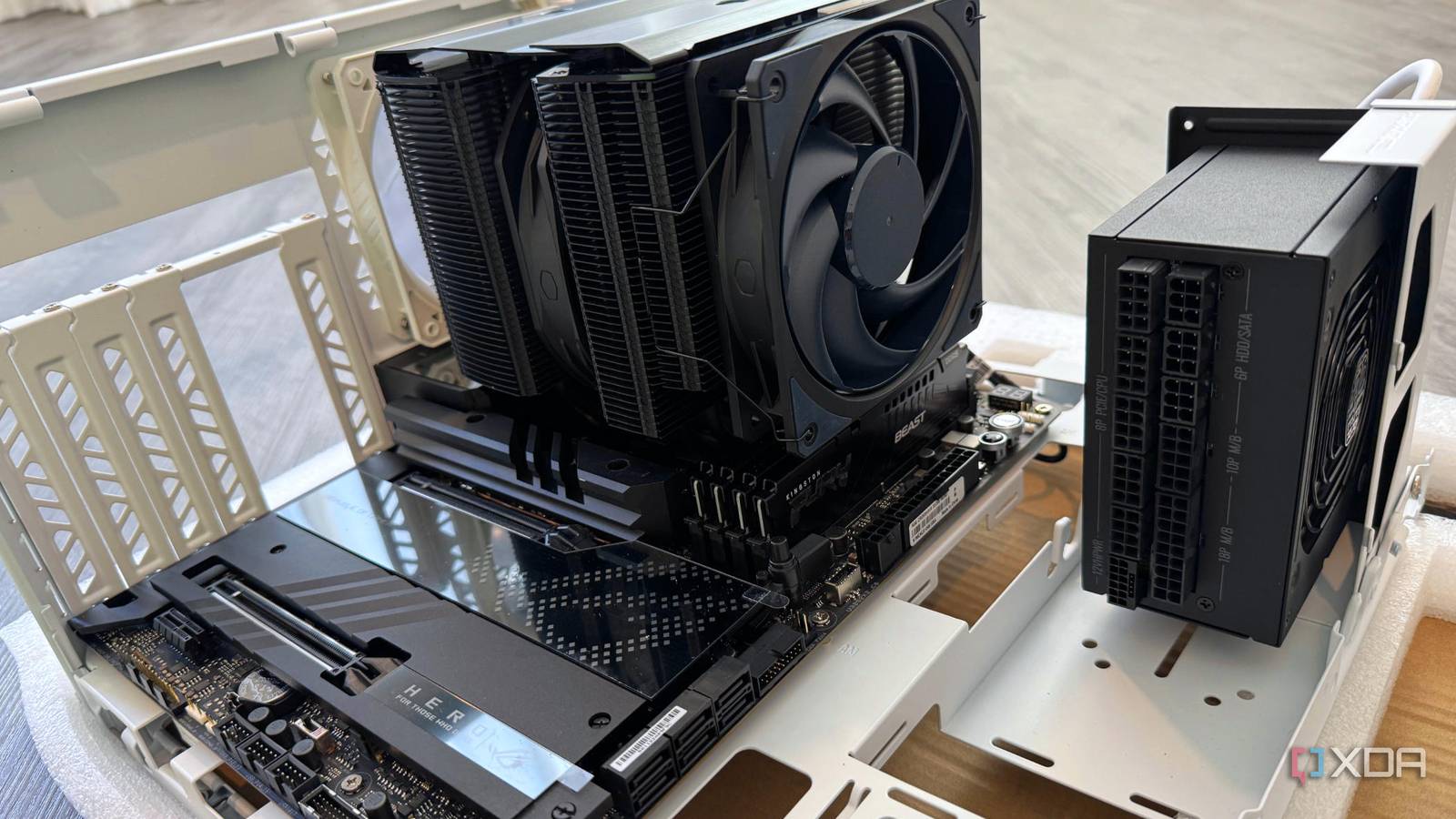
Look closely at the cooler attached to the CPU. Most coolers have the brand name on the fan or heatsink. The model might be printed or embossed on the cooler surface. Check the fan blades, sides, or top for any text or logos.
Look For Labels And Stickers
Many coolers have labels or stickers with important info. These labels often show the model number and manufacturer. They might be on the base or the side of the cooler. Use a flashlight for better visibility if needed. Note down the details for future reference.
Use Software Tools
Using software tools is a quick and easy way to find out what CPU cooler you have. These tools scan your system and show detailed information about your hardware. You do not need to open your computer case or remove any parts. Just download the right program and let it analyze your system.
Cpu-z For Hardware Info
CPU-Z is a popular tool for checking hardware details. It shows your CPU model, motherboard, and memory. While it does not list the cooler brand directly, it gives clues about your CPU type. Knowing your CPU helps narrow down possible coolers used in your system.
Hwmonitor For Temperature And Cooler Details
HWMonitor tracks your CPU temperature and fan speed. It can identify the cooler fan running on your processor. This tool helps see if your cooler is active and working properly. It also shows voltage and power readings for deeper insight.
Speccy For System Summary
Speccy provides a full summary of your PC components. It often includes the CPU cooler model under the motherboard or cooling section. This tool is user-friendly and presents information in simple terms. It helps confirm the exact cooler installed in your computer.
Check Manufacturer Documentation
Checking manufacturer documentation is a simple way to find out what CPU cooler you have. Most manufacturers provide clear details about the parts used in their products. This information helps identify your cooler without opening your PC.
Manufacturer documents often include model numbers, specs, and installation guides. These details make it easier to match your cooler to the correct product. You can find these documents in several places related to your PC or motherboard.
Review Pc Or Motherboard Manual
The manual that came with your PC or motherboard often lists the CPU cooler model. It explains what cooler the system includes or supports. Check the section about cooling or hardware components. Manuals usually have images and descriptions of the cooler used.
Visit Manufacturer Website
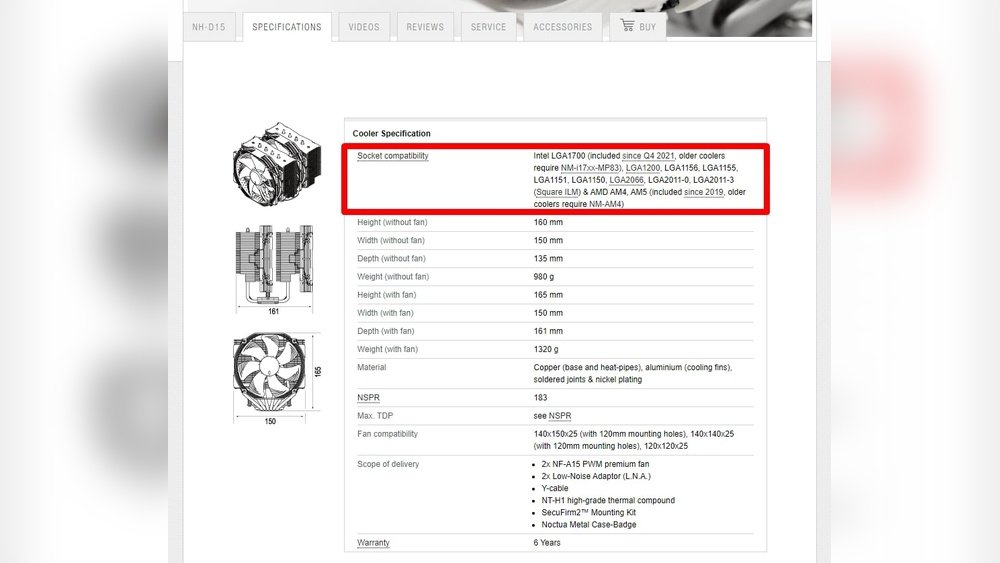
Manufacturer websites provide detailed product specifications. Enter your PC or motherboard model to find exact cooler information. You can also download the manuals or support documents from the site. Some brands offer tools to detect your hardware automatically.
Check Purchase History
Look at your purchase records for cooler details. Online stores and receipts often list the exact cooler model. This works well if you bought the cooler separately. Checking your order history can confirm the brand and model quickly.
Identify Cooler Type
Identifying the type of CPU cooler you have is important. It helps you understand its performance and compatibility. This step guides you in choosing upgrades or replacements. Knowing the cooler type also helps in troubleshooting overheating problems.
Air Cooler Vs Liquid Cooler
Air coolers use fans and metal fins to cool the CPU. They are common and easy to install. Liquid coolers use a pump and tubes with coolant. They offer better cooling for high-performance systems. You can tell the type by checking for tubes or just a fan.
Stock Cooler Vs Aftermarket Cooler
Stock coolers come with the CPU. They are basic and designed for standard use. Aftermarket coolers are bought separately. They often provide better cooling and quieter operation. Look for brand names or unique designs to spot aftermarket coolers.
Size And Compatibility
Coolers come in different sizes. Larger coolers usually cool better but need more space. Check your PC case size and motherboard layout. Make sure the cooler fits without blocking other parts. Size affects airflow and overall system temperature.
Tips For Cooler Maintenance
Maintaining your CPU cooler is key to keeping your computer running smooth and cool. Regular care helps prevent overheating and extends the life of your hardware. Simple steps can make a big difference in performance and noise levels.
Cleaning And Dust Removal
Dust blocks airflow and traps heat inside the cooler. Use a soft brush or compressed air to remove dust from the fan and heatsink. Clean your cooler every few months or more often in dusty areas. Avoid using a vacuum, which can cause static damage.
Reapplying Thermal Paste
Thermal paste helps transfer heat from the CPU to the cooler. Over time, paste dries and loses effectiveness. Remove the old paste with isopropyl alcohol and a soft cloth. Apply a small, pea-sized amount of new paste before reattaching the cooler. This improves heat transfer and lowers CPU temperature.
Checking Fan Operation
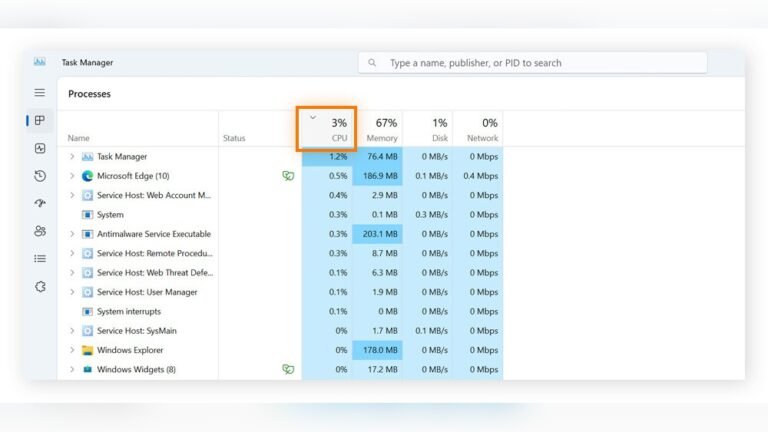
Fans must spin smoothly to cool your CPU properly. Listen for unusual noises or vibrations, signs of wear or damage. Check fan speed in BIOS or with monitoring software. Replace the fan if it stops spinning or runs too slowly. A working fan prevents overheating and keeps your system stable.
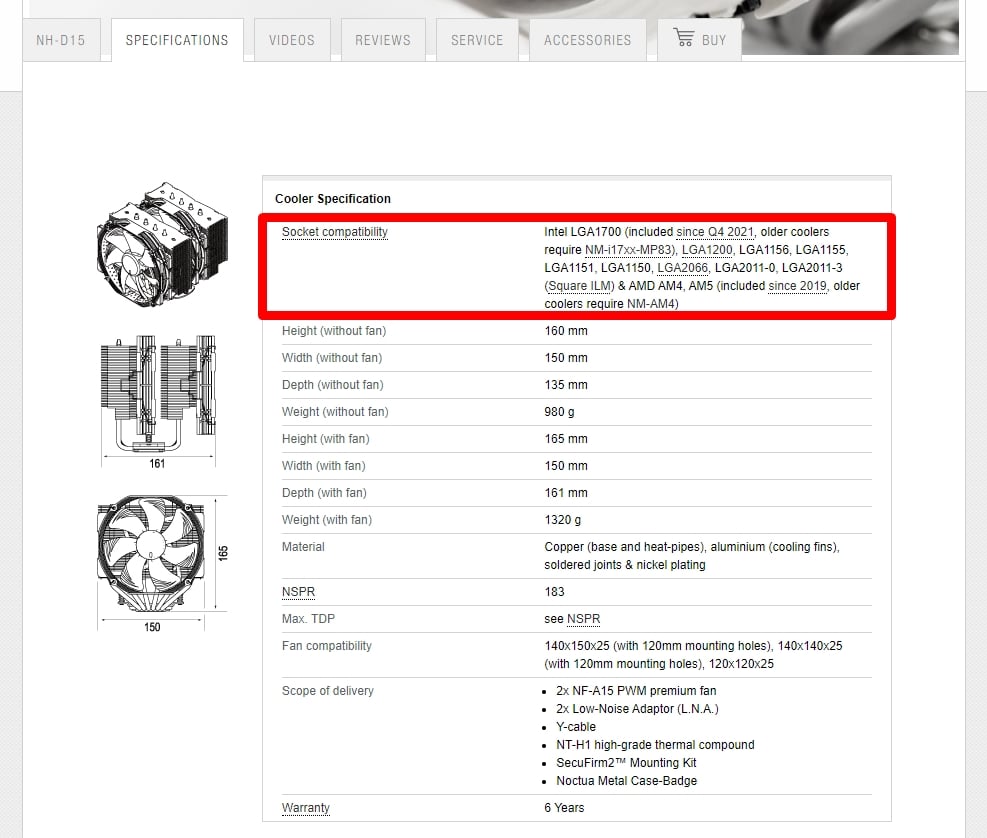
Credit: www.cgdirector.com

Credit: www.reddit.com
Frequently Asked Questions
How Can I Identify My Cpu Cooler Model Quickly?
Check your CPU cooler for a label or branding. You can also use software tools like HWMonitor or open the PC case to read model numbers directly from the cooler.
Can Software Detect My Cpu Cooler Type?
Most software identifies CPU temperature but not cooler models. For exact cooler info, inspect the hardware physically or check your purchase records.
What If I Don’t Recognize My Cpu Cooler Brand?
Search online using any visible serial or model numbers on the cooler. Forums and manufacturer websites can help identify unknown CPU cooler brands.
Why Is Knowing My Cpu Cooler Model Important?
Knowing your cooler model helps in maintenance, upgrades, and ensuring compatible cooling solutions for optimal CPU performance and lifespan.
Conclusion
Finding out what CPU cooler you have is simpler than it seems. Check your computer’s manual or look inside the case carefully. Use software tools or search online with your PC model. Knowing your cooler helps keep your system safe and cool.
Take small steps, and you will find the answer quickly. Keep your PC running smoothly with the right cooler information. Simple methods make the process easy for everyone. Stay confident and take your time to check properly. Your CPU will thank you.