How to Find Your Cpu Temp: Easy Steps to Monitor & Protect
Are you worried that your computer might be overheating? Knowing your CPU temperature is key to keeping your device running smoothly and avoiding costly damage.
But how do you find your CPU temp quickly and easily? You’ll discover simple, effective ways to check your CPU temperature right now. By the time you finish reading, you’ll have the tools to protect your computer and boost its performance.
Let’s get started!

Credit: www.pcmag.com
Why Monitor Cpu Temperature
Monitoring your CPU temperature is important to keep your computer safe and working well. The CPU can get very hot during use. Knowing its temperature helps you avoid problems and keep your system running smoothly.
Here are some key reasons why you should watch your CPU temperature closely.
Risks Of Overheating
Overheating can cause your CPU to stop working correctly. High heat may lead to sudden shutdowns or crashes. It can also damage the CPU permanently. Watching the temperature helps prevent these risks.
Impact On Performance
A hot CPU often slows down to cool itself. This means your computer works slower during heavy tasks. Keeping the temperature low helps maintain fast and smooth performance.
Lifespan Of Components
Heat wears out computer parts over time. High temperatures shorten the life of your CPU and other components. Monitoring temperature helps protect your hardware and extend its lifespan.
Credit: www.youtube.com
Tools To Check Cpu Temperature
Checking your CPU temperature is important to keep your computer safe. High temperatures can cause problems or damage your CPU. Several tools help you monitor your CPU temperature easily. These tools range from built-in options to external devices.
Built-in Bios/uefi
Your computer’s BIOS or UEFI shows CPU temperature. Restart your PC and enter BIOS by pressing a key like F2 or Delete. Inside BIOS, look for a hardware monitor or system health section. This method shows temperature without extra software. It works even if your operating system is not running.
Third-party Software
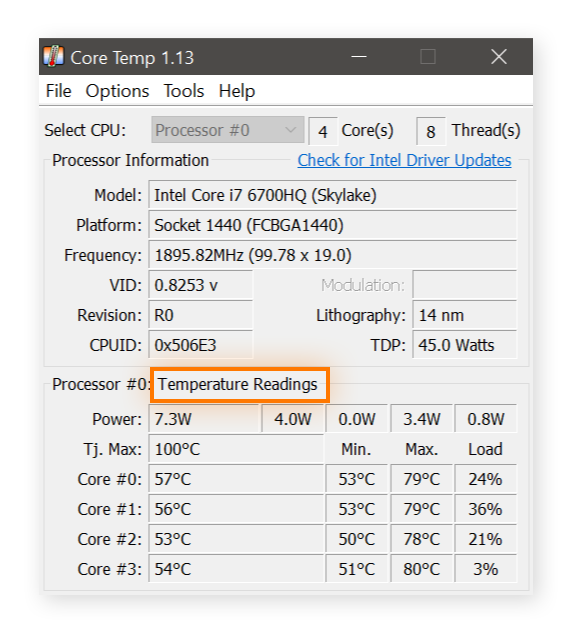
Many free programs display real-time CPU temperatures. Popular software includes HWMonitor, Core Temp, and SpeedFan. These apps run in Windows and show detailed temperature readings. Some also display fan speeds and voltages. They are easy to install and use for daily checks.
Hardware Monitors
External hardware monitors connect to your PC and show temperatures on a small screen. These devices use sensors placed inside the case. They provide accurate readings without relying on software. Useful for users who want constant temperature updates at a glance.
Steps To Find Cpu Temp On Windows
Checking your CPU temperature on Windows helps you keep your computer safe. High temperatures can cause damage or slow down your PC. You can find your CPU temperature using built-in tools or third-party apps. Both methods are simple and quick. Below are clear steps to guide you.
Using Task Manager
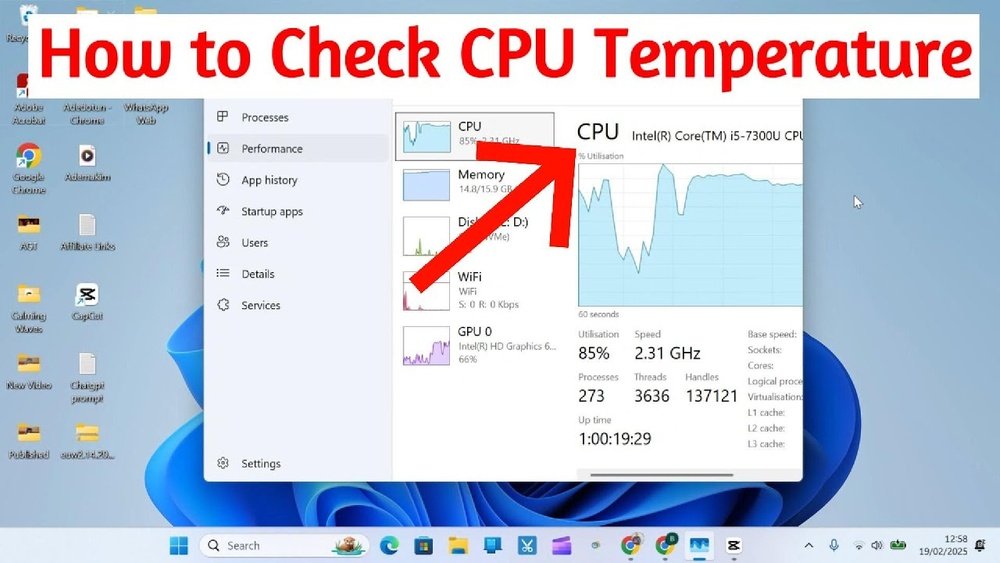
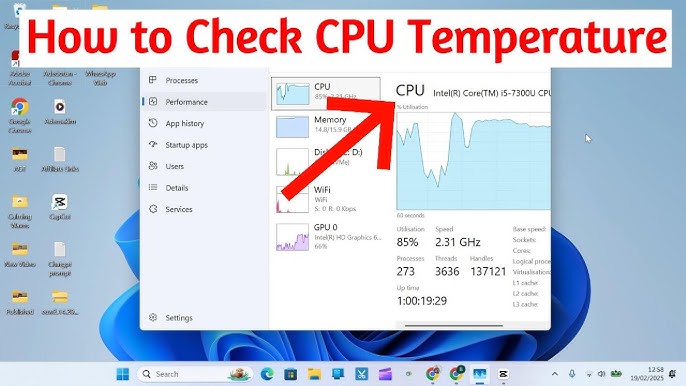
Task Manager does not show CPU temperature directly. But you can check CPU usage and performance. Press Ctrl + Shift + Esc to open Task Manager. Click the Performance tab. Select CPU on the left side. You see CPU speed and usage here. To see the temperature, you will need a third-party tool. Task Manager helps check CPU load, but not the exact temperature.
Using Third-party Apps
Third-party apps provide detailed CPU temperature readings. Download a trusted app like Core Temp, HWMonitor, or SpeedFan. Install the app following on-screen instructions. Open the app to see your CPU temperature. These apps show real-time temperature and other hardware details. They work well for all Windows versions. Use these apps to monitor CPU heat and avoid overheating problems.
Finding Cpu Temp On Mac
Finding your CPU temperature on a Mac helps keep your device safe. It shows how hot the processor gets during use. High temperatures can slow down your Mac or cause damage over time. Mac does not show CPU temperature by default, but you can check it with built-in tools or apps.
Using Activity Monitor
Activity Monitor shows CPU usage but not temperature directly. It helps see how much power your CPU uses. Open Activity Monitor from the Applications folder or use Spotlight search. Check the CPU tab to view real-time CPU activity. This gives clues about how hard the CPU is working. Heavy CPU use often means higher temperatures. Though it does not show exact temperature, it is a good start.
Recommended Apps
Several apps provide detailed CPU temperature readings on Mac. These apps read sensors inside your Mac to show real temperatures. Popular options include iStat Menus, Macs Fan Control, and HWMonitor. Install one from a trusted source and open it. You will see live temperature data for your CPU and other parts. These apps also offer fan speed controls to cool your Mac. Using apps gives the best way to monitor CPU temperature easily.
Checking Cpu Temp On Linux
Monitoring your CPU temperature on Linux helps protect your hardware. High temperatures can cause slowdowns or damage. Linux offers many tools to check CPU temps easily. Both command line and graphical options exist. Choose what fits your comfort and setup.
Command Line Tools
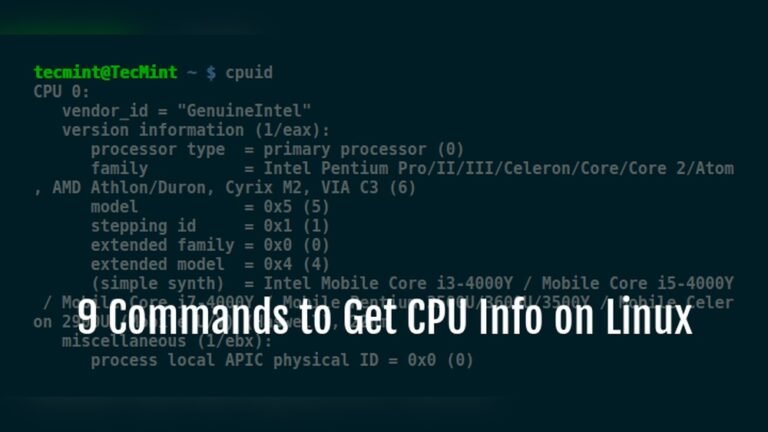
Command line tools are fast and use little system resources. The tool lm-sensors is popular for reading CPU temps. Install it using your package manager, like sudo apt install lm-sensors. Run sudo sensors-detect to set up sensors. Then, type sensors to see temperature readings.
Another tool is watch -n 2 sensors. It updates temperature info every two seconds. This helps track CPU heat during heavy tasks.
Graphical Applications
Graphical apps provide an easy way to view CPU temps. Psensor is a simple app with charts and alerts. Install it via your package manager, for example sudo apt install psensor. It shows real-time temps in a user-friendly window.
Some desktop environments have built-in tools. KDE and GNOME offer system monitors with temperature widgets. These apps display CPU temp alongside other hardware info. No terminal commands needed.
Credit: www.avast.com
Ideal Cpu Temperature Ranges
Knowing your CPU’s ideal temperature range helps keep your computer safe and fast. Temperatures that are too high can slow down or damage your CPU. Different tasks cause different temperature changes in your CPU. Understanding these ranges helps you spot problems early and protect your device.
Idle Temperature
Idle temperature is how hot your CPU is when not working hard. This means the computer is on but running few programs. A good idle temperature is usually between 30°C and 45°C. If it is higher, the CPU might have dust or poor cooling.
Under Load Temperature
Load temperature shows how hot the CPU gets while working hard. This happens when running games or heavy software. Normal load temperatures are between 60°C and 80°C. Staying in this range means your cooling system works well.
Maximum Safe Temperature
Every CPU has a limit called the maximum safe temperature. Going beyond this can cause damage or shutdowns. Most CPUs should not exceed 90°C to 100°C. Keep your CPU below this to avoid problems and keep it lasting longer.
Tips To Lower Cpu Temperature
Keeping your CPU temperature low helps your computer run better and last longer. High temperatures can slow down your system or cause damage. Follow these simple tips to reduce heat and protect your CPU.
Improve Airflow
Good airflow moves hot air away from your CPU. Arrange cables neatly to avoid blocking air paths. Use case fans to push cool air inside and pull hot air out. Open your computer case sometimes to let fresh air in.
Clean Dust And Debris
Dust blocks airflow and traps heat inside your computer. Use a soft brush or compressed air to clean fans and vents. Clean your PC every few months. Keep the area around your computer free from dust.
Upgrade Cooling Solutions
Stock coolers may not be enough for heavy use. Consider buying a better air cooler or a liquid cooling system. These keep your CPU cooler under stress. Check compatibility with your CPU before upgrading.
Manage Background Processes
Many programs running at once increase CPU usage and heat. Close apps you do not need. Use Task Manager to find and stop heavy processes. Keep your system lightweight to reduce CPU load and heat.
When To Seek Professional Help
Knowing your CPU temperature helps keep your computer safe. Sometimes, the problem is too big for simple fixes. Recognizing when to get expert help can save your device from damage. Below are clear signs that you should contact a professional technician.
Persistent Overheating
CPU overheating can cause slow performance and crashes. If your CPU temperature stays high despite cleaning fans and checking airflow, it shows a serious problem. Persistent overheating needs expert attention to avoid hardware damage. Professionals can test cooling systems and replace faulty parts.
Hardware Malfunctions
Strange noises or sudden shutdowns might signal hardware failure. Faulty fans, broken heat sinks, or damaged thermal paste cause poor cooling. These issues require skill to fix. A technician can diagnose and repair hardware problems safely and correctly.
Warranty And Repairs
Devices under warranty should be handled by authorized service centers. Opening or fixing parts yourself may void the warranty. Professionals ensure repairs follow the warranty terms. Using authorized repair services protects your rights and device condition.
Frequently Asked Questions
How Can I Check My Cpu Temperature On Windows?
You can check CPU temperature using software like HWMonitor or Core Temp. These tools display real-time temperature readings clearly.
What Is A Safe Cpu Temperature Range?
A safe CPU temperature usually ranges from 30°C to 70°C under normal use. Temperatures above 80°C may cause overheating issues.
Why Is Monitoring Cpu Temperature Important?
Monitoring CPU temperature helps prevent overheating, which can reduce performance and damage hardware. It ensures your PC runs smoothly.
How Often Should I Check My Cpu Temperature?
Check your CPU temperature regularly, especially during heavy tasks or gaming. Frequent monitoring helps detect cooling issues early.
Conclusion
Knowing your CPU temperature helps keep your computer safe. It shows if your PC is too hot and needs cooling. Use simple tools to check your CPU temp anytime. Watching the temperature can stop crashes or slowdowns. Keep your system running smooth and last longer.
Regular checks make sure your computer works well. Now, you have the steps to find your CPU temp easily. Stay alert and protect your device from heat damage.