How to Check Cpu in Linux: Quick and Easy Methods Explained
Wondering how to check your CPU in Linux quickly and easily? Whether you’re troubleshooting performance issues or just curious about your system’s power, knowing how to find detailed CPU information can save you time and hassle.
This guide will walk you through simple commands and tools that anyone can use, no matter your experience level. Keep reading, and you’ll gain the confidence to check your CPU anytime you want—without any confusion or frustration.
Credit: www.tecmint.com
Check Cpu Info With Lscpu
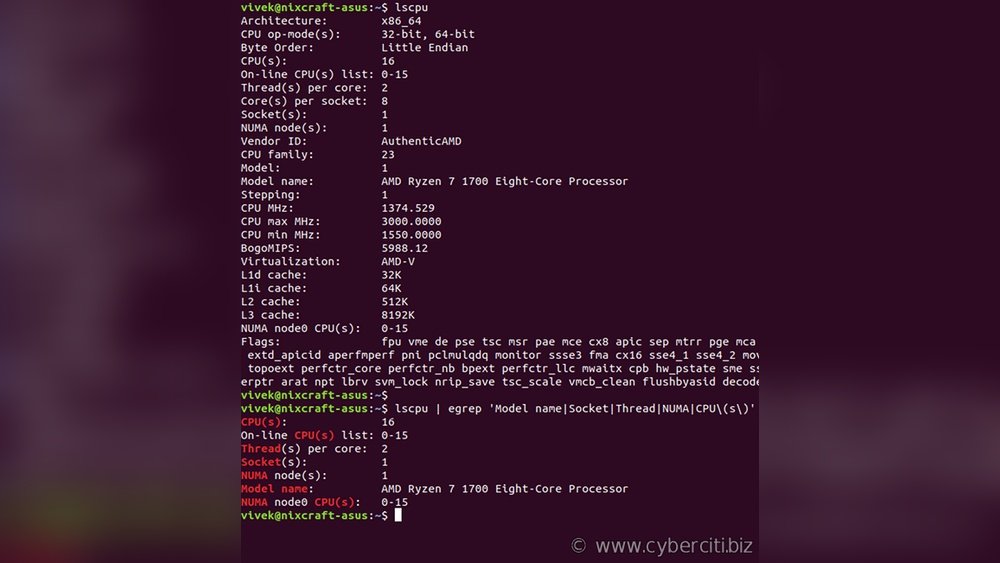
The lscpu command is a simple tool to check CPU information in Linux. It shows detailed data about your processor and its architecture. This command reads CPU details from the system files and presents them clearly.
Using lscpu helps you understand your CPU’s model, speed, cores, and threads. It works on almost all Linux distributions without extra installation. This makes it a quick way to get vital CPU info.
How To Run The Lscpu Command
Open the terminal on your Linux system. Type lscpu and press Enter. The command runs immediately and displays CPU information.
No special permissions are needed to use lscpu. Just a regular user can run it.
Understanding The Output Of Lscpu
The output shows many CPU details. Look for “Architecture” to see CPU type. “CPU(s)” tells how many cores your processor has.
“Model name” gives the exact CPU model. “CPU MHz” shows the current speed of your CPU in megahertz.
“Thread(s) per core” and “Core(s) per socket” explain CPU threading and core setup.
Using Lscpu With Additional Options
Run lscpu -e to see CPU info in a table format. It lists each CPU core separately.
The command lscpu --parse outputs CPU data in a parsable format. Useful for scripts or advanced users.
View Cpu Details Using /proc/cpuinfo
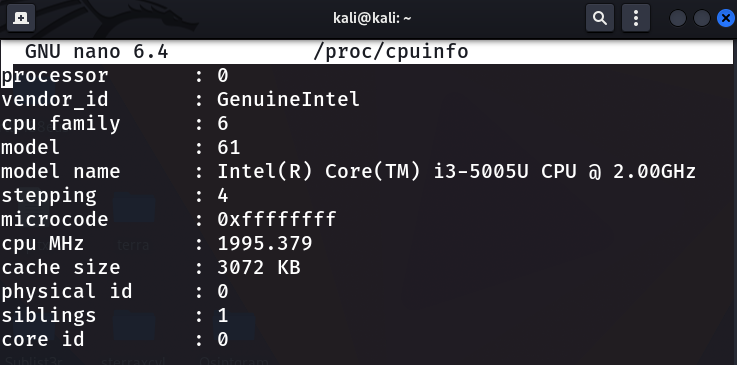
Viewing CPU details in Linux is simple with the /proc/cpuinfo file. This file holds detailed information about the processor. It shows data such as the CPU model, speed, number of cores, and cache size.
Accessing /proc/cpuinfo helps you understand your system’s CPU at a glance. This method works on almost all Linux distributions. No extra software is needed to use this built-in feature.
How To Open /proc/cpuinfo
Open the terminal on your Linux machine. Type cat /proc/cpuinfo and press Enter. The terminal will display the CPU information as plain text. Scroll through to see all details about your CPU.
Understanding The Cpu Information Output
The output lists each processor core separately. Look for terms like model name to find the CPU model. The cpu MHz shows the current speed. The cache size tells you about the processor cache.
Using Grep To Find Specific Cpu Details
Use the grep command to filter details. For example, grep 'model name' /proc/cpuinfo shows only the CPU model. This saves time by showing just the info you want.
Use Top And Htop For Real-time Cpu Monitoring
Monitoring your CPU in real-time helps you understand how your Linux system performs. Two popular tools for this task are top and htop. They show active processes and CPU usage instantly. These tools give clear insights into what uses your CPU and how busy it is.
Install And Run Htop
htop is a more user-friendly alternative to top. It shows color-coded bars for CPU, memory, and swap usage. To install htop, open your terminal and type:
sudo apt-get install htopFor other Linux versions, use your package manager, like yum or dnf.
After installation, start htop by typing:
htopThe interface shows CPU usage per core, running processes, and system load.
Interpreting Cpu Usage In Top
The top command is built into most Linux systems. Run it by typing:
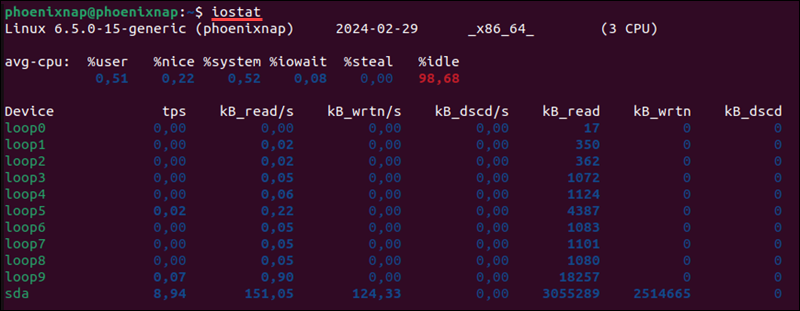
topLook at the top lines for CPU stats. The CPU line shows percentages for user, system, idle, and more.
User means CPU time spent running your programs. System shows time used by the kernel. Idle means free CPU time. High idle means low CPU use.
Processes are listed below with CPU usage per process. Sort by pressing Shift + P to see the highest CPU consumers.
Credit: phoenixnap.com
Get Cpu Info With Lshw Command
The lshw command provides detailed information about your CPU in Linux. It shows hardware details in a clear format. This tool helps you understand your processor’s specs quickly.
You can use lshw to get CPU model, speed, and cache size. It also lists the number of cores and threads. This information helps with system monitoring and troubleshooting.
How To Install Lshw
Many Linux systems have lshw pre-installed. To check, open a terminal and type lshw. If it is not found, install it using your package manager.
For example, on Debian or Ubuntu, run:
sudo apt-get install lshwOn Fedora or CentOS, use:
sudo dnf install lshwRunning Lshw To Get Cpu Details
Run sudo lshw -class processor to display CPU information. The command shows CPU product name, vendor, and speed.
It also lists core count and cache size. This output helps you identify your processor’s capabilities easily.
Understanding Lshw Cpu Output
The output shows product, which is the CPU model. vendor tells the manufacturer, like Intel or AMD.
configuration shows the CPU speed and features. Look for cores to see how many cores your CPU has.
Cache sizes appear under cache, useful for performance checks.
Check Cpu Architecture With Uname
Checking your CPU architecture helps understand your Linux system better. The uname command shows key system information quickly. It is a simple tool available on almost all Linux machines.
Using uname lets you see if your CPU is 32-bit or 64-bit. This detail matters for software compatibility and system performance. The process is fast and requires no extra software.
What Is The Uname Command?
The uname command prints system information. It stands for “Unix name.” It can show the kernel name, version, and machine hardware name.
This command helps identify the CPU architecture without complex steps. It works in the terminal and returns clear text.
How To Use Uname To Check Cpu Architecture
Open your terminal. Type uname -m and press Enter. The output shows your CPU architecture.
For example, it may show x86_64 for 64-bit or i686 for 32-bit. This simple command reveals what your CPU supports.
Other Useful Uname Options
Use uname -a to see all system details. This includes kernel name, version, and machine type.
It helps get a full picture of your system in one command. You can use this info for troubleshooting or software installation.
Credit: www.geeksforgeeks.org
Use Dmidecode For Detailed Cpu Data
The dmidecode command shows detailed information about your CPU.
It reads data directly from your system’s BIOS, giving accurate details.
This tool helps you learn about your processor model, speed, and more.
What Is Dmidecode?
dmidecode is a Linux command that extracts hardware info.
It displays data stored in the Desktop Management Interface (DMI) table.
This includes CPU, memory, motherboard, and other system parts.
How To Install Dmidecode
Most Linux systems have dmidecode pre-installed.
Use your package manager to install it if missing.
For Ubuntu, run: sudo apt install dmidecode.
Checking Cpu Details With Dmidecode
Open the terminal and type: sudo dmidecode -t processor.
This command shows detailed CPU info like manufacturer and speed.
Look for fields like “Version,” “Voltage,” and “External Clock.”
Understanding Dmidecode Output
The output lists each processor on your system separately.
Check “Socket Designation” to know which slot the CPU uses.
“Max Speed” tells you the maximum clock speed supported.
Monitor Cpu Temperature And Frequency
Monitoring your CPU temperature and frequency is important for keeping your Linux system healthy. High temperatures can cause your computer to slow down or even shut off. Checking the CPU frequency helps you know if your processor is running at the right speed. Both are key to avoid overheating and to improve performance.
Using Sensors Command
The sensors command shows CPU temperature directly in the terminal. It is part of the lm-sensors package. To use it, first install the package with your package manager. Then run sensors. You will see temperature readings for your CPU cores and other hardware.
These readings update in real time. It helps catch temperature spikes early. If you notice high temperatures, consider cleaning your computer’s fans or improving airflow.
Checking Cpu Frequency With Cpufreq-utils
The cpufreq-utils tool reports CPU frequency details. Install it using your package manager. Run cpufreq-info to see current CPU speed and available frequencies.
This tool also shows your CPU’s governor, which controls frequency scaling. Governors adjust CPU speed based on workload to save power or boost performance.
Use this information to understand how your CPU adjusts during tasks. It helps diagnose slowdowns or high power use.
Automate Cpu Checks With Scripts
Automating CPU checks with scripts saves time and effort in Linux system monitoring. Scripts run commands automatically to gather CPU information. This helps track CPU usage and health regularly without manual input.
Simple scripts can run basic commands like top or mpstat and save results. More advanced scripts analyze data and send alerts if CPU usage is too high. Automation makes managing system performance easier and faster.
Creating A Basic Cpu Check Script
Start by writing a script with common commands like top -bn1 or vmstat. These commands show CPU load and processes. Save the output to a text file for review later. Use a text editor like nano or vim to create the script.
Scheduling Cpu Checks With Cron
Use cron to run CPU check scripts at set times. Cron jobs automate script execution daily, hourly, or every minute. Edit the crontab file with crontab -e and add your script’s path. This ensures continuous monitoring without manual effort.
Adding Alerts For High Cpu Usage
Enhance scripts by adding conditions to detect high CPU use. Use commands like grep and awk to filter CPU data. If usage exceeds a limit, send an email or notification. This helps react quickly to performance issues.
Frequently Asked Questions
How Do I Check Cpu Info In Linux Terminal?
Use the command lscpu in the Linux terminal. It displays detailed CPU architecture and specifications instantly.
What Command Shows Cpu Usage On Linux?
Run top or htop commands to monitor real-time CPU usage and processes on Linux systems efficiently.
Can I View Cpu Temperature On Linux?
Yes, install lm-sensors and run sensors command to check CPU temperature and other hardware sensors.
How To Find Cpu Model On Linux?
Use cat /proc/cpuinfo | grep “model name” | uniq to get the exact CPU model name quickly.
Conclusion
Checking your CPU in Linux is simple and quick. You can use basic commands like lscpu or cat /proc/cpuinfo. These tools give clear details about your processor. Knowing your CPU helps with system tasks and troubleshooting. Practice these steps to get familiar with your Linux system.
Keep this guide handy for future reference. Understanding your CPU is a useful skill for any Linux user.