How to See Cpu Fan Speed: Easy Steps to Monitor Performance
Are you worried your CPU fan might not be working properly? Knowing your CPU fan speed is key to keeping your computer cool and running smoothly.
If the fan slows down or stops, your system could overheat and cause serious damage. But don’t worry—checking your CPU fan speed is easier than you think. You’ll learn simple and effective ways to see exactly how fast your CPU fan is spinning.
Keep reading to protect your PC and boost its performance before any problems start.
Why Monitor Cpu Fan Speed
Monitoring your CPU fan speed is important for keeping your computer safe and working well. The CPU fan helps cool down the processor by moving air inside the computer case. If the fan is not working properly, your computer might get too hot. This can cause many problems that affect your computer’s performance and life.
Impact On System Cooling
The CPU fan controls the airflow inside your computer. Proper airflow removes heat from the CPU. When the fan speed is right, the CPU stays cool. If the fan speed drops, heat builds up quickly. This makes your system hotter and less stable.
Preventing Overheating
Overheating can cause your computer to shut down suddenly. It can also damage the CPU and other parts. Watching the fan speed helps catch problems early. If the fan is slow or stopped, you can fix it before overheating starts.
Extending Hardware Lifespan
Heat is one of the main reasons hardware fails early. A working fan keeps the CPU at safe temperatures. This reduces wear and tear on the processor. Checking fan speed regularly helps your computer last longer.
Methods To Check Cpu Fan Speed
Checking your CPU fan speed helps keep your computer cool and safe. It shows if the fan works well or needs cleaning. Many ways exist to check fan speed. Some methods use built-in tools. Others need software or commands. Choose the one that fits your device and skill level.
Using Bios Settings
Restart your computer and enter the BIOS menu. Usually, press keys like F2, Delete, or Esc during startup. Look for hardware or monitoring sections. Find the CPU fan speed or fan control option. BIOS shows fan speed in RPM (revolutions per minute). It updates live as the fan spins. This method does not need extra software. It works even if the operating system is not running.
Windows Software Tools
Windows users can check fan speed with free tools. Programs like HWMonitor, SpeedFan, or Core Temp show fan speed and temperatures. Download and install the software. Open it to see a list of hardware sensors. Find the CPU fan speed reading. These tools also help track system health. They update fan speed in real-time while Windows runs.
Mac Utilities
Mac users can try apps like iStat Menus or Macs Fan Control. These apps display fan speed and temperature data. Download and install the app from a trusted site. Open the app and check the CPU fan speed section. Some apps allow you to control fan speed manually. They help protect Mac hardware from overheating.
Linux Commands
Linux users can check fan speed using terminal commands. Install lm-sensors with a package manager like apt or yum. Run sensors-detect to find hardware sensors. Use the command sensors to see fan speed and temperature. This method works well on most Linux distributions. It shows detailed hardware information for system monitoring.
Popular Cpu Fan Monitoring Tools
Knowing your CPU fan speed helps keep your computer cool and safe. Many tools show fan speed and other hardware details. These tools work on Windows and are easy to use. They help you check if your fan runs well or needs cleaning.
Speedfan
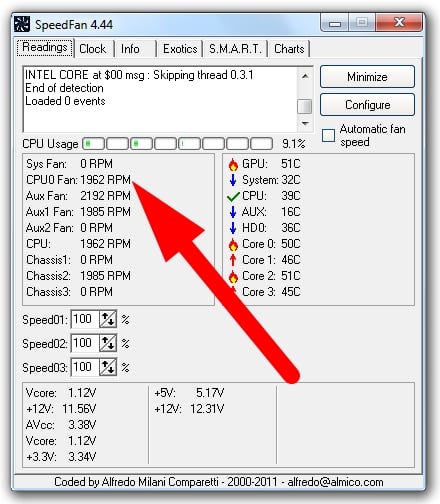
SpeedFan is a popular tool for fan speed monitoring. It shows temperature, voltage, and fan speeds. You can change fan speeds to control cooling. The interface is simple and clear. SpeedFan works with many hardware types.
Hwmonitor
Hwmonitor displays real-time data about your CPU fan speed. It also shows temperatures of CPU, GPU, and hard drives. The tool is lightweight and easy to install. Hwmonitor updates the readings frequently for accuracy.
Core Temp
Core Temp focuses on CPU temperature but shows fan speed too. It provides detailed info about each processor core. The program is small and runs quietly in the background. Core Temp helps track overheating problems.
Open Hardware Monitor
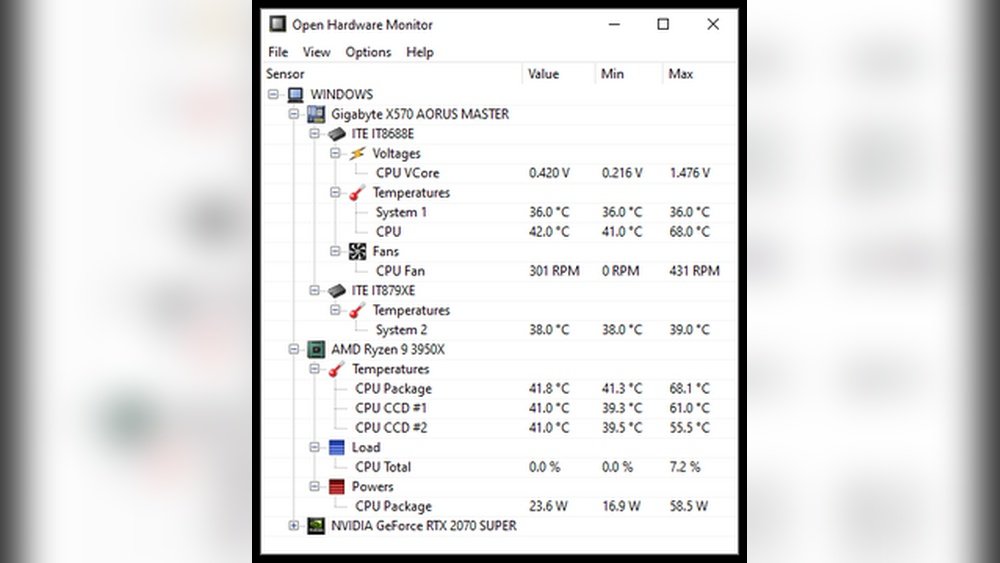
Open Hardware Monitor is an open-source tool for hardware monitoring. It shows CPU fan speed, temperatures, and voltages. The program has a user-friendly dashboard. It supports most modern hardware components.

Credit: softwareg.com.au
Step-by-step Cpu Fan Speed Check
Checking your CPU fan speed helps ensure your computer runs cool and safe. This step-by-step guide shows easy ways to view fan speed. Follow each step to understand your CPU’s cooling status quickly.
Accessing Bios
Restart your computer and press the BIOS key during startup. Common keys are F2, Delete, or Esc. Look for the “Hardware Monitor” or “PC Health” section. Here, you will find CPU fan speed displayed in RPM (revolutions per minute). Note the values and exit BIOS carefully to avoid changes.
Installing Monitoring Software
Choose a reliable CPU fan speed monitoring tool like HWMonitor or SpeedFan. Download and install the program from its official site. Open the software and locate the fan speed section. The software shows real-time fan speed and other hardware temperatures.
Interpreting Fan Speed Data
Fan speed is measured in RPM; higher numbers mean faster spinning. Normal speeds vary by CPU and fan model but usually range between 1000 and 4000 RPM. Low speeds might cause overheating, while very high speeds can create noise. Check your CPU temperature to match fan speed for safe operation.
Troubleshooting Fan Speed Issues
CPU fan speed problems can cause your computer to overheat or make strange noises. Troubleshooting fan speed issues helps keep your system cool and running smoothly. This guide explains common fan problems and how to check them.
Fan Not Spinning
The fan not spinning often means a power or connection issue. Check if the fan cable is properly plugged into the motherboard. Dust or dirt can block the fan blades. Clean the fan carefully with compressed air. If the fan still does not spin, it might be faulty and need replacement.
Unusual Fan Noise
Strange sounds from the fan can signal dirt or damage. Dust buildup makes the fan work harder and louder. Use a soft brush or compressed air to clean the fan blades. Loose screws or worn bearings can cause rattling or grinding. Tighten screws and consider replacing the fan if noise continues.
Inconsistent Fan Speeds
Fan speed changing often may result from temperature sensors or software errors. Check your BIOS or fan control software settings. Set the fan speed to automatic or manual to test stability. Make sure the temperature sensors are clean and working. Replace the fan if speed changes remain irregular.
Credit: www.breezeresidency.com
Optimizing Cpu Fan Performance
Optimizing CPU fan performance is key to keeping your computer cool. A well-running fan stops your CPU from overheating. It also helps your PC run smoothly and last longer. You can make small changes to improve fan speed and efficiency.
Cleaning Dust And Debris
Dust and dirt block airflow inside your PC. This makes the fan work harder and slower. Turn off your computer and unplug it first. Use a soft brush or compressed air to clean the fan blades. Remove dust from vents and other parts. Clean fans regularly to avoid overheating issues.
Adjusting Fan Curves
Fan curves control how fast the fan spins at different temperatures. You can change these settings in the BIOS or use software tools. Set the fan to run faster as the CPU temperature rises. This keeps the CPU cooler without making too much noise. Adjusting fan curves balances cooling and quietness.
Replacing Faulty Fans
Fans can wear out or break over time. A faulty fan may spin slowly or stop working. Listen for strange noises or check fan speed in software. Replace any fan that does not work well. Choose a fan that fits your PC case and has good airflow. A new fan keeps your CPU cool and protects your hardware.

Credit: superuser.com
Frequently Asked Questions
How Can I Check My Cpu Fan Speed In Windows?
You can check CPU fan speed using BIOS or third-party apps like HWMonitor. Restart your PC, enter BIOS, and find fan speed under hardware monitoring.
What Software Shows Cpu Fan Speed Accurately?
HWMonitor, SpeedFan, and MSI Afterburner reliably display CPU fan speed. These tools provide real-time monitoring and are easy to use for beginners.
Why Is My Cpu Fan Speed Fluctuating?
CPU fan speed changes based on temperature. When the CPU heats up, the fan spins faster to cool it down efficiently.
Can I Control Cpu Fan Speed Manually?
Yes, you can adjust fan speed using BIOS settings or software like SpeedFan. This helps balance cooling and noise levels effectively.
Conclusion
Checking your CPU fan speed helps keep your computer safe. It shows if the fan runs too fast or too slow. You can use built-in tools or free software to see the speed. Watching the fan speed helps stop overheating and damage.
Regular checks make your computer work well longer. Now, you know simple ways to check your CPU fan speed. Keep your system cool and running smoothly. Easy steps, big benefits.