How to Get Cpu Temperature: Easy Steps to Monitor PC Heat
Do you ever wonder if your computer is running too hot? Knowing your CPU temperature is key to keeping your device safe and performing well.
If your CPU gets too hot, it can slow down or even get damaged. But how do you check this important number? You’ll learn simple and effective ways to get your CPU temperature quickly. By the end, you’ll know exactly how to monitor your system and avoid overheating problems before they happen.
Let’s dive in and make sure your computer stays cool and healthy!
Why Monitor Cpu Temperature
Monitoring your CPU temperature is important for keeping your computer safe and working well. The CPU is the brain of your computer. It works hard and can get very hot. Checking its temperature helps prevent problems and keeps your system running smoothly.
Heat can damage your CPU and other parts. Watching the temperature helps you catch issues early. It also helps your computer last longer and perform better. Let’s explore why you should monitor CPU temperature regularly.
Impact Of High Temperatures
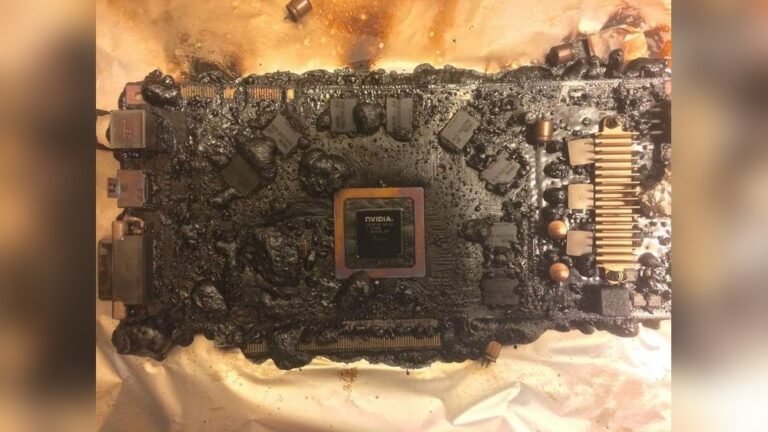
High CPU temperatures can cause slow performance. Your computer may freeze or shut down suddenly. Heat can shorten the life of your CPU and other parts. Overheating can damage the motherboard and memory chips. Keeping temperature low protects your whole system.
Signs Of Overheating
Your computer might become very slow. Fans may run loudly or constantly. You could see random crashes or blue screens. The case might feel hot to touch. Programs can stop working or freeze often. These are signs your CPU is too hot.
Benefits Of Regular Monitoring
Checking CPU temperature helps avoid sudden crashes. You can fix cooling problems early. It improves your computer’s speed and stability. Regular checks extend the life of your hardware. You save money by preventing costly repairs or replacements.

Credit: softwareg.com.au
Tools To Check Cpu Temperature
Checking your CPU temperature is important to keep your computer safe. High temperatures can cause damage or slow down your system. Various tools make it easy to see the CPU temperature. Some tools are built right into your computer. Others need to be downloaded. Command line utilities offer a simple way to check temperature too.
Built-in Bios/uefi Options
Your computer’s BIOS or UEFI often shows CPU temperature. To access it, restart your PC and press a key like F2 or Delete. The temperature appears in hardware or system health sections. This method does not need extra software. It gives a quick snapshot before the operating system loads. However, it cannot show temperature while using the computer.
Popular Software Solutions
Many free programs display CPU temperature easily. Tools like HWMonitor, Core Temp, and SpeedFan are common choices. They show real-time data and graphs. These apps are user-friendly and fit most operating systems. Some also monitor fan speeds and voltages. Installing software helps track temperature during heavy tasks.
Command Line Utilities
Command line tools provide a simple way to check CPU temperature. On Linux, commands like lm-sensors work well. Windows users can try PowerShell scripts or third-party command line apps. These tools are fast and use little system resources. They suit users who prefer text-based interfaces. Command line utilities help with quick temperature checks without extra programs.
Step-by-step Temperature Check
Checking your CPU temperature helps keep your computer safe and running well. High temperatures can cause slowdowns or damage. Follow these clear steps to check the temperature easily.
Accessing Bios/uefi Temperature Readings
Restart your computer and enter the BIOS or UEFI settings. This usually requires pressing a key like F2, DEL, or ESC during startup. Look for a section called “Hardware Monitor” or “PC Health.” Here, you can see the CPU temperature directly from the motherboard sensors. This method shows real-time temperature without extra software.
Using Third-party Software
Download trusted software like HWMonitor, Core Temp, or SpeedFan. Install and open the program to view CPU temperature. These tools give detailed information about each core’s temperature. They also show other vital stats like fan speed and voltage. Software is easy to use and updates temperature data live while Windows runs.
Interpreting Temperature Results
Normal CPU temperatures range from 30°C to 50°C when idle. Under heavy use, temperatures can rise to 70°C or 80°C. Temperatures above 90°C are risky and may cause damage. If your CPU runs hot, check your cooling system and clean dust inside the PC. Keeping temperature in the safe range protects your computer’s lifespan.
Tips To Lower Cpu Temperature
Keeping your CPU cool is important for your computer’s health. High temperatures can slow down your system or cause damage. There are simple ways to lower the CPU temperature and keep your device running smoothly.
These tips focus on improving airflow, cleaning inside the case, and upgrading cooling systems. Each step helps reduce heat and protects your CPU from overheating.
Improving Airflow Inside The Case
Good airflow moves hot air out and brings cool air in. Arrange cables neatly to avoid blocking air paths. Use fans to push air from front to back. Keep empty spaces inside the case for better air movement. Position your computer where it can get fresh air, not in tight spaces.
Cleaning Dust And Debris
Dust blocks air vents and slows cooling parts. Open your case and gently remove dust using a soft brush or compressed air. Focus on fans, heat sinks, and air vents. Clean your PC every few months to keep it dust-free. A clean case means better airflow and lower temperatures.
Upgrading Cooling Systems
Stock coolers may not be enough for powerful CPUs. Consider upgrading to a better air cooler with larger fans or heat pipes. Liquid cooling systems offer more efficient heat removal. Choose a cooler that fits your case and matches your CPU’s needs. Better cooling means your CPU stays cool under heavy use.
When To Seek Professional Help
Knowing when to get professional help with CPU temperature issues is important. Some problems need expert care to avoid damage to your computer. Watch for signs that show your PC needs more than simple fixes. Acting quickly can protect your device and save money.
Persistent Overheating Issues
If your CPU keeps getting too hot, it may need expert attention. Cleaning fans or reapplying thermal paste might not be enough. Constant overheating can cause crashes or slow performance. A technician can find hidden problems causing heat build-up.
Hardware Replacement Considerations
Old or damaged parts may need replacement to fix temperature problems. Professionals know which components to check and change. They use tools to test hardware and ensure proper cooling. Replacing parts yourself can cause more damage without the right skills.
Warranty And Support Options
Check if your computer is still under warranty before fixing it yourself. Many warranties cover repairs for overheating issues. Contact your manufacturer or seller for support and guidance. Using authorized service keeps your warranty valid and protects your investment.
Credit: www.youtube.com

Credit: www.alcpu.com
Frequently Asked Questions
How Can I Check My Cpu Temperature On Windows?
You can check CPU temperature using software like HWMonitor, Core Temp, or SpeedFan. These tools show real-time temperature data clearly and help monitor your CPU health effectively.
What Is A Safe Cpu Temperature Range?
A safe CPU temperature typically ranges between 30°C to 70°C under normal use. Temperatures above 80°C may indicate overheating, risking hardware damage.
Can Bios Show Cpu Temperature?
Yes, most BIOS or UEFI setups display CPU temperature in the hardware monitor section. Access BIOS during startup to view accurate, real-time temperature readings.
Why Is Monitoring Cpu Temperature Important?
Monitoring CPU temperature prevents overheating, which can cause crashes or hardware damage. It ensures your PC runs efficiently and extends its lifespan.
Conclusion
Monitoring your CPU temperature helps keep your computer safe. Knowing how to check it prevents overheating problems. You can use simple tools or built-in software. Regular checks improve your PC’s performance and lifespan. Keep your system cool and running smoothly.
Stay aware and act fast if temperatures rise. This small step protects your device every day.