How to Keep a Cpu Cool: Essential Tips for Ultimate Performance
Is your computer running slower than usual or shutting down unexpectedly? The culprit might be your CPU overheating.
Keeping your CPU cool is essential for smooth performance and a longer lifespan. But how do you make sure your processor stays at the right temperature? You’ll discover simple and effective ways to keep your CPU cool, protect your hardware, and boost your computer’s speed.
Ready to learn the secrets that can save your device from heat damage? Let’s dive in!
Signs Of Cpu Overheating
Knowing the signs of CPU overheating helps protect your computer. The CPU works hard, and heat builds up fast. Without proper cooling, problems appear. Spotting these signs early keeps your PC safe.
Common Symptoms
One sign is the computer slows down without reason. Programs may freeze or crash often. Fans inside might run loudly or constantly. The system may shut down suddenly without warning. You might see error messages about overheating.
Risks Of High Temperatures
High heat can damage the CPU and other parts. It shortens the life of your computer. Overheating may cause data loss or corruption. It also leads to poor performance and instability. Avoiding heat problems saves money and stress.

Credit: www.microcenter.com
Choosing The Right Cooling System
Choosing the right cooling system for your CPU is very important. It helps keep your computer running smoothly. The right cooler stops your CPU from getting too hot. This protects your parts and makes your PC last longer. You have different options to pick from. Each type has its own benefits and costs. Understanding these will help you pick the best cooler for your needs.
Air Cooling Solutions
Air coolers use fans and heat sinks to cool the CPU. They are common and easy to install. Fans push air over metal fins that absorb heat. This type of cooling is quiet and affordable. Most standard computers use air cooling. It works well for everyday tasks and light gaming. Air coolers need good case airflow to work best. Dust can build up, so cleaning is needed sometimes.
Liquid Cooling Options
Liquid cooling uses water or coolant to move heat away. It has tubes that carry liquid to a radiator. The radiator cools the liquid with fans. Liquid coolers often cool better than air systems. They are quieter under heavy loads. These coolers are popular for high-performance computers. Installation is more complex and costs more. Leaks are rare but possible, so care is needed.
Comparison Of Cooling Methods
Air cooling is simpler and cheaper. It fits most budget builds and keeps noise low. Liquid cooling gives better temperature control. It suits powerful CPUs and overclocking. Air coolers need less maintenance and have fewer risks. Liquid coolers can handle more heat but need care. Choose based on your budget, PC use, and noise preference. Both can keep your CPU safe and cool.
Optimizing Airflow Inside The Case
Optimizing airflow inside your computer case is key to keeping your CPU cool. Good airflow moves hot air out and brings cool air in. This helps your CPU stay at a safe temperature. Poor airflow can cause your CPU to overheat and slow down.
Each part inside the case affects airflow. Fans, cables, and the case itself must work together. Let’s explore how to arrange these parts for the best airflow.
Fan Placement And Direction
Place fans to create a clear path for air. Front fans should pull cool air into the case. Rear and top fans should push hot air out. This setup moves air smoothly across the CPU and other parts.
Check fan direction carefully. Fans have arrows showing airflow. Make sure intake and exhaust fans face the right way. This stops air from circulating in the wrong direction.
Cable Management Tips
Keep cables tidy and out of airflow paths. Messy cables block air and trap heat. Use zip ties or Velcro straps to bundle cables together. Route cables behind the motherboard tray when possible.
A clean setup lets air move freely. This helps cool your CPU and other components better. Good cable management also makes your case look neat and professional.
Case Selection For Better Cooling
Choose a case designed for airflow. Look for cases with mesh panels and multiple fan mounts. Larger cases often have more space for air to flow.
Cases with good ventilation reduce heat buildup. Some cases have filters to keep dust out. Dust can block airflow and make cooling less effective.
Applying Thermal Paste Effectively
Applying thermal paste is a key step to keep your CPU cool. It helps move heat from the CPU to the cooler. Without it, your CPU can overheat and slow down. Using thermal paste correctly ensures your computer runs smoothly and lasts longer.
Importance Of Thermal Paste
Thermal paste fills tiny gaps between the CPU and cooler. These gaps trap air, which blocks heat transfer. Paste replaces air with a material that moves heat well. This keeps the CPU temperature low and prevents damage. Good thermal paste improves cooling efficiency a lot.
Proper Application Techniques
Start with a clean CPU surface. Use a small pea-sized drop of paste in the center. Avoid spreading it yourself; the cooler will spread it evenly. Too much paste can cause poor heat transfer. Too little paste leaves gaps. Press the cooler gently but firmly onto the CPU. This spreads the paste thinly and evenly.
When To Reapply
Thermal paste dries out over time and loses its power. Check your CPU temperature regularly. If it rises without other reasons, reapply the paste. Also reapply when you remove the cooler. This keeps good contact and cools the CPU well. Usually, reapply every 2 to 3 years for best results.
Maintaining A Clean System
Keeping your CPU cool starts with maintaining a clean system. Dust and dirt block airflow and trap heat. A clean computer runs cooler and lasts longer. Cleaning your system is a simple step that makes a big difference.
Removing Dust And Debris
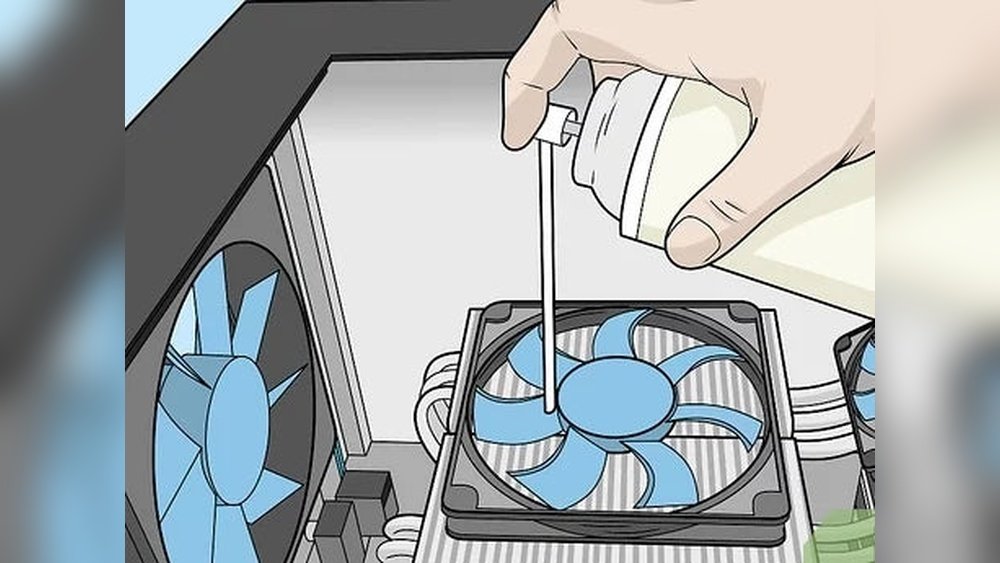
Dust builds up inside your computer over time. It covers fans, vents, and heatsinks. This stops air from moving freely. Use a can of compressed air to blow out dust. Hold the can upright and spray short bursts. Avoid touching parts inside to prevent damage. Clean all fans, vents, and the CPU cooler carefully.
Regular Cleaning Schedule
Set a regular time to clean your system. Every three to six months works well. More often if your environment is dusty or pet-friendly. Regular cleaning keeps dust from piling up. It helps your CPU run cooler and keeps your PC stable. Mark your calendar and stick to the schedule.

Credit: softwareg.com.au
Monitoring Cpu Temperatures
Monitoring CPU temperatures is important to keep your computer running well. High temperatures can cause slowdowns and damage. Watching the temperature helps you know when to cool your CPU better. It also helps find problems early before they get worse.
Recommended Software Tools
Several free tools show your CPU temperature in real time. Core Temp is simple and easy to use. HWMonitor gives details about temperatures and voltages. Speccy shows overall system health and CPU heat. These tools work on most Windows computers. They update data every second or two. You can check your CPU heat without opening the case.
Interpreting Temperature Readings
Normal CPU temperature varies by model but often stays between 30°C and 50°C when idle. Under heavy use, it can rise to 70°C or 80°C. If temperatures go above 85°C, your CPU may be too hot. This can cause your computer to slow down or shut off suddenly. Watch for sudden spikes or constant high numbers. These signs mean you need to improve cooling or clean dust from fans.
Adjusting System Settings For Cooling
Keeping your CPU cool is not just about hardware. Adjusting system settings can also help reduce heat. These settings control how your computer manages power and cooling. Small changes can make a big difference in temperature.
Bios And Firmware Tweaks
The BIOS is the computer’s basic control system. You can enter the BIOS during startup. Look for options like CPU temperature limits or power management. Lowering the temperature limit can make the system cool down faster. Some BIOS versions allow you to enable better cooling profiles. Update your BIOS if you do not see these options.
Fan Speed Control
Fans help move hot air away from the CPU. You can adjust fan speed in BIOS or with software. Set fans to run faster when the CPU gets hot. This keeps the system cooler but may cause more noise. Balance speed and noise for comfort. Some tools let you create custom fan curves for better control.
Underclocking And Undervolting
Underclocking reduces the CPU speed to lower heat. It makes the CPU run slower but cooler. Undervolting lowers the CPU voltage without reducing speed. This cuts heat while keeping performance steady. Both methods help control temperature with less power. Use software tools to test and adjust these settings safely.
Credit: www.pcgamer.com
Upgrading Hardware For Better Cooling
Upgrading your computer’s hardware can greatly improve CPU cooling. Better cooling keeps your CPU running smoothly and extends its life. Simple hardware changes make a big difference in heat control.
High-performance Coolers
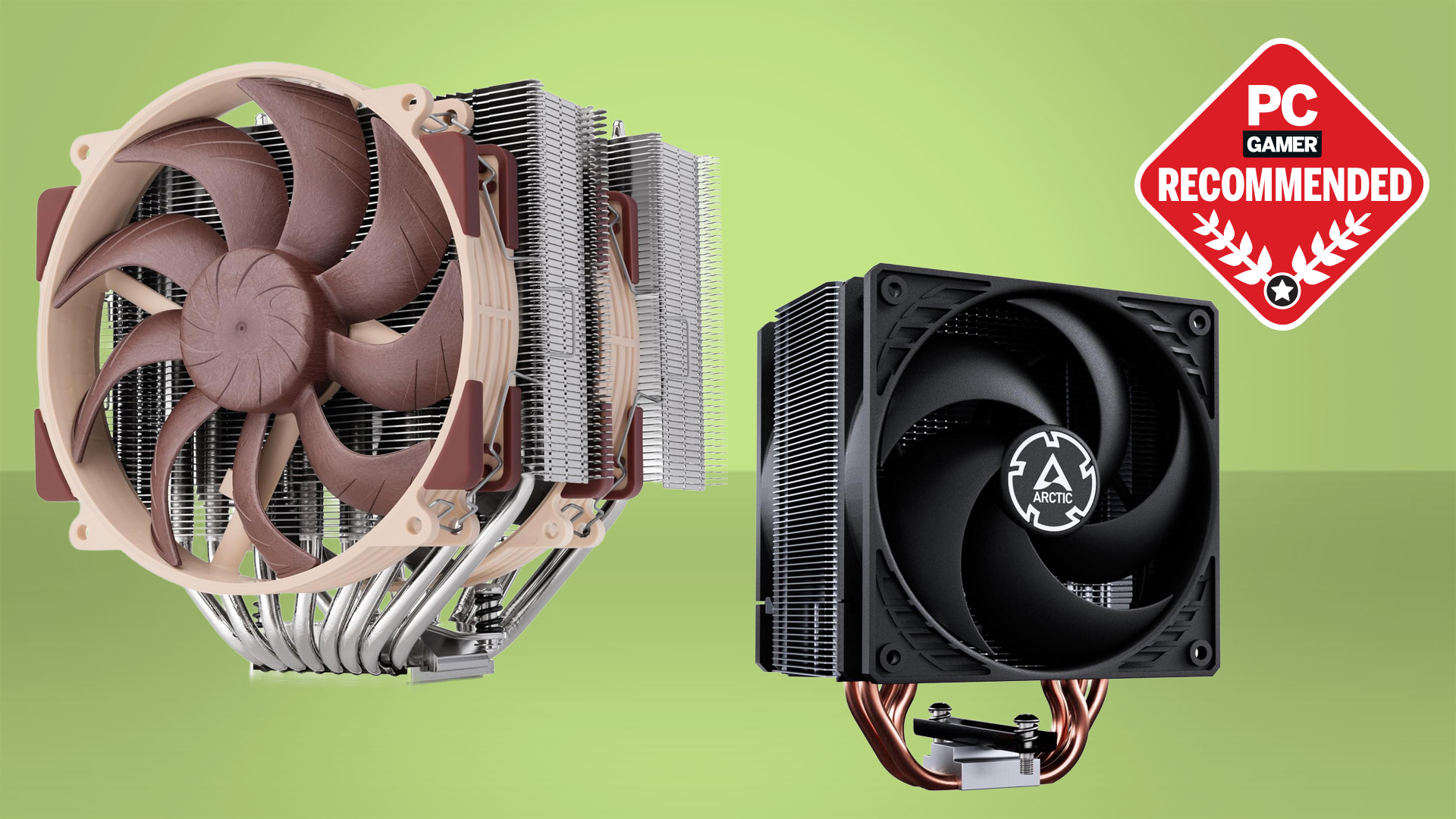
High-performance coolers replace stock coolers for better heat removal. They often use larger fans and advanced designs. Some coolers include liquid cooling for faster heat transfer. These coolers keep the CPU temperature low under heavy use. Installing a good cooler reduces noise and improves performance.
Enhanced Case Fans
Case fans help move hot air out and bring cool air in. Upgrading to larger or more efficient fans increases airflow. Place fans to create a clear air path around the CPU. Quiet fans with high airflow improve cooling without extra noise. Good case ventilation helps all parts stay cooler.
Thermal Pads And Heat Sinks
Thermal pads improve heat transfer between the CPU and cooler. They fill gaps where air would trap heat. Heat sinks add surface area to spread heat away from the CPU. Upgrading these parts helps cool the CPU faster. Check compatibility before buying new thermal pads or heat sinks.
Frequently Asked Questions
How Can I Improve Cpu Cooling Effectively?
To improve CPU cooling, use high-quality thermal paste and ensure proper fan placement. Regularly clean dust from vents and fans. Consider upgrading to a better CPU cooler or adding extra case fans for improved airflow.
What Is The Best Cpu Cooler For Gaming Pcs?
The best CPU cooler for gaming PCs depends on your budget and case size. Air coolers like Noctua NH-D15 offer excellent cooling. Liquid coolers like Corsair H100i provide efficient heat dissipation and quieter operation.
How Often Should I Clean My Cpu Cooler?
Clean your CPU cooler every 3 to 6 months. Dust buildup reduces cooling efficiency and increases temperatures. Use compressed air to blow out dust from fans and heatsinks carefully without damaging components.
Can Undervolting Help Keep My Cpu Cool?
Yes, undervolting reduces CPU voltage, lowering power consumption and heat generation. It keeps your CPU cooler without sacrificing performance. Use reliable software and test stability thoroughly after undervolting.
Conclusion
Keeping your CPU cool helps your computer run smoothly and last longer. Use good cooling methods like fans, heat sinks, and thermal paste. Clean dust often to avoid blockages and poor airflow. Monitor your CPU temperature regularly to catch problems early.
Simple steps make a big difference in performance and safety. Stay aware and maintain your system well. Your CPU will thank you with better speed and reliability.